

Google Meet can now turn a finished video call into follow-up work without making participants rebuild the conversation by hand. A new post-meeting area called “Routines for this meeting” uses Gemini and Workspace Studio to draft follow-up emails or send action items to Google Tasks.
Google announced the feature on October 12, 2026, after rollout began October 5. The idea is practical, but the feature is not universal: it requires an eligible paid Workspace edition, a Calendar-based meeting on a computer, and the correct Gemini and note-taking settings. The email routine also has narrower rules than the Tasks option.
Google Meet automatic follow-ups at a glance
- Google Meet’s post-call screen can suggest two routines: draft a follow-up email or add action items to Google Tasks.
- “Take notes for me” and Ask Gemini must be enabled during the meeting, and Workspace smart features must be on.
- The meeting must be attached to a Google Calendar event, and the post-call setup is performed on a computer.
- The rollout began October 5, 2026, and Google says visibility may take longer than 15 days.
- Eligible editions include Business Standard and Plus, Enterprise Standard and Plus, and the Google AI Pro for Education add-on.
- The email-draft routine requires the meeting host, a one-off meeting, and at least one participant outside the host’s organization.
- Generated next steps cannot be edited after they are created, but users or administrators can turn them off.
What the two routines actually do
The first routine prepares a follow-up email from the meeting context. Instead of opening Gmail and reconstructing the discussion, the host receives a draft that can be reviewed, corrected and sent. Google says some completed routines, including email drafts, can also trigger a Google Chat notification.
The second routine takes action items found in the meeting notes and exports them to Google Tasks. This is the broader option because it can support recurring meetings, while Google’s help page places special restrictions on automatic email drafts.
Neither routine sends an email or completes a task by itself. The useful part is moving structured follow-up work into the apps where people already manage it. A human still needs to confirm recipients, wording, ownership and deadlines before treating the output as authoritative.
How the workflow moves from meeting to follow-up
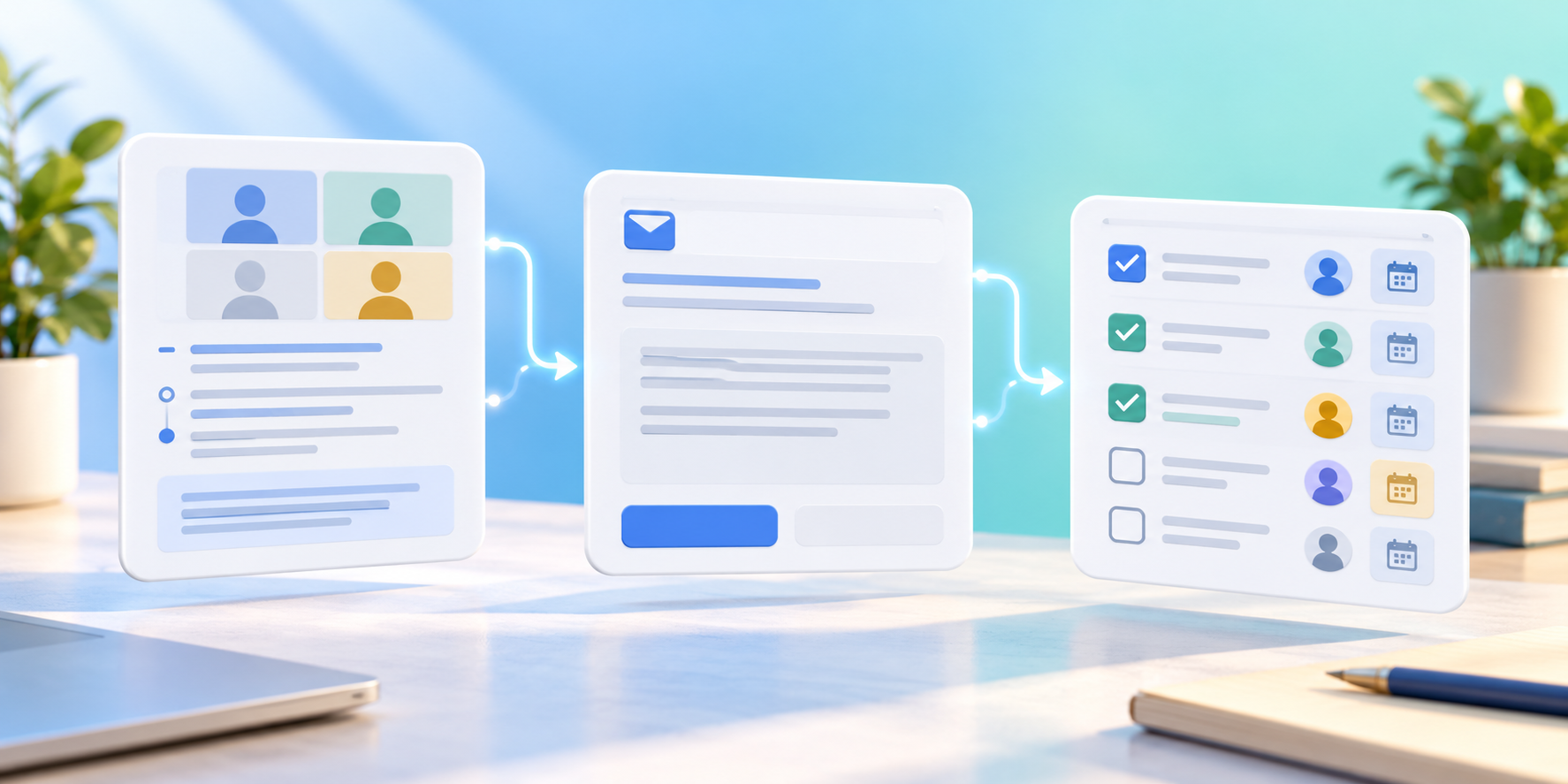
The workflow starts inside the meeting. “Take notes for me” captures the discussion in a Google Doc, while Ask Gemini can identify key points and action items. When the call ends, eligible users may see “Routines for this meeting” on the post-call screen.
Enabling a routine creates a system-managed flow in Workspace Studio. The first time a user turns one on, Google sends an email confirming that the next step is active. The flow can then draft the email or create tasks from future eligible meeting notes, depending on the selected routine and scope.
This is different from asking Gemini a question during a live call. Ask Gemini is designed for private in-meeting summaries and questions; “Take notes for me” creates the shared notes document that remains after the call. The new routine layer acts after the meeting and turns that retained context into work.
Who gets it and when rollout starts
Google lists the feature for Business Standard and Plus, Enterprise Standard and Plus, and customers with the Google AI Pro for Education add-on. Business Starter, Enterprise Starter, free personal Google accounts and other editions are not listed in the launch availability.
Rapid Release and Scheduled Release domains share the same extended rollout, which began October 5. Google warns that visibility may take longer than 15 days, so an eligible account can meet every requirement and still not see the feature immediately.
The feature is on by default for eligible organizations, but administrators can disable it at the domain, organizational-unit or group level through Workspace Studio controls or the “Take notes for me” setting. Users should therefore check with an administrator before assuming a missing routine is a technical failure.
Requirements before routines appear
- Use a work or school Google Account on an eligible edition.
- Join a Google Meet call from a computer; the routine setup is not presented as a mobile workflow.
- Make sure the meeting belongs to a Google Calendar event rather than an instant, uncalendared call.
- Turn on Workspace smart features, “Take notes for me” and Ask Gemini during the meeting.
- Wait for the meeting to end, then look for “Routines for this meeting” on the post-call screen.
Google’s help documentation says suggested next steps can vary or may not appear, depending on meeting content and settings. A call with no clear actions may therefore produce a different result from a structured project review with explicit owners and deadlines.
How to enable and manage the routines
At the end of an eligible meeting, use the post-call screen on a computer and find “Routines for this meeting.” Turn on the suggested email or Tasks next step. If the meeting is part of a repeating series, Google can apply an enabled routine to future meetings in that series.
After the first activation, the routine appears in the Workspace Studio Flows library with a “system” label. That is where users can inspect activity history, confirm whether a run succeeded and turn the flow off. Google does not allow users to edit a system-generated next step after it is created.
To disable a routine, turn it off from the Meet post-call screen after another meeting or open Workspace Studio, select Flows, find the system flow and choose Turn off. Disabling a series-level or all-meetings routine stops it for future calls in that scope.
Why email drafts have stricter rules
Google’s help page says the follow-up email routine is available only when the user is the meeting host, the meeting is not part of a repeating series and at least one participant is outside the host’s organization. Those conditions make the email routine most relevant to customer calls, interviews, vendor discussions and other one-off external meetings.
The restrictions also reduce ambiguity. An external follow-up usually has an obvious audience and purpose, while a standing internal meeting could generate repetitive drafts with unclear recipients. Recurring teams can still use the Tasks routine to carry action items into a persistent work list.
Because the result is a draft, hosts should check names, commitments, dates and confidential details before sending. Meeting summaries can omit context or assign an action incorrectly, and an automatically prepared message should not be treated as a transcript or final record.
Recurring meetings can make routines persistent
When a next step is enabled for a repeating meeting, Google says it can remain active for future instances of that series. Users may also enable a specific next step across all meetings when “Take notes for me” is on.
That persistence is powerful, but it can surprise teams that assume each call is a one-time action. Review the Workspace Studio Flows library after testing the feature, confirm which scope was selected and turn off any routine that creates duplicate tasks or no longer matches the meeting’s purpose.
A recurring routine depends on the meeting continuing to meet its prerequisites. If an administrator disables Gemini features, note-taking is turned off or the Calendar event changes, the downstream automation may not have the source material it needs.
What admins and users should watch
Administrators should decide whether automated follow-ups fit the organization’s policies before leaving the feature broadly enabled. The same settings that control Workspace Studio and “Take notes for me” determine whether the routines are available, so a staged rollout to selected groups may be easier to evaluate.
Users should treat the generated email or Tasks list as a first draft. Confirm action owners, remove irrelevant notes, add missing deadlines and avoid sending sensitive details to people who do not need them. Google warns that Gemini can make mistakes, including mistakes about people.
For highly sensitive calls, decide before the meeting whether AI note-taking is appropriate at all. Turning off a routine after the call does not undo the meeting-notes document that was already created.
Privacy and accuracy implications
When “Take notes for me” is active, Google Meet notifies participants. The notes document is saved in the organizer’s Google Drive under the Google Meet folder and follows the organization’s Meet retention policy. Sharing depends on the organizer’s settings, and appearing as an attachment on a Calendar event does not automatically grant everyone permission to open it.
Ask Gemini conversations are private to each user, but the new routines rely on meeting context that can persist through the notes workflow. Organizations should align note sharing, retention and downstream task creation with their existing data-handling rules.
Generated summaries and action items are not guaranteed to be complete or accurate. Connectivity problems, short meetings, unsupported language combinations or unclear discussion can reduce quality. Teams should keep a human review step for consequential commitments.
If routines do not appear
- Confirm that the account uses an eligible Workspace edition and that the extended rollout has reached the organization.
- Use a computer and a meeting attached to a Google Calendar event.
- Verify that Workspace smart features, “Take notes for me” and Ask Gemini were enabled during the call.
- Ask the administrator whether Workspace Studio or note-taking was disabled for the domain, organizational unit or group.
- Check Workspace Studio’s Flows and Activity views for an existing system routine or a failed run.
- Remember that suggested next steps vary and may not appear for every meeting.
Google’s automatic follow-ups are unrelated to the post-quantum encryption protection that also started rolling out in Meet this month. Readers interested in that separate security change can read ReaderSpice’s Google Meet post-quantum encryption guide.
A practical upgrade for better meeting input
Automation is only as useful as the audio and video it receives. Readers improving a laptop meeting setup can compare the Logitech Brio 4K webcam on Amazon. It supports 4K video, HDR correction and multiple fields of view, although actual Meet quality still depends on bandwidth, lighting and account settings.
ReaderSpice may earn a commission from qualifying purchases made through affiliate links, at no additional cost to you.
Bottom line
Google Meet’s new routines close a real productivity gap between finishing a call and acting on it. Drafting a follow-up email or turning action items into Google Tasks can save time, particularly when “Take notes for me” already captures a structured record.
The limits matter as much as the convenience. Only selected paid editions are included, setup happens on a computer, administrators can disable the feature and email drafts require a one-off external meeting hosted by the user. Treat every generated follow-up as editable work product: review it, correct it and keep the routine only if it consistently improves the team’s process.
Sources
Google Workspace Updates: Find your routine next steps on the Google Meet post-meeting screen
Google Meet Help: Complete routine tasks with post-meeting next steps
Google Meet Help: Use “Take notes for me”
Google Meet Help: Ask Gemini in Google Meet