
Google Home October 2026 Update: Matter Energy Data, Nest Camera Fixes and Wi-Fi 7 Support

Google Home dashboard showing energy monitoring, a security camera, smart speaker and Wi-Fi router in a modern living room.

Google’s October 29, 2026 Google Home release is more useful than its modest label suggests. On supported Android devices, compatible Matter smart plugs and energy monitors can now surface live power and cumulative energy data. The same release also fixes several Nest camera and doorbell problems, improves older Nest hardware, and addresses a Wi-Fi 7 setup issue affecting speakers.

This is a phased, device-dependent update rather than one universal feature switch. What appears in your app will depend on your phone platform, Google Home app version, device firmware, hardware capabilities, account region and, for some camera features, a Google Home Premium plan.

The practical takeaway: update the Google Home app and the affected devices, then check the exact controller or history view described below. If a feature is absent, that does not automatically mean the rollout failed; the hardware may not expose the needed Matter measurement cluster, or Google may still be staging the change.

What changed in the October 29 Google Home update

  • Android can show real-time power in milliwatts and cumulative energy in kilowatt-hours for supported Matter smart plugs and energy-monitoring devices.
  • Google Home recognizes more Matter closure types—including garage doors, gates, windows, blinds and cabinets—with more accurate icons and controls.
  • An iOS camera-timeline bug that could show ‘Video Not Available’ at the end of an event or across a gap has been fixed.
  • Foldable Android phones should no longer get stuck on a loading spinner when the device is folded or unfolded during a full-screen camera view.
  • The first-generation wired Nest Doorbell gets better person and Familiar Face detection at distance and from wider angles.
  • Legacy Nest cameras receive Wi-Fi reconnect, night-vision, audio/video sync and status-light fixes, depending on model.
  • Speakers gain reliability fixes for playback, stereo pairs, Bluetooth resume, groups and Wi-Fi 7 WPA3 setup.

Matter energy data arrives on Android

Matter energy data arrives on Android

Supported Matter energy devices can expose live power and cumulative energy inside Google Home on Android.

For compatible hardware, Google says Android device tiles and controllers can display two distinct measurements. Real-time power is reported in milliwatts (mW), a snapshot of what the device is drawing now. Cumulative energy is reported in kilowatt-hours (kWh), the running total that is more useful for comparing appliances over time.

The distinction matters. Power answers ‘how much is this using right now?’ while energy answers ‘how much has it used across a period?’ A kettle can have high instantaneous power but little total energy if it runs for only a few minutes; a lower-power device can consume more energy if it stays on all day.

This feature does not turn every Matter outlet into a meter. The device must implement and expose the relevant electrical measurement and energy-management capabilities, and its manufacturer firmware must report them correctly. Treat the figures as a household troubleshooting and comparison tool unless the manufacturer explicitly states that the hardware is revenue-grade or suitable for billing.

How to check energy readings in Google Home

  • Update the Google Home app from the Play Store and install any available firmware update for the Matter device or its hub.
  • Open Google Home on Android, select the compatible smart plug or energy monitor, and inspect its device tile or controller.
  • Look for live power in mW and cumulative energy in kWh. If only on/off controls appear, confirm the device’s specifications actually list energy monitoring—not merely Matter support.
  • Compare a known load, such as a lamp, in both the manufacturer app and Google Home. Large or persistent discrepancies should be investigated with the device maker.
  • Record a baseline before changing routines. A single live reading is less useful than comparing cumulative energy across similar days or weeks.

Nest camera and doorbell fixes

The iOS timeline should stop throwing false errors

On iPhone and iPad, scrolling to the end of an event or into a normal gap could incorrectly produce a ‘Video Not Available’ message. Google says that condition is fixed. In Google Home, recorded history sits below the live camera view and can be displayed as a timeline or an event list. Normal gaps remain expected when an account uses event-only history and nothing was recorded.

Foldable Android live view gets unstuck

Google also fixed a full-screen live-view problem on foldable Android phones. Folding or unfolding the device could leave the camera stream stuck behind an indefinite loading spinner. The fix is narrow but valuable for owners who use a foldable as a portable camera monitor.

First-generation wired Nest Doorbell detection improves

The wired first-generation Nest Doorbell gets improved person and Familiar Face detection, especially when visitors are farther away or viewed at an angle. Familiar Face alerts still depend on compatible hardware, account eligibility and a Google Home Premium subscription. Face recognition also carries local privacy and consent obligations; Google notes that the feature is unavailable for cameras based in Illinois.

Older Nest cameras get reliability updates

Google’s legacy-device notes cover several specific annoyances rather than a single blanket update:

  • More stable reconnection after a Wi-Fi interruption on affected older cameras.
  • Faster switching between normal and night vision, with the transition shortened by roughly 15 to 20 seconds on supported models.
  • Improved audio/video synchronization on the first-generation wired Nest Doorbell.
  • A status-light correction for Nest Cam IQ hardware.

Because these changes are model-specific, the safest test is simple: note the exact camera model, confirm its firmware is current, reproduce the old failure once, then compare behavior after the update. Avoid factory-resetting a working camera solely because a release note exists; resets can add setup risk without accelerating a server-side rollout.

Wi-Fi 7 speaker compatibility and audio fixes

The speaker update addresses a setup and connection problem involving some Wi-Fi 7 networks using WPA3. That does not mean every speaker becomes a Wi-Fi 7 radio; it means affected Google speakers should work more reliably with the security and compatibility behavior of newer routers.

Google also lists fixes for intermittent playback, stereo-pair tuning, local device discovery, resuming after Bluetooth use, speaker-group visibility and ending Google Meet calls. If a speaker group is still missing, first confirm all devices are on the same household network and Google account, then restart the router and speakers before rebuilding the group.

Other useful app, router and streaming changes

  • Matter closures: More accurate icons and controls for garages, gates, windows, blinds and cabinets on Android.
  • Thermostats: A one-tap energy-saving shortcut where supported.
  • Nest Wifi: Reliability work including DNS fallback improvements.
  • Google TV Streamer / Chromecast: Security and performance updates; capabilities still vary by device generation.
  • Google Home Premium: Features are accessible from the profile area, but availability depends on plan and region.

What the update does not guarantee

  • Immediate availability on every account. Google commonly phases app, firmware and server-side changes.
  • Energy data from every Matter device. The hardware must expose the relevant measurement capability.
  • Billing-grade accuracy. Use a utility meter or certified instrument for financial or safety-critical decisions.
  • Unlimited camera history. Retention depends on the applicable Google Home Premium plan and camera configuration.
  • Familiar Face availability everywhere. Hardware, subscription, account settings and local law can all limit it.
  • A reason to replace working hardware. Test the update against a real problem before buying anything.

Optional thermostat upgrade

Google’s one-tap energy-saving shortcut may make a connected thermostat more convenient, but it is not evidence that every thermostat exposes the new Matter energy readings. A relevant, established retail example is the Google Nest Thermostat on Amazon (ASIN B08HRPDYTP). Confirm HVAC compatibility, regional availability and supported Google Home features before buying; current price and stock can change.

Affiliate disclosure: ReaderSpice may earn a commission from qualifying purchases made through the Amazon link above, at no extra cost to you.

Bottom line

Google Home’s October 29 update is a collection of small changes with unusually broad practical reach. Matter energy readings make compatible devices more informative, while the camera, doorbell, speaker and network fixes remove friction from products people already own. The right response is to update, verify the specific capability on your hardware, and measure the result—not to assume every feature applies to every device.

Sources

Microsoft Edge Scareware Blocker Stops Malicious Notifications: How to Check and Fix Alerts

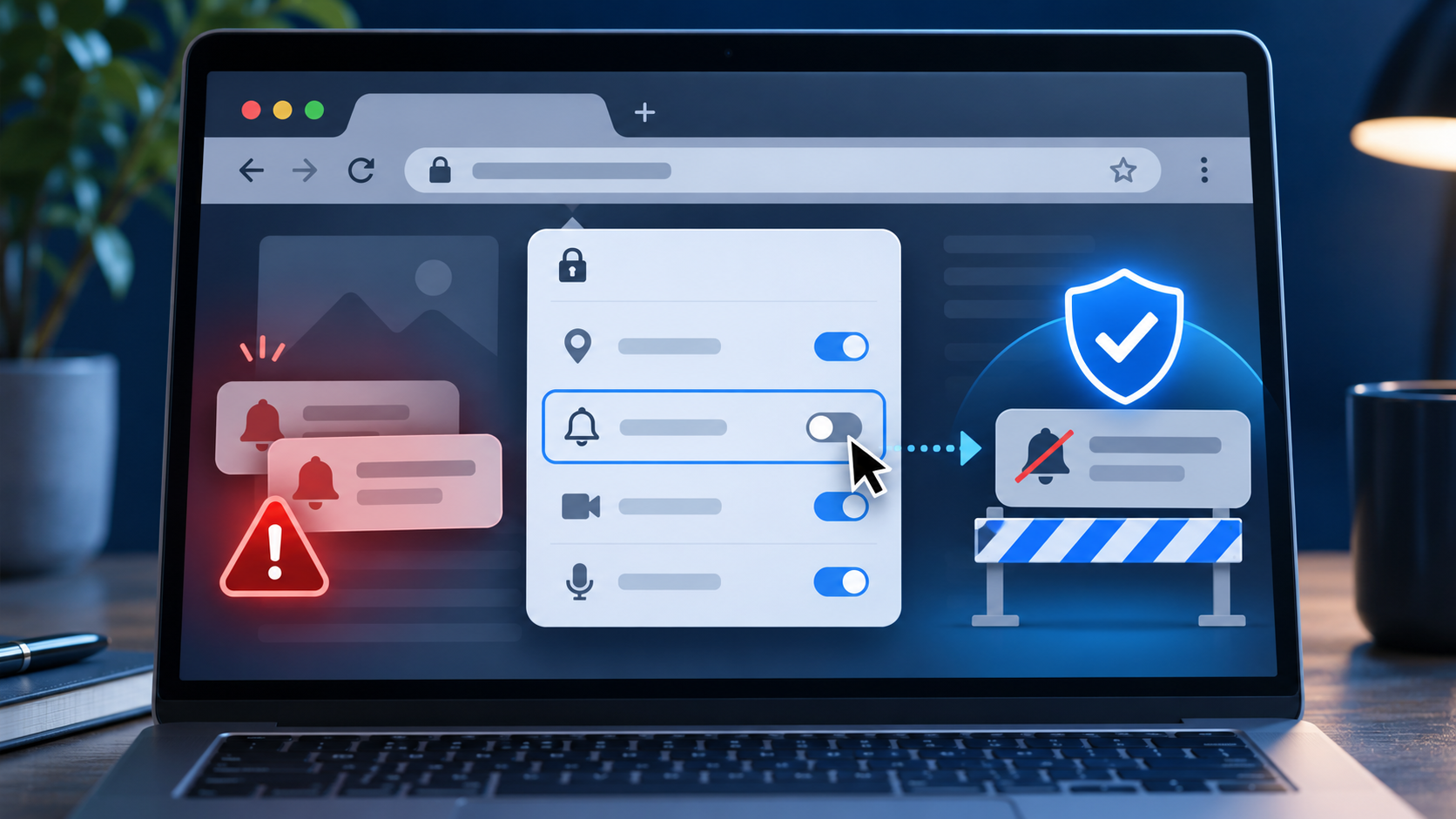
Blue browser-security shield blocks red malicious notification alerts beside a laptop

A browser notification can look like a Windows security warning even when it came from a random website. The message may claim that a virus was found, show a countdown or urge you to call a support number. The alarm is the point: the sender wants a click before you notice that the warning is only a website notification.

Microsoft expanded Edge’s response in version 156. When Microsoft Defender SmartScreen or Scareware blocker identifies a scam reached through a notification, Edge can automatically turn off notifications from the sending site. A new Block and report choice also lets users reject a suspicious permission request and submit the requesting URL and a screenshot for review.

That protection is useful, but it does not replace good notification hygiene or antivirus software. This guide explains what changed, how to confirm Scareware blocker is active, how to remove a site’s permission and what to do if you already interacted with a fake alert.

What changed in Edge 156

  • Automatic enforcement: if Edge detects a scam opened from a website notification, it disables future notifications from that sender site.
  • A notice appears the next time Edge starts, with a path to review the blocked sender and restore permission if the detection was wrong.
  • Notification permission prompts now include Block and report, which can send the requesting URL and a screenshot to Microsoft.
  • Scareware blocker continues to analyze suspicious full-screen pages locally and can interrupt aggressive audio, fake support warnings and other pressure tactics.

Microsoft says the feature has been enabled by default on qualifying PCs for more than a year and now protects tens of thousands of people per day. Reports from those detections can feed broader SmartScreen protections, but individual users should still review their own notification permissions.

How malicious notification scams work

How malicious notification scams work

The scam often begins with a page that asks you to click Allow to prove you are human, continue to a download, watch a video or dismiss an invented warning. Accepting does not install antivirus software; it grants that website permission to send notifications. Edge notes that those alerts can appear even when the browser is closed.

A malicious sender can then imitate a system alert with alarming colors, brand-like icons and phrases such as ‘virus detected’ or ‘subscription expired.’ Clicking the notification may open a scam page that locks itself into full screen, plays loud audio or displays a phone number for fake technical support.

The Federal Trade Commission warns that legitimate security pop-ups do not ask you to call a phone number. Tech-support scammers may request remote access, claim to find infections and demand payment through gift cards, bank transfers, cryptocurrency or payment apps. A real warning should send you to the security product itself—not to an unsolicited phone number.

How Edge’s Scareware blocker works

On-device detection

Scareware blocker uses a machine-learning model on the device to evaluate full-screen scam patterns. According to Microsoft, screenshots and page images used for detection are not sent to the cloud. When the model flags a page, Edge exits full screen, stops aggressive audio and shows a warning with a thumbnail so the user can close the page or continue if it is a false positive.

SmartScreen and community reports

SmartScreen checks known dangerous destinations, while Scareware blocker is designed to catch newly created pages before a reputation system has enough history. If a user reports a detection, Microsoft can use that evidence to expand protection for other Edge users. The new notification enforcement connects those layers: a scam reached from an abusive notification can cause the sender’s permission to be revoked automatically.

How to check whether Scareware blocker is enabled

  • Open Microsoft Edge and select Settings and more (the three-dot menu).
  • Choose Settings, then Privacy, search, and services.
  • Scroll to Security and find Scareware blocker.
  • Turn the switch on if it is available. On a managed work computer, an administrator may control the setting.

Microsoft enables the feature by default on devices with more than 2GB of memory and at least five processor cores. It can be turned on manually on systems with 2GB of memory or fewer than five cores, but it is not supported on devices with less than 1GB of memory or fewer than two cores. If the switch is missing, update Edge from Settings and more > Help and feedback > About Microsoft Edge, then check again.

How to remove a suspicious site’s notification permission

  • In Edge, open Settings and select Privacy, search, and services.
  • Open Site permissions, then All sites.
  • Choose the suspicious site, open Notifications and set the permission to Block.
  • Repeat for any unfamiliar sender. If you are already on the site, select the site information icon in the address bar, open Permissions and set Notifications to Block.

You can also use the three-dot menu on an individual Edge notification to stop future notifications from that site. Do not press buttons inside the alert itself—even a button labeled Close or Cancel may open another scam page. If Edge automatically blocked a sender, review the information bar on the next browser start before restoring anything.

What to do when a fake virus alert appears

  • Do not click the notification, call its phone number, install its suggested software or grant remote access.
  • Dismiss the operating-system notification using its own close control or menu. If a page entered full screen, press Esc; then close the tab. If the page resists, close Edge from the operating system and reopen it without restoring the suspicious tab.
  • Block the sender’s notification permission using the steps above, and remove unfamiliar extensions from Edge’s Extensions page.
  • Update Edge and your computer’s security software. Run a full security scan if you downloaded or opened anything from the alert.
  • Report the site through Edge when offered and report the scam to the FTC at ReportFraud.ftc.gov if it targeted payment, personal information or remote access.

If you clicked, paid or granted remote access

Disconnect any active remote-support session and uninstall remote-access software you did not intentionally keep. Update security software, run a scan and remove anything it identifies. If you disclosed a password, change it immediately from a clean device, change reused passwords on other accounts and turn on multi-factor authentication.

Contact your bank or card issuer promptly if you paid or shared financial information, and ask about reversing an unauthorized transaction. If a scammer asked for gift cards, cryptocurrency or a bank transfer, contact the payment provider immediately; recovery may be difficult, but speed matters. Preserve receipts, phone numbers and screenshots for your report.

What the blocker does not do

  • It does not scan every file on the computer or replace Microsoft Defender Antivirus or another maintained security product.
  • It cannot protect you after you deliberately call a fake support number, approve remote access or send money.
  • A new scam may evade detection, and a legitimate page may occasionally be flagged. Read the warning and verify the site independently before continuing.
  • The Scareware blocker policy is supported on desktop Edge for Windows and macOS, not on Android or iOS.

The practical defense is layered: keep Edge current, deny notification requests you do not recognize, review permissions periodically, use maintained endpoint protection and slow down when a message tries to create urgency.

Optional account protection after a scam

A hardware security key cannot block a malicious browser notification, but it can strengthen account sign-in if a scam exposed a password. The Yubico YubiKey 5C NFC on Amazon (ASIN B08DHL1YDL) supports USB-C, NFC, FIDO2 and WebAuthn for compatible services, including Microsoft accounts. Verify that each important account supports security keys before buying, and enroll a backup authentication method or second key.

As an Amazon Associate, ReaderSpice earns from qualifying purchases.

Bottom line

Edge 156 makes abusive notifications harder to ignore by linking scam detection to notification-permission enforcement. The best response is still simple: do not interact with an alarming website alert, block the sender, keep Scareware blocker enabled and run a trusted security scan if you downloaded anything. If money, credentials or remote access were involved, move quickly to secure accounts and contact the relevant financial provider.

Sources

Microsoft Edge Blog: Client-side threat detection—how Scareware blocker uncovered malicious notification abuse

Microsoft Support: Prevent online scams with Scareware blocker in Microsoft Edge

Microsoft Support: Manage website notifications in Microsoft Edge

Microsoft Learn: ScarewareBlockerBlocksDetectedSitesEnabled policy

FTC Consumer Advice: How to spot, avoid and report tech-support scams

FTC Consumer Advice: What to do if you were scammed

Yubico: YubiKey 5C NFC product specifications

Sony AI Sound Separation: How It Restores Films, Cleans Calls and Splits Music

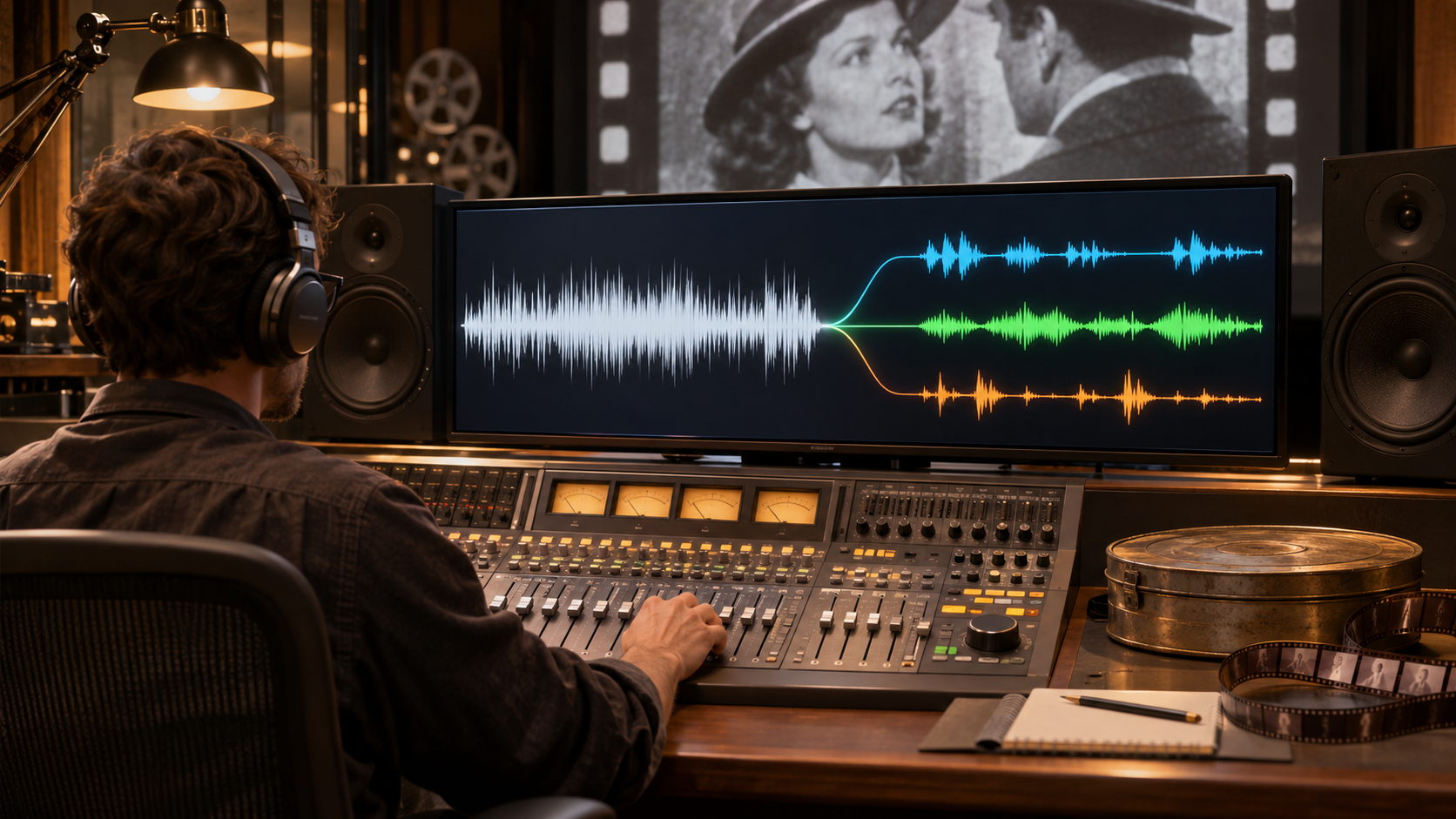
Vintage film reel, studio headphones and an audio console beneath one waveform separating into dialogue, music and effects

Sony has spent more than a decade teaching neural networks to pull individual sounds out of a finished mix. Its November 2, 2026 technology update shows that the work has moved beyond laboratory demonstrations: engineers have used it to rebuild classic film soundtracks, isolate hard-to-separate synthesizer parts and improve the voice path in consumer audio products.

The practical idea is simple even though the engineering is not. A recording may contain dialogue, music, effects, traffic, room noise and several instruments at once. Sound-separation software estimates the contribution of a chosen source and produces a new stem that can be edited or remixed. It does not recover a magically perfect original track, and Sony has not announced a standalone consumer restoration app. Human engineers still decide which output is usable and how it should be mixed.

For readers, the useful distinction is between Sony’s production technology and features available in current products. Film restoration and research models are specialist workflows. AI beamforming in headphones is a consumer application that uses related principles to emphasize a caller’s voice. Both depend on recognizing patterns in a mixture, but they solve different problems and should not be treated as one universal feature.

ReaderSpice may earn a commission from purchases made through links in this article. As an Amazon Associate, we earn from qualifying purchases.

Sony AI sound separation at a glance

  • Sony says it began applying deep learning to sound separation in 2013.
  • The technology estimates separate sources such as speech, instruments, sound effects or noise from one mixed recording.
  • Sony used separation during 4K UHD work on Lawrence of Arabia and Gandhi, and during the 4K remaster of the animated film Angel’s Egg.
  • Research now includes text- and video-guided models that can request a particular sound rather than only a fixed set of stems.
  • Consumer examples include AI beamforming for clearer calls, but Sony has not released the film-restoration system as a general consumer tool.

How AI sound separation works

How AI sound separation works

A conventional audio mix adds sources together. Once dialogue, ambience and music share the same waveform, there is no perfect mathematical switch that turns one component off. Modern systems instead learn statistical patterns from training examples. During training, a model sees mixtures along with known target sources and adjusts itself to predict a mask or waveform that preserves the requested source while suppressing the others.

At inference time, the model receives a recording it has never heard before. It analyzes frequency, timing, timbre and other structure, then produces estimated stems. In a movie restoration, those stems might be dialogue and effects. In music, they might be vocals, drums or a particular synthesizer line. In a call, the target is the speaker’s voice and the unwanted components are surrounding conversations, wind or room noise.

Sony’s newer research broadens the cue used to select a target. Its CLIPSep work explored text queries, while the 2026 MMAudioSep project adapts a video-to-audio generative model so a text prompt, video or both can guide separation. That is an important shift: instead of building a different model for every instrument or sound class, one system can be asked for the source that matches a semantic description. The research remains distinct from a shipping consumer editor, and published benchmark gains do not guarantee clean results on every archival recording.

How Sony rebuilt classic film soundtracks

Lawrence of Arabia and Gandhi

Older films often survive with dialogue, effects and music combined in a limited number of channels. That creates a problem for a modern spatial remix: engineers cannot place dialogue at the center and move ambience around the room if all of those elements are locked together. Sony says sound separation was used when creating 4K UHD versions of Lawrence of Arabia and Gandhi so components from the historic masters could be estimated separately and reconstructed in a spatial mix.

This is restoration, not invention. The goal is to give mixers useful control over elements already present in the source while preserving the character of the original performance. The Columbia Classics 4K Ultra HD collection confirms that both films were remastered for the format. Sony’s technology story explains the separation step; the final artistic and quality decisions remained with the restoration and mixing teams.

Angel’s Egg and difficult archival material

Sony also points to Mamoru Oshii’s 1985 animated film Angel’s Egg. The company says separation contributed to its 4K remaster, which premiered in the Cannes Classics program in May 2025 before a later theatrical release. Animation can present the same archival problem as live action: dialogue, score and designed effects may exist only as a finished mix rather than as pristine, synchronized production stems.

The case matters because it shows why source separation can be valuable even when no new scene or sound is being generated. A model can create editing access that was lost when the original mix was printed. That can support cleanup, localization, accessibility and spatial presentation, provided the output is reviewed against the source rather than accepted automatically.

What consumers can use today

AI beamforming for clearer calls

The clearest current consumer example is call processing. Sony’s WH-1000XM6 documentation describes an AI-based beamforming system that uses microphones and voice-pickup processing to emphasize the wearer’s speech. Beamforming uses the timing and level differences between microphones to focus on a direction, while learned processing helps distinguish the voice from competing noise. That is not the same pipeline used to restore a film, but it applies the same broader goal: estimate the wanted source inside a mixture.

Sony advertises the headphones with a dedicated noise-cancelling processor, twelve microphones, multipoint Bluetooth and up to 30 hours of battery life with noise cancellation enabled. Those are manufacturer specifications, not ReaderSpice lab results. Call quality can change with wind, microphone position, firmware, connected device and competing voices, so buyers should still compare independent microphone samples.

Phones, robots and real-time music

Sony’s earlier technology overview cites wind-noise reduction in Xperia phones, voice recognition for aibo and real-time karaoke as other applications. These examples illustrate how widely the task can vary. A phone may need to suppress turbulent wind, a robot may need to find one voice in a room, and karaoke software may estimate vocals quickly enough to work during playback.

Sony also says selected soundbars can analyze stereo material and help create a 3D spatial presentation. That should be understood as an adaptive rendering feature, not proof that the original studio stems have been recovered. A reconstructed or upmixed spatial field may sound convincing, but it is still an interpretation of the mixed input.

Sound separation is not the same as noise cancellation

Active noise cancellation, beamforming and source separation overlap but are not interchangeable. Active noise cancellation measures external sound and creates an opposing signal that reduces what reaches the ear, especially steady low-frequency noise. Beamforming combines multiple microphones to favor sound arriving from a chosen direction. Source separation estimates the content of sources that overlap in one recording.

A headset call can use all three ideas at once: noise cancellation for the listener, beamforming to focus the microphone array and learned separation or suppression to reduce competing sounds in the transmitted voice. Marketing often compresses these into the word “AI,” so the most useful question is what input the system receives, which source it is trying to preserve and whether the processing runs in real time.

Limits and why human mixing still matters

  • Separation is an estimate. Leakage, watery transients, missing reverberation or musical artifacts can remain in an isolated stem.
  • Results depend on training data. Unusual instruments, degraded tape, overlapping voices and sounds outside the training distribution can be harder to separate.
  • A better benchmark score does not guarantee a better restoration. Engineers must compare the output with the original and decide whether an artifact is more distracting than the problem it removes.
  • Rights and provenance still matter. Separating a recording does not create permission to remix, republish or train on it.
  • Sony’s public demonstrations and product claims are not a substitute for independent evaluation on the exact material or call environment a buyer cares about.

Sony’s own research underlines the data problem. CLIPSep was designed to learn from noisy, unlabeled videos, and later work explores multimodal cues and pretrained generation models. Those approaches aim to generalize to more sounds, but universal separation remains a research direction rather than a solved promise. For archival work, the safest workflow keeps the original untouched, documents every processing step and preserves both the model output and the engineer’s final mix.

A relevant Sony headphone with AI beamforming

The Sony WH-1000XM6 in black on Amazon (ASIN B0FBTYSRQ3) is a directly relevant consumer example because Sony markets its call system around AI beamforming and voice isolation. It is not a film-restoration tool, and shoppers should verify the seller, warranty, current price and return policy before buying.

Disclosure: ReaderSpice may earn a commission from qualifying Amazon purchases made through the link above, at no additional cost to you.

The bottom line

Sony AI sound separation is most compelling when it restores access to audio elements that no longer exist as separate tracks. Its use on classic films shows a practical, high-value application: give expert mixers enough control to rebuild dialogue, music and effects for a modern release without discarding the original master. Research such as MMAudioSep points toward more flexible systems that can isolate a sound selected by text or video cues.

For consumers, the immediate benefits are narrower and easier to evaluate. AI beamforming can improve call pickup, and related processing can suppress wind or support spatial rendering. The bigger promise—a universal tool that cleanly separates any sound from any recording—is still constrained by training data, artifacts and artistic judgment. Treat separation as a powerful editing aid, not an automatic truth machine.

Sources

Sony Group — Supporting New Forms of Creation with Sony’s Sound Separation Technology, November 2, 2026

Sony Group — AI Sound Separation technology story

Sony AI — MMAudioSep research publication, ICASSP 2026

Sony Group — CLIPSep text-queried sound separation publication

Sony Electronics — WH-1000XM6 official product page and specifications

Sony Support — WH-1000XM6 call quality and voice pickup guidance

Sony Pictures — Columbia Classics 4K Ultra HD Collection

Amazon — Sony WH-1000XM6 black (ASIN B0FBTYSRQ3)

Chrome Enhanced Autofill Can Use Gmail: Setup, Privacy Controls and Limits

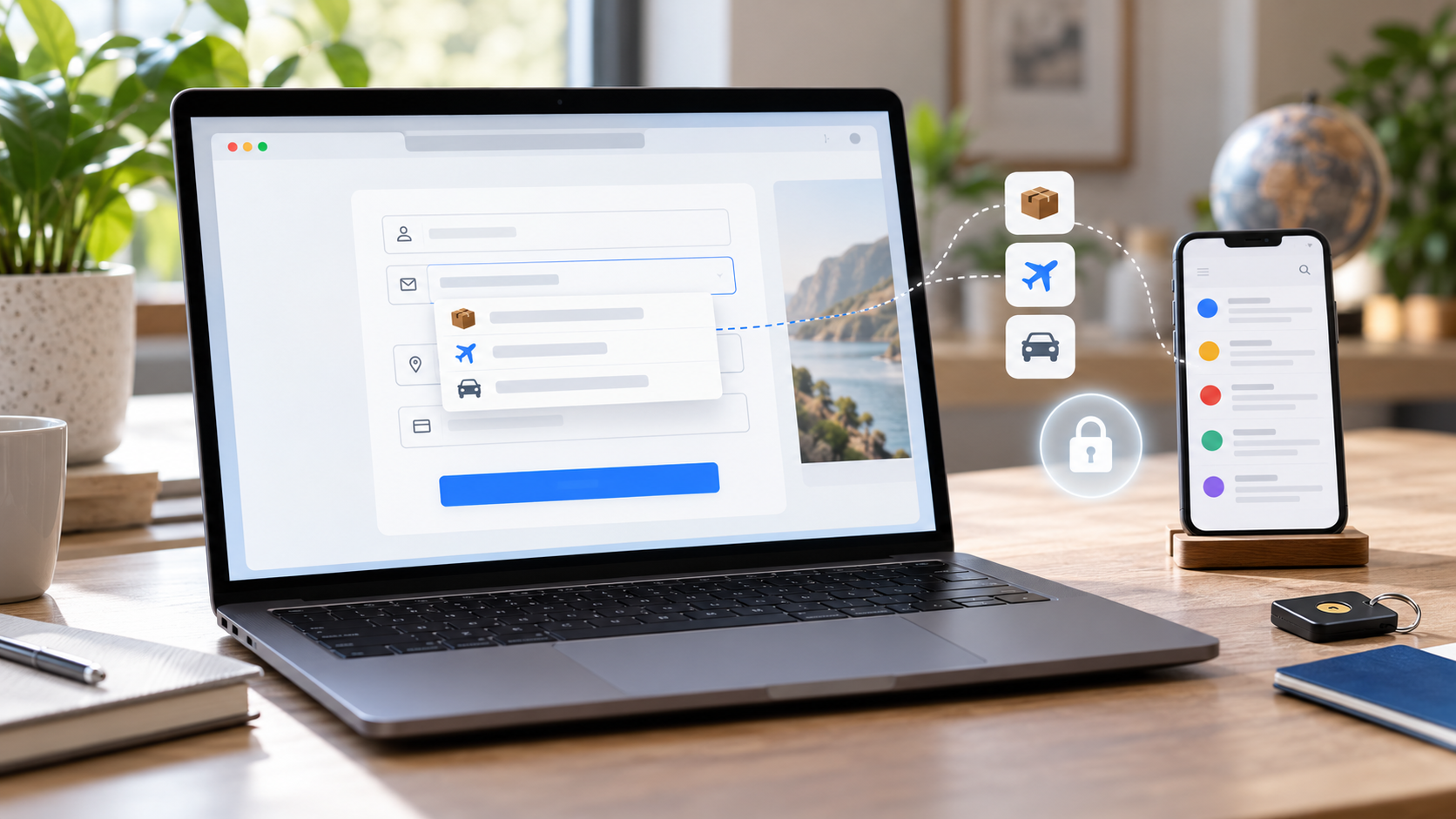
Laptop showing a generic enhanced autofill suggestion beside a phone with email messages and privacy controls

Chrome can now suggest information from Gmail while a person fills out an online form. Google announced the expanded enhanced-autofill feature on October 28, 2026, using Gemini with Personal Intelligence to surface details such as order numbers, package tracking information and flight bookings without requiring a separate inbox search.

The convenience is real, but the feature is narrower than the headline may suggest. It is beginning to roll out in the United States for eligible Gemini in Chrome users who are at least 18 and have opted into Personal Intelligence. It works on desktop, Android and iOS, and it can be turned off independently in Chrome settings.

This guide explains what enhanced autofill can pull from Gmail, how to verify the source before accepting a suggestion, how to enable or disable it on each platform and which privacy controls matter. The safest use is deliberate: review the field, confirm the source email and submit only information that belongs on the site in front of you.

Chrome enhanced autofill at a glance

  • Announced October 28, 2026, with a gradual U.S. rollout.
  • Available on desktop, Android and iOS for eligible users age 18 or older.
  • Requires Gemini in Chrome and an opt-in to Personal Intelligence.
  • Can suggest Gmail details related to flights, vehicles, orders and package tracking.
  • Shows Gemini-powered suggestions in a form-field dropdown or mobile suggestion chip.
  • Lets the user open the original Gmail source before accepting a suggestion.
  • Can be disabled under Chrome’s Autofill and passwords settings.

Who can use the Gmail-powered feature now

Google’s current help documentation lists four gates: the person must be in the United States, be 18 or older, have access to Gemini in Chrome and opt into Gemini Personal Intelligence. The feature is rolling out rather than appearing for every eligible account at the same moment, so a missing setting does not necessarily mean Chrome is outdated or misconfigured.

Personal and managed accounts may not behave the same way. Google says some Personal Intelligence experiences are designed for personal Google accounts, while work or school administrators can restrict Gemini, connected apps or Chrome settings. If Enhanced autofill is absent from a managed browser, check organization policy before reinstalling Chrome or repeatedly changing profiles.

The rollout also depends on the active Chrome profile. Someone who uses one profile for personal Gmail and another for work should confirm which avatar and Google Account are selected before enabling the feature. An autofill suggestion is useful only when it comes from the intended inbox and belongs to the task being completed.

How Gmail-powered enhanced autofill works

How Gmail-powered enhanced autofill works

When Chrome recognizes a supported field, enhanced autofill can offer a Gemini-marked suggestion derived from connected Gmail information. Google gives examples such as flight details, vehicle information, order numbers and tracking data. The suggestion appears where a normal autofill option would appear; Chrome does not submit the form until the user chooses the suggestion and continues through the website’s own workflow.

The distinction between suggestion and submission matters. A matching order number can still belong to a different return, a flight can be outdated after a schedule change, and a vehicle identifier can be inappropriate for a public or unfamiliar website. Treat the feature as a faster way to locate information, not as proof that the information is current or that the requesting site is trustworthy.

Verify the Gmail source before filling a field

On desktop, hover over the Gemini suggestion and open its menu, then choose the source link. Chrome opens the original Gmail message in a new tab. On Android or iOS, touch and hold the suggestion chip and choose View sources. Compare the sender, date, order or reservation number and recipient before inserting anything.

A source email can be authentic while the form is not. Confirm the domain in the address bar, especially for returns, travel changes, warranty claims and delivery problems. If the page arrived through an unsolicited message, reopen the retailer, airline or carrier from a trusted bookmark or official app before sharing an order number or other account detail.

How to turn enhanced autofill on or off on desktop

  • Open Chrome and select the three-dot menu.
  • Choose Settings, then Autofill and passwords.
  • Open Autofill settings and select Enhanced autofill.
  • Turn Find and fill with Gemini on or off.
  • If the control is missing, confirm the active profile, age eligibility, U.S. availability, Gemini in Chrome access and Personal Intelligence enrollment.

Turning the feature off stops Chrome from presenting these Gmail-derived enhanced suggestions. It does not delete the Gmail messages that supplied earlier suggestions, erase ordinary saved addresses or payment methods, or automatically disconnect every Google app from Gemini. Those controls live in separate settings and should be reviewed separately.

How to manage it on Android and iPhone

On Android, open Chrome, select the three-dot menu, choose Settings, then Autofill and passwords. Open Enhanced autofill and use the Find and fill with Gemini switch. To inspect a suggestion, long-press the chip above the keyboard, choose View sources and open the relevant email.

On iPhone or iPad, open Chrome, tap More, then Settings. Choose Autofill and passwords, open Autofill settings, select Enhanced autofill and change Find and fill with Gemini. The source-review gesture is similar: touch and hold the suggestion chip, choose View sources and verify the email before filling the field.

Menu labels can shift slightly during rollout or between app versions. Update Chrome from the official app store, restart the browser and confirm that the intended Google Account is signed in. Do not install a profile, extension or third-party app that promises to unlock the feature early.

Remove an outdated suggestion without deleting the email

Google says information pulled from Gmail cannot be edited inside Chrome. On desktop, open the suggestion menu and choose Remove from Chrome. On mobile, long-press the suggestion chip and choose Remove suggestion or Remove. That action removes the Chrome suggestion but leaves the original Gmail message intact.

Deleting the original email has a different effect: Google says it also removes the corresponding suggestion. That is not a good reason to delete a receipt, itinerary or warranty record that still has value. Remove the suggestion from Chrome when the email should remain archived, and delete the email only when normal record-retention and account needs allow it.

If the underlying reservation or order changed, use the newest official confirmation rather than trusting an older suggestion. Chrome may surface what the connected inbox contains; it cannot guarantee that a merchant, airline or carrier has not issued a later update in another message or app.

Privacy controls that matter

Google says sensitive data used by enhanced autofill is encrypted and that the feature can be managed in Chrome settings. Its general autofill documentation also says Chrome sends form structure, field names and a hashed version of the site’s domain to Google so it can match information to fields. After submission, Chrome can send information about the form structure and the types of data submitted to improve predictions.

Gemini and Personal Intelligence add another layer. Google says connecting apps is opt-in, users choose which eligible apps to connect and connected-app access can be turned off. Google’s Personal Intelligence documentation says Gmail inbox content is not used directly to train Gemini models, while limited information such as prompts and responses may be used after steps intended to filter or obscure personal data.

These are different controls with different effects. Disabling enhanced autofill stops the Gmail-powered form suggestions. Disconnecting Google Workspace from Gemini affects connected-app access more broadly across Gemini experiences. Gemini Apps Activity and Keep Activity determine how some interactions are stored. A privacy review should check each relevant setting instead of assuming one switch controls the entire data path.

Enhanced autofill and Connected Apps are not the same switch

In Gemini in Chrome, Connected Apps settings can link services such as Gmail, Calendar, Drive, Photos and YouTube. Google says disconnecting an app applies across Gemini Apps, including Gemini in Chrome. That broader change may affect summaries, personalized answers and other tasks beyond autofill.

Use the narrowest control that matches the goal. Turn off enhanced autofill if Gmail-based form suggestions are the only concern. Review Connected Apps when Gemini should not access Gmail or another service at all. Review Gemini Apps Activity when the question is retention of interactions. Record the change before troubleshooting, because toggling several settings at once makes it difficult to know which control caused the result.

When not to accept an autofill suggestion

  • The page domain is unfamiliar, misspelled or reached through an unsolicited link.
  • The suggestion belongs to another person, account, trip, vehicle or order.
  • The email is old and a newer confirmation may exist.
  • The field asks for more information than the stated task requires.
  • The form concerns financial, medical, legal or identity data and the source cannot be verified.
  • A shared device or the wrong Chrome profile is active.
  • The website asks for an order number or tracking code before showing a clear privacy policy or support purpose.

Autofill reduces typing; it does not evaluate the business requesting the data. Pause when a suggestion reveals more than expected, and type only the minimum necessary information after confirming the site. For sensitive support cases, the official retailer, airline or carrier app may provide a safer authenticated channel than an open web form.

Optional Google Account protection with a security key

Because enhanced autofill depends on Gmail and a signed-in Chrome profile, protecting the Google Account remains important. A physical security key can provide phishing-resistant authentication for compatible Google sign-ins and other services. It does not control what enhanced autofill can access, but it can make account takeover harder if a password is exposed.

One compatible option is the Yubico YubiKey 5C NFC (ASIN B08DHL1YDL). It supports USB-C and NFC, and Yubico lists Google Accounts among supported services. Confirm connector compatibility with every device, register a backup sign-in method and consider a second key before relying on one physical key for an important account.

Affiliate disclosure: ReaderSpice may earn a commission from qualifying Amazon purchases made through the link above, at no additional cost to you.

Troubleshooting when enhanced autofill does not appear

  • Update Chrome through the official browser or app-store update path.
  • Confirm that the active profile uses an eligible personal Google Account in the United States.
  • Check that the account holder is 18 or older and has Gemini in Chrome access.
  • Verify that Personal Intelligence is enabled and that the relevant Google Workspace connection is available.
  • Look for organization policies if the browser or account is managed by work or school.
  • Test a supported form with a recent order, flight or vehicle-related email rather than an unrelated field.
  • Wait for the staged rollout if every requirement is satisfied but the control is still absent.

Avoid broad troubleshooting that weakens other protections. Clearing all browser data, disabling Safe Browsing or installing an unverified extension is not required for this feature and can create new problems. Start with eligibility, profile and settings checks, then wait for rollout rather than forcing access.

The bottom line

Chrome’s Gmail-powered enhanced autofill is a practical shortcut for details that are difficult to remember and easy to mistype. Source links, removable suggestions and a dedicated on-off switch give users meaningful control, while desktop and mobile support makes the feature useful across common form-filling workflows.

The feature should still be treated as an assistant, not an authority. Verify the Gmail source, confirm the website, use the correct Chrome profile and submit only the fields the task requires. If the convenience is not worth the connected-inbox access, turn off enhanced autofill and review Gemini Connected Apps separately.

Sources

Google Blog – Chrome enhanced autofill now pulls data from Gmail

Google Chrome Help – Fill out forms automatically in Chrome on desktop

Google Chrome Help – Use enhanced autofill on Android

Google Chrome Help – Use enhanced autofill on iPhone and iPad

Google Chrome Help – How Chrome protects autofill and password data

Google Chrome Help – Customize Gemini in Chrome and Connected Apps

Gemini Apps Help – Gemini Apps Privacy Hub

Yubico – YubiKey 5C NFC

Amazon – Yubico YubiKey 5C NFC, ASIN B08DHL1YDL

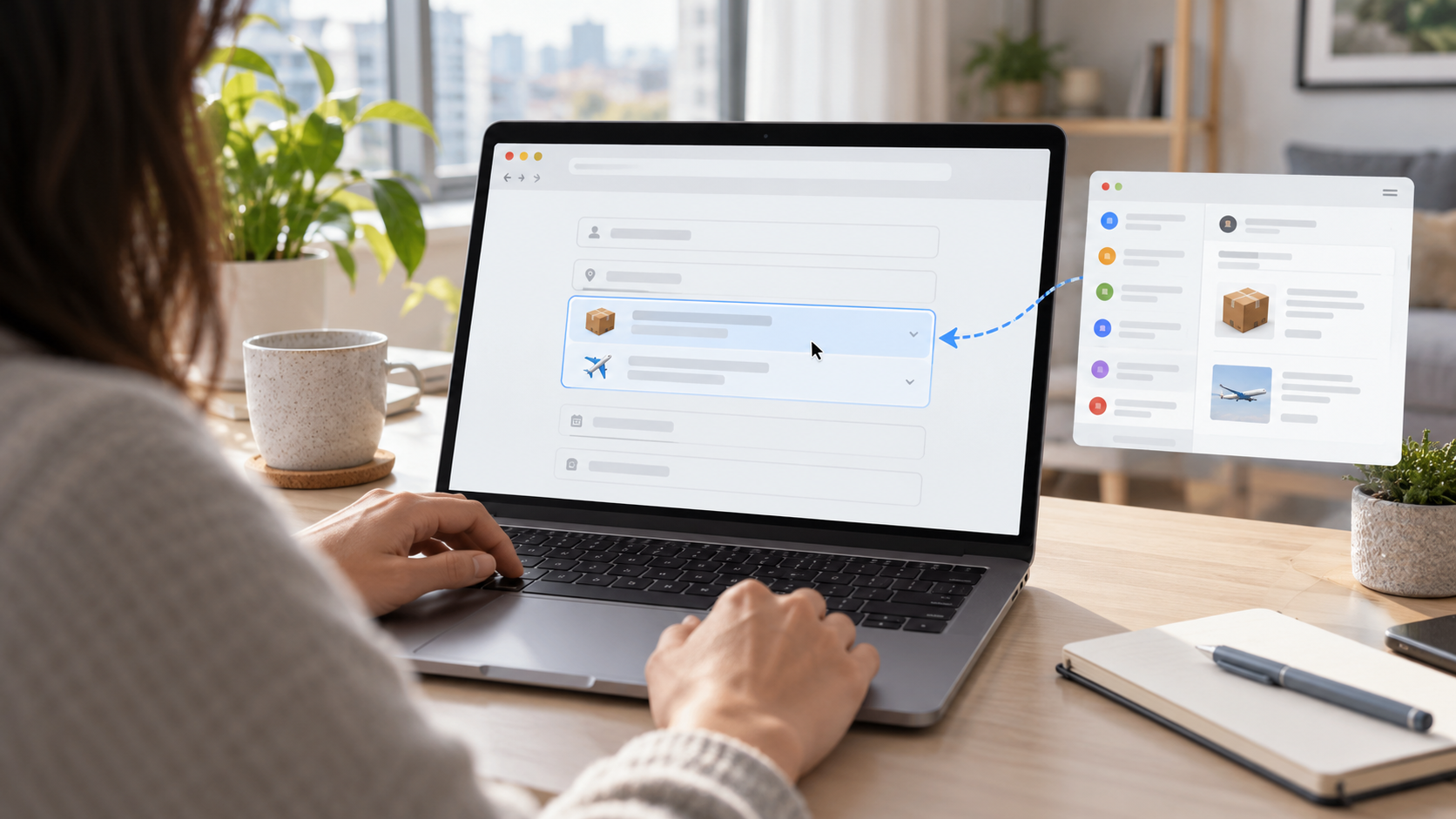
Inline image: Gmail-powered enhanced autofill source review

Inline image alt text: Person reviewing a browser autofill suggestion linked to order and flight emails before inserting it into a form

How to Check Who Has Access to Your Gmail: Devices, Apps and Recovery Settings

Laptop showing a generic account security dashboard beside a phone and physical security key

An email account can remain exposed even when its password has not been stolen. An old laptop may still be signed in, a forgotten app may retain permission to read account data, or an outdated recovery address may send verification messages somewhere you no longer control. Because Gmail is often the recovery channel for banking, shopping, social media and work accounts, one overlooked connection can affect far more than the inbox.

Google highlighted this problem on October 30, 2026 with a short security checklist: review signed-in devices, remove old third-party access and confirm recovery information. The checklist takes only a few minutes when everything looks familiar, but it also provides a practical map for a deeper audit if a device, session or app does not belong.

This guide explains what each screen means, what to remove, what not to delete by accident and what to do when activity is unfamiliar. The goal is not to disconnect every useful service. It is to make every remaining connection intentional, current and recoverable.

The two-minute Gmail security check at a glance

  • Open Google Security Checkup from a trusted bookmark or by typing the Google Account address yourself.
  • Review every device and browser session. Sign out of anything lost, sold, shared or unfamiliar.
  • Inspect linked apps and the exact Google data each app can access. Remove access that is no longer needed.
  • Confirm that the recovery phone and recovery email still belong to you and can receive messages.
  • Review 2-Step Verification, passkeys and backup methods so a lost phone does not lock you out.
  • If an item is unfamiliar, treat it as an incident: secure the account first, then investigate.

Step 1: Review every signed-in device and session

Step 1: Review every signed-in device and session

In Google Account, open Security & sign-in, find Your devices and choose Manage all devices. Google shows devices where the account is currently signed in or has been used during the last several weeks. Select each entry to review the device type, recent activity and available sign-out control.

Start with devices that are clearly obsolete: a phone you traded in, a family computer you no longer use, a hotel or library computer, an old work laptop, or a tablet that has been lost. Sign out of every session tied to a device you no longer control. If the same device name appears more than once, open each session rather than assuming the duplicates are harmless.

Google explains that the displayed time can reflect background synchronization, not only a moment when someone actively opened Gmail. A recent timestamp is therefore not proof of misuse. Location can also be approximate because mobile carriers, VPNs and internet providers may route traffic through a different city. Device type, browser, timing and location should be evaluated together.

Why one device can show several sessions

A session is a period when a browser, app or service is signed in. One physical computer can create separate sessions after a password re-entry, a new browser sign-in, an incognito session or an app authorization. Multiple sessions are not automatically a breach, but Google recommends signing out when you cannot confidently connect every session to your own use.

Do not rely on the device list as a permanent archive. It is a recent-access view, and a device marked Signed out no longer has an active Google session even though the historical entry may remain visible for a period. The important question is whether every currently active session is expected.

Step 2: Remove old third-party app access

Next, open the linked-apps area of Google Account. Google separates several kinds of connections: Sign in with Google, apps that can access selected Google Account data, and accounts linked so Google can interact with another service. Open each app to see the connection type and the information involved.

Remove access when the app is no longer installed, the service was used for a one-time project, the developer is unfamiliar, or the requested permission is broader than the app still needs. Pay special attention to apps with Gmail, Drive, Calendar, Contacts or full-account permissions. A familiar app name is not enough; confirm that the developer and purpose match what you remember authorizing.

Permission cleanup can break a legitimate workflow. A calendar tool may stop syncing, a scanner may no longer save files to Drive, or a desktop email client may stop receiving mail. Before removing a business-critical connection, record what it does and make sure you can reconnect through the service’s official settings if necessary.

Removing access does not necessarily erase app data

Google’s help pages distinguish disconnecting an app from deleting information stored by that app. Removing Sign in with Google or account access stops the connection, but the third-party company may still retain an account and previously copied data under its own policies. If you want the service deleted entirely, sign in to the service directly, export anything you need and use its account-deletion process as well.

The reverse also matters: deleting an app from a phone does not automatically revoke its cloud permissions. Permission cleanup must happen in Google Account even when the local app is gone.

Step 3: Confirm recovery phone and email

Recovery information helps Google warn you about suspicious activity, block unauthorized use and restore access when you cannot sign in. Confirm that the recovery phone is a number you personally control, use regularly and can access while traveling. Google advises against using a Google Voice number as the recovery phone because losing access to the same Google Account could also block the verification code needed to recover it.

The recovery email should be an address you use regularly but not the same address used to sign in. Remove an old employer address, an expired school account, or a family member’s inbox unless that arrangement is deliberate and still trusted. Google notes that changes to a recovery phone can take up to seven days to take effect, so do not wait for an emergency to update it.

Do not publish or share recovery details merely to prove that the audit was completed. A security checklist should record the date reviewed and whether the setting is current, not the phone number, recovery address, backup codes or key identifiers themselves.

Strengthen sign-in with passkeys or a security key

The access audit identifies old doors; stronger sign-in protection makes the remaining door harder to abuse. Google recommends passkeys as a phishing-resistant alternative to passwords and describes physical security keys as its strongest 2-Step Verification method. A passkey can use the screen lock, fingerprint or face verification on a trusted device. A hardware key keeps the sign-in credential on a separate physical device.

One compatible option is the Yubico YubiKey 5C NFC (ASIN B08DHL1YDL). It supports USB-C and NFC, and Yubico lists Google among compatible services. Confirm that its connector and authentication methods fit every device you plan to use, register a backup method before relying on it, and store a second key separately if the account is important enough that one lost key would create a crisis.

Affiliate disclosure: ReaderSpice may earn a commission from qualifying Amazon purchases made through the link above, at no additional cost to you.

Do not remove a working recovery method until its replacement has been tested. Security is not improved if a cleaner settings page leaves the legitimate owner unable to sign in.

What to do if a device, app or activity is unfamiliar

  • Use Google’s unfamiliar-activity prompt or account-security flow and mark the activity as not yours.
  • Change the Google Account password from a trusted, updated device. Do not reuse a password from another service.
  • Sign out unfamiliar devices and revoke suspicious app access.
  • Review recovery phone, recovery email, passkeys, 2-Step Verification methods and backup codes for changes you did not make.
  • Check Gmail forwarding, filters, delegated access and sent mail for rules or messages you did not create.
  • Change passwords on other important accounts that reused the old password or depend on Gmail for recovery.
  • For a work or school account, contact the administrator or security team because organization policy may control some settings.

Google says that reporting an unrecognized sign-in can sign the account out on other devices and add an extra verification step for future unfamiliar sign-ins. That protective action can be disruptive, but it is safer than leaving a questionable session active while trying to identify it.

A quarterly Gmail security checklist

  • Review devices and sessions after travel, a device sale, a repair or a phone replacement.
  • Remove one-time apps and services after the project that required them ends.
  • Confirm recovery information at least quarterly and before changing mobile carriers or employers.
  • Check that passkeys, security keys and 2-Step Verification methods still work on current devices.
  • Keep backup codes offline in a protected location; never store them in the same inbox they protect.
  • Run Google Security Checkup again after any suspicious alert, unexpected password reset or unusual sent message.

A recurring review is more useful than a one-time purge because account access changes quietly. A new phone, a photo-printing app, a temporary work tool or a shared television can each create a connection that remains long after its original purpose disappears.

The bottom line

Google’s two-minute checklist is short because it focuses on the three access paths most people forget: devices, linked apps and recovery information. The quick version is enough when every entry is current. When something is unfamiliar, the same screens become the starting point for incident response.

Open Security Checkup from a trusted route, verify each active session, keep only necessary app permissions and make sure recovery methods belong to you. Then strengthen sign-in with a passkey, hardware security key or another well-managed 2-Step Verification method. The safest Gmail account is not the one with the most settings enabled; it is the one where every access path has a known owner and purpose.

Sources

Google Blog – See who has access to your Gmail inbox in 2 minutes

Google Account Help – Make your account more secure

Google Account Help – See devices with account access

Google Account Help – Manage links between your Google Account and other apps

Google Account Help – Set up recovery options

Google Account Help – Protect your account if there is unfamiliar activity

Yubico – YubiKey 5C NFC

Amazon – Yubico YubiKey 5C NFC, ASIN B08DHL1YDL

Inline image: Google Account device and session review

Inline image alt text: Person reviewing signed-in devices and account sessions on a laptop and phone

Google Genie 4: Real-Time AI Worlds, Native Audio, Access and Limits

Interactive AI world forming from neural geometry with landscapes, weather, audio waves and a simulated city.

Google DeepMind introduced Genie 4 on October 27, 2026 as a research-preview world model that generates interactive environments in real time. Unlike a conventional image or video generator, it lets a tester move through a simulated scene and change the weather, camera, characters or events with natural-language instructions while the world continues running.

The announcement is visually striking, but access and limitations matter more than the demos. Genie 4 is initially available only to trusted testers. Google says it is coming soon to Google AI Ultra subscribers through Project Genie and to selected early-access partners through the Gemini API and Google AI Studio, without announcing a general release date or public price.

Google Genie 4 at a glance

  • Announced: October 27, 2026.
  • Current status: research preview for a limited group of trusted testers.
  • Broader access: coming soon to Google AI Ultra subscribers in Project Genie and selected API and AI Studio partners.
  • Core capabilities: real-time world generation, natural-language steering, simulated physics, characters and native audio.
  • Current limits: short sessions, visual drift, imperfect object permanence, text rendering and audio accuracy.
  • Disclosure: Google says generated video and audio will carry SynthID watermarking.

What Genie 4 can do

What Genie 4 can do

Genie 4 creates a world that can respond to a person’s movement and instructions instead of rendering one fixed clip. Google’s demonstrations show users navigating with standard keyboard controls while typing changes such as moving the camera, adding a person or object, or turning clear weather into a storm. The model then tries to preserve the surrounding scene as the new instruction takes effect.

Google says the system improves photorealism, fluid motion and the behavior of people and objects. It also models events such as collisions, flowing water and wind moving through trees. These are research demonstrations rather than independent benchmarks, so they show intended behavior but do not prove that every generated world will remain physically accurate.

Real-time steering and native audio

The most important change from earlier Genie research is the combination of live steering and sound. Genie 4 generates ambient noise, music and interactive dialogue alongside the visual scene. A character can react to an event or a user’s direction while the simulated environment continues, giving creators a rough, explorable draft instead of a passive video.

That does not make Genie 4 a finished game engine or film-production system. Google acknowledges that audio can be inaccurate, text inside a world may be unreadable, and details can change during longer sessions or after repeated edits. Creators will still need conventional tools for continuity, editing, rights clearance and final delivery.

How Gemini models guide the simulation

Genie 4 incorporates technology from the Gemini family. Google says Gemini Omni helps anchor simulations in real-world appearance and behavior, while Gemini 3.8 Flash operates as a guiding agent that observes incoming frames, breaks goals into steps and checks whether each step has succeeded. If the world changes or a user intervenes, the planning loop can adjust.

Google also demonstrated Genie 4 with Gemini 4 Argon and Gemini Robotics. In one example, Argon breaks a task into smaller actions and sends those steps into the world as it is rendered. The experiment is intended to explore how robots and software agents might train or be evaluated in varied simulated environments before interacting with physical equipment.

Why simulation matters for robots and agents

Training in simulation can expose an agent to rare, dangerous or expensive scenarios without putting people or machinery at immediate risk. It can also generate many variations of a task, helping researchers test whether an agent succeeds only under familiar conditions. A useful simulation still needs validation, because an unrealistic world can teach the wrong behavior or hide failure modes that appear in real settings.

Who can use Genie 4 now

Genie 4 is not a generally available product. Trusted testers in creative industries, journalism, education, gaming and engineering have the first preview. Google has opened a Project Genie waitlist and says Google AI Ultra subscribers are among the next groups planned for access, followed by selected early-access partners using the Gemini API and Google AI Studio.

Google has not published a firm rollout date, country list, API price, output resolution or frame-rate specification. It also has not promised that every research-demo capability will appear in the eventual subscriber or developer experience. Readers should avoid unofficial downloads, browser extensions or “early access” pages that ask for credentials or payment outside Google’s documented channels.

The limitations are as important as the demos

Google describes Genie 4 as early and evolving. The model can support only a few minutes of continuous interaction, and visual details may drift as a session runs longer. Object permanence can fail after multiple complex edits or extensive navigation, which means an item, character or architectural feature may move, change or disappear.

Complex interactions among several independent agents remain difficult. The model cannot reproduce real-world locations with perfect accuracy, legible text is inconsistent, and spatial or physical details may be wrong. Native audio is also a work in progress. These constraints make the preview more suitable for exploration, pre-visualization and controlled experiments than for authoritative historical reconstruction, safety-critical training or final commercial media.

  • Verify important physical and spatial behavior against real data.
  • Keep generated historical or journalistic scenes clearly labeled as simulations.
  • Do not treat a simulated outcome as proof that a robot or agent is safe in the real world.
  • Check music, dialogue, faces and other outputs for rights and consent issues.
  • Preserve prompts, settings and human edits when reproducibility matters.

What creators, developers and educators should prepare

The best first use is a bounded prototype. A filmmaker might explore camera blocking and lighting before a shoot. A game team could test the feel of an environment before building production assets. An educator could demonstrate a concept while making clear that the generated scene is an illustration, not primary evidence. Developers evaluating agent behavior should define success criteria before the run and compare simulated results with real tests.

Google says every generated video and audio output will include SynthID, its imperceptible watermarking system. Watermarking can support provenance, but it does not replace visible disclosure when an audience could mistake a simulation for recorded reality. Newsrooms, schools and brands should label synthetic scenes in the surrounding caption, narration or credits.

For readers who want a broader foundation in agents, planning, robotics and responsible AI, Artificial Intelligence: A Modern Approach, 4th Edition by Stuart Russell and Peter Norvig remains a useful reference. Compare the book on Amazon before ordering, and verify the edition, seller, format and current price.

Affiliate disclosure: ReaderSpice may earn a commission from qualifying Amazon purchases made through the link above, at no additional cost to you.

What Genie 4 is not

Genie 4 should not be confused with a new public version of Gemini chat, a conventional video editor or a downloadable game engine. It is a research-preview world model with limited access. The interactive demonstrations are generated examples, not evidence that the model can reproduce every location, person or real event accurately.

It also does not eliminate the need for human direction. A coherent project still requires a goal, constraints, review and decisions about what is factual, safe and appropriate to publish. The technology can shorten the path from an idea to an explorable draft, but the draft remains synthetic and provisional.

The bottom line

Google Genie 4 is a meaningful step beyond one-shot AI media because it combines navigable worlds, real-time natural-language changes, simulated physics and native audio. The integration of Gemini planning models also points toward training environments where software agents and robots can be tested across many scenarios.

The immediate reality is narrower: Genie 4 is limited to trusted testers, wider access is only promised for later, and the worlds can drift during short sessions. Creators and developers should view it as an experimental pre-visualization and simulation tool, disclose synthetic scenes clearly, and validate important behavior outside the generated world.

Sources

Google Blog — Introducing Genie 4 for real-time interactive simulation

Google DeepMind — Genie 4: A new generation of world simulation

Google DeepMind — Genie 4 model page, limitations and responsibility

TechCrunch — Genie 4 adds audio, realism and real-time steering

Pearson — Artificial Intelligence: A Modern Approach, 4th Edition

Amazon — Artificial Intelligence: A Modern Approach, 4th Edition, ASIN 0134610997

Gemini 4 Carbon: Cybersecurity Benchmarks, Limited Access and Pricing Explained

Faceted carbon crystal inside a protective shield surrounded by secure code and network interfaces.

Google introduced Gemini 4 Carbon on October 28, 2026 as a frontier model aimed at long-running software-engineering work and cybersecurity defense. The headline is not simply that a new Gemini model exists. Carbon is being rolled out cautiously to selected defenders first, while Google continues pre-release testing and guardrail work before broader developer, business and consumer access.

That limited release matters. Carbon is not a model most Gemini users can select today, and Google has not published a general availability date. The announcement is best read as a capability and pricing preview: strong benchmark claims, a focus on vulnerability discovery and patching, and an introductory API price that is scheduled to rise later.

Gemini 4 Carbon at a glance

  • Announced: October 28, 2026.
  • Initial access: selected cyber defenders and trusted partners through Google’s Fairwind Program.
  • Broader rollout: planned for developers, businesses and consumers, with no firm public date.
  • Introductory price: $2 per million input tokens and $10 per million output tokens.
  • Later price: Google says $4 per million input tokens and $20 per million output tokens after the introductory period.
  • Primary focus: long-horizon coding, agentic engineering and cybersecurity defense.

Google also lists cached input tokens at 95% below the introductory input rate. That can lower the cost of workloads that repeatedly reuse a large codebase or reference corpus, but actual spending will depend on context size, tool calls, retry behavior and how long an agent remains active.

What Carbon is built to do

What Carbon is built to do

Carbon is designed for work that cannot be completed reliably in one short response. Google says internal teams have used it on engineering jobs that run for days, including tracing subtle bugs through large repositories, testing hypotheses, and producing patches after earlier approaches fail.

The useful distinction is persistence rather than simple prompt length. A long-horizon system needs to preserve goals, inspect evidence, recover from dead ends and avoid changing unrelated code. Carbon’s announced improvements target that chain of work: coding quality, multimodal understanding, computer use, agentic planning and the ability to operate across very large contexts.

Cybersecurity is the defining angle

Google positions Carbon across three defensive stages. First, it searches for real vulnerabilities. Second, it checks whether a suspected flaw can actually be exploited so teams can prioritize risk. Third, it attempts to repair the underlying cause rather than merely describing the issue.

The company reports an 88.2% score on SEC-bench Pro for vulnerability discovery, 54.8% on ExploitGym for exploitation, and 71.0% on CWE-bench for patching. Google also says Carbon more than doubled the success rate of secure-code generation compared with Gemini 4 Argon in internal testing.

Those figures are meaningful signals, but they are not a warranty. Benchmark environments constrain tools, targets and evaluation criteria. Real organizations add proprietary code, incomplete documentation, permissions, production dependencies and legal limits. Security teams should treat Carbon as an assistant whose findings need reproduction, review and controlled remediation.

The benchmark claims need context

Google says Carbon ranks first on version 5.0 of the Artificial Analysis Intelligence Index with a score of 59. On Google DeepMind’s comparison table, it also posts 65.2% on Terminal-Bench 4.0, 61.2% on FrontierSWE 2 and 81.5% on the listed OSWorld 2.1 offline subset.

Different benchmarks test different skills, and a high aggregate rank does not mean one model leads every task. Carbon’s strongest public case is the combination of competitive general performance with a concentrated jump in cyber-defense evaluations. Buyers should compare the model against their own repository, languages, deployment stack and incident-response process before assuming the benchmark order will transfer.

Safety claims are part of the rollout

Google says Carbon reduced unsupported claims by about half compared with Argon in its internal testing and cut high-severity misalignment alerts by almost 80% in live coding environments. It also reports a 0.0% attack success rate on the evaluated Gray Swan indirect prompt-injection benchmark.

A zero score on one test should not be read as immunity. Prompt-injection defenses can change when an agent connects to email, tickets, browsers, code hosts or internal documents. Least-privilege credentials, isolated environments, approval gates and audit logs remain necessary even when a model performs well in controlled evaluations.

Who can use Gemini 4 Carbon now

Carbon’s first users are selected cybersecurity defenders and trusted partners. Google says it is participating in the U.S. government’s voluntary pre-release testing process and will expand access gradually through the Fairwind Program while collecting feedback.

Regular Gemini app users, Google AI Pro or Ultra subscribers, and general API developers should not assume Carbon is available merely because the model has been announced. Gemini 4 Argon remains the broadly referenced Gemini 4 option in Google’s current consumer and developer surfaces, while Carbon is described as coming later.

Organizations interested in early access should use Google’s official program pages rather than third-party downloads, unofficial endpoints or model files. A fake “Carbon access” page could be especially dangerous because the target audience is likely to grant code, cloud or security-tool permissions.

How the pricing could affect real projects

At the introductory rate, a workload consuming one million input tokens and one million output tokens would carry a published model charge of $12 before discounts, platform fees or other services. After the introductory period, the same token mix would be $24 at Google’s stated future rates.

That simplified example can understate an agentic task. A multi-day workflow may repeatedly inspect files, generate tests, call tools, revise patches and retain a large context. Teams should measure the total run rather than comparing only the price per request.

  • Set a budget and maximum run time before starting an autonomous task.
  • Limit the repository, branches and cloud resources the agent can reach.
  • Require human approval before merging code or changing production systems.
  • Log prompts, tool calls, retrieved files, patches and test results.
  • Reproduce every security finding in an isolated environment.

What developers and security teams should prepare

The most valuable preparation is not writing a longer prompt. It is making the environment auditable. Repositories need clear test commands, dependency locks, ownership rules and a defined path from a suspected issue to a reviewed patch.

For vulnerability work, teams should separate detection from exploitation and remediation. A model that finds a suspicious pattern should not automatically receive broad permission to exploit a live system. Use replicas or purpose-built test environments, record the evidence and route high-risk actions through authorized staff.

A classic reference such as Hacking: The Art of Exploitation, 2nd Edition by Jon Erickson can help readers understand the low-level concepts behind memory errors, networking and exploit development. Compare the book on Amazon before ordering, and verify the edition, seller, format and current price.

Affiliate disclosure: ReaderSpice may earn a commission from qualifying Amazon purchases made through the link above, at no additional cost to you.

What regular Gemini users should know

Carbon’s announcement does not replace the Gemini model already selected in a user’s account. It also does not guarantee that every benchmarked capability will arrive unchanged in the consumer app. Google may apply different tools, limits, safety controls and context windows across Gemini, Google AI Studio, enterprise products and the API.

The practical takeaway is to wait for the official availability notice and model documentation. When Carbon reaches broader access, compare its permissions, pricing and data controls with the task at hand. For coding help, begin with a disposable branch and tests. For security analysis, keep sensitive systems out of reach until the workflow has been validated.

The bottom line

Gemini 4 Carbon is a notable model announcement because Google is pairing long-horizon engineering claims with unusually specific cybersecurity results. Its 88.2% SEC-bench Pro, 54.8% ExploitGym and 71.0% CWE-bench scores suggest a stronger focus on the full defensive cycle from discovery to patching.

The immediate limitation is access. Carbon is starting with selected defenders, not the general public, and broader availability has no fixed date. Its introductory pricing is attractive on paper, but long-running agents can consume far more tokens and tool time than a single chat. The safest reading is promising but provisional: validate the model on controlled workloads, keep humans in the approval path and wait for official access.

Sources

Google Blog — Gemini 4 Carbon: our next frontier model

Google DeepMind — Gemini 4 model page and benchmark table

Google DeepMind — Gemini 4 Carbon evaluation methodology

Reuters — Google launches Gemini 4 Carbon with cybersecurity focus

No Starch Press — Hacking: The Art of Exploitation, 2nd Edition

Amazon — Hacking: The Art of Exploitation, 2nd Edition, ASIN 1593271441

Gemini Can Now Create and Edit Files in Chat: Supported Formats, Limits and a Safer Workflow

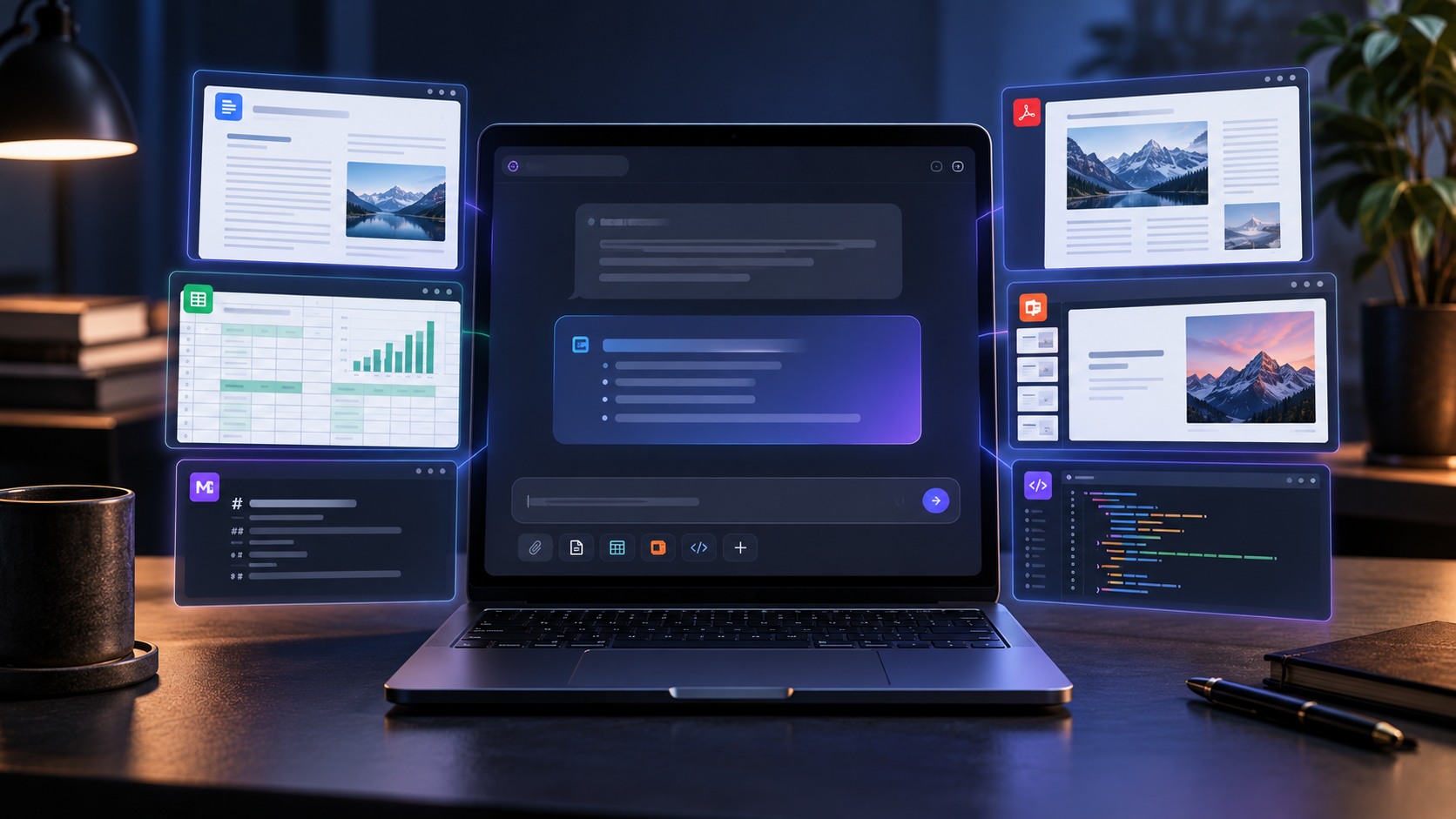
Laptop showing an AI chat workspace editing documents, PDFs, spreadsheets, slides and code.

Google has expanded the Gemini app from a place that mainly returns answers into a workspace where users can generate, preview and refine complete files without leaving the conversation. The new experience brings documents, PDFs, spreadsheets, presentations, text files and code into a single chat-centered workflow.

Google announced the change on October 29, 2026. It is available now to personal Google accounts, Google Workspace customers and Workspace Individual subscribers in every language where the Gemini app is offered. The important caveat is that device support varies: PDF preview and editing work on the web and mobile, while the broader file-editing experience is currently web-only.

What changed inside the Gemini app

A generated file can now open inside the Gemini conversation instead of appearing only as a download or a link to another editor. On the web, users can expand the file to a full-screen view, type changes directly, highlight a passage or visual element and ask Gemini to revise only that selection. They can also continue prompting Gemini to restructure, shorten or extend the file.

The practical benefit is continuity. A user can move from a prompt to a draft, inspect the draft and make a targeted correction without repeatedly downloading versions or rebuilding the file in a separate application. Export remains available when the work is ready for Google Drive, Google Docs, Google Sheets or a standard downloadable format.

This is still an editing surface, not an approval system. Gemini can make a file look complete while leaving incorrect facts, broken formulas, weak citations or misleading charts inside it. The closer the file gets to publication, grading, finance, compliance or customer use, the more important a manual review becomes.

Supported file types and device boundaries

  • PDFs: Preview and editing are supported in Gemini on both the web and mobile. A user can generate a PDF, inspect its pages and request or type revisions.
  • Documents and text: Gemini can create Google Docs, DOCX, LaTeX, Markdown, RTF and TXT files. Direct in-chat editing for the broader document experience is currently centered on the web.
  • Spreadsheets and tabular files: Gemini can build Google Sheets, XLSX, CSV and TSV outputs, preview structured data and export the result for continued work.
  • Presentations: Users can generate and refine slide content, preview a deck and then open it in Google Slides or download it as PPTX or PDF.
  • Code and web files: Gemini can create common programming languages and web formats, including Python, JavaScript, TypeScript, HTML and React-related files.

Google’s help documentation lists a wider range of formats that Gemini can generate than the October announcement names as direct-edit examples. That distinction matters: the ability to create or download a format does not guarantee that every element in that format has a full native editor in every Gemini client.

Generation, preview and export are separate stages

Generation produces a file from the prompt and any approved source material. Preview lets the user inspect what Gemini created. Editing changes the file, either manually or through another prompt. Export moves the result to Drive, a Workspace editor or a downloadable format. Treating those as four separate checkpoints makes it easier to catch errors before they become part of the final asset.

How to create and edit a file in Gemini

  • Open the Gemini app with the Google account that should own the finished file.
  • Describe the output precisely. Name the file type, audience, source material, required sections, tone and any facts that must remain unchanged.
  • Ask Gemini to generate the file. If the task depends on existing material, attach only the files that are necessary and permitted for that account.
  • Open the generated file in the conversation. On the web, expand it to full screen when a larger editing canvas is useful.
  • Make small, auditable revisions. Type a correction directly, highlight the exact section that needs work or prompt Gemini with a narrow instruction.
  • Export or download the result, then open the exported copy in its destination application and verify that layout, formulas, links and media survived the handoff.

A prompt that defines the review boundary

A useful prompt is more specific than “make a spreadsheet” or “turn this into a PDF.” For example: “Create an XLSX project tracker with columns for owner, due date, status and risk. Use only the attached milestone list. Do not invent dates. Add formulas for overdue items, but do not add external links.” The instruction names the format, required structure, allowed source and facts Gemini must not fabricate.

This is different from whole-deck editing in Google Slides

Google also launched multi-slide editing inside Google Slides, but the two experiences solve different problems. The Slides side panel edits selected slides or an entire existing presentation in the native Slides application. The new Gemini-app file workspace is broader: it starts in chat, spans several file types and can hand the result to another editor or download.

For a presentation that already has a theme, speaker notes, approved charts and collaborators, native Slides is usually the safer place for a deck-wide update. For a first draft that begins as notes, a table or a written brief, the Gemini app can be the faster starting surface. Moving between the two is useful, but it also creates a handoff that must be checked.

A safer workflow before you export

A safer workflow before you export

A human review pass between generation and export keeps the speed advantage while giving the final file a clear owner.

  • Start from controlled source material. Use the newest approved brief, dataset or notes rather than asking Gemini to reconstruct facts from memory.
  • Name the invariants. Tell Gemini which numbers, quotations, formulas, citations, filenames and legal statements it must not change.
  • Edit in small passes. Separate structure, factual correction, tone and visual cleanup so each change is easier to inspect.
  • Check calculations independently. Recompute totals, sample spreadsheet formulas and inspect chart ranges before relying on the output.
  • Open every link and citation. A polished reference list is not evidence that the sources exist or support the surrounding claim.
  • Inspect the exported file in its destination app. Confirm page breaks, fonts, image crops, formulas, comments and accessibility details after the handoff.
  • Keep a clean source copy. Save the original notes or dataset separately so an attractive generated file never becomes the only record.

Limits that matter in real work

  • Mobile support is narrower. Google says PDF preview and editing work on mobile, but documents, spreadsheets, slide decks, Markdown, TXT and code editing are currently web-only.
  • Upload limits still apply. Google’s help page says a prompt can accept up to 10 files when available; most non-video files can be up to 100 MB. Plan and account limits can change.
  • Spreadsheet structure can fail silently. A formula may reference the wrong row, a date can become text, or a chart can omit part of the range while the sheet still looks professional.
  • PDF and presentation layout needs visual review. Long tables, unusual fonts, embedded media and dense diagrams can shift during generation or export.
  • Generated facts and citations are not automatically verified. Compare important claims with the original source, especially when Gemini rewrites or compresses them.
  • File ownership and permissions can change at export. Confirm the destination account, folder and sharing state before treating the exported file as the official copy.

Privacy and account ownership

For personal Google accounts, Gemini Apps Activity settings influence how chats and uploaded material are retained and used. Google’s Privacy Hub says that when Keep Activity is on, activity can be used to improve services with help from human reviewers. Temporary chats and conversations created while Keep Activity is off have different retention and training behavior, but Google still retains them for a limited period to provide and protect the service.

Work and school accounts can have different protections and administrator controls. Before uploading customer records, unreleased product details, employee information, financial data or student work, confirm the policy for the exact account in use. Deleting a source file from Drive does not automatically erase related Gemini activity, so data minimization is safer than relying on cleanup later.

A practical rule is simple: do not upload confidential material unless the organization has approved Gemini for that data class and the user understands where the generated file will be stored. Use synthetic or redacted examples when the goal is to test a workflow.

Three useful projects to try first

A PDF study guide from approved notes

Upload a clean set of lecture notes, ask for a structured study guide and require Gemini to keep quoted definitions unchanged. Review the outline, verify every date and formula, then export the PDF and inspect the final page breaks on the device where students will read it.

A spreadsheet tracker with visible formulas

Ask for a simple tracker whose formulas remain visible and easy to audit. Test it with sample rows before adding real operational data. This is safer than starting with payroll, tax, inventory or financial statements where a small formula error can have an outsized consequence.

A presentation draft before native Slides review

Use Gemini to turn an approved brief into a slide outline and first-pass deck. Then move the file into Google Slides for theme cleanup, speaker-note review, chart validation and collaboration. The chat workspace is a fast draft surface; the native editor remains the better final checkpoint.

One practical accessory for longer editing sessions

A compact external keyboard can make full-screen document and spreadsheet editing more comfortable on a laptop or tablet. The Logitech MX Keys Mini is a relevant example with Bluetooth connectivity, backlit keys and support for major desktop and mobile operating systems. Check the Logitech MX Keys Mini on Amazon for current pricing and availability.

Affiliate disclosure: ReaderSpice may earn a commission from qualifying purchases made through the Amazon link above, at no additional cost to you.

Bottom line

Gemini’s new file workspace removes friction between asking for an asset and refining it. PDFs get the widest device support, while documents, spreadsheets, slide decks, text files and code gain a more complete editing experience on the web. For lightweight drafts, study materials, trackers and early presentations, that can save meaningful time.

The feature is most useful when generation and approval remain separate. Define the source, constrain the change, review the file at full size, verify facts and calculations, and inspect the exported copy in its destination app. The faster path is valuable precisely because it leaves more time for the judgment the model cannot supply.

Sources

Google Blog — Edit and preview documents directly in Gemini (October 29, 2026)

Google Workspace Updates — Create, preview, and edit files directly in the Gemini app

Gemini Apps Help — Use Gemini Apps and generate files from chats

Gemini Apps Help — Upload and analyze files in Gemini Apps

Gemini Apps Privacy Hub — Activity, retention and human review

Logitech — MX Keys Mini specifications and compatibility

Google Slides Can Now Edit an Entire Deck With Gemini: How It Works and What to Watch

Laptop showing an AI assistant applying coordinated edits across a grid of presentation slides.

Google has turned Gemini in Slides from a one-slide helper into a deck-wide editor. The new capability can restyle, rewrite, combine and expand multiple slides from one prompt—but the fastest workflow is not the same as the safest one.

Google announced the change on October 30, 2026, with rollout beginning October 29. It is a meaningful upgrade for anyone who inherits inconsistent decks, needs to change a presentation’s audience quickly or spends too much time fixing repeated formatting by hand.

What changed in Google Slides

Gemini can now edit selected slides or an entire presentation from the Ask Gemini side panel. Instead of generating a suggestion that you paste into one slide, the system decides which slides need changes and writes those edits directly into the native, editable deck.

Google says one prompt can handle four broad jobs:

  • Refresh a visual system across the deck, including fonts, backgrounds and color choices.
  • Rewrite or expand content across several slides, optionally grounded in files from Google Drive.
  • Condense several slides into one or add new slides to an existing presentation.
  • Normalize repeated details such as title styling, font sizes or page numbers.

After Gemini finishes, the side panel shows a summary of the changes. Because the results remain native Slides objects, you can keep editing manually, use Undo or restore an earlier version from version history.

This is not an autonomous presentation publisher

The feature is best understood as a bulk editing tool, not a substitute for editorial judgment. Gemini can accelerate a controlled transformation; it cannot know whether an old claim is still true, whether a chart’s scale is misleading or whether a legal disclaimer must stay word-for-word unless you tell it.

Who gets it—and when

Google lists access for Business Standard and Plus, Enterprise Standard and Plus, Google AI Pro and Ultra, and Google AI Pro for Education. The new multi-slide experience is currently limited to desktop and English. Google’s help page also describes it as a beta capability for eligible accounts.

The rollout is extended and may take more than 15 days, so an eligible account may not see it immediately. There is no separate administrator control for the feature, although broader Gemini service access and organizational policies still matter.

Google is also giving Workspace customers promotional access to higher multi-slide creation limits through at least December 1, 2026. Per-user limits will apply after that date, and Google says it will publish more detail before the change.

How to edit an entire presentation with Gemini

  • Open the presentation in Google Slides on a computer.
  • Select Ask Gemini at the upper-right to open the side panel.
  • Describe the scope precisely. Name the slides, audience, tone, visual rules and facts that must not change.
  • Attach or reference a trusted Drive file when the update depends on approved source material.
  • Submit the prompt, then read Gemini’s change summary before reviewing the deck itself.
  • Inspect every changed slide and use Undo or version history if the result crosses the boundary you set.

Prompts that are specific enough to audit

A good deck-wide prompt behaves like a compact editorial brief. It defines the allowed change and the things that must remain untouched.

  • “Make title typography consistent on every slide. Do not change body copy, chart data, speaker notes or image crops.”
  • “Rewrite slides 3–8 for a nontechnical audience. Preserve every number, citation and product name, and flag any sentence you cannot simplify without changing its meaning.”
  • “Match this deck’s visual style to the approved reference presentation. Keep the current slide order and do not add or remove content.”
  • “Combine slides 5–7 into one executive-summary slide. Retain the three decisions and their owners, and move supporting detail into speaker notes.”

Avoid requests such as “make this better.” They are quick to type but difficult to review because success has no defined boundary.

A safer workflow before you let AI touch 40 slides

A safer workflow before you let AI touch 40 slides

A controlled before-and-after pass keeps the speed benefit while making the final deck easier to trust.

  • Save a named version before the first bulk edit. Version history is useful only if you can recognize the clean starting point.
  • Work in small passes. Fix structure first, content second and visual consistency third instead of asking for all three at once.
  • Lock the invariants in the prompt. Call out numbers, quotations, citations, legal text, brand names and chart data that Gemini must not alter.
  • Review at 100% zoom and in grid view. Grid view exposes inconsistent title positions and theme drift; slide view reveals cropped images and overflowing text.
  • Run a factual pass separately. Compare claims, figures and dates with the approved source rather than assuming a visually polished slide is correct.
  • Rehearse the finished deck. A slide can be accurate and attractive yet still break the spoken narrative or duplicate the next slide.

What Gemini can still get wrong

  • Facts can drift during a rewrite. A shorter sentence may silently lose a qualifier, timeframe or comparison basis.
  • Visual consistency can mask semantic inconsistency. Matching colors and layouts do not resolve contradictory messages.
  • Complex charts, diagrams and speaker notes need manual inspection. A bulk edit can alter context even when headline text looks correct.
  • Reference decks may carry outdated branding or confidential material. Use only files you are authorized to reuse.
  • Accessibility still needs a human pass. Check reading order, contrast, font size, descriptive links and image alternatives where your workflow supports them.

Google explicitly warns that Gemini may not support every request and provides feedback controls for inaccurate or unsafe results. Treat that as a reason to design for verification, not as a reason to avoid the tool entirely.

Should you use it?

Yes—when the task is repetitive and the acceptance criteria are clear. Deck-wide editing is a strong fit for aligning title styles, changing a defined tone, condensing a known group of slides or applying an approved reference style.

Use more caution when a presentation contains regulated claims, financial guidance, unreleased product details or dense data visualizations. In those cases, the right unit of work is usually a smaller slide range with a named source and a human approval checkpoint.

The practical advantage is not that Gemini can finish a deck without you. It is that you can spend less time repeating mechanical edits and more time checking the argument, evidence and audience experience.

One useful presentation accessory

For people who present in person, the Logitech Spotlight presentation remote is a relevant companion rather than a requirement. Logitech says it supports Google Slides on Windows and macOS, connects by Bluetooth or USB, offers digital highlighting and can run for up to three months on a full charge. Check the Logitech Spotlight on Amazon for current pricing and availability.

Affiliate disclosure: ReaderSpice may earn a commission from qualifying purchases made through the Amazon link above, at no additional cost to you.

Sources

Google Workspace Updates — Edit entire presentations with Gemini in Google Slides (October 30, 2026)

Google Docs Editors Help — Generate and edit slides with Gemini in Google Slides (Beta)

Google Docs Editors Help — Generate presentations with Gemini in Google Slides

Logitech — Spotlight Advanced Wireless Presentation Remote specifications

Inline image alt text: Before-and-after slide cards show an inconsistent deck becoming visually coherent through a review workflow.

Inline image caption: A controlled before-and-after pass keeps the speed benefit while making the final deck easier to trust.

Raven Prism Costs $1,499: Linux Smart Glasses Specs, Tradeoffs and Who Should Buy

Conceptual black Linux smart glasses on a developer desk with a glowing right-eye display and floating app windows

Raven Prism is a $1,499 pair of standalone smart glasses that puts a 64-bit Linux computer, a full-color display and gaze-based controls into a frame designed for everyday wear. Reservations opened October 29, 2026, with a refundable $49 deposit, and Raven Resonance says the first units are expected to ship in January 2027.

The premise is more ambitious than a phone-connected notification display: Prism can run compatible ARM64 Linux software without a smartphone, expose hardware to developers and keep working while its modular batteries are swapped. The tradeoffs are equally important. Its view is monocular and relatively narrow, the launch is limited to early production batches, and key claims about comfort, endurance, software quality and long-session usability have not yet been independently tested.

Raven Prism at a glance

  • Price: $1,499 for Raven Prism 1; a fully refundable $49 reservation holds a place in the next available production batch.
  • Shipping: Raven says initial shipments begin in January 2027, but the current reservation page assigns later buyers to a later batch; buyers should rely on the date shown at checkout.
  • Availability: U.S. shipping first, with European Union availability promised later but no firm EU launch date.
  • Display: a right-eye, full-color 30-degree diffractive waveguide using an LCoS light engine, rated above 1,500 nits.
  • Compute: quad-core 64-bit ARM processor, up to 4GB of RAM and at least 32GB of storage running the Linux-based Raven OS.
  • Interaction: eye control, voice, Bluetooth keyboards, mice and other peripherals, plus four microphones and two downward-facing speakers.
  • Camera and sensors: 13-megapixel world-facing camera, physical camera cover, visible activity lights, motion, ambient-light and proximity sensors.
  • Power: two pairs of hot-swappable Raven Wings battery modules and a charging Wing Case are listed in the box.

This article separates Raven’s and its partners’ launch claims from facts independently observed by other publications. ReaderSpice has not tested Prism. Display clarity, prescription accuracy, eye-control reliability, battery endurance, heat, audio leakage, camera indicators and the maturity of Raven OS still need independent review testing.

The $49 deposit is not the full purchase price

Raven’s reservation page asks for $49 today, says that amount is fully refundable and lists the complete device at $1,499. The deposit secures a place in a production batch rather than a finished retail unit ready to ship immediately. The company says frame color, memory and storage choices will be selected later.

That distinction matters because early batches can fill. At the time of research, the reservation page displayed a specific next-batch assignment rather than guaranteeing January delivery for every new customer. Anyone considering the deposit should save the displayed batch, shipping region, refund language and final configuration terms before paying.

The price puts Prism above many premium laptops and far above simple wearable displays. What buyers are paying for is the combination of self-contained compute, open Linux access, prescription integration, gaze control, a color waveguide and modular power. Those features make sense only if they serve a defined workflow.

Hardware: monocular display, Linux compute and modular power

Hardware: monocular display, Linux compute and modular power

The glasses use one full-color optical display in front of the right eye. Raven and display partner Avegant describe a 30-degree diagonal field of view and compare the virtual image with a 16-inch screen viewed at arm’s length. The display sits toward the wearer’s periphery so information can be checked with a glance rather than blocking the whole scene.

A monocular design reduces hardware compared with dual-display glasses, but it is not equivalent to a wide binocular workspace. A 30-degree view is better suited to compact dashboards, instructions, messages, navigation or a small application window than to filling the user’s vision with several large virtual monitors. People with vision differences should be especially cautious until qualified testing and return details are available.

Inside the frame is a quad-core 64-bit ARM processor, up to 4GB of memory, at least 32GB of storage and a dedicated FPGA for on-device models and audio processing. Connectivity includes dual-band Wi-Fi and Bluetooth 5. The 13-megapixel camera has an 84-degree horizontal field of view, while four beamforming microphones and two speakers handle voice and audio.

Linux is the feature that makes Prism unusual

It is a standalone ARM64 computer

Raven OS is a custom Linux distribution rather than a closed phone accessory platform. Raven says owners can use SSH, run native ARM64 Linux applications and work with a Wayland compositor and OpenGL ES. That could make Prism useful for developers who want a hands-free terminal, field instructions, equipment status or custom sensor workflows without carrying a phone as the primary computer.

The launch material says more than 25 applications will be available and mentions categories such as navigation, media and AI. A headline app count does not establish quality, accessibility or long-term support. Buyers should ask whether their specific tool exists, whether it works without a cloud subscription and whether it remains usable with the small monocular view.

Open access is powerful—and adds responsibility

Low-level access is attractive for experimentation because Raven says developers can reach the camera, audio, sensors, eye controls and framebuffer. It also means a poorly secured or untrusted application could reach unusually sensitive hardware. The planned Raven App Store is supposed to use an entitlement system, but launch buyers should not assume desktop Linux software is automatically safe or well adapted to glasses.

Treat Prism like a computer worn on the face: install software from sources you trust, review permissions, keep Raven OS updated, use strong account security and separate experimental projects from confidential work. Organizations should evaluate device management, logging, incident response and camera policies before field deployment.

Eye control and voice need real-world testing

Prism’s primary interface combines dedicated eye-tracking sensors with gaze models from Pupil Labs and Raven, then adds voice and optional Bluetooth peripherals. In theory, a glance can move focus and a spoken command can act without touching the frame. In practice, eye control must be judged across different eyes, glasses prescriptions, lighting conditions, fatigue levels and accessibility needs.

A keyboard or mouse can make Linux applications more practical at a desk, but carrying peripherals weakens the all-day, hands-free pitch. Voice input also raises social and privacy questions in an office, train or shared home. Buyers should wait for demonstrations of text entry, focus errors, calibration time and recovery when gaze selection goes wrong.

Hot-swappable Raven Wings solve one problem, not every battery question

Raven Wings attach magnetically to expansion points on the frame. The company says one set can be removed and replaced while the system stays on, with applications resuming where the user left them. Two pairs and a charging case are listed as included, which could reduce downtime compared with glasses that must stop for wired charging.

Raven has not published a single independent, workload-specific endurance figure that proves all-day use. Camera recording, outdoor display brightness, Wi-Fi, AI workloads and continuous eye tracking can draw very different amounts of power. Battery-module weight, heat, charging speed, cycle life, replacement pricing and how long the internal buffer lasts during a swap all deserve testing.

The modular connector may eventually support GPS, cellular or AI-acceleration modules, according to the company. Those are future possibilities, not included launch capabilities. Do not value a reservation on accessories that have not been priced, dated or independently demonstrated.

Privacy protections are visible, but consent still matters

Hardware safeguards are a meaningful start

Prism places a physical cover over its 13-megapixel camera. Raven says the cover must be manually moved before the camera can operate, and illuminated Beakon indicators on the frame are designed to show nearby people when the camera is active. Eye-control processing is described as local, with core AI work intended to run on the device when possible.

Physical barriers and visible indicators are stronger signals than a software icon alone, but they do not answer every question. Independent reviewers should confirm whether the cover fully blocks capture, whether the activity lights are hard-wired to camera power, what microphones can record, which functions use cloud services and how logs, backups and app permissions are handled.

Wearers must account for other people

A camera-equipped computer at eye level can be uncomfortable in workplaces, classrooms, clinics, homes and public venues even when it is not recording. Follow local recording laws, obtain consent where required, obey employer and venue policies and remove the device in sensitive spaces. A visible light is not a substitute for a clear conversation with the people around you.

Prescription support, fit and shipping limits

Raven’s current reservation page says built-in prescriptions from -4.5 to +4.5 diopters are supported for the advertised batch, with wider ranges and progressive lenses planned later. That is a narrower promise than universal prescription support. Buyers should confirm whether astigmatism, prism correction, pupillary distance, lens material, remakes and refunds are covered before providing a prescription.

The company and Avegant describe the glasses as under 70 grams. That is light for a self-contained computer but still much heavier than many ordinary prescription frames, and the removable temple modules may affect balance. Fit, nose pressure, temple pressure, display alignment and comfort after several hours remain open questions.

U.S. shipping is the only firm initial region listed. The reservation page says European Union availability is coming, without a confirmed date. International buyers should not infer taxes, warranty coverage, radio approvals or support from the U.S. price.

How Prism differs from XREAL AURA and simpler display glasses

XREAL AURA, covered separately by ReaderSpice, uses Android XR and shifts most compute and battery hardware into a cable-connected puck. Its 70-degree binocular view is far wider, while Prism puts a narrower 30-degree monocular display and the computer into the glasses themselves. AURA favors a larger spatial workspace; Prism favors a self-contained, Linux-accessible form factor.

Simpler display glasses such as XREAL One Pro connect to a compatible phone, laptop or gaming handheld. They can cost less and may be better for movies or a private virtual monitor, but they do not offer Prism’s standalone Linux computer, gaze-first interface, camera, sensor access or modular batteries.

That comparison should begin with the job, not the novelty. Choose a standalone developer platform only if custom software and hands-free context matter. Choose a wider XR system if spatial windows and immersive apps matter. Choose basic display glasses if the goal is mainly a portable screen.

Who should reserve—and who should wait

Consider reserving if

  • You are an AR, Linux or wearable-computing developer with a specific ARM64 project and can tolerate early-platform changes.
  • A standalone, hands-free computer is materially more useful to your work than a phone-tethered display.
  • The refundable deposit, batch timing, prescription range and U.S.-first support are acceptable after you read the current terms.
  • You are prepared to test privacy, permissions, security and comfort rather than assuming the launch claims are settled.

Wait if

  • You need proven battery endurance, all-day comfort, mature apps or dependable enterprise support.
  • A narrow right-eye display, voice interaction or gaze control does not fit your vision or accessibility needs.
  • You expect a wide binocular workspace, immersive gaming or a replacement for several desktop monitors.
  • You live outside the United States or need progressive lenses, a wider prescription range or confirmed local warranty service.
  • You would be buying because of future GPS, cellular or AI modules that are not yet priced or scheduled.

A lower-cost display-glasses alternative

Readers who mainly want a wearable screen rather than a standalone Linux computer can compare the XREAL One Pro on Amazon. The verified U.S. listing is ASIN B0FDPGHVCB. One Pro connects to compatible phones, laptops and gaming handhelds and uses XREAL’s X1 chip for spatial display modes, but it does not reproduce Prism’s ARM64 computer, camera, eye-control sensors or modular power. Confirm the selected fit, seller, compatibility and return terms before ordering.

Affiliate disclosure: ReaderSpice may earn a commission from qualifying Amazon purchases made through the link above, at no additional cost to you.

Bottom line

Raven Prism is one of the more technically interesting smart-glasses launches of 2026 because it is not merely an accessory. A standalone Linux computer, local developer access, a color waveguide, gaze input, physical camera cover and hot-swappable batteries create possibilities that closed phone companions cannot match.

Those same ambitions make it an early-adopter product. The $1,499 price, narrow monocular view, limited initial shipping, batch-based reservation, prescription constraints and missing independent endurance data are serious qualifications. Developers with a defined hands-free use case can justify a refundable reservation after reading the current terms. Most consumers should wait for shipping units, full app details and independent comfort, battery and privacy testing.

Sources

Raven Resonance: Raven Prism hardware, display, camera, sensors and Raven OS

Raven Resonance: reservation price, refundable deposit, shipping regions and included accessories

Raven Resonance: developer access, Linux stack, eye control and application permissions

PR Newswire: October 29 launch announcement, preorder terms and privacy claims

Avegant: LCoS waveguide partnership, weight, field of view and launch specifications

Notebookcheck: independent launch summary, limitations and batch availability context

Amazon: XREAL One Pro (ASIN B0FDPGHVCB)