
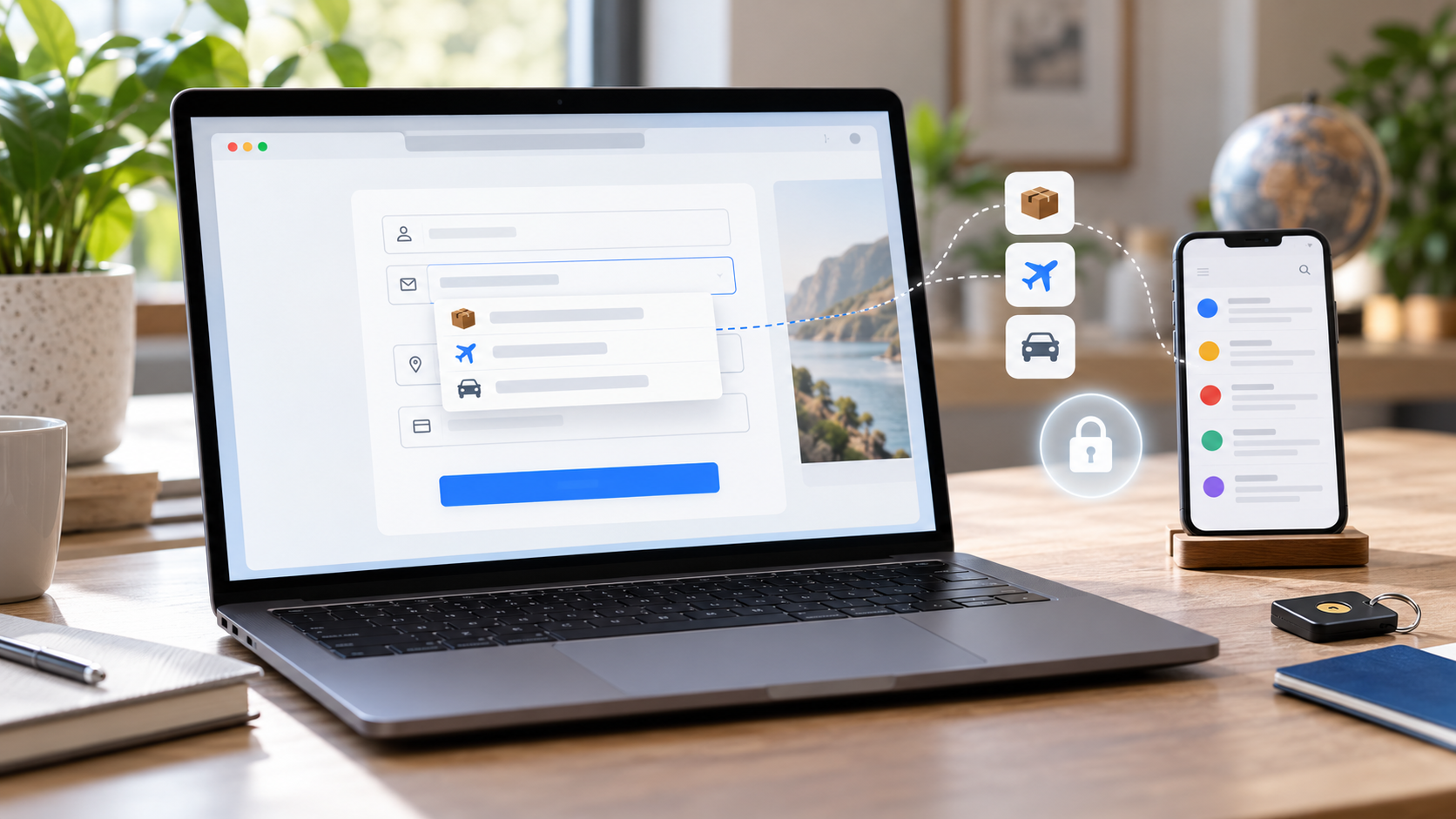
Chrome can now suggest information from Gmail while a person fills out an online form. Google announced the expanded enhanced-autofill feature on October 28, 2026, using Gemini with Personal Intelligence to surface details such as order numbers, package tracking information and flight bookings without requiring a separate inbox search.
The convenience is real, but the feature is narrower than the headline may suggest. It is beginning to roll out in the United States for eligible Gemini in Chrome users who are at least 18 and have opted into Personal Intelligence. It works on desktop, Android and iOS, and it can be turned off independently in Chrome settings.
This guide explains what enhanced autofill can pull from Gmail, how to verify the source before accepting a suggestion, how to enable or disable it on each platform and which privacy controls matter. The safest use is deliberate: review the field, confirm the source email and submit only information that belongs on the site in front of you.
Chrome enhanced autofill at a glance
- Announced October 28, 2026, with a gradual U.S. rollout.
- Available on desktop, Android and iOS for eligible users age 18 or older.
- Requires Gemini in Chrome and an opt-in to Personal Intelligence.
- Can suggest Gmail details related to flights, vehicles, orders and package tracking.
- Shows Gemini-powered suggestions in a form-field dropdown or mobile suggestion chip.
- Lets the user open the original Gmail source before accepting a suggestion.
- Can be disabled under Chrome’s Autofill and passwords settings.
Who can use the Gmail-powered feature now
Google’s current help documentation lists four gates: the person must be in the United States, be 18 or older, have access to Gemini in Chrome and opt into Gemini Personal Intelligence. The feature is rolling out rather than appearing for every eligible account at the same moment, so a missing setting does not necessarily mean Chrome is outdated or misconfigured.
Personal and managed accounts may not behave the same way. Google says some Personal Intelligence experiences are designed for personal Google accounts, while work or school administrators can restrict Gemini, connected apps or Chrome settings. If Enhanced autofill is absent from a managed browser, check organization policy before reinstalling Chrome or repeatedly changing profiles.
The rollout also depends on the active Chrome profile. Someone who uses one profile for personal Gmail and another for work should confirm which avatar and Google Account are selected before enabling the feature. An autofill suggestion is useful only when it comes from the intended inbox and belongs to the task being completed.
How Gmail-powered enhanced autofill works
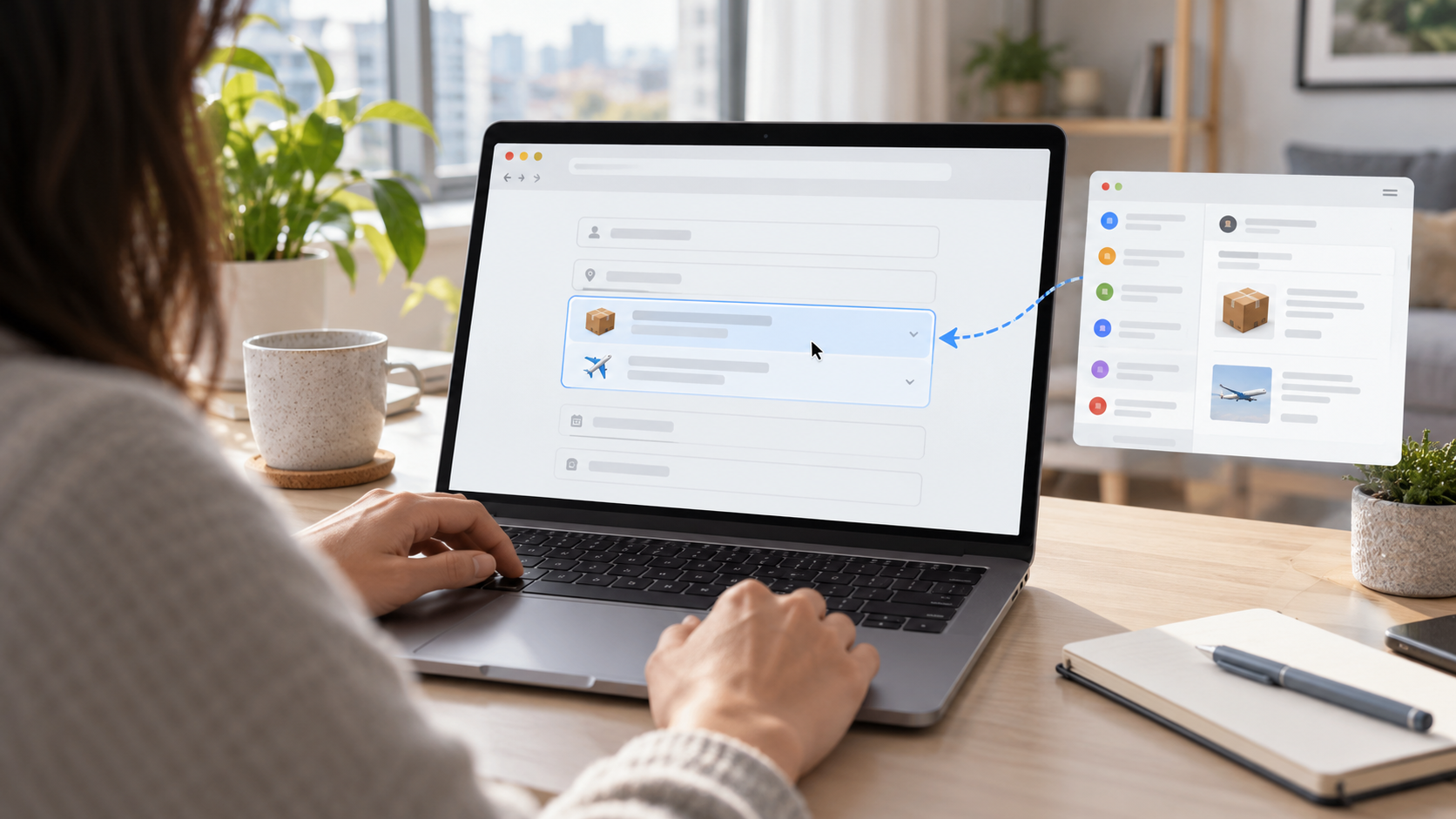
When Chrome recognizes a supported field, enhanced autofill can offer a Gemini-marked suggestion derived from connected Gmail information. Google gives examples such as flight details, vehicle information, order numbers and tracking data. The suggestion appears where a normal autofill option would appear; Chrome does not submit the form until the user chooses the suggestion and continues through the website’s own workflow.
The distinction between suggestion and submission matters. A matching order number can still belong to a different return, a flight can be outdated after a schedule change, and a vehicle identifier can be inappropriate for a public or unfamiliar website. Treat the feature as a faster way to locate information, not as proof that the information is current or that the requesting site is trustworthy.
Verify the Gmail source before filling a field
On desktop, hover over the Gemini suggestion and open its menu, then choose the source link. Chrome opens the original Gmail message in a new tab. On Android or iOS, touch and hold the suggestion chip and choose View sources. Compare the sender, date, order or reservation number and recipient before inserting anything.
A source email can be authentic while the form is not. Confirm the domain in the address bar, especially for returns, travel changes, warranty claims and delivery problems. If the page arrived through an unsolicited message, reopen the retailer, airline or carrier from a trusted bookmark or official app before sharing an order number or other account detail.
How to turn enhanced autofill on or off on desktop
- Open Chrome and select the three-dot menu.
- Choose Settings, then Autofill and passwords.
- Open Autofill settings and select Enhanced autofill.
- Turn Find and fill with Gemini on or off.
- If the control is missing, confirm the active profile, age eligibility, U.S. availability, Gemini in Chrome access and Personal Intelligence enrollment.
Turning the feature off stops Chrome from presenting these Gmail-derived enhanced suggestions. It does not delete the Gmail messages that supplied earlier suggestions, erase ordinary saved addresses or payment methods, or automatically disconnect every Google app from Gemini. Those controls live in separate settings and should be reviewed separately.
How to manage it on Android and iPhone
On Android, open Chrome, select the three-dot menu, choose Settings, then Autofill and passwords. Open Enhanced autofill and use the Find and fill with Gemini switch. To inspect a suggestion, long-press the chip above the keyboard, choose View sources and open the relevant email.
On iPhone or iPad, open Chrome, tap More, then Settings. Choose Autofill and passwords, open Autofill settings, select Enhanced autofill and change Find and fill with Gemini. The source-review gesture is similar: touch and hold the suggestion chip, choose View sources and verify the email before filling the field.
Menu labels can shift slightly during rollout or between app versions. Update Chrome from the official app store, restart the browser and confirm that the intended Google Account is signed in. Do not install a profile, extension or third-party app that promises to unlock the feature early.
Remove an outdated suggestion without deleting the email
Google says information pulled from Gmail cannot be edited inside Chrome. On desktop, open the suggestion menu and choose Remove from Chrome. On mobile, long-press the suggestion chip and choose Remove suggestion or Remove. That action removes the Chrome suggestion but leaves the original Gmail message intact.
Deleting the original email has a different effect: Google says it also removes the corresponding suggestion. That is not a good reason to delete a receipt, itinerary or warranty record that still has value. Remove the suggestion from Chrome when the email should remain archived, and delete the email only when normal record-retention and account needs allow it.
If the underlying reservation or order changed, use the newest official confirmation rather than trusting an older suggestion. Chrome may surface what the connected inbox contains; it cannot guarantee that a merchant, airline or carrier has not issued a later update in another message or app.
Privacy controls that matter
Google says sensitive data used by enhanced autofill is encrypted and that the feature can be managed in Chrome settings. Its general autofill documentation also says Chrome sends form structure, field names and a hashed version of the site’s domain to Google so it can match information to fields. After submission, Chrome can send information about the form structure and the types of data submitted to improve predictions.
Gemini and Personal Intelligence add another layer. Google says connecting apps is opt-in, users choose which eligible apps to connect and connected-app access can be turned off. Google’s Personal Intelligence documentation says Gmail inbox content is not used directly to train Gemini models, while limited information such as prompts and responses may be used after steps intended to filter or obscure personal data.
These are different controls with different effects. Disabling enhanced autofill stops the Gmail-powered form suggestions. Disconnecting Google Workspace from Gemini affects connected-app access more broadly across Gemini experiences. Gemini Apps Activity and Keep Activity determine how some interactions are stored. A privacy review should check each relevant setting instead of assuming one switch controls the entire data path.
Enhanced autofill and Connected Apps are not the same switch
In Gemini in Chrome, Connected Apps settings can link services such as Gmail, Calendar, Drive, Photos and YouTube. Google says disconnecting an app applies across Gemini Apps, including Gemini in Chrome. That broader change may affect summaries, personalized answers and other tasks beyond autofill.
Use the narrowest control that matches the goal. Turn off enhanced autofill if Gmail-based form suggestions are the only concern. Review Connected Apps when Gemini should not access Gmail or another service at all. Review Gemini Apps Activity when the question is retention of interactions. Record the change before troubleshooting, because toggling several settings at once makes it difficult to know which control caused the result.
When not to accept an autofill suggestion
- The page domain is unfamiliar, misspelled or reached through an unsolicited link.
- The suggestion belongs to another person, account, trip, vehicle or order.
- The email is old and a newer confirmation may exist.
- The field asks for more information than the stated task requires.
- The form concerns financial, medical, legal or identity data and the source cannot be verified.
- A shared device or the wrong Chrome profile is active.
- The website asks for an order number or tracking code before showing a clear privacy policy or support purpose.
Autofill reduces typing; it does not evaluate the business requesting the data. Pause when a suggestion reveals more than expected, and type only the minimum necessary information after confirming the site. For sensitive support cases, the official retailer, airline or carrier app may provide a safer authenticated channel than an open web form.
Optional Google Account protection with a security key
Because enhanced autofill depends on Gmail and a signed-in Chrome profile, protecting the Google Account remains important. A physical security key can provide phishing-resistant authentication for compatible Google sign-ins and other services. It does not control what enhanced autofill can access, but it can make account takeover harder if a password is exposed.
One compatible option is the Yubico YubiKey 5C NFC (ASIN B08DHL1YDL). It supports USB-C and NFC, and Yubico lists Google Accounts among supported services. Confirm connector compatibility with every device, register a backup sign-in method and consider a second key before relying on one physical key for an important account.
Affiliate disclosure: ReaderSpice may earn a commission from qualifying Amazon purchases made through the link above, at no additional cost to you.
Troubleshooting when enhanced autofill does not appear
- Update Chrome through the official browser or app-store update path.
- Confirm that the active profile uses an eligible personal Google Account in the United States.
- Check that the account holder is 18 or older and has Gemini in Chrome access.
- Verify that Personal Intelligence is enabled and that the relevant Google Workspace connection is available.
- Look for organization policies if the browser or account is managed by work or school.
- Test a supported form with a recent order, flight or vehicle-related email rather than an unrelated field.
- Wait for the staged rollout if every requirement is satisfied but the control is still absent.
Avoid broad troubleshooting that weakens other protections. Clearing all browser data, disabling Safe Browsing or installing an unverified extension is not required for this feature and can create new problems. Start with eligibility, profile and settings checks, then wait for rollout rather than forcing access.
The bottom line
Chrome’s Gmail-powered enhanced autofill is a practical shortcut for details that are difficult to remember and easy to mistype. Source links, removable suggestions and a dedicated on-off switch give users meaningful control, while desktop and mobile support makes the feature useful across common form-filling workflows.
The feature should still be treated as an assistant, not an authority. Verify the Gmail source, confirm the website, use the correct Chrome profile and submit only the fields the task requires. If the convenience is not worth the connected-inbox access, turn off enhanced autofill and review Gemini Connected Apps separately.
Sources
Google Blog – Chrome enhanced autofill now pulls data from Gmail
Google Chrome Help – Fill out forms automatically in Chrome on desktop
Google Chrome Help – Use enhanced autofill on Android
Google Chrome Help – Use enhanced autofill on iPhone and iPad
Google Chrome Help – How Chrome protects autofill and password data
Google Chrome Help – Customize Gemini in Chrome and Connected Apps
Gemini Apps Help – Gemini Apps Privacy Hub
Amazon – Yubico YubiKey 5C NFC, ASIN B08DHL1YDL
Inline image: Gmail-powered enhanced autofill source review
Inline image alt text: Person reviewing a browser autofill suggestion linked to order and flight emails before inserting it into a form