

Google has turned Gemini in Slides from a one-slide helper into a deck-wide editor. The new capability can restyle, rewrite, combine and expand multiple slides from one prompt—but the fastest workflow is not the same as the safest one.
Google announced the change on October 30, 2026, with rollout beginning October 29. It is a meaningful upgrade for anyone who inherits inconsistent decks, needs to change a presentation’s audience quickly or spends too much time fixing repeated formatting by hand.
What changed in Google Slides
Gemini can now edit selected slides or an entire presentation from the Ask Gemini side panel. Instead of generating a suggestion that you paste into one slide, the system decides which slides need changes and writes those edits directly into the native, editable deck.
Google says one prompt can handle four broad jobs:
- Refresh a visual system across the deck, including fonts, backgrounds and color choices.
- Rewrite or expand content across several slides, optionally grounded in files from Google Drive.
- Condense several slides into one or add new slides to an existing presentation.
- Normalize repeated details such as title styling, font sizes or page numbers.
After Gemini finishes, the side panel shows a summary of the changes. Because the results remain native Slides objects, you can keep editing manually, use Undo or restore an earlier version from version history.
This is not an autonomous presentation publisher
The feature is best understood as a bulk editing tool, not a substitute for editorial judgment. Gemini can accelerate a controlled transformation; it cannot know whether an old claim is still true, whether a chart’s scale is misleading or whether a legal disclaimer must stay word-for-word unless you tell it.
Who gets it—and when
Google lists access for Business Standard and Plus, Enterprise Standard and Plus, Google AI Pro and Ultra, and Google AI Pro for Education. The new multi-slide experience is currently limited to desktop and English. Google’s help page also describes it as a beta capability for eligible accounts.
The rollout is extended and may take more than 15 days, so an eligible account may not see it immediately. There is no separate administrator control for the feature, although broader Gemini service access and organizational policies still matter.
Google is also giving Workspace customers promotional access to higher multi-slide creation limits through at least December 1, 2026. Per-user limits will apply after that date, and Google says it will publish more detail before the change.
How to edit an entire presentation with Gemini
- Open the presentation in Google Slides on a computer.
- Select Ask Gemini at the upper-right to open the side panel.
- Describe the scope precisely. Name the slides, audience, tone, visual rules and facts that must not change.
- Attach or reference a trusted Drive file when the update depends on approved source material.
- Submit the prompt, then read Gemini’s change summary before reviewing the deck itself.
- Inspect every changed slide and use Undo or version history if the result crosses the boundary you set.
Prompts that are specific enough to audit
A good deck-wide prompt behaves like a compact editorial brief. It defines the allowed change and the things that must remain untouched.
- “Make title typography consistent on every slide. Do not change body copy, chart data, speaker notes or image crops.”
- “Rewrite slides 3–8 for a nontechnical audience. Preserve every number, citation and product name, and flag any sentence you cannot simplify without changing its meaning.”
- “Match this deck’s visual style to the approved reference presentation. Keep the current slide order and do not add or remove content.”
- “Combine slides 5–7 into one executive-summary slide. Retain the three decisions and their owners, and move supporting detail into speaker notes.”
Avoid requests such as “make this better.” They are quick to type but difficult to review because success has no defined boundary.
A safer workflow before you let AI touch 40 slides
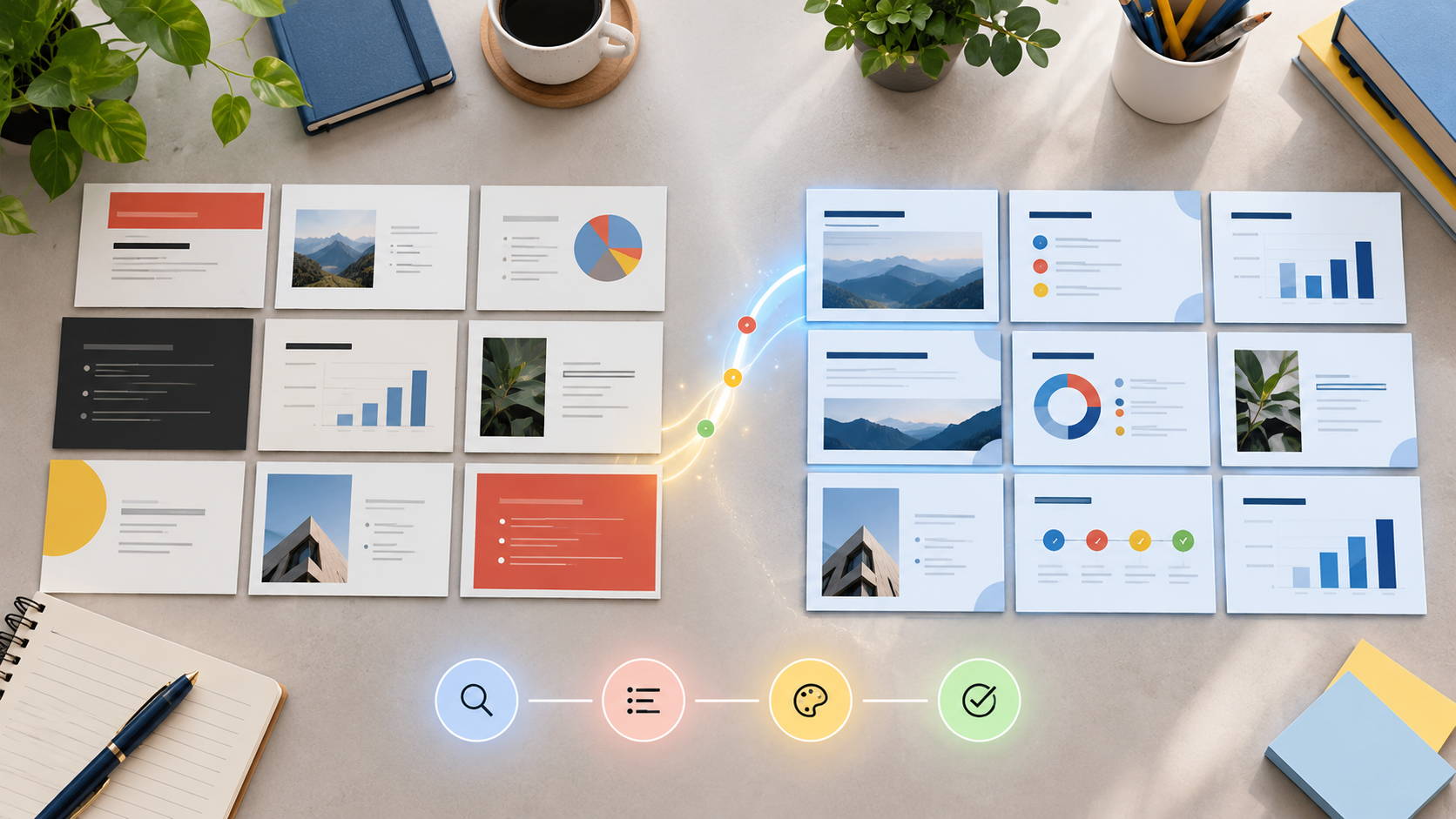
A controlled before-and-after pass keeps the speed benefit while making the final deck easier to trust.
- Save a named version before the first bulk edit. Version history is useful only if you can recognize the clean starting point.
- Work in small passes. Fix structure first, content second and visual consistency third instead of asking for all three at once.
- Lock the invariants in the prompt. Call out numbers, quotations, citations, legal text, brand names and chart data that Gemini must not alter.
- Review at 100% zoom and in grid view. Grid view exposes inconsistent title positions and theme drift; slide view reveals cropped images and overflowing text.
- Run a factual pass separately. Compare claims, figures and dates with the approved source rather than assuming a visually polished slide is correct.
- Rehearse the finished deck. A slide can be accurate and attractive yet still break the spoken narrative or duplicate the next slide.
What Gemini can still get wrong
- Facts can drift during a rewrite. A shorter sentence may silently lose a qualifier, timeframe or comparison basis.
- Visual consistency can mask semantic inconsistency. Matching colors and layouts do not resolve contradictory messages.
- Complex charts, diagrams and speaker notes need manual inspection. A bulk edit can alter context even when headline text looks correct.
- Reference decks may carry outdated branding or confidential material. Use only files you are authorized to reuse.
- Accessibility still needs a human pass. Check reading order, contrast, font size, descriptive links and image alternatives where your workflow supports them.
Google explicitly warns that Gemini may not support every request and provides feedback controls for inaccurate or unsafe results. Treat that as a reason to design for verification, not as a reason to avoid the tool entirely.
Should you use it?
Yes—when the task is repetitive and the acceptance criteria are clear. Deck-wide editing is a strong fit for aligning title styles, changing a defined tone, condensing a known group of slides or applying an approved reference style.
Use more caution when a presentation contains regulated claims, financial guidance, unreleased product details or dense data visualizations. In those cases, the right unit of work is usually a smaller slide range with a named source and a human approval checkpoint.
The practical advantage is not that Gemini can finish a deck without you. It is that you can spend less time repeating mechanical edits and more time checking the argument, evidence and audience experience.
One useful presentation accessory
For people who present in person, the Logitech Spotlight presentation remote is a relevant companion rather than a requirement. Logitech says it supports Google Slides on Windows and macOS, connects by Bluetooth or USB, offers digital highlighting and can run for up to three months on a full charge. Check the Logitech Spotlight on Amazon for current pricing and availability.
Affiliate disclosure: ReaderSpice may earn a commission from qualifying purchases made through the Amazon link above, at no additional cost to you.
Sources
Google Workspace Updates — Edit entire presentations with Gemini in Google Slides (October 30, 2026)
Google Docs Editors Help — Generate and edit slides with Gemini in Google Slides (Beta)
Google Docs Editors Help — Generate presentations with Gemini in Google Slides
Logitech — Spotlight Advanced Wireless Presentation Remote specifications
Inline image alt text: Before-and-after slide cards show an inconsistent deck becoming visually coherent through a review workflow.
Inline image caption: A controlled before-and-after pass keeps the speed benefit while making the final deck easier to trust.