
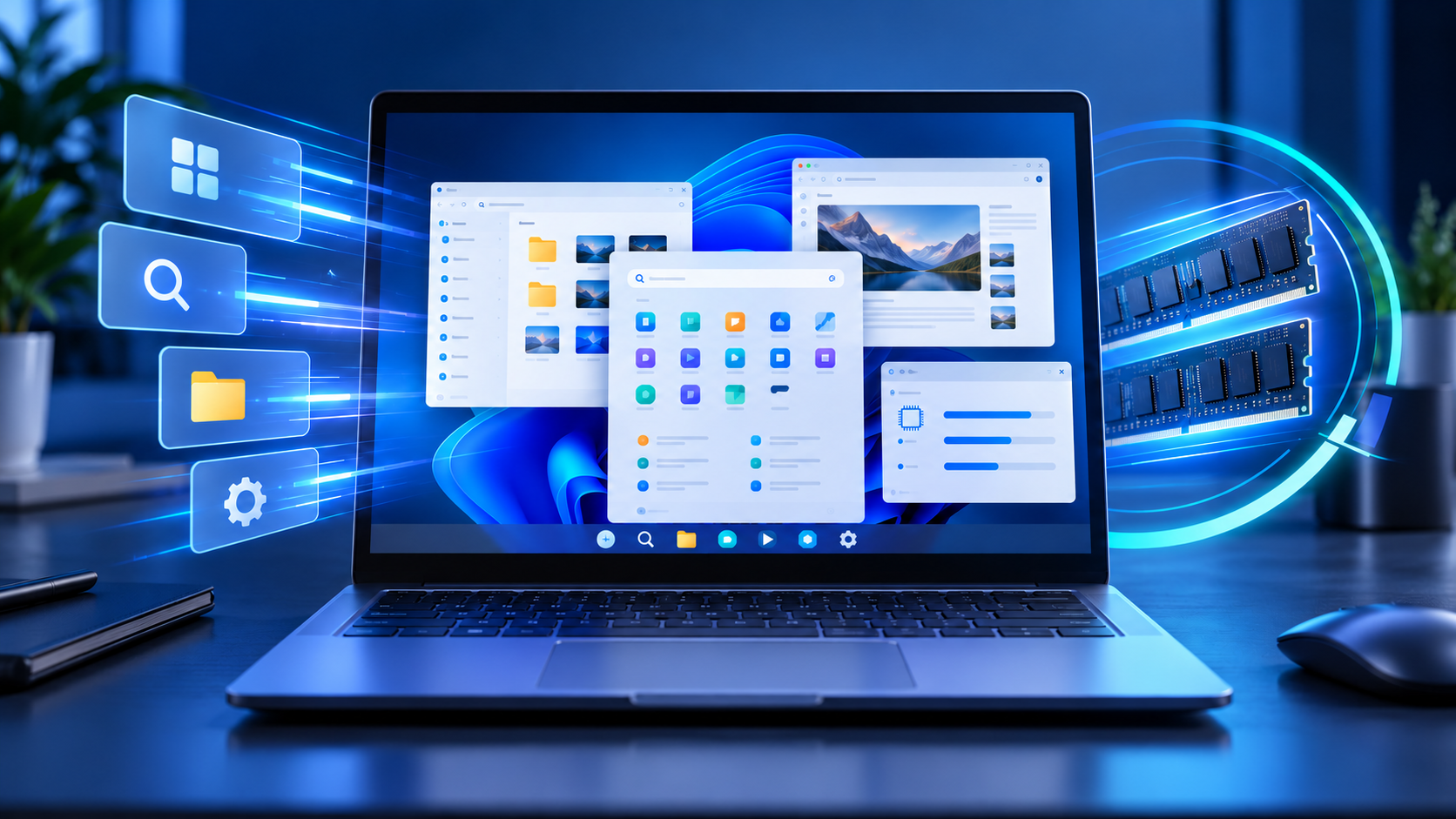
Microsoft says Windows 11 is becoming up to 20% more responsive after a year of work on the operating system, shell and built-in apps. The claim covers everyday interactions such as opening Start, searching, right-clicking, navigating File Explorer and launching Settings—not a blanket 20% boost to every application or game.
The October 15 announcement also describes concrete memory changes that could matter most on affordable PCs with 8GB of RAM. Windows can keep more active data in memory instead of moving it to slower storage, while Widgets can stay unloaded until requested. Several related improvements are rolling out broadly, but others—including a redesigned Windows Search experience—remain limited to Windows Insiders for now.
Windows 11 performance changes at a glance
- Microsoft reports response-time improvements of up to 20% across Search, Start, right-click menus, Settings, Snipping Tool and File Explorer.
- The comparison used Windows 11 build 26300.9550 against build 26200.7628; real results vary by device, configuration and workload.
- Windows can keep up to 2GB more active data in memory rather than paging it to slower storage.
- On PCs with 8GB of RAM or less, Widgets now load only when opened, making more than 200MB available for other work.
- Microsoft is also improving boot, sign-in, updates, Bluetooth reliability and Windows Hello.
- The new taskbar Search interface with inline actions is still an Insider preview, not a broadly available feature.
What Microsoft’s 20% claim actually measures
Microsoft’s footnote is more useful than the headline. The company measured response times for Search, Start, right-click actions, Settings, Snipping Tool and File Explorer on Windows 11 build 26300.9550, then compared them with build 26200.7628. The result is described as up to 20% more responsive, which means the best measured interaction improved by that amount; it does not mean every PC or every action will be exactly 20% faster.
This is also different from a processor benchmark. The claim does not promise a 20% increase in frame rates, video exports, code compilation or battery life. It targets latency in common Windows interactions—the time between clicking something and seeing the interface respond.
That distinction still matters. Small delays across Start, Explorer and Settings accumulate over a full day, and reducing them can make a modest PC feel less frustrating even when its processor has not changed. The effect should be judged by responsiveness, not by expecting a higher synthetic benchmark score.
Why 8GB PCs may notice the biggest difference
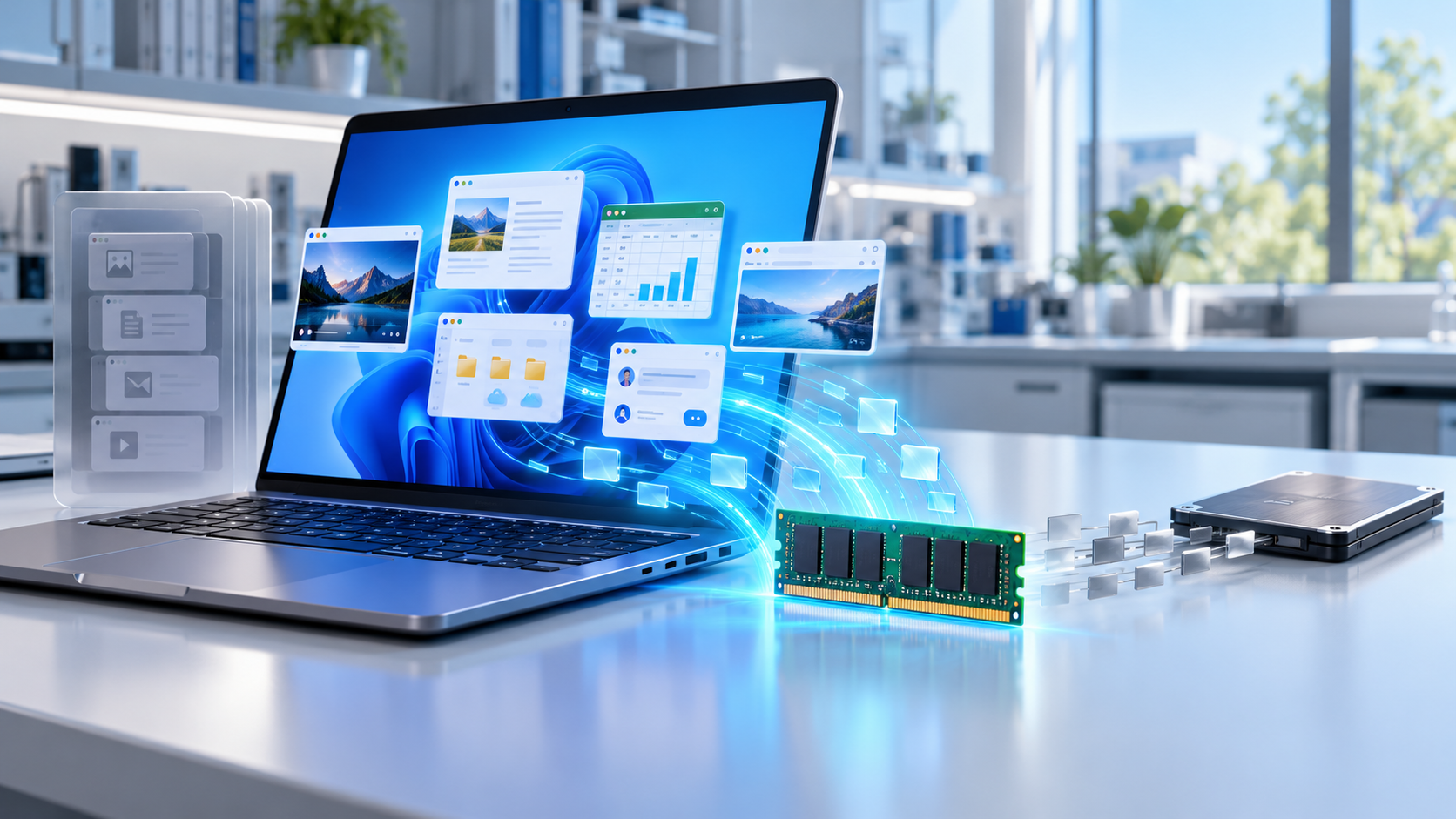
Windows relies on physical memory for active applications and uses storage when that memory becomes constrained. Moving data between RAM and a page file on an SSD is much slower than keeping it in memory, so a heavily loaded 8GB PC can stutter while switching tabs, reopening windows or returning to an app that has been pushed out of active memory.
Microsoft says its new memory-management work can keep up to 2GB more active data in memory instead of moving it to storage. The actual benefit depends on the PC and workload, but the direction is important: retaining more working data close to the processor should reduce some of the pauses caused by paging.
The change does not turn an 8GB machine into a 16GB machine. Large games, professional video editors, virtual machines and dozens of heavy browser tabs can still exceed the available RAM. It should, however, improve the operating system’s ability to protect active work when resources are tight.
Widgets stop consuming memory until they are opened
On systems with 8GB of RAM or less, Microsoft says Widgets now load only when the user opens them. That lazy-loading behavior can leave more than 200MB available for applications and documents. The saving sounds small next to modern game sizes, but it is meaningful on a machine where every background process competes for a limited memory pool.
The tradeoff is that Widgets may take a moment to initialize the first time they are opened. For users who rarely open the panel, keeping it dormant is usually the better exchange. It also signals a broader effort to reduce the Windows memory footprint rather than asking users to manually disable features.
Boot, Windows Hello and Bluetooth are also changing
Microsoft says boot and sign-in times have improved as part of the same quality program. Windows Hello face and fingerprint recognition are being tuned for faster, more dependable authentication, while a Driver Quality Initiative is intended to improve stability, security and performance across hardware partners.
Bluetooth work covers pairing, reconnection, audio and calls. Microsoft specifically says AirPods can pair up to 15 seconds faster, although that figure is a best-case result and Bluetooth behavior still depends on the adapter, driver, headphones and nearby interference.
These changes matter because reliability often feels like performance. A PC that boots quickly but repeatedly fails to reconnect headphones does not feel fast. Microsoft is treating those interruptions as part of the same everyday experience rather than as isolated accessory problems.
Windows Update aims for fewer disruptive restarts
Microsoft says Windows Update is coordinating packages more effectively, reducing installation time and giving users more control over when updates occur. Some updates that require a restart can be combined with the next cumulative update, which may reduce the number of separate reboot events.
That does not eliminate restarts. Security and platform updates still need to be applied, and turning on early access to non-security features can mean receiving more updates. Use active hours and scheduled restarts if an unexpected reboot would interrupt work.
Start and taskbar personalization are expanding
The October overview says users will get more flexibility to personalize Start and the taskbar, including choosing where the taskbar appears on the screen. Widgets are also being made quieter and easier to control. Microsoft describes these experiences as beginning to roll out broadly, but availability can differ by device, region and update stage.
That wording matters. The October announcement is a collection of improvements delivered across Windows, not one universal switch or one specific KB package. A fully updated PC may receive one feature before another, and an administrator can delay optional changes on a managed device.
The redesigned Windows Search is still a preview
Microsoft’s new taskbar Search interface is built on WinUI 3 and uses a streamlined single-list design. It can also perform inline actions, such as toggling dark mode or Bluetooth, adjusting brightness, muting the device and arranging open windows directly from search results.
This is not broadly available yet. Microsoft began rolling it out to Windows Insiders in the Experimental channel on October 7 and supports English for the initial preview. The company says a wider release is planned later in 2026, but it has not promised a single public date.
The same caution applies to features mentioned in a broad Windows showcase. Some are shipping, some are gradually enabled through controlled feature rollout, and some remain previews. Readers should not join an Insider channel solely to chase one interface change on a production PC.
How to receive the latest Windows improvements
- Open Start, choose Settings and select Windows Update.
- Install the current security updates first, then restart if prompted.
- Turn on Get the latest updates as soon as they’re available if you want priority access to eligible non-security improvements.
- Select Check for updates and review any offered download before installing it.
- Open Windows Update > Update history after restarting to see what was installed.
- Keep manufacturer drivers current, especially for graphics, Bluetooth, fingerprint readers and audio hardware.
The early-access toggle does not bypass hardware safeguards or guarantee every feature immediately. Microsoft uses controlled feature rollout, so a feature can remain unavailable while compatibility and reliability are evaluated. Security updates continue whether the toggle is on or off.
Should you expect a dramatic speedup?
A well-equipped recent PC may feel only a little smoother because it already has enough memory and fast storage. An 8GB laptop with many browser tabs is more likely to benefit from reduced background use and smarter paging, especially when returning to an app that would otherwise have been moved to storage.
The easiest way to evaluate the changes is to watch normal behavior after updates: Start response, Explorer navigation, task switching, sign-in and Bluetooth reconnection. Avoid drawing conclusions from one boot, because Windows may complete maintenance or indexing shortly after an update.
If performance suddenly becomes worse, check Task Manager for a specific process, review Update history and confirm that storage is not nearly full. Microsoft’s broader quality work cannot compensate for a failing SSD, overheating, unwanted startup programs or an application with a memory leak.
A practical upgrade path for an aging PC
Before replacing a computer, install current updates, remove unnecessary startup apps and verify whether the laptop’s memory can be upgraded. If the hardware is limited to 8GB and your workload regularly exceeds it, a newer machine with 16GB or more will still offer more headroom. Readers comparing options can browse current Windows 11 laptops on Amazon.
ReaderSpice may earn a commission from qualifying purchases made through affiliate links, at no additional cost to you.
Bottom line
Microsoft’s October Windows 11 update is less about one flashy feature and more about reducing friction. The strongest claims are specific: up to 20% better response times in selected shell interactions, as much as 2GB more active data retained in memory and more than 200MB recovered by loading Widgets only when needed on low-memory PCs.
Those numbers should not be treated as universal benchmarks, and several headline experiences remain staged or Insider-only. Keep Windows current, use the early-access toggle only if you accept gradual non-security changes and judge the update by everyday responsiveness. For an 8GB PC, the memory work may be more valuable than any visual redesign.
Sources
Microsoft Windows Experience Blog: What’s new in Windows 11 — October 15, 2026
Microsoft Windows Insider Blog: Windows quality progress and memory priorities
Microsoft Windows Insider Blog: New Windows Search preview and inline actions
Microsoft Support: Get Windows updates as soon as they are available
Microsoft Learn: Windows 11 version 26H2 rollout status