Windows 11 Gets Faster and Lighter: Microsoft Claims Up to 20% Better Responsiveness

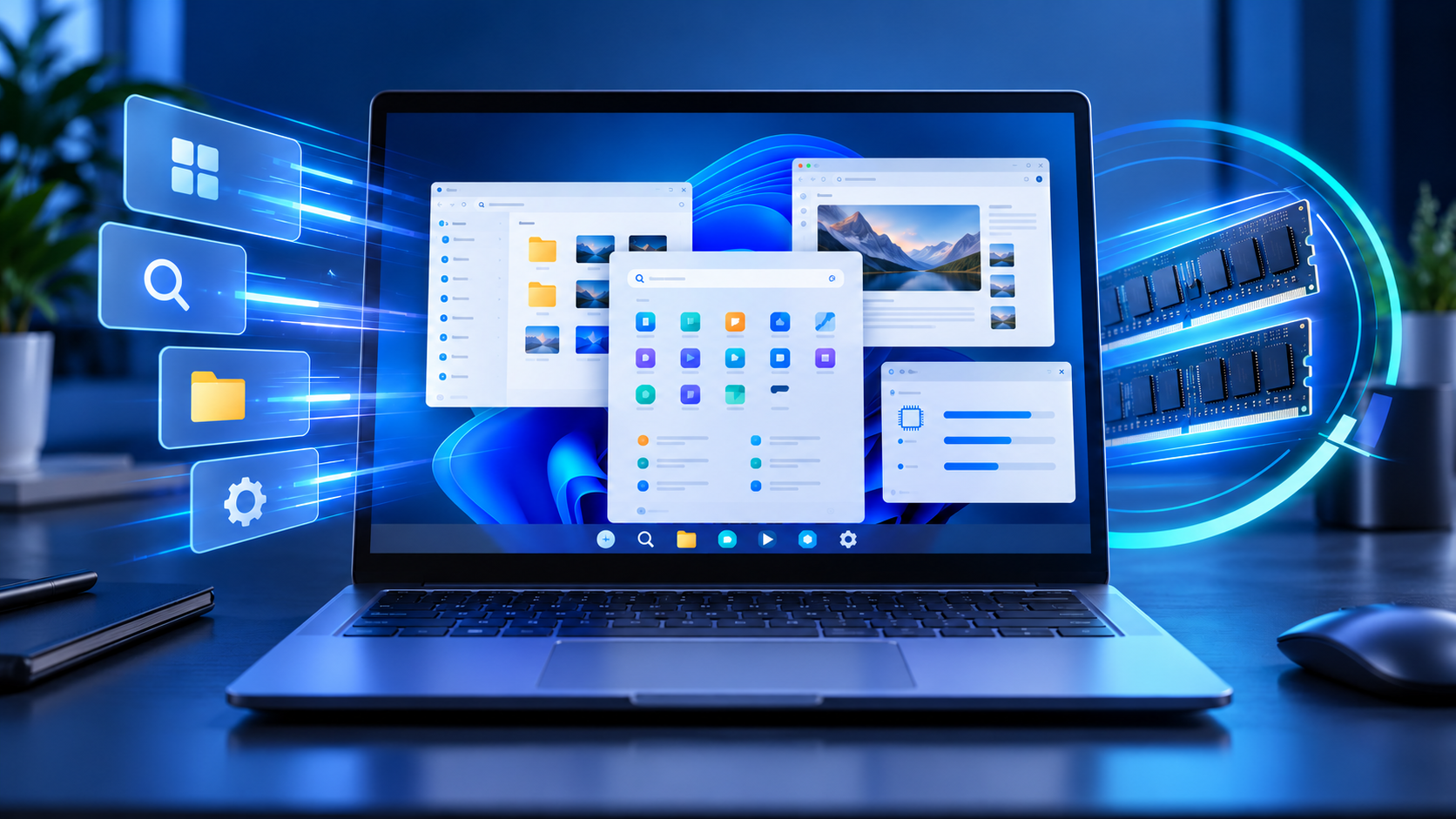
Windows 11 laptop surrounded by responsive app windows, memory modules and performance effects

Microsoft says Windows 11 is becoming up to 20% more responsive after a year of work on the operating system, shell and built-in apps. The claim covers everyday interactions such as opening Start, searching, right-clicking, navigating File Explorer and launching Settings—not a blanket 20% boost to every application or game.

The October 15 announcement also describes concrete memory changes that could matter most on affordable PCs with 8GB of RAM. Windows can keep more active data in memory instead of moving it to slower storage, while Widgets can stay unloaded until requested. Several related improvements are rolling out broadly, but others—including a redesigned Windows Search experience—remain limited to Windows Insiders for now.

Windows 11 performance changes at a glance

  • Microsoft reports response-time improvements of up to 20% across Search, Start, right-click menus, Settings, Snipping Tool and File Explorer.
  • The comparison used Windows 11 build 26300.9550 against build 26200.7628; real results vary by device, configuration and workload.
  • Windows can keep up to 2GB more active data in memory rather than paging it to slower storage.
  • On PCs with 8GB of RAM or less, Widgets now load only when opened, making more than 200MB available for other work.
  • Microsoft is also improving boot, sign-in, updates, Bluetooth reliability and Windows Hello.
  • The new taskbar Search interface with inline actions is still an Insider preview, not a broadly available feature.

What Microsoft’s 20% claim actually measures

Microsoft’s footnote is more useful than the headline. The company measured response times for Search, Start, right-click actions, Settings, Snipping Tool and File Explorer on Windows 11 build 26300.9550, then compared them with build 26200.7628. The result is described as up to 20% more responsive, which means the best measured interaction improved by that amount; it does not mean every PC or every action will be exactly 20% faster.

This is also different from a processor benchmark. The claim does not promise a 20% increase in frame rates, video exports, code compilation or battery life. It targets latency in common Windows interactions—the time between clicking something and seeing the interface respond.

That distinction still matters. Small delays across Start, Explorer and Settings accumulate over a full day, and reducing them can make a modest PC feel less frustrating even when its processor has not changed. The effect should be judged by responsiveness, not by expecting a higher synthetic benchmark score.

Why 8GB PCs may notice the biggest difference
Why 8GB PCs may notice the biggest difference

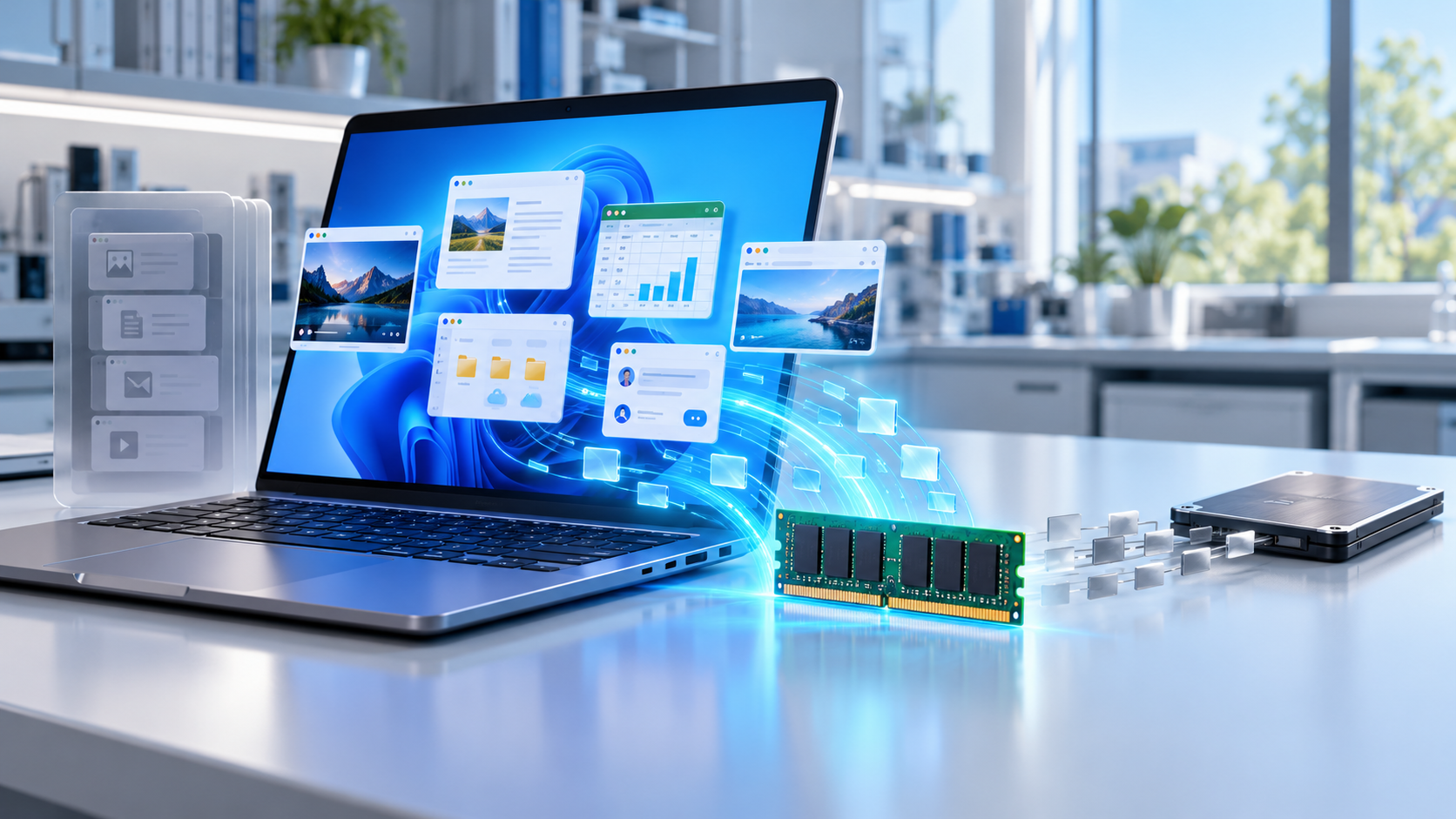
Windows relies on physical memory for active applications and uses storage when that memory becomes constrained. Moving data between RAM and a page file on an SSD is much slower than keeping it in memory, so a heavily loaded 8GB PC can stutter while switching tabs, reopening windows or returning to an app that has been pushed out of active memory.

Microsoft says its new memory-management work can keep up to 2GB more active data in memory instead of moving it to storage. The actual benefit depends on the PC and workload, but the direction is important: retaining more working data close to the processor should reduce some of the pauses caused by paging.

The change does not turn an 8GB machine into a 16GB machine. Large games, professional video editors, virtual machines and dozens of heavy browser tabs can still exceed the available RAM. It should, however, improve the operating system’s ability to protect active work when resources are tight.

Widgets stop consuming memory until they are opened

On systems with 8GB of RAM or less, Microsoft says Widgets now load only when the user opens them. That lazy-loading behavior can leave more than 200MB available for applications and documents. The saving sounds small next to modern game sizes, but it is meaningful on a machine where every background process competes for a limited memory pool.

The tradeoff is that Widgets may take a moment to initialize the first time they are opened. For users who rarely open the panel, keeping it dormant is usually the better exchange. It also signals a broader effort to reduce the Windows memory footprint rather than asking users to manually disable features.

Boot, Windows Hello and Bluetooth are also changing

Microsoft says boot and sign-in times have improved as part of the same quality program. Windows Hello face and fingerprint recognition are being tuned for faster, more dependable authentication, while a Driver Quality Initiative is intended to improve stability, security and performance across hardware partners.

Bluetooth work covers pairing, reconnection, audio and calls. Microsoft specifically says AirPods can pair up to 15 seconds faster, although that figure is a best-case result and Bluetooth behavior still depends on the adapter, driver, headphones and nearby interference.

These changes matter because reliability often feels like performance. A PC that boots quickly but repeatedly fails to reconnect headphones does not feel fast. Microsoft is treating those interruptions as part of the same everyday experience rather than as isolated accessory problems.

Windows Update aims for fewer disruptive restarts

Microsoft says Windows Update is coordinating packages more effectively, reducing installation time and giving users more control over when updates occur. Some updates that require a restart can be combined with the next cumulative update, which may reduce the number of separate reboot events.

That does not eliminate restarts. Security and platform updates still need to be applied, and turning on early access to non-security features can mean receiving more updates. Use active hours and scheduled restarts if an unexpected reboot would interrupt work.

Start and taskbar personalization are expanding

The October overview says users will get more flexibility to personalize Start and the taskbar, including choosing where the taskbar appears on the screen. Widgets are also being made quieter and easier to control. Microsoft describes these experiences as beginning to roll out broadly, but availability can differ by device, region and update stage.

That wording matters. The October announcement is a collection of improvements delivered across Windows, not one universal switch or one specific KB package. A fully updated PC may receive one feature before another, and an administrator can delay optional changes on a managed device.

The redesigned Windows Search is still a preview

Microsoft’s new taskbar Search interface is built on WinUI 3 and uses a streamlined single-list design. It can also perform inline actions, such as toggling dark mode or Bluetooth, adjusting brightness, muting the device and arranging open windows directly from search results.

This is not broadly available yet. Microsoft began rolling it out to Windows Insiders in the Experimental channel on October 7 and supports English for the initial preview. The company says a wider release is planned later in 2026, but it has not promised a single public date.

The same caution applies to features mentioned in a broad Windows showcase. Some are shipping, some are gradually enabled through controlled feature rollout, and some remain previews. Readers should not join an Insider channel solely to chase one interface change on a production PC.

How to receive the latest Windows improvements

  • Open Start, choose Settings and select Windows Update.
  • Install the current security updates first, then restart if prompted.
  • Turn on Get the latest updates as soon as they’re available if you want priority access to eligible non-security improvements.
  • Select Check for updates and review any offered download before installing it.
  • Open Windows Update > Update history after restarting to see what was installed.
  • Keep manufacturer drivers current, especially for graphics, Bluetooth, fingerprint readers and audio hardware.

The early-access toggle does not bypass hardware safeguards or guarantee every feature immediately. Microsoft uses controlled feature rollout, so a feature can remain unavailable while compatibility and reliability are evaluated. Security updates continue whether the toggle is on or off.

Should you expect a dramatic speedup?

A well-equipped recent PC may feel only a little smoother because it already has enough memory and fast storage. An 8GB laptop with many browser tabs is more likely to benefit from reduced background use and smarter paging, especially when returning to an app that would otherwise have been moved to storage.

The easiest way to evaluate the changes is to watch normal behavior after updates: Start response, Explorer navigation, task switching, sign-in and Bluetooth reconnection. Avoid drawing conclusions from one boot, because Windows may complete maintenance or indexing shortly after an update.

If performance suddenly becomes worse, check Task Manager for a specific process, review Update history and confirm that storage is not nearly full. Microsoft’s broader quality work cannot compensate for a failing SSD, overheating, unwanted startup programs or an application with a memory leak.

A practical upgrade path for an aging PC

Before replacing a computer, install current updates, remove unnecessary startup apps and verify whether the laptop’s memory can be upgraded. If the hardware is limited to 8GB and your workload regularly exceeds it, a newer machine with 16GB or more will still offer more headroom. Readers comparing options can browse current Windows 11 laptops on Amazon.

ReaderSpice may earn a commission from qualifying purchases made through affiliate links, at no additional cost to you.

Bottom line

Microsoft’s October Windows 11 update is less about one flashy feature and more about reducing friction. The strongest claims are specific: up to 20% better response times in selected shell interactions, as much as 2GB more active data retained in memory and more than 200MB recovered by loading Widgets only when needed on low-memory PCs.

Those numbers should not be treated as universal benchmarks, and several headline experiences remain staged or Insider-only. Keep Windows current, use the early-access toggle only if you accept gradual non-security changes and judge the update by everyday responsiveness. For an 8GB PC, the memory work may be more valuable than any visual redesign.

Sources

Microsoft Windows Experience Blog: What’s new in Windows 11 — October 15, 2026

Microsoft Windows Insider Blog: Windows quality progress and memory priorities

Microsoft Windows Insider Blog: New Windows Search preview and inline actions

Microsoft Support: Get Windows updates as soon as they are available
Microsoft Learn: Windows 11 version 26H2 rollout status

Windows 11 KB5127648 Is Out: Key Fixes, USB Audio Warning and 24H2 End of Support

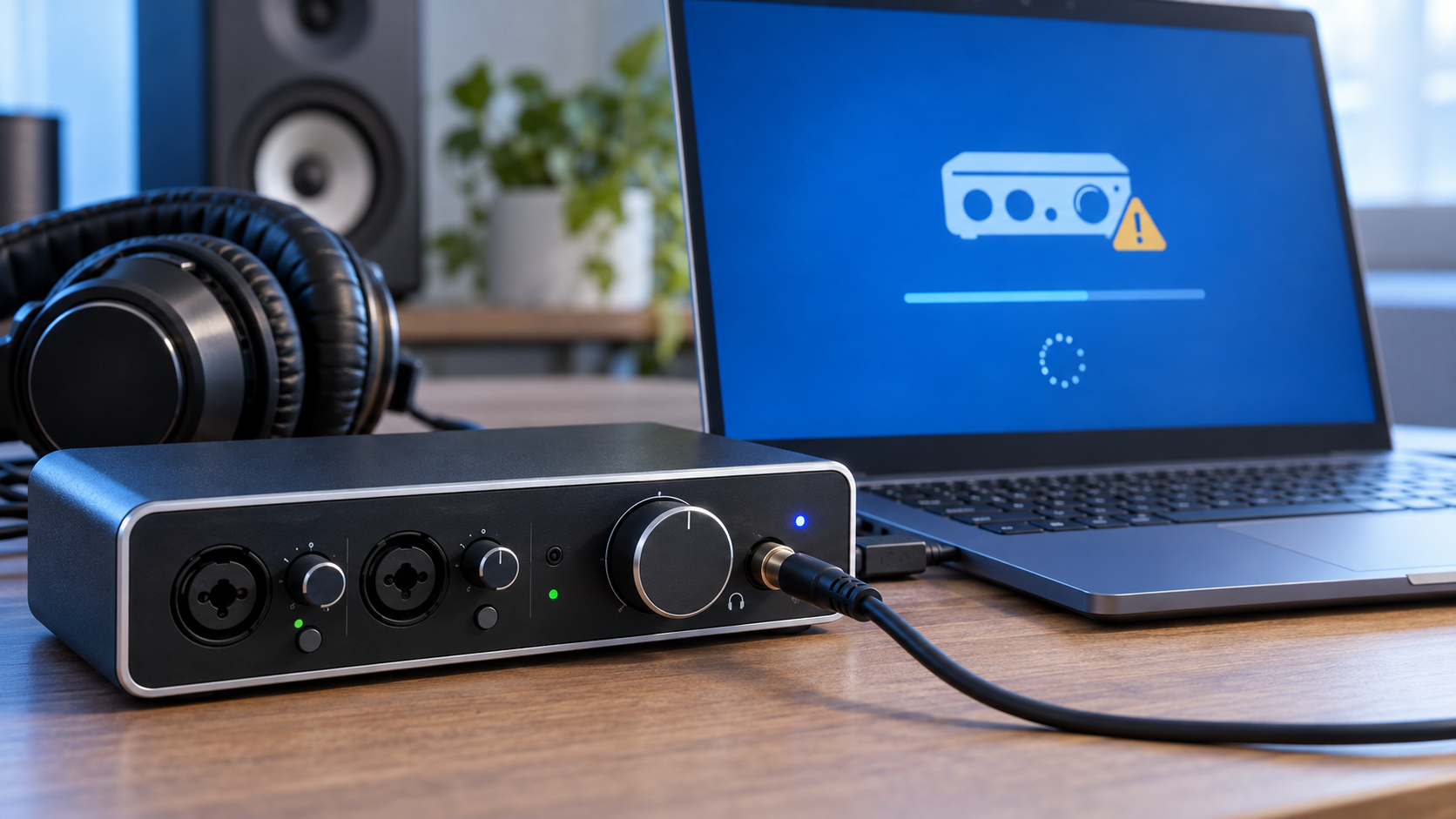
Windows 11 laptop installing KB5127648 beside a USB audio interface and headphones

Microsoft released Windows 11 cumulative update KB5127648 on October 13, 2026, for versions 24H2, 25H2 and 26H2. It includes the month’s security protections plus fixes for Explorer crashes, VPN failures, printing problems, gaming mouse stutter and several other bugs.

The update is important, but two details deserve attention before you click Restart: a USB Audio Class 1.0 problem is still only partially resolved, and this is the final monthly security update for Windows 11 24H2 Home and Pro.

Windows 11 KB5127648 quick take

  • Windows 11 26H2 moves to build 26300.9711.
  • Windows 11 25H2 moves to build 26200.9711.
  • Windows 11 24H2 moves to build 26100.9711.
  • The update fixes an Explorer black-screen problem in some multi-user environments, Always On VPN failures, AC-3 audio playback, printing failures, game-mouse stutter and fingerprint sign-in after a cold boot.
  • A separate USB Audio Class 1.0 issue can still cause Code 10 errors, missing sound or unresponsive audio controls.
  • October 2026 is the final monthly security update for Windows 11 24H2 Home and Pro. Enterprise, Education and LTSC editions follow different support timelines.

What KB5127648 fixes

Microsoft’s release notes combine the October security improvements with quality fixes carried forward from recent preview and out-of-band updates. The most useful changes for ordinary PCs and managed systems include:

  • File Explorer: Explorer.exe should no longer fail to start or repeatedly crash after sign-in in some multi-user environments, including Azure Virtual Desktop and FSLogix setups. The failure could leave users at a black screen.
  • Audio playback: Applications affected by the recent AC-3 decoding problem should work normally after installing the October update.
  • Always On VPN: Connections that stayed stuck at Connecting or later reported that the specified port was already in use should connect normally again.
  • Storage Spaces Direct: Tiered virtual disks that failed to come online after certain updates should recover, restoring dependent clustered workloads.
  • Printing: Microsoft fixed failures affecting some applications and devices using RAW or Generic Text Only printer drivers.
  • Gaming: A bug that could make mouse input stutter in some games has been addressed.
  • Windows Hello: Fingerprint sign-in should no longer fail after a cold boot on affected PCs.

The release also introduces a new Manitoba time zone for the province’s November 1, 2026 change, adds auditing and optional policy controls for ReFS volumes on externally attached storage, and continues Microsoft’s staged migration to newer Secure Boot certificates.

The USB audio warning is still unresolved

The USB audio warning is still unresolved

Microsoft continues to list a known problem involving some USB Audio Class 1.0 devices. Affected hardware may fail to start with Device Manager Code 10, produce no audio, leave volume at zero, or make Windows sound settings unavailable or unresponsive.

This problem originated with the September 8 security update, not specifically with KB5127648. The September 14 out-of-band update partially fixed failures involving 8-channel and 3D audio modes, but Microsoft says the other symptoms remain under investigation. In some multichannel cases, switching the device to 2-channel mode restored sound; that does not address every symptom.

The issue is limited to USB Audio Class 1.0 devices, so it does not mean every USB headset, DAC or audio interface is affected. If a production workstation depends on one of these devices, schedule the update for a maintenance window, confirm that the interface works after the restart and keep the manufacturer’s current driver or firmware available. Microsoft directs business administrators who need an immediate workaround for the remaining symptoms to Microsoft Support for Business.

Windows 11 24H2 Home and Pro reach end of support

KB5127648 is the last monthly security update for Windows 11 24H2 Home and Pro. After October 13, 2026, those editions will no longer receive the normal monthly security and non-security preview updates that protect against newly fixed threats.

This deadline does not apply to every 24H2 edition. Microsoft’s release lifecycle gives Windows 11 24H2 Enterprise and Education editions updates through October 12, 2027, while LTSC editions have separate, longer timelines.

Home and Pro users still on 24H2 should install the October update, back up important files and move to a supported Windows 11 release as soon as Windows Update offers one. The support deadline is a stronger reason to upgrade than any single new feature: staying on 24H2 Home or Pro means future security fixes will stop.

Should you install KB5127648 now?

For most supported Windows 11 PCs, yes. This is a security update with several practical reliability fixes, and Microsoft distributes it automatically through Windows Update. Back up irreplaceable data, connect a laptop to power and allow enough time for the required restart.

The main exception is a mission-critical system that depends on USB Audio Class 1.0 hardware and cannot tolerate downtime. That is not a reason to skip security updates indefinitely. It is a reason to test the update on comparable hardware, install during a maintenance window and verify audio before the system returns to service.

Windows 11 26H1 uses a different October package, KB5127646, which moves that branch to build 28000.3231. If Windows Update offers KB5127646 instead of KB5127648, the PC is on 26H1 and is following the correct servicing path.

How to install the update and check your build

  • Open Settings, select Windows Update and choose Check for updates.
  • Install 2026-10 Cumulative Update for Windows 11 (KB5127648) when it appears.
  • Save open work and restart the PC when prompted.
  • After the restart, press Windows + R, type winver and press Enter.
  • Confirm build 26300.9711 on 26H2, 26200.9711 on 25H2 or 26100.9711 on 24H2.

Update timing can vary by device and management policy. A work or school PC may wait for an administrator’s deployment ring even when the update is publicly available.

What to check if USB audio stops working

  • Open Device Manager and check the audio device for a Code 10 error.
  • Open Settings > System > Sound and confirm that Windows still lists the device as an output.
  • If the failure affects an 8-channel or 3D mode, try the device’s standard 2-channel mode; Microsoft says that specific symptom was addressed by the September out-of-band update.
  • Install the audio-device maker’s current supported driver or firmware, but avoid unofficial driver packages.
  • For an unmanaged home PC, use the Windows Get Help app if basic checks fail. Business administrators with unresolved symptoms should use Microsoft Support for Business.

If you are shopping for a replacement or an upgrade from an unsupported PC, you can compare current Windows 11 laptops on Amazon and verify the processor, memory, storage, Windows edition and seller before buying.

As an Amazon Associate, ReaderSpice earns from qualifying purchases.

Bottom line

KB5127648 is a worthwhile October security update for Windows 11 24H2, 25H2 and 26H2. It fixes a broad group of real annoyances, including Explorer black screens, VPN connection failures, printing trouble, game-mouse stutter and fingerprint sign-in failures.

The caveats matter just as much as the fixes. USB Audio Class 1.0 users should verify their hardware after the restart, and anyone running Windows 11 24H2 Home or Pro should treat this final update as the point to move to a supported release.

Sources

Microsoft Support: KB5127648 release notes, builds, fixes and known issues

Microsoft Learn: Windows 11 24H2 known issues and USB audio status

Microsoft Learn: Windows 11 release information and support dates

Microsoft Support: KB5127646 for Windows 11 26H1

Microsoft Support: KB5124010 September preview and AC-3 resolution history

PlayStation Portal 7.3.0 Update Adds 3D Audio Toggle and Faster Search

Handheld remote gaming device showing 3D audio and search update graphics

Sony has released PlayStation Portal system software version 7.3.0 with two practical quality-of-life changes: a faster way to manage 3D audio while a game is running and a more responsive search experience for cloud-streaming titles.

The update is not a major redesign, but it removes friction from features that Portal owners use repeatedly. Here is what changed, how to install it and what the update does not add.

PlayStation Portal 7.3.0 quick take

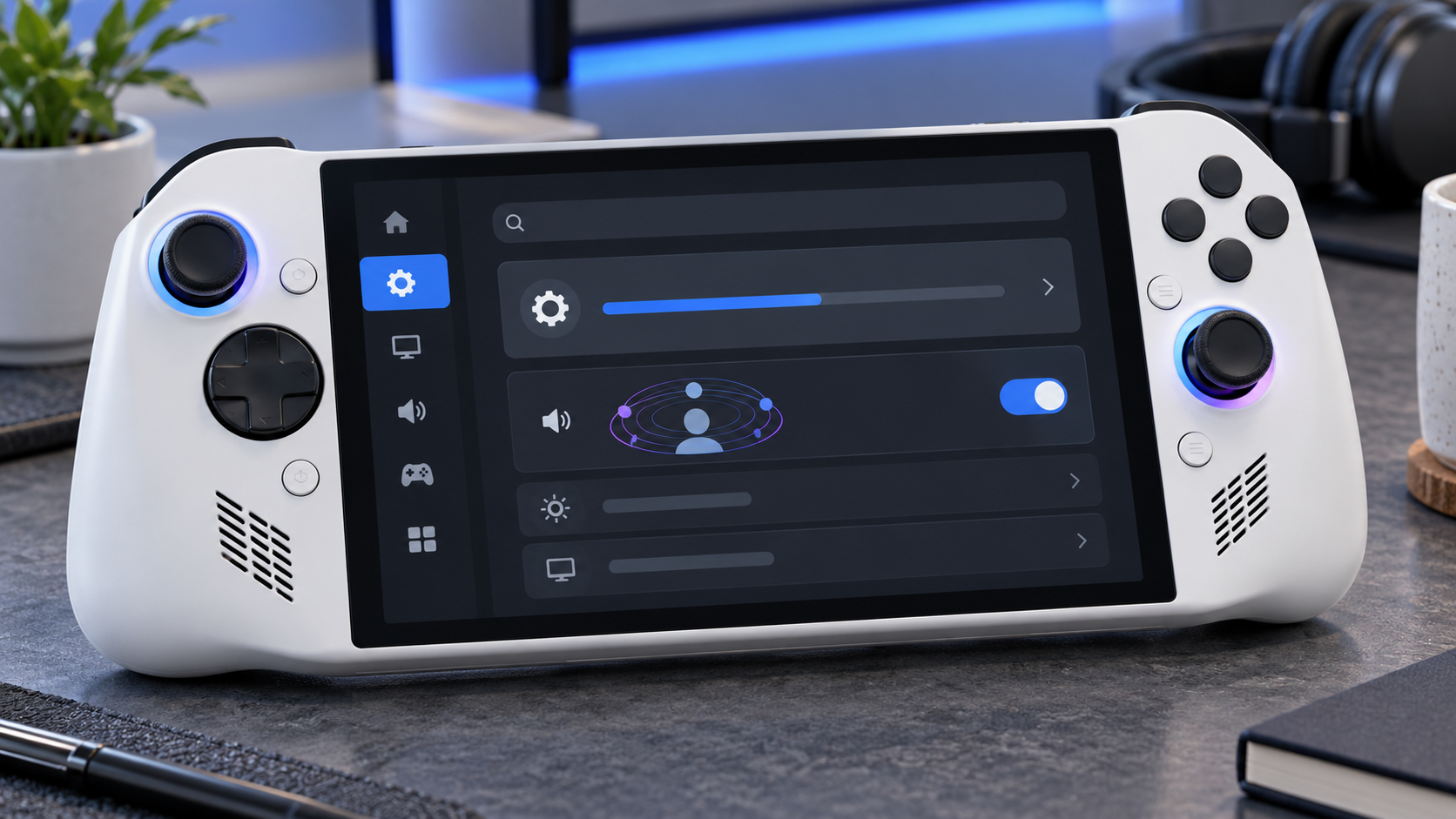
  • 3D audio can now be turned on or off while a game is running from Settings > System > 3D Audio.
  • Search results can appear as you type, and a QR code can continue a PlayStation Store search in the PlayStation App or a web browser.
  • Sony also lists system-performance, stability, messaging and usability improvements.
  • The update does not add ordinary Bluetooth audio; Portal still uses compatible PlayStation Link wireless devices, wired 3.5mm headphones or its built-in speakers.

What version 7.3.0 changes

What version 7.3.0 changes

PlayStation Portal already supported Tempest 3D Audio with version 6.0.0. Version 7.3.0 makes the feature easier to control during play instead of treating it like a set-and-forget setting. Open the quick menu, choose Settings, then System and 3D Audio to switch the effect on or off without ending the session.

That matters because spatial audio is not equally useful in every game or with every headset. A cinematic single-player game may benefit from stronger directional cues, while dialogue-heavy or competitive play can sound clearer with a simpler mix. The new toggle makes comparison immediate.

Sony says 3D audio works when a compatible headset or earphones are connected and the game supports the feature. A wired headset connected to the 3.5mm jack or a PlayStation Link wireless headset can be used. Version 7.3.0 does not turn Portal into a general Bluetooth-audio device.

Search is faster and can hand off to another screen

The other visible change is search. Results now update in real time as the user types. Sony also added a QR-code handoff so a search can continue in PlayStation Store through the PlayStation App or a web browser.

That should reduce the awkwardness of entering long game names on the handheld screen. It is especially useful for cloud streaming, where PlayStation Plus Premium members can browse supported titles from their catalog or eligible digital library without first connecting to a PS5.

How to install the PlayStation Portal 7.3.0 update

  • Connect Portal to a stable Wi-Fi network and make sure it has enough battery power or is plugged in.
  • Swipe left from the upper-right corner to open the quick menu.
  • Choose Settings > System > System Software.
  • Select System Software Update and follow the on-screen instructions.

If Portal is several releases behind, Sony says it may need to download and install more than one update. That is normal. Do not power off the handheld or interrupt its network connection while the software is being installed.

What the update does not change

Portal still offers two different ways to play. Remote Play connects to a paired PS5 and does not require PlayStation Plus by itself, although an individual game may require a membership for online multiplayer. Cloud Streaming requires PlayStation Plus Premium and can run supported games without using the owner’s PS5.

The hardware limits are unchanged: the 8-inch LCD can display up to 1080p at 60 frames per second, and streaming quality depends on the network. Sony lists 5Mbps as the minimum connection and recommends at least 15Mbps for a better experience. A firmware update cannot compensate for weak Wi-Fi, congestion or high latency.

Version 7.3.0 also does not reverse the battery-health behavior introduced with version 7.1.7, which defaults charging to an 80% limit. Owners who prioritize maximum time away from a charger can change that setting under Settings > System > Battery, but repeatedly charging above 80% can reduce long-term battery health.

Who will notice version 7.3.0 most

Owners who use headphones and regularly switch between cinematic games, competitive games and voice-heavy titles will get the clearest benefit from the in-game 3D-audio control. PlayStation Plus Premium subscribers who browse a large cloud catalog should notice the search improvements most.

Anyone who uses Portal only for a few Remote Play games may see little beyond the stability and interface refinements. Even so, installing the update is sensible because Sony recommends current system software for security, service compatibility and reliable operation.

Buying a PlayStation Portal now

The current PlayStation Portal Remote Player remains the relevant hardware for this update. Before buying, confirm that your home network reaches the rooms where you plan to play and that your preferred headphones connect through PlayStation Link or the 3.5mm jack. Check the current PlayStation Portal Remote Player on Amazon and verify the seller, color and return policy before ordering.

As an Amazon Associate, ReaderSpice earns from qualifying purchases.

The bottom line

PlayStation Portal 7.3.0 is a focused convenience update. The in-game 3D-audio toggle saves repeated menu travel, while live search results and QR handoff make it easier to find a title without wrestling with the handheld keyboard.

It does not transform the device or solve network-related streaming problems, but it improves two everyday interactions without changing how Portal works. Owners can install it from Settings > System > System Software.

Sources

Sony Interactive Entertainment: PlayStation Portal system software version 7.3.0

Sony Interactive Entertainment: PlayStation Portal user guide and update instructions

Sony Interactive Entertainment: PlayStation Portal specifications and compatibility

MP1st: PlayStation Portal 7.3.0 release report

October 2026 Android Security Update: Critical Fixes and Pixel Rollout

Android phone protected by a glowing security shield during the October 2026 security update

Google’s October 2026 Android security update addresses critical flaws that can be triggered without user interaction, while supported Pixel phones are receiving an additional October patch and a small set of practical bug fixes. If your phone offers the update, this is one to install promptly.

The Android Security Bulletin was published on October 5, 2026. Google’s separate Pixel bulletin followed on October 6, and the company began a phased Pixel rollout the same day. Timing still depends on the device, carrier and region, so two eligible phones may not receive the update simultaneously.

Why this October security update matters

The most serious Android issue in the October bulletin is a critical vulnerability in the System component that could allow local elevation of privilege without extra execution privileges or user interaction. In plain language, a malicious process could potentially gain access it should not have without requiring the owner to tap a link or approve a prompt.

The bulletin also lists a critical remote denial-of-service flaw in the Android Framework. Google assigns severity according to the effect a vulnerability could have on an affected device if exploited. A critical rating does not, by itself, mean Google has observed attacks in the wild, and the October bulletin does not say these flaws are being actively exploited.

The critical Android vulnerabilities

Google’s October bulletin groups the most important issues into several categories:

  • Framework: CVE-2026-58865 is rated critical for remote denial of service and requires no user interaction.
  • System privilege escalation: CVE-2026-55269, CVE-2026-55280, CVE-2026-58835 and CVE-2026-58880 are rated critical.
  • System denial of service: CVE-2026-49933 and CVE-2026-55265 are rated critical.
  • System remote code execution: CVE-2026-49878 is rated high severity.

Remote code execution is typically the most alarming label because it can allow code to run on a target device. Privilege-escalation flaws can let code that is already present gain broader permissions, while denial-of-service bugs can crash or disable a component. The exact risk depends on the vulnerable code path, device configuration and whether an attacker can reach it.

Pixel phones get additional October fixes

Supported Pixel phones receive a 2026-10-05 security patch level that incorporates the Android-wide October fixes plus Pixel-specific corrections. Google says all supported Pixel devices will receive the 2026-10-05 patch level or later.

The Pixel bulletin lists three critical Pixel-specific flaws: CVE-2026-55330 in Bluetooth, CVE-2026-56952 in GDMC and CVE-2026-55307 in GSA. It also includes high-severity kernel fixes. Google’s public bulletin identifies the affected components and severity, but it does not provide exploit instructions.

Pixel bug fixes included in the rollout

The October Pixel update also addresses several user-visible problems on supported models:

  • A keyboard that sometimes failed to appear in search fields on Pixel 8 through Pixel 11 families.
  • Distorted ringtone audio during some VoIP calls on Pixel 8 through Pixel 10 families.
  • Incorrect photo or video orientation on Pixel 11 models.

Google says the rollout is phased over roughly a week and varies by carrier and device. That means the update can be official even if the download button has not appeared on a particular phone yet.

How to check your Android security patch level

How to check your Android security patch level

Open Settings, then go to About phone or About tablet and choose Android version. Look for both Android security update and Google Play system update. To actively check for an available operating-system update, open Settings, select System, then Software updates.

For most Android devices, a security patch level of 2026-10-01 or later indicates that the core October bulletin fixes are included. Supported Pixel phones should show 2026-10-05 or later after Google’s October update is installed. Other manufacturers may use their own rollout calendars and may bundle the fixes into a later-dated patch.

Google Play system updates are worth checking separately. Android 10 and newer devices can receive some security improvements through Google Play system updates even when the phone maker’s full firmware update has not arrived.

What to do if the update is not available yet

  • Connect to Wi-Fi and charge the phone to at least 75 percent before trying again.
  • Restart the phone, then return to Settings > System > Software updates.
  • Check the Google Play system update under Settings > About phone > Android version.
  • Keep Google Play Protect enabled; it is on by default on devices with Google Mobile Services.
  • Remember that carrier approval and staged deployment can delay an otherwise eligible device.

Do not install firmware packages from unfamiliar websites just to get the patch early. Official over-the-air updates or manufacturer support tools are the safer route, because the package and model compatibility can be verified.

Which Pixel phones are still supported

Google’s current support policy gives Pixel 8 and newer phones seven years of operating-system and security updates from the date each model first became available in the Google Store. Pixel 6 and Pixel 7 families receive five years. Pixel 5a and earlier models no longer receive Android version or security updates from Google.

If an unsupported phone is still in daily use, reduce exposure by keeping apps updated, leaving Play Protect enabled and avoiding sensitive activity on the device. Replacement is the more durable fix because application updates cannot repair vulnerabilities in abandoned system components.

A practical upgrade path for unsupported phones

If you are replacing an out-of-support Pixel, compare current Google Pixel phones on Amazon before buying. Choose a model with a long remaining support window rather than focusing only on the lowest upfront price.

ReaderSpice may earn a commission from qualifying purchases made through this affiliate link, at no additional cost to you.

Should you install the update immediately?

Yes. The October package fixes multiple critical vulnerabilities, and supported Pixel phones also receive stability corrections. Back up anything irreplaceable, connect to reliable Wi-Fi, charge the battery, install the update and restart when prompted. Pixel updates become active after a restart.

Owners of other Android brands should check their manufacturer’s update page if the October patch is not yet available. Google publishes the platform fixes, but each manufacturer is responsible for packaging and distributing them to its eligible devices.

Bottom line

The October 2026 Android security release is a meaningful maintenance update, not a cosmetic one. It closes critical no-interaction vulnerabilities, adds Pixel-specific protections and resolves several everyday Pixel bugs. Check both the Android security patch and Google Play system update, and aim for 2026-10-05 or later on a supported Pixel.

Sources

Android Security Bulletin—October 2026

Pixel Update Bulletin—October 2026

Google Pixel Community: October 2026 update

Google Android Help: Check and update your Android version

Google Pixel Help: Learn when you’ll get software updates

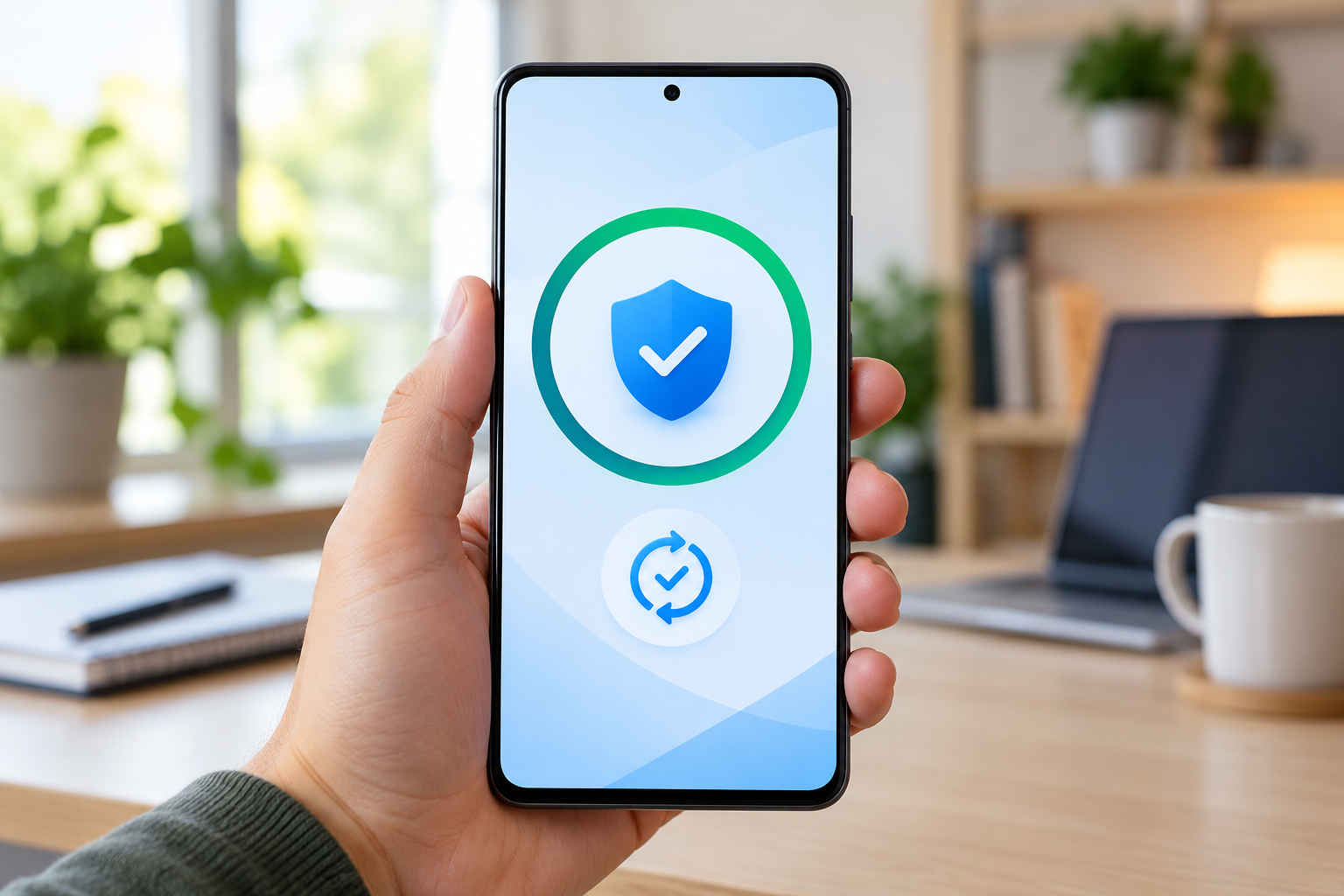
Inline image: Android phone displaying completed security and system update checks

Inline image alt text: Android phone showing completed security update and system update checks

INMO Air3 Smart Glasses Recall: Stop Using Them Until the V3.16 Fix

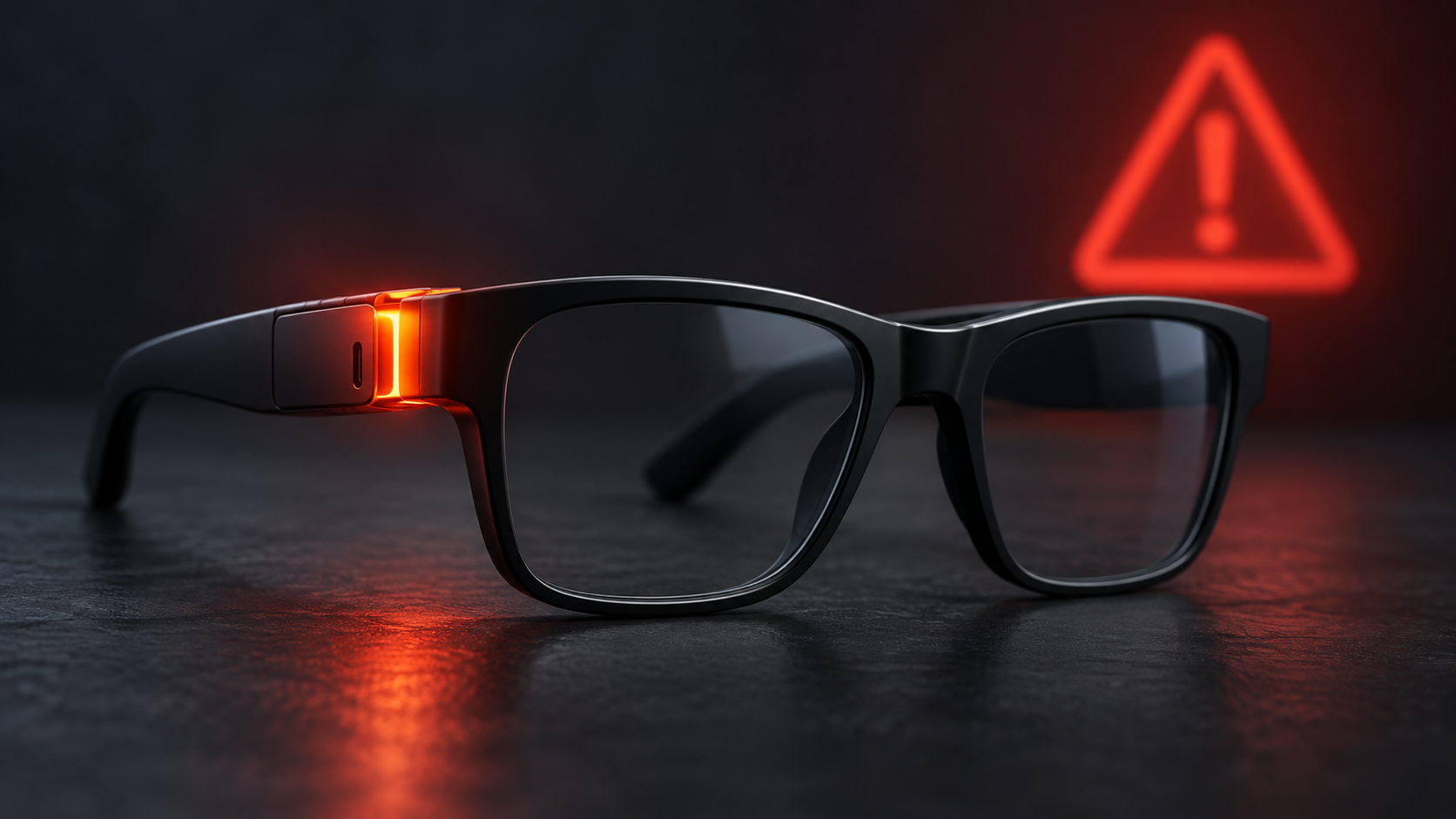
Black AI smart glasses with a glowing left temple and red warning symbol illustrating the INMO Air3 overheating recall

Owners of INMO Air3 smart glasses should stop using them until INMO completes a free online repair that updates the system to version V3.16. The September 24, 2026 recall follows 10 reports of the glasses overheating, including reports of a burning sensation near the face and left side of the ear.

The U.S. Consumer Product Safety Commission says about 1,643 units were sold in the United States, with another 120 sold in Canada. The problem is concentrated in the left temple during extended use, making this a safety issue rather than a routine optional software update.

Why the INMO Air3 smart glasses were recalled

The recalled Air3 contains rechargeable lithium-ion batteries and is designed for AI translation, AI-assisted productivity and media streaming. According to CPSC, the left temple can overheat during extended use and create a burn hazard serious enough to pose a risk of severe injury.

INMO reported 10 overheating incidents to U.S. regulators. CPSC says those reports included users experiencing a burning sensation on the face and around the left ear. Health Canada reported no Canadian incidents or injuries as of September 17, but still instructs owners to stop using the glasses and install version 3.16 before wearing them again.

How to identify recalled INMO Air3 glasses

How to identify recalled INMO Air3 glasses

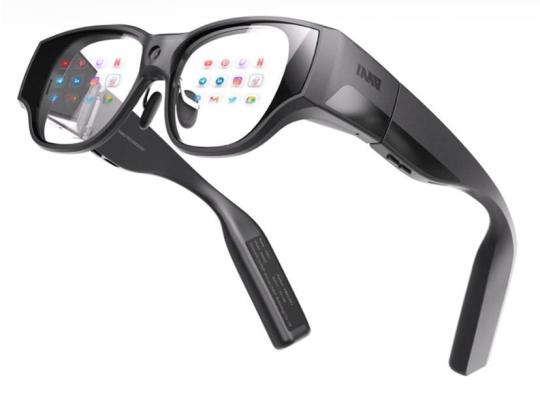
The recall covers black INMO smart glasses with model number AIR3. CPSC says the affected glasses were sold with AI translation, productivity and streaming features. They were available online from December 2025 through August 2026 for approximately $900 to $1,300.

Sales channels included Amazon.com, Kickstarter.com and Inmoxr.com. The U.S. recall number is 26-797.

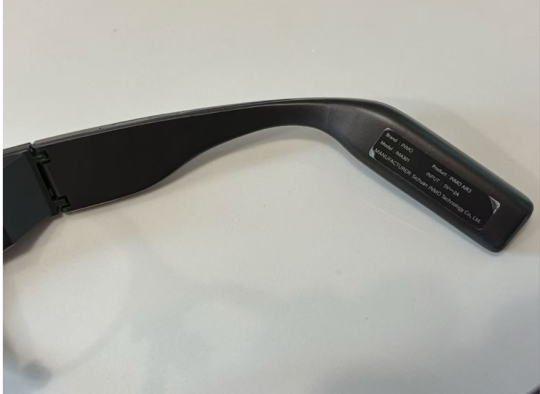
Find the AIR3 label inside the right temple

Find the AIR3 label inside the right temple

Look on the inner side of the right temple, or arm, for a label printed with both “AIR3” and “INMO.” Do not rely only on the overall shape: other smart-glasses models can look similar, while this recall is specific to the Air3.

What owners should do now

Treat version V3.16 as the recall repair, not as an ordinary feature update. The safest approach is to leave the glasses powered off and unworn until INMO confirms the update process and the device reports the corrected version.

Use this checklist:

  • Stop wearing and using the INMO Air3 immediately, even if it has never felt unusually warm.
  • Do not continue a long session to test whether your unit overheats. The reported problem can occur during extended use close to the face and ear.
  • Contact INMO at support.usa@inmoxr.com or 888-212-9620 between 9 a.m. and 5 p.m. ET, Monday through Friday.
  • Be ready to send a clear photo showing the Air3 model, plus the order number and purchase channel if available.
  • Complete the company-assisted online update to version V3.16 and verify the installed version before resuming use.
  • If the glasses are hot, swollen, damaged or smell unusual, stop handling or charging them and ask INMO for device-specific safety instructions.

How the free V3.16 repair works

CPSC describes the remedy as a free repair and says INMO will assist users with an online system update to V3.16. INMO’s recall page asks owners to email its support team with a photo of the affected Air3, an order number when available and the purchase channel.

Because the repair changes the system software, owners should not assume that downloading an unrelated app update completes the recall. Obtain the instructions through INMO’s recall channel, keep any confirmation email and check the version shown on the glasses after the process finishes.

The company’s public notice calls the program a voluntary product-safety improvement, while CPSC classifies it as a recall. For consumers, the practical instruction is the same: stop using the Air3 and complete the V3.16 repair before wearing it again.

What if your glasses already overheated?

If you felt heat or a burning sensation near the left temple, discontinue use and report the incident to INMO. U.S. owners can also submit a product-safety report to CPSC through SaferProducts.gov. Preserve purchase information and photos, but do not put the glasses back on simply to reproduce the problem.

Owners should also avoid charging a device that appears damaged, swollen or abnormally hot. The recall notice does not direct consumers to discard the glasses; it provides a software-based repair. Follow INMO’s instructions rather than attempting to open or repair the frame yourself.

Buying different smart glasses instead

If you decide not to wait for the repair, compare current alternatives carefully for camera indicators, update support, battery placement and return policies. ReaderSpice’s guide on how to tell if smart glasses are recording explains the privacy signals and limitations bystanders should understand.

You can also compare Ray-Ban Meta smart glasses on Amazon, but verify the exact model, seller and current safety notices before buying. As an Amazon Associate, ReaderSpice earns from qualifying purchases.

Bottom line

The Air3 recall is narrow but important because the product sits directly against the face and ear. If the inside of the right temple says AIR3 and INMO, stop using the glasses and contact the company for the V3.16 online repair. Resume use only after the corrected version is installed and confirmed.

Sources

U.S. Consumer Product Safety Commission: INMO Air3 Smart Glasses Recall

INMO: Air3 Voluntary Product Safety Improvement and Update Instructions

Health Canada: Recent Consumer Product Recalls and Safety Alerts

TP-Link Tapo C120 and C200 Security Flaws: Update Your Camera Now

Smart indoor camera beside a security shield and firmware update symbol for the Tapo C120 V1 and C200 V5 security update

Two high-severity security flaws affect specific hardware versions of TP-Link’s Tapo C120 and C200 cameras. TP-Link has released patched firmware, so owners should check the model and hardware version in the Tapo app and install the latest update now.

The important limitation is that this is not a warning about every Tapo camera. TP-Link’s advisory identifies the Tapo C120 hardware version V1 and Tapo C200 hardware version V5. Older or different hardware revisions are not listed in this advisory, although keeping any connected camera current remains good practice.

Which Tapo cameras are affected?

  • Tapo C120 V1 — affected by CVE-2026-15315. Fixed in firmware 1.9.3 Build 260521 or later.
  • Tapo C200 V5 — affected by CVE-2026-15315 and CVE-2026-15316. Fixed in firmware V5_1.4.6 Build 260709 Rel.27675n or later.

If your camera has a different hardware version, do not install firmware intended for V1 or V5 manually. Use the Tapo app or the correct regional TP-Link support page so the device receives the package built for its exact model and revision.

What the security flaws could allow

CVE-2026-15315: authentication bypass

The first flaw affects the local login process. TP-Link says an attacker on the local network could exploit weak challenge-parameter validation, bypass normal authentication and obtain administrative session tokens without knowing the owner’s password.

That administrative access could allow unauthorized configuration changes and other privileged actions. OPSWAT, the research group that reported the issue, says access may also expose privacy-sensitive functions such as live video and stored recordings. The vulnerability has a CVSS 4.0 score of 8.7, rated High.

CVE-2026-15316: denial of service

The second flaw affects only the listed Tapo C200 V5 hardware. A nearby-network attacker could send an oversized encrypted credential value during the camera’s onboarding flow. Insufficient validation can make the HTTPS service crash or cause the camera to restart, temporarily interrupting management and monitoring. TP-Link rates this flaw High with a CVSS 4.0 score of 7.1.

Why local network access still matters

Both vulnerabilities require network access to the affected camera. That is an important boundary: the advisory does not describe a one-click attack that any random person on the internet can launch against every Tapo camera. Still, local-network access is not the same as harmless. A compromised computer, an untrusted guest device, weak Wi-Fi security or an exposed camera-management interface could put an attacker in the right position.

For a device that may watch living spaces, entrances or a child’s room, the safest response is to patch promptly rather than rely only on the local-network requirement.

How to update a Tapo C120 or C200

  • Open the Tapo app and tap your affected camera.
  • Open Device Settings, then select Firmware Update. TP-Link also allows you to check all devices from Me > Firmware Update.
  • Confirm the hardware version and install the newest firmware offered for that exact camera.
  • Keep the camera powered and connected during installation. Do not unplug it while the update is being applied.
  • After the camera restarts, return to Firmware Update and confirm that no newer version is pending.

TP-Link’s official firmware-update guide shows both update paths. Automatic Update can also be enabled, but it is still worth checking manually after a security advisory because staged rollouts may not reach every device at the same moment.

What to do after installing the patch

  • Do not expose the camera’s local management interface directly to the internet.
  • Use WPA2 or WPA3 security with a strong, unique Wi-Fi password.
  • Place cameras and other smart-home devices on a guest or IoT network when your router supports network isolation.
  • Review shared Tapo-account access and remove people or devices that no longer need it.
  • Enable automatic firmware updates, then periodically verify that the camera is still current.

A firmware patch closes the reported defects, but network segmentation and careful account management reduce the damage another compromised smart-home device could cause.

Should you replace the camera?

Not solely because of these two flaws. TP-Link has provided fixes for the affected hardware, and updating is the direct remedy. Replacement makes more sense if your camera can no longer receive security updates, repeatedly fails to update or no longer fits your privacy and monitoring needs.

If you are comparing current alternatives or accessories, you can browse Tapo cameras and accessories on Amazon. ReaderSpice participates in the Amazon Associates Program and may earn a commission from qualifying purchases at no additional cost to you.

Bottom line

Owners of Tapo C120 V1 and C200 V5 cameras should update immediately. The authentication-bypass flaw could grant an attacker on the local network administrative access, while the C200-specific input-validation flaw could interrupt camera management and monitoring. Check the hardware revision first, accept only the firmware offered for that exact device, and confirm the update completed successfully.

Sources

TP-Link security advisory for Tapo C120 and C200

OPSWAT technical disclosure of CVE-2026-15315 and CVE-2026-15316

TP-Link guide to updating Tapo and Kasa firmware

NIST NVD record for CVE-2026-15315

NIST NVD record for CVE-2026-15316