

Google is widening Chrome’s scam defenses beyond the familiar full-page red warning. In an October 20, 2026 update, the company introduced a lower-confidence “suspicious site” alert for Enhanced Protection users, moved Gemini-assisted scam analysis to a server-side model, and added a warning for a particularly dangerous trick known as ClickFix.
The changes matter because many modern scams do not begin with a clearly malicious download. They imitate antivirus notices, browser updates or technical-support pages, then pressure a person into acting before they have time to inspect the request. Chrome’s new defenses try to interrupt that chain earlier—while still distinguishing a possible risk from a site Google considers dangerous.
What changed at a glance
- Enhanced Protection can now show a distinct warning for a site that looks suspicious but has not received a high-confidence dangerous verdict.
- Known malicious sites still receive the familiar full-page red interstitial.
- Gemini-assisted scam detection now uses a more capable server-side model for all Chrome users who enable Enhanced Protection.
- The model expands beyond technical-support scams to fake antivirus and browser-update scams.
- Chrome can detect a copied ClickFix command, remove personally identifiable information from the clipboard payload before analysis, and warn when Safe Browsing returns a dangerous verdict.
Suspicious and dangerous warnings are not the same
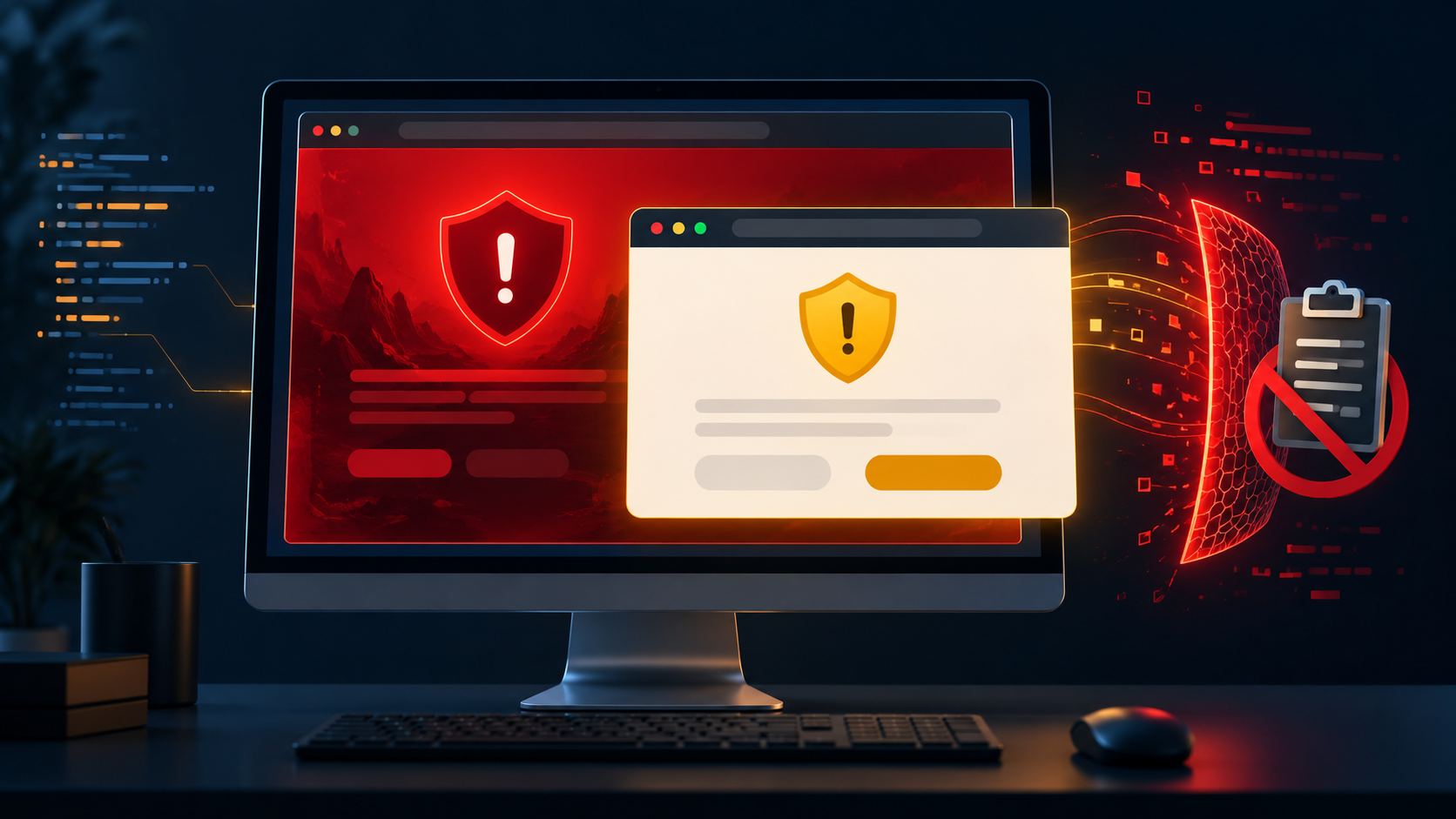
Google’s new two-tier system is about confidence and potential harm. A suspicious-site warning means Chrome found deceptive patterns associated with malicious pages, but the verdict is lower confidence. Google says it can safely show more of these tailored warnings because their format, colors, iconography and wording differ from the highest-severity alert.
A dangerous-site warning is the stronger verdict: Google says the page is known to be malicious and presents a high risk of harm. Those pages continue to use the full-page red interstitial. The practical advice is similar in both cases—stop, close the page and reach the service through a trusted bookmark or a manually typed address—but the warning level tells you how certain Chrome’s systems are.
This is also different from Chrome’s lookalike-address warning. A “Did you mean,” “Is this the right site?” or “Fake site ahead” prompt may appear when a URL resembles a familiar safe site or differs slightly from one in browsing history. In every case, the address bar deserves a deliberate check before any password, payment or download.
How server-side Gemini scam detection works
Chrome introduced an on-device Gemini Nano layer in 2025 for technical-support scams on supported hardware. The 2026 change replaces that limited setup with a more powerful server-side Gemini model for everyone who has opted into Enhanced Protection. The goal is broader coverage, including fake antivirus and fake browser-update pages.
Google says the model evaluates page content for signals such as the brand being represented, the page’s apparent intent and a scam-likelihood score. Safe Browsing then combines that analysis with domain reputation and other security signals before producing a final verdict. Gemini is therefore one input to a layered decision, not a standalone browser judge.
The shift to a server model expands device coverage, but it also changes the privacy question. According to Google, page text is sent only when a site first exhibits high-confidence scam indicators. Sent content is processed ephemerally: Google says it is not logged, retained or used to train models. That is a meaningful limit, though users still must choose Enhanced Protection before the feature applies.
What ClickFix is—and why it can bypass normal download protection
ClickFix is a social-engineering technique that tells a person to copy a command and paste it into PowerShell, Command Prompt, a terminal or another system tool to “fix” a fabricated problem. The displayed command may not match the actual clipboard content. Once executed, it can use legitimate operating-system utilities to retrieve or install malware.
That method is especially dangerous because the browser is no longer downloading a conventional file. The victim manually hands the command to a trusted system utility, allowing the attack to route around ordinary browser download checks. A website, CAPTCHA or support message that asks you to open a terminal or Run dialog and paste a command is a stop signal, not a troubleshooting step.
For Enhanced Protection users, Chrome can now detect when a suspicious command has been copied. Google says Chrome scrubs personally identifiable information from the clipboard payload before sending it to Safe Browsing. If the service returns a dangerous verdict, Chrome displays a warning. The company describes the system as high precision so legitimate developer workflows should be disturbed less often.
What to do if a page asks you to paste a command
- Do not paste or execute the command, even if the page claims a timer is running or the browser is locked.
- Close the tab. If it resists, close the browser through the operating system rather than following the page’s instructions.
- Open the official support site from a trusted bookmark or by typing the known domain yourself.
- If you already ran the command, disconnect the device from the network, run trusted security scans and change important passwords from a different, known-clean device.
- For a work or school device, contact the organization’s security team promptly and describe exactly what was copied and executed.
How to enable Enhanced Protection in Chrome
The new suspicious-site, server-side Gemini and ClickFix defenses are tied to Enhanced Protection. On a personal computer:
- Open Chrome and select the three-dot menu.
- Choose Settings, then Privacy and security.
- Open Security.
- Under Safe Browsing, select Enhanced protection.
- Review the description before confirming. A work or school administrator may control this setting.
Standard Protection remains enabled by default and still warns about many known phishing, malware and social-engineering sites. Enhanced Protection adds faster, more proactive analysis of known and previously unseen threats. It is not a replacement for updates, password hygiene or skepticism toward urgent instructions.
How to respond to a Chrome site warning
Leave the page rather than looking for a way around the warning. Chrome technically offers an override for some alerts, but Google does not recommend proceeding. A safe recovery path is to close the tab, open a new one and navigate to the organization’s official site independently.
If the warning appeared after clicking a link in an email, text message, advertisement or search result, do not return through the same link. For a bank, retailer, delivery company or software vendor, use a saved bookmark, the official mobile app or a domain you verify separately. If the page claimed your computer was infected, remember that a random website cannot reliably diagnose your device.
Treat download warnings as a separate safety gate
Chrome already classifies downloads as dangerous, suspicious, unverified or insecure. With Enhanced Protection, a suspicious file can be sent to Google Safe Browsing for additional scanning. Google says uploaded files—and archive passwords supplied for scanning—are deleted a short time after the check.
Do not disable protection because a page says the download will not work otherwise. Attackers routinely frame browser and antivirus warnings as an obstacle the user must bypass. For a questionable program update, Google’s own guidance is simple: ignore the popup and obtain the update from the program’s official website.
Optional extra protection for important accounts
Browser warnings reduce exposure, but account security still matters if a phishing page captures a password. A hardware security key can add phishing-resistant sign-in protection to compatible services. One widely supported option is the Yubico YubiKey 5C NFC; verify that USB-C and NFC match the devices and accounts you plan to use, and consider keeping a second registered key as a backup.
Disclosure: ReaderSpice may earn a commission from qualifying Amazon purchases made through the link above, at no additional cost to you.
What Chrome’s new defenses do not guarantee
A lower-confidence warning can be wrong, while a page that shows no warning can still be malicious. Scam infrastructure changes quickly, compromised legitimate sites may appear trustworthy, and attackers can move a conversation from the browser to a phone call, messaging app or remote-access tool.
AI-assisted detection also does not validate every claim on a page. The safest interpretation is that Chrome adds another decision point before harm—not that it certifies every unflagged site. Keep Chrome and the operating system updated, use a password manager to avoid entering credentials on lookalike domains, enable multifactor authentication and slow down whenever a page demands immediate action.
The bottom line
Chrome’s 2026 scam-defense update is most useful because it separates uncertainty from certainty. Suspicious-site alerts can cover more deceptive pages without presenting every case as a confirmed attack, while dangerous sites retain the unmistakable red blockade. Server-side Gemini broadens real-time analysis, and ClickFix detection addresses a tactic that conventional download scanning can miss.
For people willing to share the additional security signals described in Chrome’s settings, Enhanced Protection now offers materially broader coverage. The best response remains human: do not override urgent warnings, do not paste web-provided commands into system tools and do not install an update from a popup that created the emergency.
Sources
Google Security Blog: Our latest defenses against evolving web scams
Google Chrome Help: Manage warnings about unsafe sites
Google Chrome Help: Google Chrome blocks some downloads
Google Chrome Help: Remove unwanted ads, pop-ups and malware
Google Security Blog: Using AI to stop tech support scams in Chrome
Amazon: Yubico YubiKey 5C NFC (ASIN B08DHL1YDL)
Inline image: Two-tier suspicious and dangerous site warnings with ClickFix clipboard protection
Inline image alt text: Browser showing amber suspicious-site and red dangerous-site warnings beside a blocked clipboard command