How to Check Who Has Access to Your Gmail: Devices, Apps and Recovery Settings

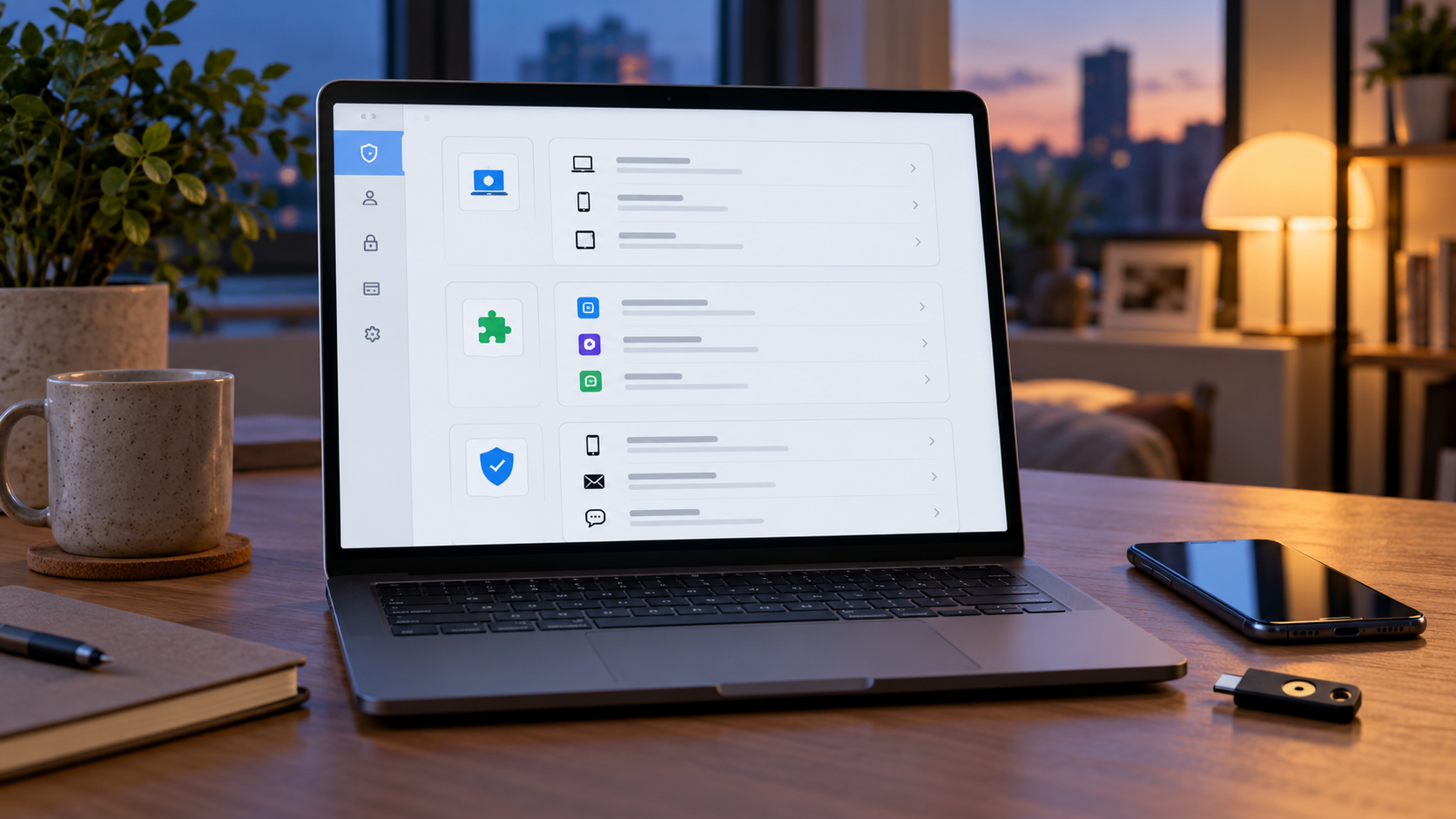
Laptop showing a generic account security dashboard beside a phone and physical security key

An email account can remain exposed even when its password has not been stolen. An old laptop may still be signed in, a forgotten app may retain permission to read account data, or an outdated recovery address may send verification messages somewhere you no longer control. Because Gmail is often the recovery channel for banking, shopping, social media and work accounts, one overlooked connection can affect far more than the inbox.

Google highlighted this problem on October 30, 2026 with a short security checklist: review signed-in devices, remove old third-party access and confirm recovery information. The checklist takes only a few minutes when everything looks familiar, but it also provides a practical map for a deeper audit if a device, session or app does not belong.

This guide explains what each screen means, what to remove, what not to delete by accident and what to do when activity is unfamiliar. The goal is not to disconnect every useful service. It is to make every remaining connection intentional, current and recoverable.

The two-minute Gmail security check at a glance

  • Open Google Security Checkup from a trusted bookmark or by typing the Google Account address yourself.
  • Review every device and browser session. Sign out of anything lost, sold, shared or unfamiliar.
  • Inspect linked apps and the exact Google data each app can access. Remove access that is no longer needed.
  • Confirm that the recovery phone and recovery email still belong to you and can receive messages.
  • Review 2-Step Verification, passkeys and backup methods so a lost phone does not lock you out.
  • If an item is unfamiliar, treat it as an incident: secure the account first, then investigate.

Step 1: Review every signed-in device and session
Step 1: Review every signed-in device and session

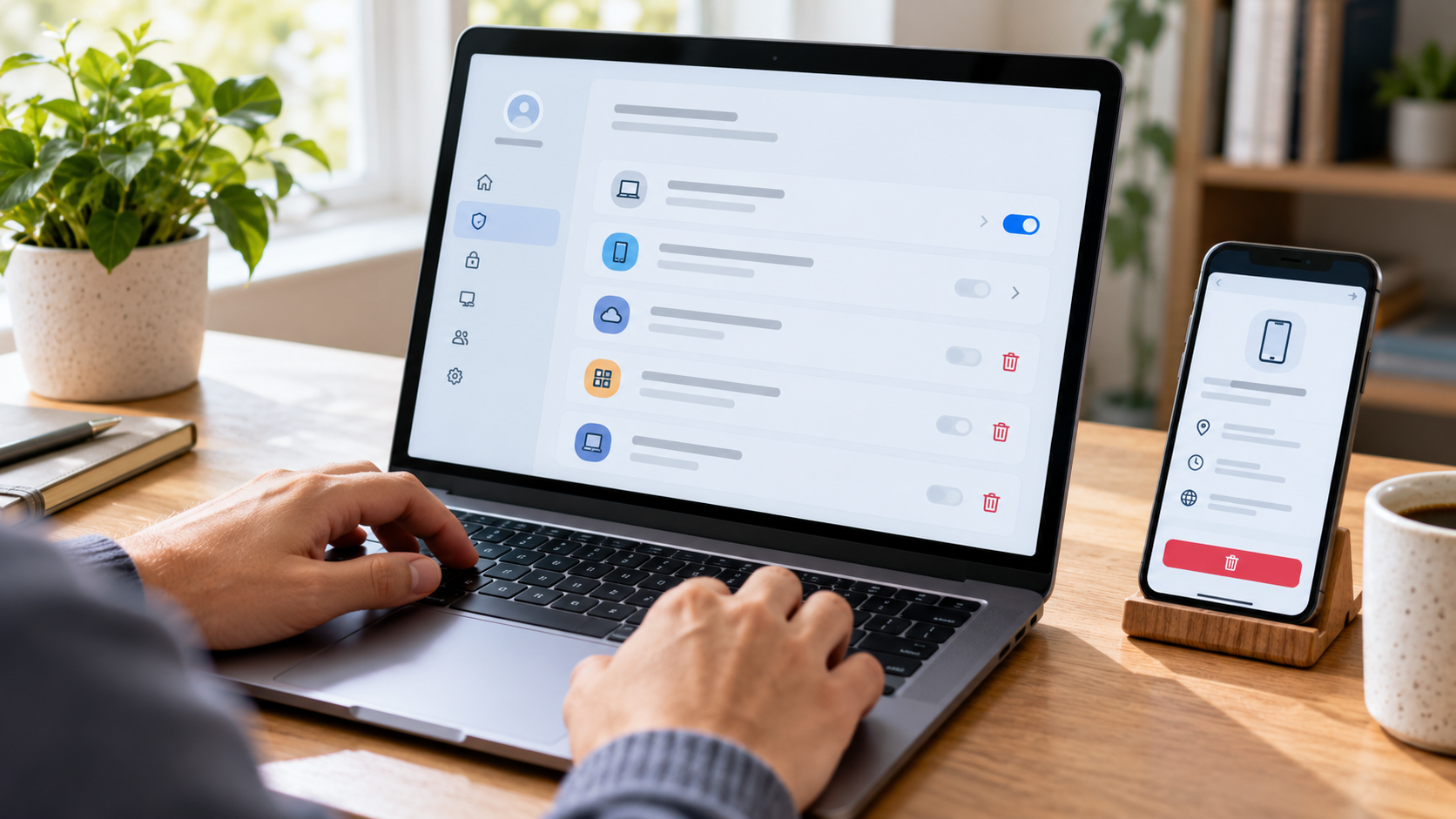
In Google Account, open Security & sign-in, find Your devices and choose Manage all devices. Google shows devices where the account is currently signed in or has been used during the last several weeks. Select each entry to review the device type, recent activity and available sign-out control.

Start with devices that are clearly obsolete: a phone you traded in, a family computer you no longer use, a hotel or library computer, an old work laptop, or a tablet that has been lost. Sign out of every session tied to a device you no longer control. If the same device name appears more than once, open each session rather than assuming the duplicates are harmless.

Google explains that the displayed time can reflect background synchronization, not only a moment when someone actively opened Gmail. A recent timestamp is therefore not proof of misuse. Location can also be approximate because mobile carriers, VPNs and internet providers may route traffic through a different city. Device type, browser, timing and location should be evaluated together.

Why one device can show several sessions

A session is a period when a browser, app or service is signed in. One physical computer can create separate sessions after a password re-entry, a new browser sign-in, an incognito session or an app authorization. Multiple sessions are not automatically a breach, but Google recommends signing out when you cannot confidently connect every session to your own use.

Do not rely on the device list as a permanent archive. It is a recent-access view, and a device marked Signed out no longer has an active Google session even though the historical entry may remain visible for a period. The important question is whether every currently active session is expected.

Step 2: Remove old third-party app access

Next, open the linked-apps area of Google Account. Google separates several kinds of connections: Sign in with Google, apps that can access selected Google Account data, and accounts linked so Google can interact with another service. Open each app to see the connection type and the information involved.

Remove access when the app is no longer installed, the service was used for a one-time project, the developer is unfamiliar, or the requested permission is broader than the app still needs. Pay special attention to apps with Gmail, Drive, Calendar, Contacts or full-account permissions. A familiar app name is not enough; confirm that the developer and purpose match what you remember authorizing.

Permission cleanup can break a legitimate workflow. A calendar tool may stop syncing, a scanner may no longer save files to Drive, or a desktop email client may stop receiving mail. Before removing a business-critical connection, record what it does and make sure you can reconnect through the service’s official settings if necessary.

Removing access does not necessarily erase app data

Google’s help pages distinguish disconnecting an app from deleting information stored by that app. Removing Sign in with Google or account access stops the connection, but the third-party company may still retain an account and previously copied data under its own policies. If you want the service deleted entirely, sign in to the service directly, export anything you need and use its account-deletion process as well.

The reverse also matters: deleting an app from a phone does not automatically revoke its cloud permissions. Permission cleanup must happen in Google Account even when the local app is gone.

Step 3: Confirm recovery phone and email

Recovery information helps Google warn you about suspicious activity, block unauthorized use and restore access when you cannot sign in. Confirm that the recovery phone is a number you personally control, use regularly and can access while traveling. Google advises against using a Google Voice number as the recovery phone because losing access to the same Google Account could also block the verification code needed to recover it.

The recovery email should be an address you use regularly but not the same address used to sign in. Remove an old employer address, an expired school account, or a family member’s inbox unless that arrangement is deliberate and still trusted. Google notes that changes to a recovery phone can take up to seven days to take effect, so do not wait for an emergency to update it.

Do not publish or share recovery details merely to prove that the audit was completed. A security checklist should record the date reviewed and whether the setting is current, not the phone number, recovery address, backup codes or key identifiers themselves.

Strengthen sign-in with passkeys or a security key

The access audit identifies old doors; stronger sign-in protection makes the remaining door harder to abuse. Google recommends passkeys as a phishing-resistant alternative to passwords and describes physical security keys as its strongest 2-Step Verification method. A passkey can use the screen lock, fingerprint or face verification on a trusted device. A hardware key keeps the sign-in credential on a separate physical device.

One compatible option is the Yubico YubiKey 5C NFC (ASIN B08DHL1YDL). It supports USB-C and NFC, and Yubico lists Google among compatible services. Confirm that its connector and authentication methods fit every device you plan to use, register a backup method before relying on it, and store a second key separately if the account is important enough that one lost key would create a crisis.

Affiliate disclosure: ReaderSpice may earn a commission from qualifying Amazon purchases made through the link above, at no additional cost to you.

Do not remove a working recovery method until its replacement has been tested. Security is not improved if a cleaner settings page leaves the legitimate owner unable to sign in.

What to do if a device, app or activity is unfamiliar

  • Use Google’s unfamiliar-activity prompt or account-security flow and mark the activity as not yours.
  • Change the Google Account password from a trusted, updated device. Do not reuse a password from another service.
  • Sign out unfamiliar devices and revoke suspicious app access.
  • Review recovery phone, recovery email, passkeys, 2-Step Verification methods and backup codes for changes you did not make.
  • Check Gmail forwarding, filters, delegated access and sent mail for rules or messages you did not create.
  • Change passwords on other important accounts that reused the old password or depend on Gmail for recovery.
  • For a work or school account, contact the administrator or security team because organization policy may control some settings.

Google says that reporting an unrecognized sign-in can sign the account out on other devices and add an extra verification step for future unfamiliar sign-ins. That protective action can be disruptive, but it is safer than leaving a questionable session active while trying to identify it.

A quarterly Gmail security checklist

  • Review devices and sessions after travel, a device sale, a repair or a phone replacement.
  • Remove one-time apps and services after the project that required them ends.
  • Confirm recovery information at least quarterly and before changing mobile carriers or employers.
  • Check that passkeys, security keys and 2-Step Verification methods still work on current devices.
  • Keep backup codes offline in a protected location; never store them in the same inbox they protect.
  • Run Google Security Checkup again after any suspicious alert, unexpected password reset or unusual sent message.

A recurring review is more useful than a one-time purge because account access changes quietly. A new phone, a photo-printing app, a temporary work tool or a shared television can each create a connection that remains long after its original purpose disappears.

The bottom line

Google’s two-minute checklist is short because it focuses on the three access paths most people forget: devices, linked apps and recovery information. The quick version is enough when every entry is current. When something is unfamiliar, the same screens become the starting point for incident response.

Open Security Checkup from a trusted route, verify each active session, keep only necessary app permissions and make sure recovery methods belong to you. Then strengthen sign-in with a passkey, hardware security key or another well-managed 2-Step Verification method. The safest Gmail account is not the one with the most settings enabled; it is the one where every access path has a known owner and purpose.

Sources

Google Blog – See who has access to your Gmail inbox in 2 minutes

Google Account Help – Make your account more secure

Google Account Help – See devices with account access

Google Account Help – Manage links between your Google Account and other apps

Google Account Help – Set up recovery options

Google Account Help – Protect your account if there is unfamiliar activity

Yubico – YubiKey 5C NFC

Amazon – Yubico YubiKey 5C NFC, ASIN B08DHL1YDL

Inline image: Google Account device and session review

Inline image alt text: Person reviewing signed-in devices and account sessions on a laptop and phone
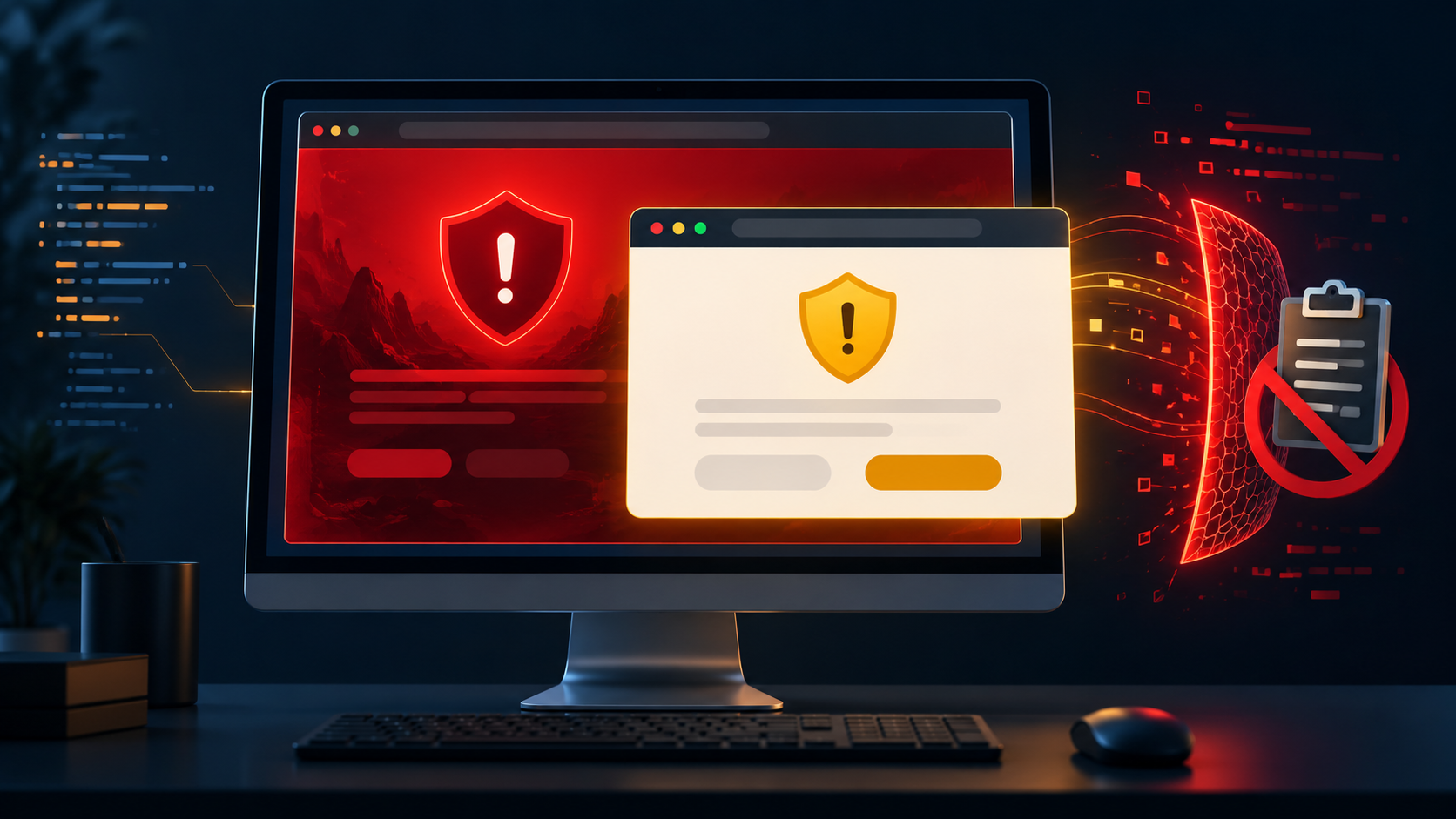
Chrome’s New Scam Defenses Add Suspicious Site Warnings and ClickFix Blocking

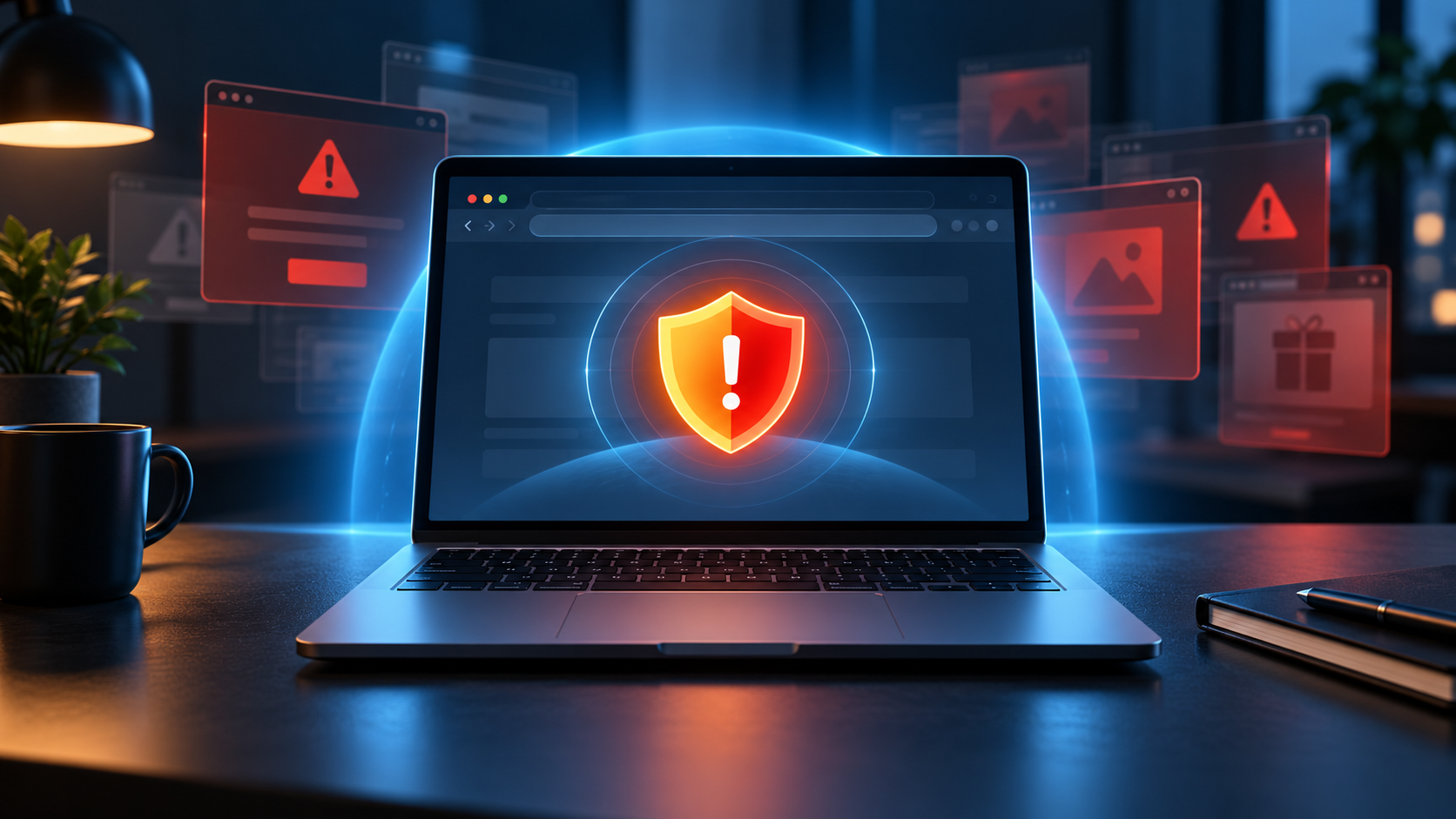
Laptop protected by a security shield while deceptive browser alerts are blocked

Google is widening Chrome’s scam defenses beyond the familiar full-page red warning. In an October 20, 2026 update, the company introduced a lower-confidence “suspicious site” alert for Enhanced Protection users, moved Gemini-assisted scam analysis to a server-side model, and added a warning for a particularly dangerous trick known as ClickFix.

The changes matter because many modern scams do not begin with a clearly malicious download. They imitate antivirus notices, browser updates or technical-support pages, then pressure a person into acting before they have time to inspect the request. Chrome’s new defenses try to interrupt that chain earlier—while still distinguishing a possible risk from a site Google considers dangerous.

What changed at a glance

  • Enhanced Protection can now show a distinct warning for a site that looks suspicious but has not received a high-confidence dangerous verdict.
  • Known malicious sites still receive the familiar full-page red interstitial.
  • Gemini-assisted scam detection now uses a more capable server-side model for all Chrome users who enable Enhanced Protection.
  • The model expands beyond technical-support scams to fake antivirus and browser-update scams.
  • Chrome can detect a copied ClickFix command, remove personally identifiable information from the clipboard payload before analysis, and warn when Safe Browsing returns a dangerous verdict.

Suspicious and dangerous warnings are not the same

Suspicious and dangerous warnings are not the same

Google’s new two-tier system is about confidence and potential harm. A suspicious-site warning means Chrome found deceptive patterns associated with malicious pages, but the verdict is lower confidence. Google says it can safely show more of these tailored warnings because their format, colors, iconography and wording differ from the highest-severity alert.

A dangerous-site warning is the stronger verdict: Google says the page is known to be malicious and presents a high risk of harm. Those pages continue to use the full-page red interstitial. The practical advice is similar in both cases—stop, close the page and reach the service through a trusted bookmark or a manually typed address—but the warning level tells you how certain Chrome’s systems are.

This is also different from Chrome’s lookalike-address warning. A “Did you mean,” “Is this the right site?” or “Fake site ahead” prompt may appear when a URL resembles a familiar safe site or differs slightly from one in browsing history. In every case, the address bar deserves a deliberate check before any password, payment or download.

How server-side Gemini scam detection works

Chrome introduced an on-device Gemini Nano layer in 2025 for technical-support scams on supported hardware. The 2026 change replaces that limited setup with a more powerful server-side Gemini model for everyone who has opted into Enhanced Protection. The goal is broader coverage, including fake antivirus and fake browser-update pages.

Google says the model evaluates page content for signals such as the brand being represented, the page’s apparent intent and a scam-likelihood score. Safe Browsing then combines that analysis with domain reputation and other security signals before producing a final verdict. Gemini is therefore one input to a layered decision, not a standalone browser judge.

The shift to a server model expands device coverage, but it also changes the privacy question. According to Google, page text is sent only when a site first exhibits high-confidence scam indicators. Sent content is processed ephemerally: Google says it is not logged, retained or used to train models. That is a meaningful limit, though users still must choose Enhanced Protection before the feature applies.

What ClickFix is—and why it can bypass normal download protection

ClickFix is a social-engineering technique that tells a person to copy a command and paste it into PowerShell, Command Prompt, a terminal or another system tool to “fix” a fabricated problem. The displayed command may not match the actual clipboard content. Once executed, it can use legitimate operating-system utilities to retrieve or install malware.

That method is especially dangerous because the browser is no longer downloading a conventional file. The victim manually hands the command to a trusted system utility, allowing the attack to route around ordinary browser download checks. A website, CAPTCHA or support message that asks you to open a terminal or Run dialog and paste a command is a stop signal, not a troubleshooting step.

For Enhanced Protection users, Chrome can now detect when a suspicious command has been copied. Google says Chrome scrubs personally identifiable information from the clipboard payload before sending it to Safe Browsing. If the service returns a dangerous verdict, Chrome displays a warning. The company describes the system as high precision so legitimate developer workflows should be disturbed less often.

What to do if a page asks you to paste a command

  • Do not paste or execute the command, even if the page claims a timer is running or the browser is locked.
  • Close the tab. If it resists, close the browser through the operating system rather than following the page’s instructions.
  • Open the official support site from a trusted bookmark or by typing the known domain yourself.
  • If you already ran the command, disconnect the device from the network, run trusted security scans and change important passwords from a different, known-clean device.
  • For a work or school device, contact the organization’s security team promptly and describe exactly what was copied and executed.

How to enable Enhanced Protection in Chrome

The new suspicious-site, server-side Gemini and ClickFix defenses are tied to Enhanced Protection. On a personal computer:

  • Open Chrome and select the three-dot menu.
  • Choose Settings, then Privacy and security.
  • Open Security.
  • Under Safe Browsing, select Enhanced protection.
  • Review the description before confirming. A work or school administrator may control this setting.

Standard Protection remains enabled by default and still warns about many known phishing, malware and social-engineering sites. Enhanced Protection adds faster, more proactive analysis of known and previously unseen threats. It is not a replacement for updates, password hygiene or skepticism toward urgent instructions.

How to respond to a Chrome site warning

Leave the page rather than looking for a way around the warning. Chrome technically offers an override for some alerts, but Google does not recommend proceeding. A safe recovery path is to close the tab, open a new one and navigate to the organization’s official site independently.

If the warning appeared after clicking a link in an email, text message, advertisement or search result, do not return through the same link. For a bank, retailer, delivery company or software vendor, use a saved bookmark, the official mobile app or a domain you verify separately. If the page claimed your computer was infected, remember that a random website cannot reliably diagnose your device.

Treat download warnings as a separate safety gate

Chrome already classifies downloads as dangerous, suspicious, unverified or insecure. With Enhanced Protection, a suspicious file can be sent to Google Safe Browsing for additional scanning. Google says uploaded files—and archive passwords supplied for scanning—are deleted a short time after the check.

Do not disable protection because a page says the download will not work otherwise. Attackers routinely frame browser and antivirus warnings as an obstacle the user must bypass. For a questionable program update, Google’s own guidance is simple: ignore the popup and obtain the update from the program’s official website.

Optional extra protection for important accounts

Browser warnings reduce exposure, but account security still matters if a phishing page captures a password. A hardware security key can add phishing-resistant sign-in protection to compatible services. One widely supported option is the Yubico YubiKey 5C NFC; verify that USB-C and NFC match the devices and accounts you plan to use, and consider keeping a second registered key as a backup.

Disclosure: ReaderSpice may earn a commission from qualifying Amazon purchases made through the link above, at no additional cost to you.

What Chrome’s new defenses do not guarantee

A lower-confidence warning can be wrong, while a page that shows no warning can still be malicious. Scam infrastructure changes quickly, compromised legitimate sites may appear trustworthy, and attackers can move a conversation from the browser to a phone call, messaging app or remote-access tool.

AI-assisted detection also does not validate every claim on a page. The safest interpretation is that Chrome adds another decision point before harm—not that it certifies every unflagged site. Keep Chrome and the operating system updated, use a password manager to avoid entering credentials on lookalike domains, enable multifactor authentication and slow down whenever a page demands immediate action.

The bottom line

Chrome’s 2026 scam-defense update is most useful because it separates uncertainty from certainty. Suspicious-site alerts can cover more deceptive pages without presenting every case as a confirmed attack, while dangerous sites retain the unmistakable red blockade. Server-side Gemini broadens real-time analysis, and ClickFix detection addresses a tactic that conventional download scanning can miss.

For people willing to share the additional security signals described in Chrome’s settings, Enhanced Protection now offers materially broader coverage. The best response remains human: do not override urgent warnings, do not paste web-provided commands into system tools and do not install an update from a popup that created the emergency.

Sources

Google Security Blog: Our latest defenses against evolving web scams

Google Chrome Help: Manage warnings about unsafe sites

Google Chrome Help: Google Chrome blocks some downloads

Google Chrome Help: Remove unwanted ads, pop-ups and malware

Google Security Blog: Using AI to stop tech support scams in Chrome

Amazon: Yubico YubiKey 5C NFC (ASIN B08DHL1YDL)

Inline image: Two-tier suspicious and dangerous site warnings with ClickFix clipboard protection

Inline image alt text: Browser showing amber suspicious-site and red dangerous-site warnings beside a blocked clipboard command

Blue Cactus Recliner Battery Recall: Check Model RWX-RBP02

Blue Cactus recliner battery packs beside a red warning symbol for the RWX-RBP02 recall

About 51,000 Blue Cactus 2500 mAh battery packs for powered reclining chairs are being recalled because their lithium-ion batteries can overheat and create fire and burn hazards. Owners should stop using affected packs now, check the label for model RWX-RBP02 and request the company’s free replacement.

On September 24, 2026, the U.S. Consumer Product Safety Commission says it knows of four reports involving batteries that overheated, smoked or ignited. The official notice does not report injuries, but the failure modes are serious enough that continued use is not worth the risk.

Blue Cactus battery recall at a glance

  • Product: The Blue Cactus Company 2500 mAh battery pack for reclining chairs
  • Model: RWX-RBP02
  • Units: About 51,000
  • Hazard: The lithium-ion battery can overheat, creating fire and burn risks
  • Incidents: Four reports of overheating, smoking or ignition
  • Remedy: A free replacement battery pack
  • Sold: Amazon.com from May 2023 through July 2026 for about $105
  • Recall number: 26-791

How to identify the recalled battery pack

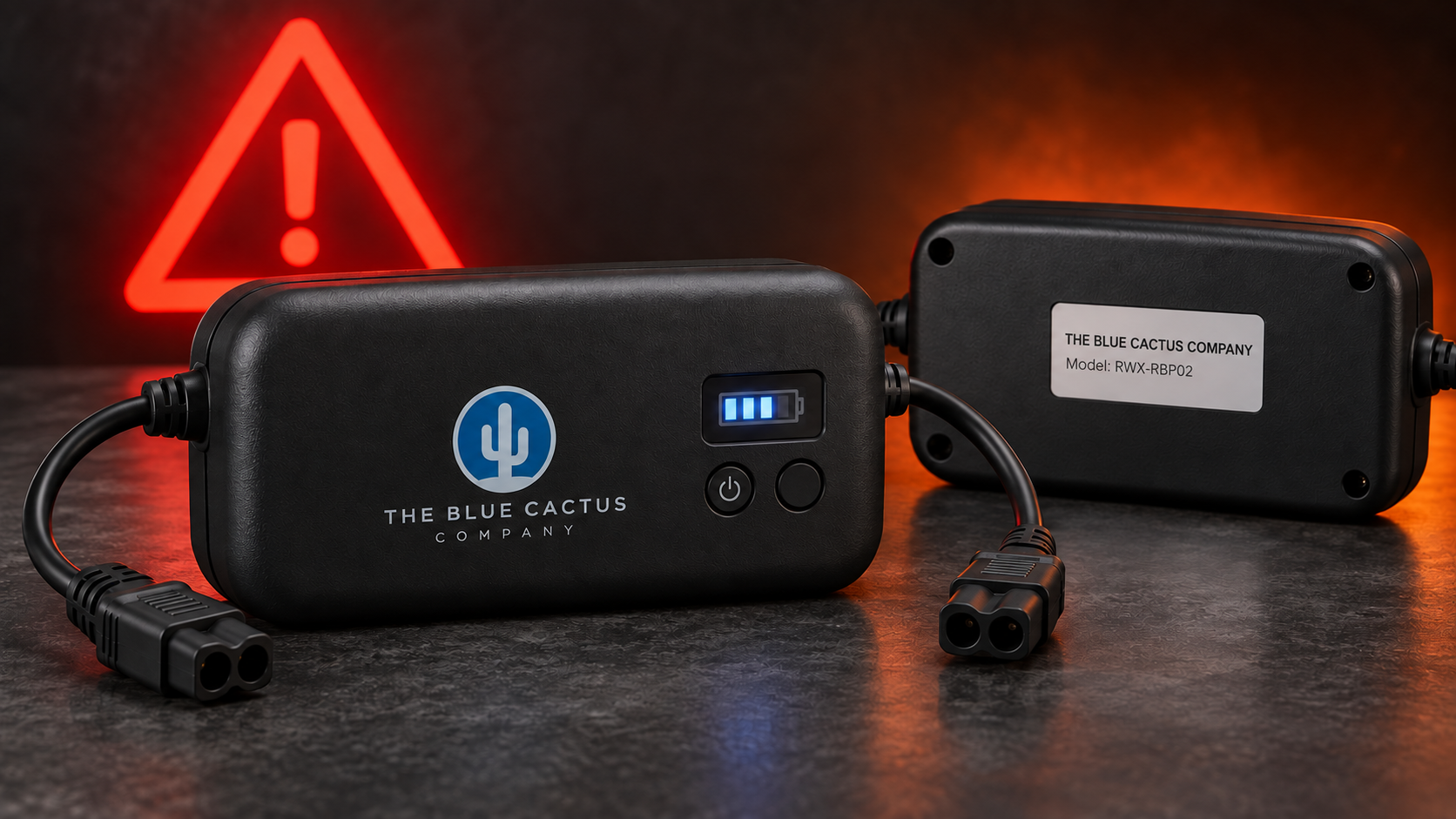
Front view of the recalled Blue Cactus RWX-RBP02 recliner battery pack

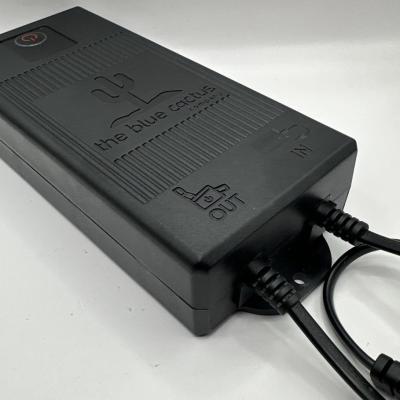
Look under or behind the recliner for the external battery pack, disconnect power to the chair if it is safe to do so, and inspect the pack itself. The recalled unit is a black, rounded rectangular battery with The Blue Cactus Company name and logo on the front. The identifying model number RWX-RBP02 is printed on the rear label.

The pack was designed for multiple recliner brands, so the furniture maker’s name does not determine whether the battery is included. The model number on the battery is the decisive check. This recall covers the 2500 mAh pack identified as RWX-RBP02; it does not automatically include every Blue Cactus product or every battery used with powered furniture.

What owners should do now

  • Stop using the battery pack immediately, even if it has not shown warning signs.
  • Disconnect it from the recliner and charger only if the pack is cool, undamaged and safe to handle.
  • Photograph the rear label so the model number is clearly visible.
  • Submit the company’s recall form with your contact details, Amazon order ID, shipping address and label photo.
  • Keep the recalled pack in a safe location away from heat, moisture, children and combustible materials while waiting for disposal instructions.
  • Do not resume charging or using the recalled pack while waiting for the replacement.

The Blue Cactus Company says confirmed customers will be added to its replacement list and that replacement packs are expected to ship within six to eight weeks. The company lists recall@thebluecactuscompany.com for assistance.

How to handle a hot, smoking or damaged battery

Do not touch, charge or move a pack that is hot, swollen, hissing, leaking or smoking. Move people and pets away, avoid breathing fumes and call emergency services if there is active smoke, fire or an immediate threat. Do not put water, household trash or loose materials over a failing lithium-ion battery.

If the unit is cool and appears normal, follow the recall instructions rather than improvising repairs. Do not open the battery housing, puncture it or attempt to replace cells yourself.

Do not place the recalled battery in regular trash or recycling

CPSC specifically warns that recalled lithium-ion batteries should not go in household garbage, curbside recycling or the used-battery boxes found at many stores. Recalled packs need different handling because they can create a greater fire risk during collection and transport.

Contact your municipal household hazardous waste program before traveling to a drop-off site and ask whether it accepts recalled lithium-ion batteries. If it does not, request local guidance. EPA generally recommends keeping lithium-battery labels legible, isolating terminals with non-metallic tape or a separate bag, and protecting the battery from damage—but the recall company’s product-specific directions take priority.

A useful home-safety check while you wait

A recalled recliner battery is not a reason to buy a random substitute with an unknown electrical rating. Wait for the approved replacement and use this pause to test the smoke alarms near living areas and sleeping spaces. A relevant option is the First Alert SMCO100 smoke and carbon monoxide alarm.

ReaderSpice may earn a commission from qualifying Amazon purchases. This does not change the price you pay.

What the recall does not say

The notice does not say that every Blue Cactus recliner battery has failed, and it does not report injuries. It also does not authorize continued use of apparently normal RWX-RBP02 packs. A battery can fail without giving owners a reliable advance warning, which is why the official direction is to stop using affected units immediately.

The bottom line

If you bought a Blue Cactus battery for a powered recliner from Amazon between May 2023 and July 2026, check the rear label now. Model RWX-RBP02 is recalled. Stop using it, document the label, submit the replacement request and arrange disposal through a local program that confirms it accepts recalled lithium-ion batteries.

Sources

CPSC recall notice for Blue Cactus reclining-chair battery packs

The Blue Cactus Company recall and replacement instructions

EPA guidance for used lithium-ion batteries

First Alert SMCO100 Amazon product page

Mezzetta Peperoncini Recall: Check SKU 10106328 and Lot 720106

Mezzetta Golden Greek Peperoncini 32-ounce jar with a red food recall alert background

Mezzetta has recalled one specific lot of its Golden Greek Peperoncini Medium Heat after a social-media video showed a potential pest contaminant in a jar. The limited recall covers only the 32-ounce product carrying SKU 10106328 and lot 720106.

The company says it has received no reports of illness or injury. Consumers who find the affected identifiers should not eat the peppers and should contact Mezzetta for assistance.

Mezzetta recall at a glance

  • Product: Mezzetta Golden Greek Peperoncini Medium Heat.
  • Container size: 32 ounces.
  • SKU: 10106328.
  • Lot number: 720106.
  • Reason: A reported potential pest contaminant in a jar.
  • Consumer action: Do not consume the affected product; contact Mezzetta at CustomerSupport@Mezzetta.com.

How to identify the recalled jar

How to identify the recalled jar

Start with the front label and size. The recalled item is the Mezzetta Golden Greek Peperoncini Medium Heat product in a large 32-ounce glass jar. It contains whole yellow-green peperoncini in brine and has the familiar red-and-green Mezzetta label.

The product name and jar size alone are not enough to determine whether a jar is recalled. The company limited the action to SKU 10106328 and lot 720106. Check the printed lot information on your jar carefully and compare every digit.

If you cannot locate the lot code, do not guess based on the product photo. Set the jar aside and contact Mezzetta at CustomerSupport@Mezzetta.com. A customer-service representative can help confirm where the code is printed and whether the product is included.

Why the product was recalled

Mezzetta says it became aware of a video circulating on social media that showed a potential pest contaminant inside a jar. The company contacted the consumer, began investigating the reported product and initiated a voluntary recall.

The investigation includes reviewing the jar involved in the original report as well as production, sanitation and food-safety records. Mezzetta also says it used its production and distribution records to identify customers that received jars from the affected lot and is working with them to remove those products from sale.

The FDA notice describes the issue as a potential foreign object or pest contaminant in the jar. It does not identify a confirmed illness outbreak, bacterial pathogen or allergen problem. Readers should avoid expanding the warning beyond what regulators and the company have announced.

What consumers should do now

  • Stop using the jar if it matches all three identifiers: Golden Greek Peperoncini Medium Heat, 32 ounces, and lot 720106.
  • Do not open the jar to inspect or taste the contents.
  • Keep the jar separated from food you plan to eat and away from children.
  • Photograph the front label, SKU and lot code before contacting the company.
  • Email CustomerSupport@Mezzetta.com for assistance and follow the company’s instructions.
  • Clean any shelf or surface if the jar leaked or was opened.

Mezzetta’s notice does not direct consumers to return every size or variety of its peppers. The company says no other Mezzetta products or lots are included based on the information currently available.

If someone already ate the product

No illness or injury has been reported in connection with this recall. The company’s instruction is preventive: consumers should not eat peppers from the affected lot.

If you already consumed the product and feel unwell, contact a health professional and explain that the food came from the recalled lot. Seek urgent help for severe symptoms such as trouble breathing, loss of consciousness, persistent vomiting or signs of a serious allergic or physical reaction.

For questions about the recall itself, use Mezzetta’s published customer-support email. If you want to report a product problem to regulators, the FDA’s Safety Reporting Portal provides the appropriate reporting path.

Keep lot information when reorganizing a pantry

Transferring dry foods into clear containers can make pantry contents easier to see, but recall identification often depends on the original package, label and lot code. Photograph or retain that information whenever you decant a product.

ReaderSpice may earn a commission from qualifying purchases.

For dry pantry staples, an OXO Good Grips POP Container provides clear storage, but it should be paired with the original product label or a written lot record.

What the recall does not include

Only one identified 32-ounce product and lot is covered. The notice does not say that all Mezzetta peperoncini, all jar sizes or all Mezzetta products are unsafe. It also does not report confirmed illnesses or injuries.

That narrow scope may change if the investigation finds additional affected products. Consumers should follow the FDA recall page or Mezzetta’s official updates rather than relying on screenshots or reposts that may omit later changes.

The bottom line

Check any 32-ounce jar of Mezzetta Golden Greek Peperoncini Medium Heat for SKU 10106328 and lot 720106. If both identifiers match, do not consume the product and email Mezzetta for assistance. Other products and lots are not included in the company’s current notice.

Sources

FDA: Mezzetta Golden Greek Peperoncini recall announcement

Mezzetta: Golden Greek Peperoncini product page

Kroger: 32-ounce Mezzetta Golden Greek Peperoncini packaging reference

FDA: Safety Reporting Portal

NEWDERY Power Bank Recall: Check Model ZHX-PB22 and Get a Refund

Black power bank with yellow charging cables beside a red warning symbol for the NEWDERY ZHX-PB22 recall

A newly announced recall covers about 21,380 NEWDERY portable power banks sold through Amazon. If you own a black charger with built-in yellow cables, stop using it and check the back for model ZHX-PB22 before charging another device.

The U.S. Consumer Product Safety Commission announced the recall on September 24, 2026, after nine reports of the power banks exploding or igniting. Those reports include one burn injury and a serious fire that caused $2 million in property damage. NEWDERY is offering a full refund.

What the NEWDERY power bank recall covers

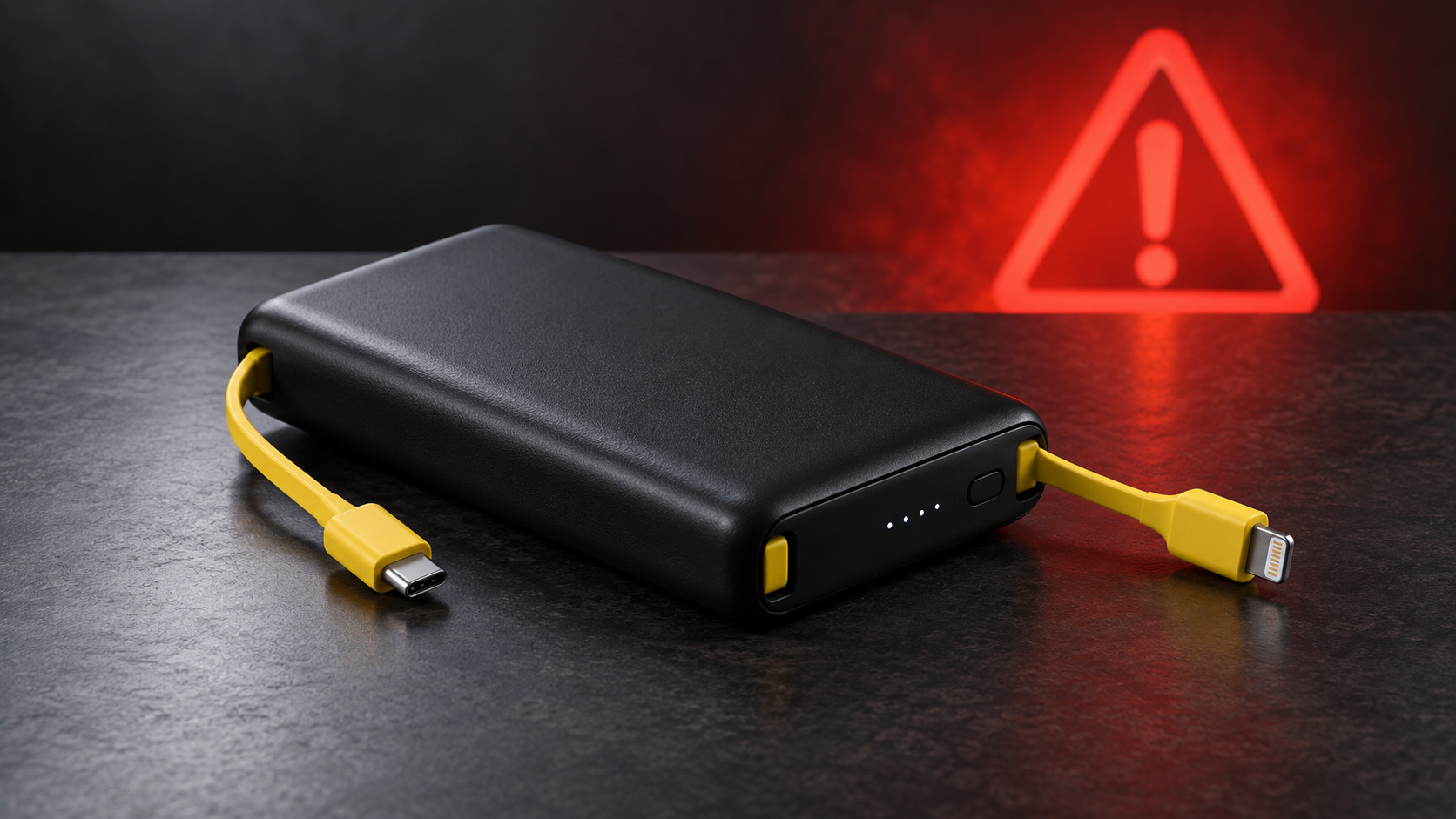
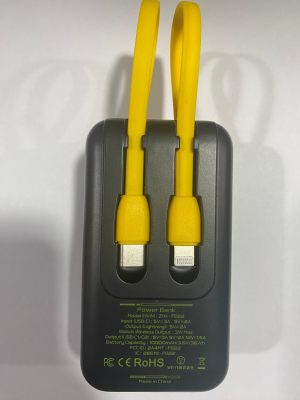
The recall applies only to NEWDERY power banks marked with model number ZHX-PB22. The affected units are black, have yellow integrated charging cables and carry the NEWDERY name engraved on the front. The model number appears on the back.

The recalled power banks were sold on Amazon.com from October 2023 through November 2024 for roughly $27 to $50. CPSC lists Shenzhen Xinkewangda Electronics Co., Ltd., doing business as NEWDERY, as the importer. The recall number is 26-792.

How to identify the recalled NEWDERY power bank

How to identify the recalled NEWDERY power bank

Look at the front of the charger first. The recalled unit has a plain black case, yellow cables stored along its edges and NEWDERY engraved on the face. Color alone is not enough to confirm the recall, so continue to the model-number check.

Check the back for model ZHX-PB22

Check the back for model ZHX-PB22

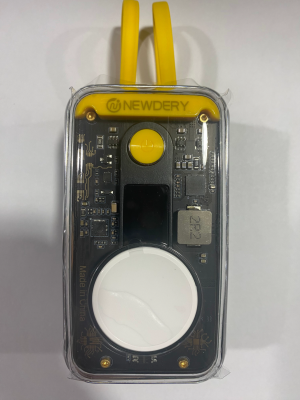
Turn the power bank over and find the printed product information. The identifying model is ZHX-PB22. If that exact number is not visible, compare your unit with the official CPSC photos and contact NEWDERY before assuming it is unaffected.

What to do if you have model ZHX-PB22

Do not charge the power bank, connect it to a phone or continue carrying it as a backup battery. CPSC’s remedy is a full refund, and its instructions require owners to document the recalled unit and confirm proper disposal.

Follow these steps:

  • Stop using the power bank immediately and disconnect it from chargers and devices.
  • Contact NEWDERY through its recall page, by email at support@newdery.com or by phone at 888-256-6673 from 11 a.m. to 7 p.m. ET, Monday through Friday.
  • Prepare a photo showing the model number and serial number. Write “recalled” and your last name on the power bank with permanent marker, as directed by CPSC.
  • Ask your municipal household hazardous-waste facility whether it accepts recalled lithium-ion batteries before taking the unit there.
  • Keep the refund documentation and follow the company’s confirmation steps. Do not mail or ship the battery unless you receive instructions that comply with hazardous-material rules.

Do not put the recalled battery in household trash

CPSC specifically warns owners not to place this recalled device in household garbage, curbside recycling or ordinary used-battery collection boxes at stores. Recalled lithium-ion batteries present a greater fire risk than typical spent batteries and may require special handling.

The EPA likewise says lithium-ion batteries and devices containing them should not go into trash or municipal recycling bins. For ordinary used batteries, EPA advises isolating terminals with nonconductive tape and placing each battery or device in a separate plastic bag. Because this model is recalled, however, follow CPSC’s stricter direction: call the local household hazardous-waste facility first and disclose that the unit is a recalled lithium-ion power bank.

How to request the full refund

Start with the NEWDERY recall page and use the contact details in the CPSC notice if you need help. CPSC says the refund process requires a photo that shows the model and serial numbers, plus the word “recalled” and the owner’s last name written on the device. Owners must also confirm that the power bank was disposed of according to applicable rules.

NEWDERY’s page also asks consumers who have not already received an Amazon refund to provide their Amazon order number, an explanation or screenshot showing why Amazon did not refund the purchase, and photos documenting proper processing or disposal. If the company’s webpage differs from the federal recall notice, follow the current CPSC instructions and ask NEWDERY to clarify the requirement in writing.

Should you replace the recalled charger?

A replacement is optional, but anyone who regularly travels or relies on backup charging may want another compact power bank after the recalled unit is safely handled. Check the replacement’s current safety notices, manufacturer support and connector compatibility before buying.

One widely available alternative is the Anker 313 Power Bank (PowerCore 10K). Verify the exact model and current listing before purchase, since recalls and specifications can change. As an Amazon Associate, ReaderSpice earns from qualifying purchases.

Why this recall matters

Portable chargers concentrate substantial energy in a small enclosure. When a defective lithium-ion cell overheats, the failure can escalate quickly, which is why continued use is not worth the risk even if a particular unit has never become unusually warm.

The September 24 recall follows a June 2025 CPSC warning about the same model, issued when the importer had not agreed to a recall. The new recall provides a formal refund route and expands the stated number of affected units. Owners who saw the earlier warning but kept the device should act now.

Sources

U.S. Consumer Product Safety Commission: NEWDERY Power Banks Recall (September 24, 2026)

NEWDERY: Power Bank Recall Instructions

U.S. Environmental Protection Agency: Used Lithium-Ion Batteries