

Google is rolling out Computer Use in the Gemini app for Mac, giving the AI permission to click, type, scroll and navigate menus across local apps, files and websites. The feature works in an isolated background window with a live preview, so the main screen and pointer can remain available while Gemini handles a multi-step task.
The productivity promise comes with unusually broad access. Google’s own help page warns that Gemini may reach logged-in sessions, visible authentication codes, developer tools and file-changing actions, and that content on screen can try to manipulate the agent across application boundaries. The right starting point is a tightly scoped test—not a destructive cleanup, financial transaction or unsupervised task.
ReaderSpice verified Google’s November 19 announcement, current setup instructions, Mac requirements, permission controls and backup limits. We have not tested the feature, measured reliability or confirmed availability on every eligible account. Computer Use is rolling out in English in the United States and can make mistakes.
Gemini Computer Use on Mac at a glance
- What it does: clicks, types, scrolls, navigates menus and moves information across permitted Mac apps and websites.
- Where it runs: an isolated virtual screen with a live preview inside the Gemini task, while the user keeps control of the main desktop.
- Eligibility: personal Google Account, age 18 or older, English in the United States, and an eligible Google AI Plus, Pro or Ultra subscription.
- Hardware: Apple Silicon Mac with macOS Sequoia 15.0 or later; the Gemini Mac app also lists at least 8GB of RAM and 200MB of installation space.
- System access: Accessibility and Screen & System Audio Recording must be enabled for Computer Use.
- App access: apps can be denied, allowed once, always allowed or explicitly blocked.
- Backups: optional on-demand file backups are temporary, are not guaranteed for every action or app, and normally expire after 24 hours or the next prompt.
- Account limit: Computer Use is currently for personal accounts, not work or school accounts.
Who can use it now
Google says the feature requires an Apple Silicon Mac running macOS Sequoia 15.0 or newer. The Gemini Mac app requires at least 8GB of RAM, 200MB of free installation space and an internet connection. Intel Macs are not included in the current requirements.
Computer Use itself is limited to adults using a personal Google Account, in English, in the United States, with Google AI Plus, Pro or Ultra. The broader Gemini Mac app can support some managed accounts, but this agentic control feature is not currently available to work or school accounts. A compatible Mac and subscription do not guarantee immediate access during a staged rollout.
How to set up Gemini Computer Use on Mac
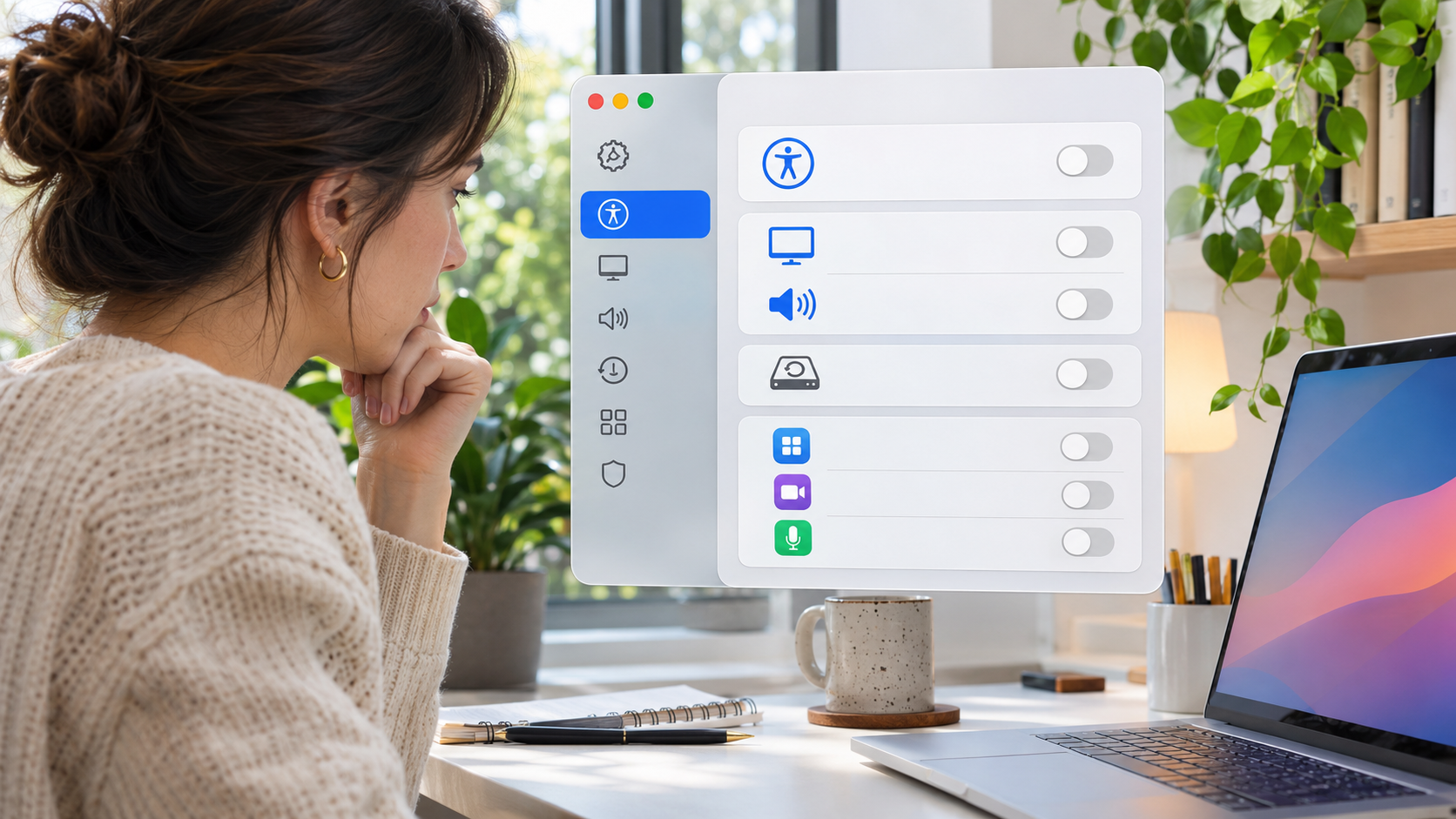
Computer Use needs powerful macOS permissions. Review Accessibility, screen recording, backups and app access before the first task. Illustration: ReaderSpice.
- Confirm the Mac uses Apple Silicon, runs macOS Sequoia 15.0 or later and has at least 8GB of RAM. Update macOS and create a normal backup before adding agentic control.
- Download the Gemini app only from gemini.google/mac, open the DMG, move Gemini to Applications and sign in with the eligible personal Google Account.
- Open Gemini, choose Gemini > Settings or press Command-comma, then select Computer use.
- Turn on Allow Gemini to work with your Mac. macOS will ask for Accessibility and Screen & System Audio Recording access. Review both in System Settings > Privacy & Security.
- Turn on Use on-demand file backups if available. Treat it as a recovery aid, not a complete backup system.
- Review Blocked apps and add password managers, finance tools, messaging apps, terminals, code editors or other high-impact apps that the test does not need.
- Start a new task, select Task below the chat box and mention @Computer use with a narrow, reversible request.
- Watch the live preview, approve only the expected apps and actions, and use Stop task immediately if the agent leaves the defined scope.
What the isolated background window does—and does not do
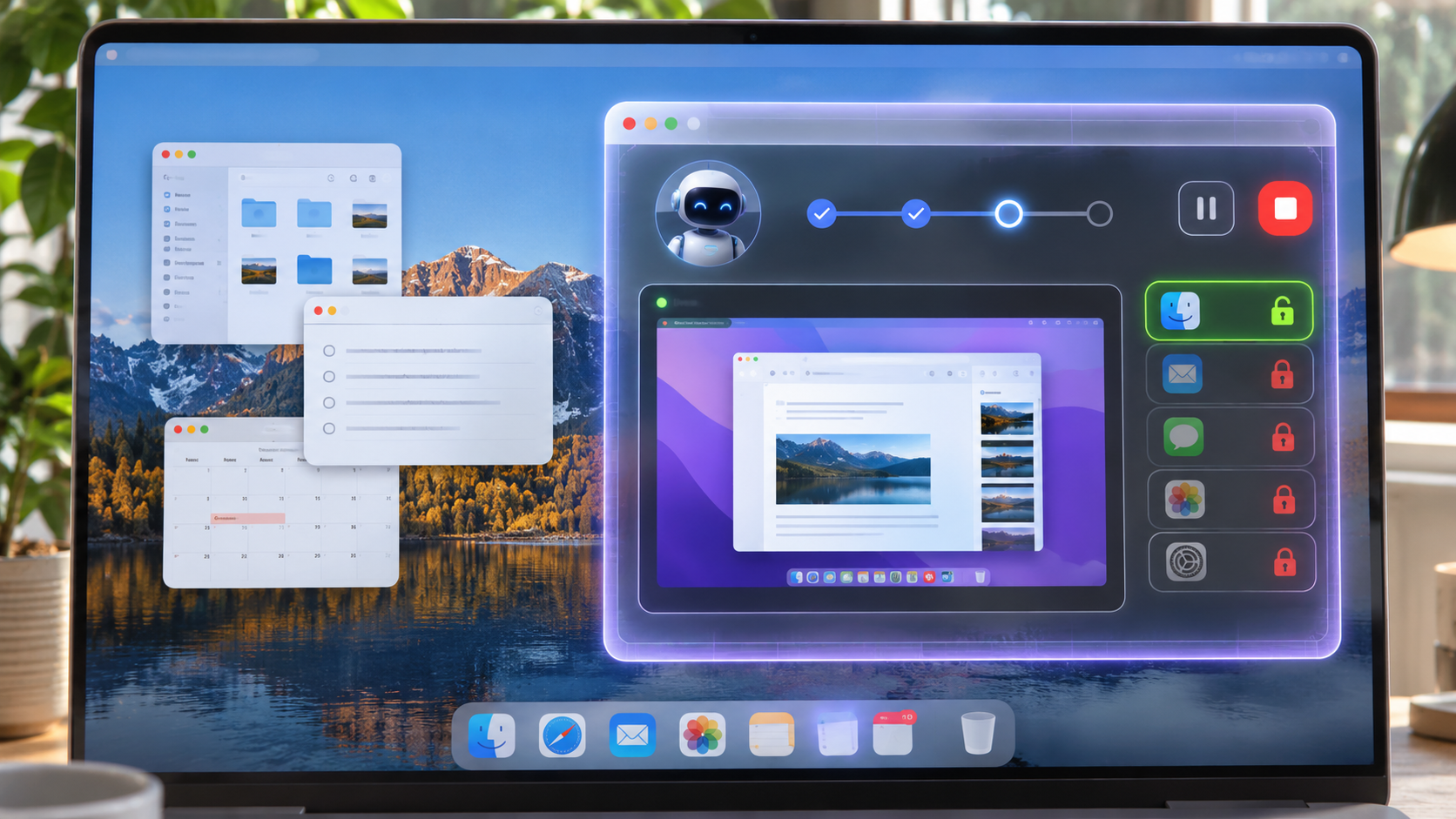
Gemini works in a separate virtual screen, but it still acts through permissions and sessions on the Mac. Isolation is not the same as a security sandbox. Illustration: ReaderSpice.
Google moves the controlled app into a virtual screen and shows its progress inside the Gemini conversation. That keeps the physical pointer and primary display available, which is useful when a long task involves many clicks. The user can expand the preview, pause or stop the task.
The virtual screen should not be mistaken for a separate computer with separate credentials. Google warns that Gemini can use logged-in accounts and active sessions in native Mac apps. If a browser, mail client or messaging app is already authenticated, the agent may encounter information and actions that are not visible in the original prompt.
A safer mental model is delegated control with a visual boundary. The window separates activity from the user’s pointer; the permission list, app state and account sessions determine what the agent can actually reach.
App permissions: allow once before always allow
The first time Computer Use reaches an app, Gemini can ask the user to deny access, allow it for that step or chat, or always allow it. “Always allow” adds the app to the allowed list and removes a future checkpoint. That is convenient for a stable workflow but a poor default during early testing.
- Use Allow once for the first several runs, even in familiar apps.
- Keep high-impact apps on the blocked list unless the task explicitly requires them.
- Review Settings > Computer use after every experiment and remove permissions that are no longer needed.
- Use a separate test folder with copies of files, not the only copy of a project.
- Do not approve a new app merely because Gemini says it will make the task easier.
- For browser and connected-app actions, keep the preference on Always ask until the workflow is understood.
Backups help, but they are temporary and incomplete
Google says Gemini will try to create temporary backups while it works, and the Computer Use settings offer on-demand file backups. A backup is retained for about 24 hours or until the next prompt. The user can open the task and choose View backups to recover an available copy.
That wording has three limits. Gemini is not always able to create a backup, some applications do not expose content in a recoverable way, and the next prompt can shorten the recovery window. Browser submissions, sent messages, external account changes and app-specific actions may be irreversible even when a local file was backed up.
Keep Time Machine or another independent backup for important files, and verify that it completed before a task changes many items. A temporary agent backup should not be the only rollback plan.
The major risks Google tells users to consider

Logged-in accounts, visible MFA codes, developer tools, untrusted content and irreversible actions make app selection more important than a polished task preview. Illustration: ReaderSpice.
Untrusted content can redirect the agent
Google warns that content shown inside one application can manipulate an agent into crossing into another allowed app. This is the desktop version of prompt injection: a document, webpage or message can contain instructions aimed at the AI rather than the user. Block unrelated apps and stop the task when the plan suddenly changes.
Logged-in sessions expand the blast radius
A native email, browser, cloud-drive or messaging session may already have authority to send, share, delete or change information. Computer Use can encounter those sessions even when the original task sounds harmless. Sign out of accounts the experiment does not need or block their apps before starting.
Developer tools can become system access
Google specifically notes that code editors, text editors and developer tools can enable shell commands or broader file-system changes. Do not grant an AI agent terminal access merely to rename files or build a spreadsheet. Use the narrowest application that can complete the task.
Visible authentication codes are sensitive
Gemini can read or interact with MFA prompts and codes visible in desktop or messaging apps. Keep authenticators, password managers, email and message windows blocked, and never paste sign-in credentials, payment details or other sensitive information into the task thread.
Third-party app rules still apply
Automating a desktop app can conflict with its terms of service, rate limits or anti-bot rules. The user remains responsible for the apps and websites they instruct Gemini to use. Verify the service rules before automating listings, purchases, messages, reservations or account administration.
Good first tasks for a cautious trial
- Copy a small folder of duplicate images into a new test folder, apply a reversible naming pattern and stop before deleting originals.
- Extract dimensions from sample PDFs into a new spreadsheet without submitting the data to a website.
- Open a non-sensitive project folder, create an inventory and draft a proposed organization plan without moving files.
- Stage—not publish—an item listing with a test account and require approval before any form submission.
- Build a slide draft from public data, then verify every number, screenshot and source manually.
Tasks to avoid until the feature proves reliable
- Deleting, overwriting or reorganizing the only copy of personal or work files.
- Sending email, chat messages, invitations or public posts without final human review.
- Buying products, moving money, entering payment details or changing account security.
- Handling confidential employer, customer, health, tax or legal records.
- Running Terminal, developer tools or scripts with broad file-system or administrator access.
- Leaving the feature unsupervised inside apps with active sessions and irreversible actions.
A safer first-run checklist
- Back up the Mac independently and verify the backup timestamp.
- Create a test folder containing copies of non-sensitive files.
- Block password managers, authenticators, finance, email, messaging, Terminal and developer tools.
- Use Allow once for every newly requested app.
- Write a prompt with an explicit goal, allowed apps, source folder, output folder and stop condition.
- Watch the entire live preview and stop at the first unexpected app, website or action.
- Compare the output with the source, inspect file counts and review any draft before saving or submitting.
- Remove temporary permissions and recover or delete Gemini’s temporary backups after validation.
Why Computer Use may be missing or fail
- The Mac uses an Intel processor, runs an older macOS version or has less than the documented 8GB of RAM.
- The account is a work, school, supervised or under-18 account rather than an eligible personal adult account.
- The language or region is outside the current English-U.S. rollout.
- The account lacks an eligible Google AI Plus, Pro or Ultra subscription.
- The Gemini app is out of date or the staged rollout has not reached the account.
- Accessibility or Screen & System Audio Recording access was denied or removed in macOS settings.
- The needed app is blocked, the task thread has not granted permission or the app cannot support the attempted action.
A verified Amazon hardware example: M4 Mac mini
Amazon product code B0DLBTPDCS identifies the 2024 Apple Mac mini with an M4 chip, 16GB of unified memory and 256GB of storage. Its Apple Silicon processor and memory meet Google’s current Gemini Mac app hardware baseline, provided the system runs macOS Sequoia 15.0 or newer. A display, keyboard and mouse are separate considerations for a Mac mini setup.
View the Apple M4 Mac mini 16GB/256GB on Amazon
Affiliate disclosure: ReaderSpice may earn a commission from qualifying purchases made through the Amazon link above, at no additional cost to you.
Do not buy a new Mac only for Computer Use. An existing compatible Apple Silicon Mac is the better test platform, and staged account availability can lag behind hardware eligibility. ReaderSpice has not verified the current Amazon price, seller or inventory; check the live listing, exact configuration, return policy and included accessories before purchasing.
What ReaderSpice has not verified
ReaderSpice has not run Gemini Computer Use on a Mac, tested app compatibility, measured completion rate, audited Google’s isolated window, validated backup recovery or checked the feature against every website’s terms. We have not confirmed whether the rollout is active on every eligible plan. Google’s examples and safety controls describe intended behavior, not a guarantee that every task will be completed correctly.
Bottom line
Gemini Computer Use on Mac is a meaningful step from answering questions to operating real desktop software. The isolated window and live preview make it easier to supervise, but they do not remove the authority already present in allowed apps, logged-in sessions and local files.
Start with copied files, allow each app once, block high-impact tools, keep independent backups and require approval before anything is sent, deleted or submitted. The feature is most valuable when the workflow is repetitive and reversible; it is least appropriate when a mistake would be costly, private or difficult to undo.
Sources
Google Blog — Let Gemini tackle repetitive chores on your Mac, November 19, 2026
Gemini Apps Help — Use Gemini to work with apps on your Mac
Gemini Apps Help — Use the Gemini app on Mac
Gemini Apps Help — Assign tasks in the Gemini app on Mac
Gemini Apps Help — Manage browser and app permissions for tasks
Apple Support — Mac mini (2024) technical specifications
Amazon — Apple M4 Mac mini 16GB/256GB, ASIN B0DLBTPDCS