
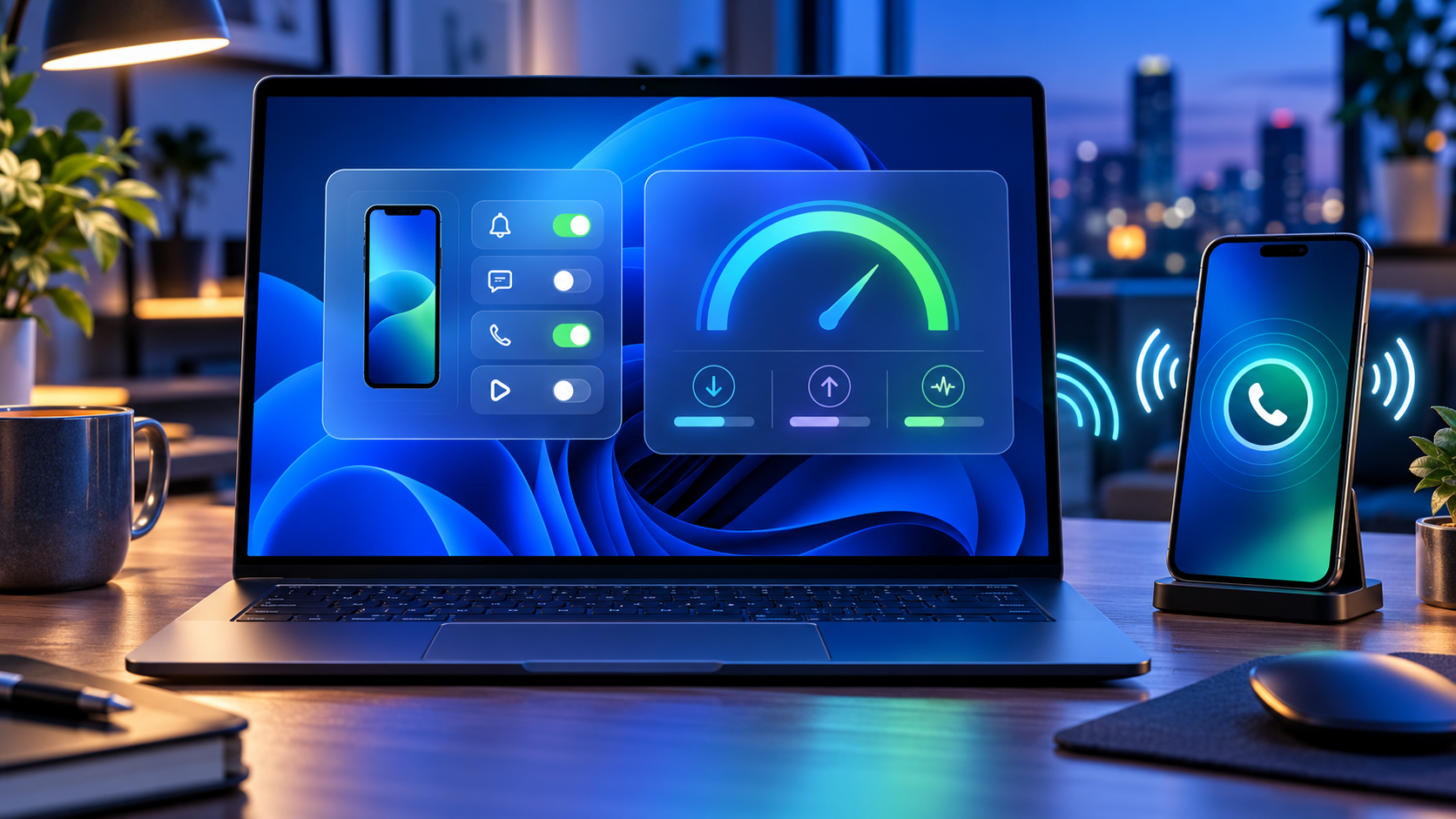
Microsoft is testing a new Windows 11 Quick Settings experience that puts connected-phone controls and an internet speed test directly inside the taskbar panel. The changes arrived October 23, 2026, in Experimental preview build 26340.9767 and are rolling out gradually to only a subset of Windows Insiders.
The distinction matters: these are preview features, not broadly available Windows 11 functions. Android phones receive the fuller initial control set, while iPhone support begins with a more limited status-focused view. A separate Beta build adds a redesigned, customizable File Explorer context menu, but that feature is not part of the same Experimental rollout.
Windows 11 preview changes at a glance
- Quick Settings can show a connected phone’s battery status and supported controls.
- Android users may be able to change Do Not Disturb, adjust ringer mode or make the phone play a sound.
- Windows can run an internet speed test and display download, upload and ping results inside Quick Settings.
- A new Magnifier option can disable the Windows key + Plus shortcut without disabling Magnifier itself.
- Some Microsoft 365 subscribers can turn recurring billing back on from Windows Settings or Start.
- The Experimental build improves network-location loading feedback and fixes recent taskbar and sign-in problems.
- Beta build 26220.9757 separately tests a cleaner File Explorer right-click menu with customization controls.
These features are delivered through Controlled Feature Rollout. Installing the correct build does not guarantee that every switch appears immediately, and Microsoft says preview experiences can change, be removed or never reach normal Windows releases.
Phone controls move into Quick Settings
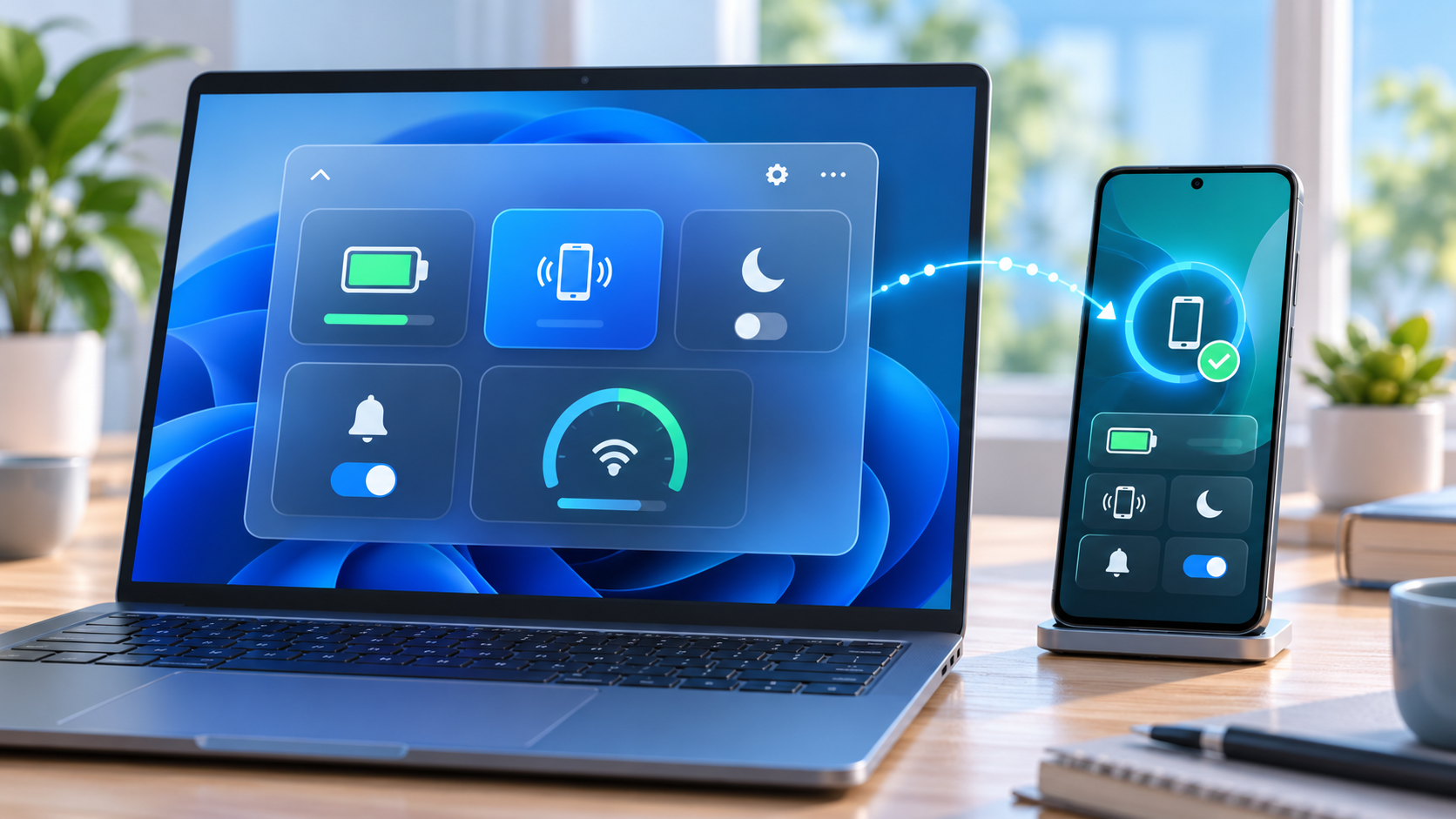
The new Mobile devices area is designed to reduce trips into the full Phone Link app. Open Quick Settings from the network, volume or battery area of the taskbar and look for Mobile devices. If a phone is already paired, Windows can show its battery status and the controls supported by that device.
Microsoft describes three practical actions for supported Android phones: turn Do Not Disturb on or off, change ringer mode and play a sound to locate the phone nearby. The last option is useful when a device is buried under a cushion or left in another room, while the notification and ringer controls can quiet a phone before a meeting without reaching for it.
Android receives the most complete initial implementation. Microsoft says iPhone support starts with a more limited, status-focused experience. Available controls can also vary by phone model, software version, region and PC configuration, so the presence of Mobile devices does not promise identical buttons on every setup.
If the phone is not connected, Quick Settings can guide the user into setup. Microsoft’s general Phone Link requirements call for a Windows PC, an Android device running Android 10 or later, and current Phone Link and Link to Windows software. The standard setup uses the same Wi-Fi network, although Phone Link can support mobile-data syncing when that option is enabled.
The speed test now stays inside the panel
Windows has previously exposed a taskbar speed-test command that opened the default browser. The new Experimental version goes further: it runs the test against the active connection and keeps progress and results inside Quick Settings.
The test can be started from the new Speed test tile, from the Wi-Fi or Cellular flyout, or by right-clicking the network icon in the system tray and choosing Test internet speed. The panel reports three measurements:
- Download speed: how quickly data reaches the PC, affecting streaming, downloads and many cloud applications.
- Upload speed: how quickly the PC sends data, important for backups, large file transfers and live video.
- Ping: the round-trip delay to the test endpoint, which can matter more than raw bandwidth for calls, gaming and remote control.
A single result is a snapshot, not a diagnosis. Wi-Fi congestion, server distance, VPN routing, background downloads and the test endpoint can all affect the numbers. Compare several tests at different times, test both near and far from the router, and use Ethernet when possible to separate an internet-service problem from weak local Wi-Fi.
What to check when the result looks wrong
- Pause cloud backups, game downloads and video streams, then repeat the test.
- Confirm whether a VPN is active; it can add distance, encryption work and congestion.
- Move closer to the access point and remove obvious obstructions for a Wi-Fi test.
- Run a second test over Ethernet if the PC and router support it.
- Compare another device on the same network to determine whether the slowdown is PC-specific.
- Restart the modem and router only after noting current status lights and provider outage information.
Do not use one speed result to justify buying new networking hardware. First check the subscribed service tier, router placement, channel congestion, adapter driver, cable category and whether the PC is connected to 2.4GHz, 5GHz or 6GHz. A new router cannot make the provider connection faster than the plan or repair a damaged line.
The Beta channel gets a redesigned File Explorer menu
Microsoft released Beta preview build 26220.9757 on the same date, but its headline change is different. The build tests a redesigned File Explorer context menu intended to reduce top-level clutter, preserve common actions and let users control which commands appear.
That design targets a long-running Windows complaint: right-click menus can become crowded as applications register their own actions. A configurable menu could make everyday file operations easier to scan, but Microsoft is still collecting Insider feedback. It may change before release, and it is tied to the Beta channel rather than the Experimental phone and speed-test rollout.
The Beta build is based on Windows 11 version 25H2 through an enablement package. Experimental build 26340.9767 is based on version 26H2. Those branches should not be treated as interchangeable, and users should not switch channels solely to chase one menu or tile on a production computer.
Other changes in Experimental build 26340.9767
- Windows Insider settings can filter feature flags by whether they are enabled.
- Magnifier adds a toggle for the Windows key + Plus shortcut, which remains on by default.
- Eligible Microsoft 365 subscribers with recurring billing turned off can re-enable it from Settings or Start.
- File Explorer provides clearer progress feedback while loading slower locations such as network drives.
- Narrator adds more math-reading languages, including Greek, Hungarian, Indonesian, Norwegian, Polish, Russian, Swedish and Vietnamese.
- The Widgets picker gains a standard Windows frame with light and dark title bars.
- Microsoft fixes a recent issue that could stop Explorer from loading after sign-in and another that incorrectly claimed the user’s password was wrong.
The recurring-billing control deserves a careful read. It is a convenience for people who deliberately want to restart subscription renewal; it should not be interpreted as a required Windows setting. Confirm the account, price, renewal date and payment method before turning billing back on.
How to check whether the features are available
- Open Settings > Windows Update > Windows Insider Program and confirm the enrolled channel.
- Install the offered preview update, restart when prompted and verify the build under Settings > System > About.
- For the phone controls, open Quick Settings and look for Mobile devices.
- For the network tool, look for Speed test in Quick Settings, the Wi-Fi or Cellular flyout, or the network icon’s right-click menu.
- If the feature is absent, leave the PC enrolled and wait for the controlled rollout rather than forcing an unsupported package.
A watermark is normal on Insider preview builds. Microsoft also warns that active-development features may be incomplete, not fully localized or removed later. Back up important files and keep recovery options available before installing preview software.
Should you join the Insider Program for these features?
Most people should wait. Phone controls and an in-panel speed test are useful, but neither is worth adding preview risk to a work, school or family PC. Phone Link already provides broader device integration, and reliable browser-based speed tests remain available on stable Windows.
The Experimental channel is most appropriate for testers who understand staged features, can tolerate regressions and have a separate recovery plan. The Beta channel is closer to normal Windows behavior, but it is still pre-release software. Business-managed PCs should follow the organization’s update policy rather than personal preference.
A hardware option for faster local Wi-Fi
Readers who have confirmed that an older router—not the internet plan—is the bottleneck can compare the TP-Link Archer BE550 Wi-Fi 7 router on Amazon. The verified listing is ASIN B0CJSNSVMR; check the seller, modem compatibility, available Ethernet ports, client-device support and return terms before ordering.
As an Amazon Associate, ReaderSpice earns from qualifying purchases.
Bottom line
Windows 11’s new Quick Settings tests reduce friction in two believable ways: common phone actions can happen without opening Phone Link, and a basic network check can finish without sending the user into a browser. Android support is stronger than iPhone support at the start, and both features remain limited to a controlled Experimental rollout.
The customizable File Explorer context menu is promising too, but it belongs to a separate Beta build. Treat all three as previews, verify the exact channel and build, and wait for stable Windows if the PC cannot absorb bugs or unfinished behavior.
Sources
Windows Insider Blog: Announcing new builds for October 23, 2026
Microsoft Learn: Windows 11 Experimental Preview Build 26340.9767
Microsoft Learn: Windows 11 Beta Preview Build 26220.9757
Microsoft Support: Phone Link requirements and setup
Microsoft Support: Troubleshooting Phone Link connections
Microsoft Support: Why an internet connection can be slow