Windows 11 Build 26320.9876 Moves Beta to 26H2: New Search, Live Captions and Upgrade Advice

Laptop showing a Windows-style system update and Search panel on a blue-lit home office desk

Microsoft released Windows 11 Insider Preview Build 26320.9876 to the Beta Channel on November 6, 2026. The build moves Beta testers from version 25H2 to version 26H2 and starts a gradual rollout of a rebuilt Windows Search, more flexible Live Captions, new File Explorer navigation and several sign-in improvements.

This is pre-release software, not a normal public Windows update. Microsoft says the version jump is delivered through an enablement package, so the higher build number alone should not create a dramatic change. The practical value is in the individual features—and many may arrive gradually, change during testing or never reach a stable release.

Windows 11 Build 26320.9876 at a glance

  • Release date: November 6, 2026, for Windows Insiders in the Beta Channel.
  • Version change: Beta moves from Windows 11 25H2 to 26H2 through an enablement package.
  • Headline feature: a WinUI 3-based Search experience with faster results, typo and synonym matching, and inline actions.
  • Accessibility: Live Captions can transcribe system audio, microphone input or both.
  • File Explorer: typing ~ in the address bar opens the current user profile; ~\AppData opens that subfolder directly.
  • Important limit: the new Search supports English only in this initial rollout.
  • Best audience: testers with a backup and a secondary or noncritical PC—not people seeking the most stable Windows experience.

What the move to Windows 11 26H2 actually means

Build 26320.9876 is the first Beta Channel build listed for Windows 11 version 26H2. Microsoft’s Flight Hub says 26H2 builds sit on top of version 25H2 and use an enablement package to raise the build family from 26200 to 26320 in Beta. That mechanism turns on a newer release identity without requiring a full operating-system replacement.

The distinction matters because a version label is not a feature guarantee. A PC can report 26H2 while a headline feature is still hidden by staged rollout. Microsoft also warns that Insider experiments can be changed, removed or replaced before a public release. Treat this build as a test vehicle, not as evidence that the final 26H2 feature set is locked.

How the new Windows Search works
How the new Windows Search works

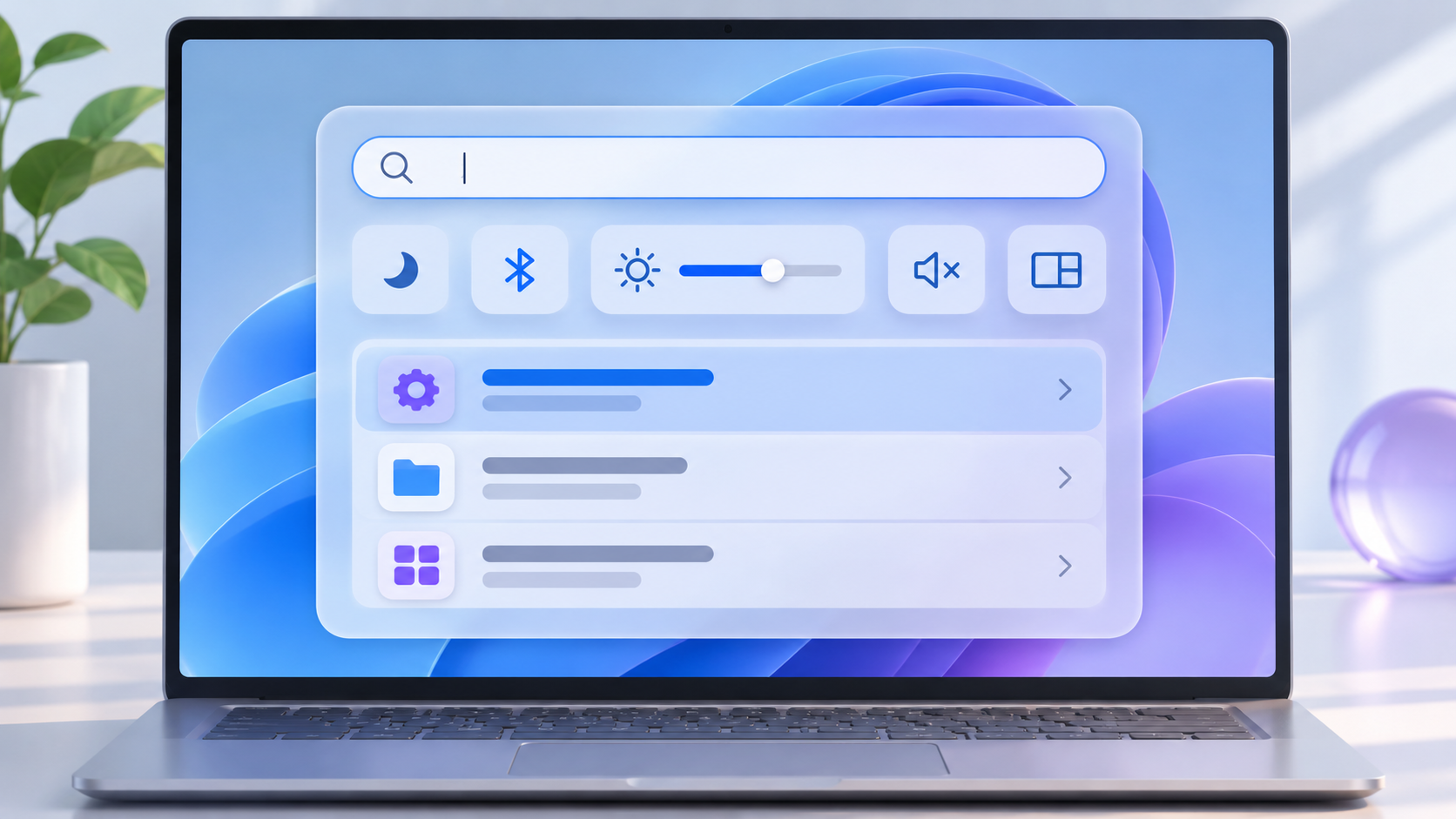
Concept illustration of the new Search workflow and inline actions.

Microsoft is rebuilding Windows Search on WinUI 3 with a cleaner result layout and more efficient matching. The update is designed to understand common typos and synonyms, reducing the need to type an exact setting or app name. Search can also surface an action instead of only a destination.

Inline actions in the initial preview can turn on dark mode or Bluetooth, change screen brightness, mute the PC and arrange windows. That could remove several clicks for common tasks, especially for people who prefer the keyboard. The feature is rolling out gradually and supports English only at first, so two Beta PCs on the same build may not show the same experience.

Other changes worth testing

Live Captions gains a clearer audio-source choice

Live Captions can now listen to system audio, the microphone or both. A user can caption an in-person conversation without also transcribing a video playing on the PC, or caption computer audio during a meeting without adding nearby room noise. The change is useful for accessibility and for anyone following speech in a noisy environment, but the output still needs human review when accuracy matters.

File Explorer accepts the tilde shortcut

The File Explorer address bar now recognizes ~ as the current user’s profile folder. Typing ~\AppData jumps directly into AppData, while ~\Downloads opens the Downloads folder inside that profile. The shortcut is convenient for troubleshooting and development work, but AppData contains configuration data that should not be deleted casually.

Windows Hello can brighten a dim screen

Windows Hello facial recognition can temporarily raise display brightness when the room is too dark for a reliable scan. The option appears under Settings > Accounts > Sign-in options > Facial recognition (Windows Hello). It is a targeted sign-in aid, not a general brightness automation, and it only helps devices that support Windows Hello face recognition.

Gaming quick settings and passwordless work sign-in

Xbox mode gains the full taskbar quick-settings set inside the Gaming Task View navigation bar, reducing the need to leave the game-focused interface. Separately, web sign-in expands to Microsoft Entra hybrid-joined devices. Eligible organizations can use a FIDO2 security key, a phone passkey or a Temporary Access Pass at the lock screen while still receiving a Kerberos ticket for on-premises resources. That enterprise feature depends on administrator policy and is not a reason for a home user to install the build.

Microsoft 365 Family storage appears in Settings

Settings can now show shared cloud-storage use across a Microsoft 365 Family subscription. Microsoft says subscriptions purchased after October 8, 2026 can see the view under Settings > Accounts > Cloud storage. Older subscriptions are scheduled to gain it after the first renewal on or after May 2, 2027. The panel is informational; it does not increase the plan’s storage allowance.

Who should install this Beta build

Install Build 26320.9876 only if the PC is already enrolled in the Beta Channel, you want to test a listed feature, and you can tolerate unfinished behavior. Developers, accessibility testers, IT teams validating 26H2 and enthusiasts with a secondary machine are the clearest audience.

Wait if this is the only computer you use for work, school, travel, audio production, assistive technology or other time-sensitive tasks. Do not join the Insider Program solely to obtain the new Search early. Microsoft’s own support guidance says Insider builds are less stable than production releases, are not serviced like normal builds and eventually expire.

A safer install and recovery checklist

  • Confirm the PC is already in Settings > Windows Update > Windows Insider Program and assigned to the Beta Channel. Do not change a managed work or school device without IT approval.
  • Back up irreplaceable files to a verified destination. If device encryption or BitLocker is active, confirm that the recovery key is available from another device.
  • Record the current version and build with winver or Settings > System > About. This makes it easier to confirm what changed.
  • Connect a laptop to power, save open work and disconnect nonessential docks, storage and audio accessories before the restart.
  • Open Settings > Windows Update, check for updates and install Build 26320.9876 only if it is offered to the enrolled Beta device.
  • After restarting, test sound, networking, Bluetooth, printers, cameras, accessibility tools, VPN software, virtualization and any business-critical apps.
  • Use Feedback Hub to report a reproducible problem. Include the build number, steps and relevant diagnostics without exposing private information.

If the build causes a serious problem, open Settings > System > Recovery and review the available rollback options. Microsoft notes that the Go back option is usually time-limited and can remove apps, drivers and settings added after the upgrade. If Windows will not start, use Windows Recovery Environment and follow Microsoft’s recovery guidance. Returning to an earlier build does not automatically unenroll the device from the Insider Program.

A relevant Windows 11 PC to compare

Readers comparing current Windows 11 hardware can view the Microsoft Surface Pro (2026) 13-inch 2-in-1 on Amazon. The verified U.S. listing is ASIN B0GW9HT856 for a platinum configuration with a Snapdragon X2 Plus processor, 16GB of RAM and 512GB of storage. Check the exact configuration, keyboard inclusion, seller, price, compatibility and return terms before ordering. Buying a new PC is not required for this Insider build, and a stable production machine is the better choice for most readers.

As an Amazon Associate, ReaderSpice earns from qualifying purchases.

Bottom line

Build 26320.9876 is a meaningful Beta milestone because it moves Windows Insiders to 26H2 and previews a more useful Search experience. Live Captions source controls, the File Explorer tilde shortcut and targeted sign-in improvements add practical value beyond the version number.

The caution is equally important: this is still pre-release software, the new Search is English-only at launch, and staged rollout means features can be absent even after installation. Test it on a recoverable device if the changes solve a real need. Everyone else should wait for Microsoft to validate the work and bring the finished pieces to a public release.

Sources

Microsoft Learn: Windows 11 Insider Beta Preview Build 26320.9876

Windows Insider Blog: Announcing new builds for November 6, 2026

Microsoft Learn: Windows Insider Flight Hub

Microsoft Support: Join the Windows Insider Program and manage Insider settings

Microsoft Support: Recovery options in Windows

Microsoft Support: Go back to the previous version of Windows
Windows 11 KB5127653 Adds Copilot Key Remapping, Emoji 17 and Safer File Previews

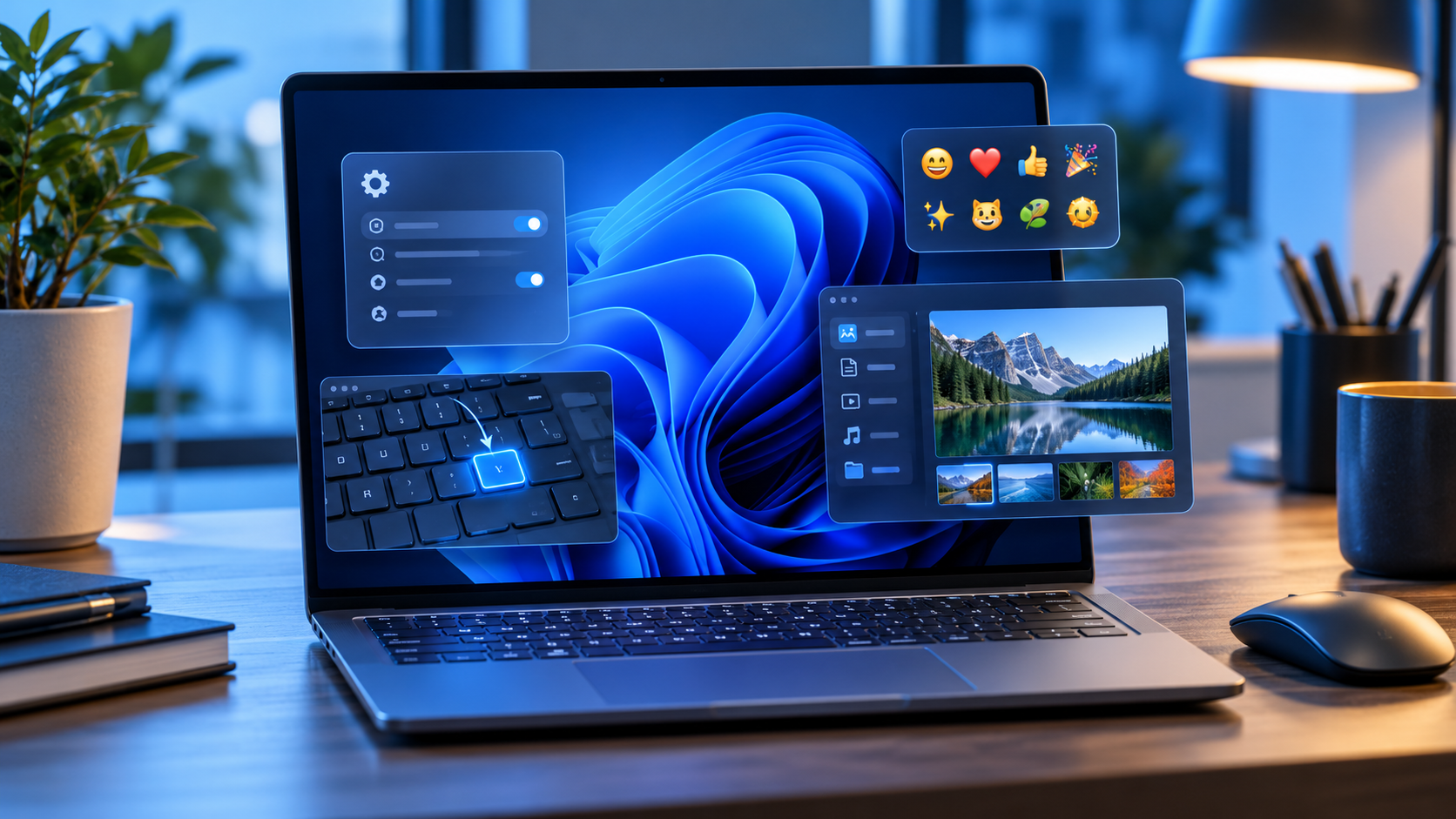
Windows 11 laptop showing a settings panel, emoji picker, remapped keyboard key and File Explorer preview

Microsoft released Windows 11 preview update KB5127653 on October 28, 2026, for version 26H1. The optional package moves supported PCs to OS build 28000.3365 and combines practical interface changes with reliability fixes, including Copilot-key remapping, Emoji 17.0, safer web-file previews and better Bluetooth behavior.

This is a non-security preview, not an urgent patch. Features are also rolling out in phases, so installing the update does not guarantee that every new control appears immediately. Most people can wait for the improvements to arrive in a later security update; testers and users who need a listed fix can install it after making a current backup.

Windows 11 KB5127653 at a glance

  • Applies to Windows 11 version 26H1 and raises the OS build to 28000.3365.
  • It is an optional non-security preview, available through Windows Update under Advanced options > Optional updates.
  • File Explorer adds an explicit Preview anyway choice for downloaded HTML files while automatically previewing non-HTML files such as PDFs.
  • The emoji panel gains Unicode Emoji 17.0 support, and several existing emoji receive refreshed artwork.
  • The Copilot key can be reassigned to Right Ctrl or the Context Menu key.
  • A Windows Security toggle begins rolling out for Administrator protection, which requires a restart when enabled.
  • Microsoft still lists an unresolved USB Audio Class 1.0 problem that can cause Code 10, no output or unresponsive sound controls.

Microsoft labels many headline additions as gradual-rollout features. Availability can differ by device even after the package is installed, and a work or school PC may follow a separate administrator-controlled deployment schedule.

The most useful changes

Copilot-key remapping is finally more flexible

On keyboards with a dedicated Copilot key, Windows can now map that key to Right Ctrl or the Context Menu function. That is useful for people who rely on older shortcut layouts, accessibility workflows or applications that expect a right-side Control key. It does not turn the key into an unrestricted macro button; the choices remain limited to the functions Microsoft exposes.

File Explorer changes web previews without removing the warning

Downloaded HTML files can carry active content, so File Explorer continues to show a warning before previewing them. KB5127653 adds a Preview anyway button for users who understand the risk and still want to inspect the file. Non-HTML files such as PDFs are previewed automatically, while cloud-file thumbnails and the Details pane receive reliability and layout improvements.

A preview is not a security scan. Do not use Preview anyway for an unexpected attachment merely because the sender name looks familiar. Confirm the source, scan the file with current security software and open suspicious material only in an environment appropriate for untrusted content.

Emoji 17.0 and a new Tips widget

Press Windows + Period to open the emoji panel after the update. Microsoft lists new Emoji 17.0 characters including distorted face, fight cloud and hairy creature, while saluting face, face with peeking eye, goose, lotus and kissing cat receive updated designs. A separate Tips widget can be added to the Widgets board or the lock screen for short Windows guidance.

Accessibility, touchpad and Bluetooth improvements

An Open apps maximized option appears under Settings > Accessibility > Visual effects for people who prefer every application to start at full size. Precision touchpads gain one-finger side scrolling and an automatic edge-scrolling option. Bluetooth work covers connection-state accuracy, Settings stability, Classic Audio microphone compatibility, LE Audio performance and a crash seen while streaming audio.

Administrator protection becomes easier to enable

Administrator protection is designed around least privilege: the user normally operates without full administrative rights and explicitly approves elevation when a task needs them. Microsoft says the feature uses Windows Hello authentication and an isolated administrator token to make silent privilege abuse harder.

KB5127653 begins a gradual rollout of a user-facing switch under Windows Security > Account protection. When the toggle is available, turning it on requires a restart. Organizations should test the setting with line-of-business software and follow their security baseline rather than enabling it ad hoc on managed PCs.

Other fixes worth knowing about

  • Edge Accelerated App Launch can reduce launch delay when Edge 150 or later is already running in the background; support covers Windows 11 25H2, 26H2 and 26H1.
  • A Remote Desktop failure affecting non-admin users when Administrator protection was enabled is fixed.
  • BitLocker pre-boot PIN retry handling is adjusted to reduce unintended repeated submissions and TPM lockout recovery.
  • Always On VPN fixes target connections stuck on Connecting or reporting that the specified port is already in use.
  • HDMI and DisplayPort audio playback failures on certain AMD graphics cards are addressed.
  • WSL2 nested virtualization on AMD processors receives a fix.
  • British Columbia and Alberta receive permanent daylight-saving-time support for November 2026, and Manitoba gains a dedicated time-zone entry.

Who should install it now—and who should wait

Install KB5127653 now only if the PC is already on Windows 11 26H1, you want to test the listed changes or one of the fixes addresses a real problem, and you can tolerate preview-update risk. A secondary PC is a better candidate than the only computer used for work, school, accessibility or live production.

Wait if the machine is stable, the new features are merely interesting, the PC depends on USB Audio Class 1.0 hardware, or the system is controlled by an employer or school. Because this is a non-security preview, waiting does not mean skipping the normal monthly security update. Microsoft says preview changes generally move into a later security release after broader validation.

How to install KB5127653 safely

How to install KB5127653 safely

  • Confirm the PC is running Windows 11 version 26H1 by opening Settings > System > About or by running winver.
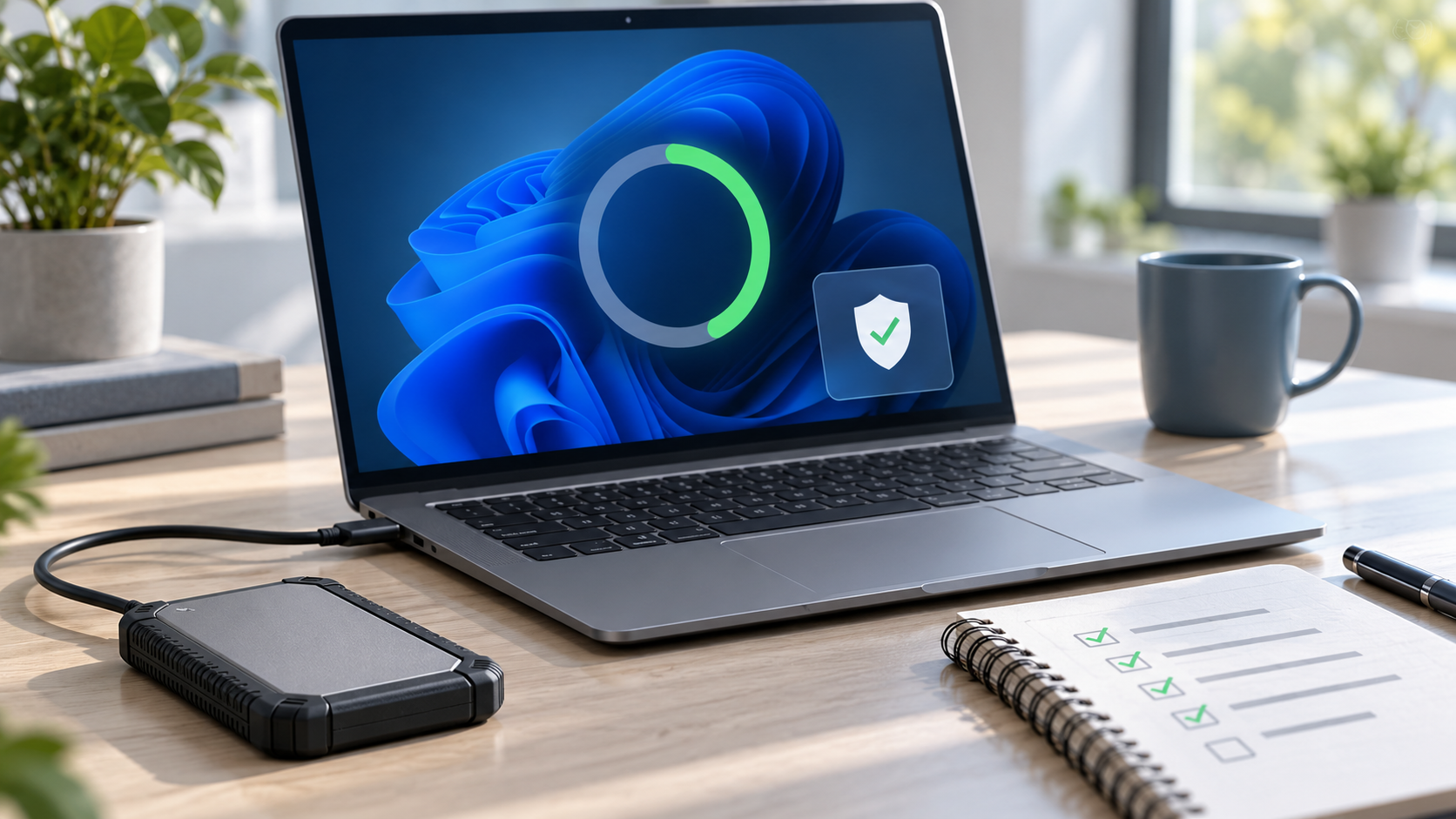
  • Back up irreplaceable files. Windows Backup can preserve supported settings and folders, while File History can keep versions on an external drive or network location.
  • If BitLocker or device encryption is enabled, make sure the recovery key is available before changing recovery settings or entering Windows Recovery Environment.
  • Connect the laptop to power, save open work and disconnect nonessential accessories—especially any audio hardware you cannot risk troubleshooting during the restart.
  • Open Settings > Windows Update > Advanced options > Optional updates, then choose the KB5127653 download and install link if it is offered.
  • Restart when prompted. After signing in, run winver and confirm OS build 28000.3365.
  • Test the functions the PC depends on: sound, VPN, Bluetooth, printers, cameras, accessibility tools, development environments and external displays.

Microsoft requires the latest servicing-stack update, but normal Windows Update handles that prerequisite. The Microsoft Update Catalog path is intended for advanced or managed deployments and should not be used to force a package onto an incompatible PC.

How to uninstall or recover if something breaks

  • If Windows starts normally, open Settings > Windows Update > Update history > Uninstall updates, select the relevant update and choose Uninstall. Some updates cannot be removed.
  • If Windows will not start, enter Windows Recovery Environment and choose Troubleshoot > Advanced options > Uninstall Updates > Uninstall latest quality update.
  • If the problem is not resolved, use Microsoft’s recovery options in order from least disruptive to most disruptive. Windows 11 can reinstall the current version while preserving files, apps and settings on supported releases.
  • Restore data only from a backup you verified. Keep the BitLocker recovery key available when using recovery tools.

A preview update should not be installed without a recovery plan. If the machine is business-managed, contact the administrator before removing an update because deployment policies, encryption and endpoint controls can affect the correct procedure.

A practical backup accessory

Readers who need an external drive for File History or a manual pre-update copy can compare the Samsung T7 Shield 1TB portable SSD on Amazon. The verified U.S. listing is ASIN B09VLK9W3S for model MU-PE1T0S/AM. Check the capacity, seller, included cables, system compatibility and return terms before ordering; an external SSD is optional, and any current, verified backup destination is more important than this specific model.

As an Amazon Associate, ReaderSpice earns from qualifying purchases.

Bottom line

KB5127653 is a substantial optional preview for Windows 11 26H1. Copilot-key remapping, Emoji 17.0, controlled HTML previews, accessibility improvements, Bluetooth fixes and an easier Administrator protection switch are all useful, but none makes the package urgent for a stable production PC.

Install it when a listed feature or fix matters and the machine has a tested backup and recovery path. Otherwise, leave the preview alone and let the changes reach a later security update after Microsoft has collected more real-world data.

Sources

Microsoft Support: KB5127653 release notes, features, known issue and installation method

Microsoft Learn: Windows 11 version 26H1 for IT professionals

Microsoft Learn: Administrator protection

Microsoft Support: How to uninstall a Windows update

Microsoft Support: Recovery options in Windows

Microsoft Support: Backup and restore with File History

Microsoft Support: Get Windows updates as soon as they are available

Windows 11 Quick Settings Gets Phone Controls and an In-Panel Speed Test: Who Can Try It

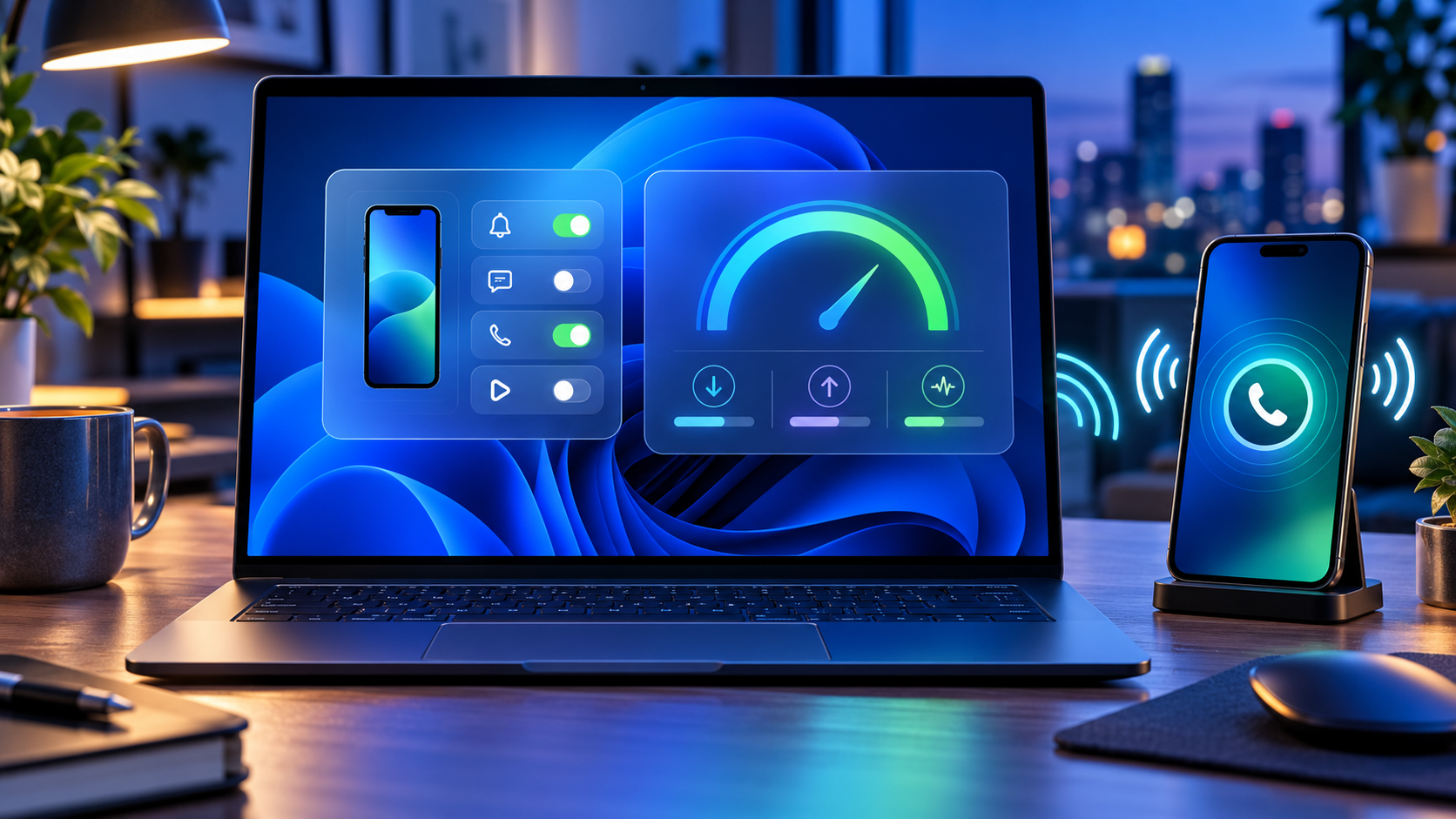
Windows laptop using Quick Settings to control a paired phone and measure internet speed

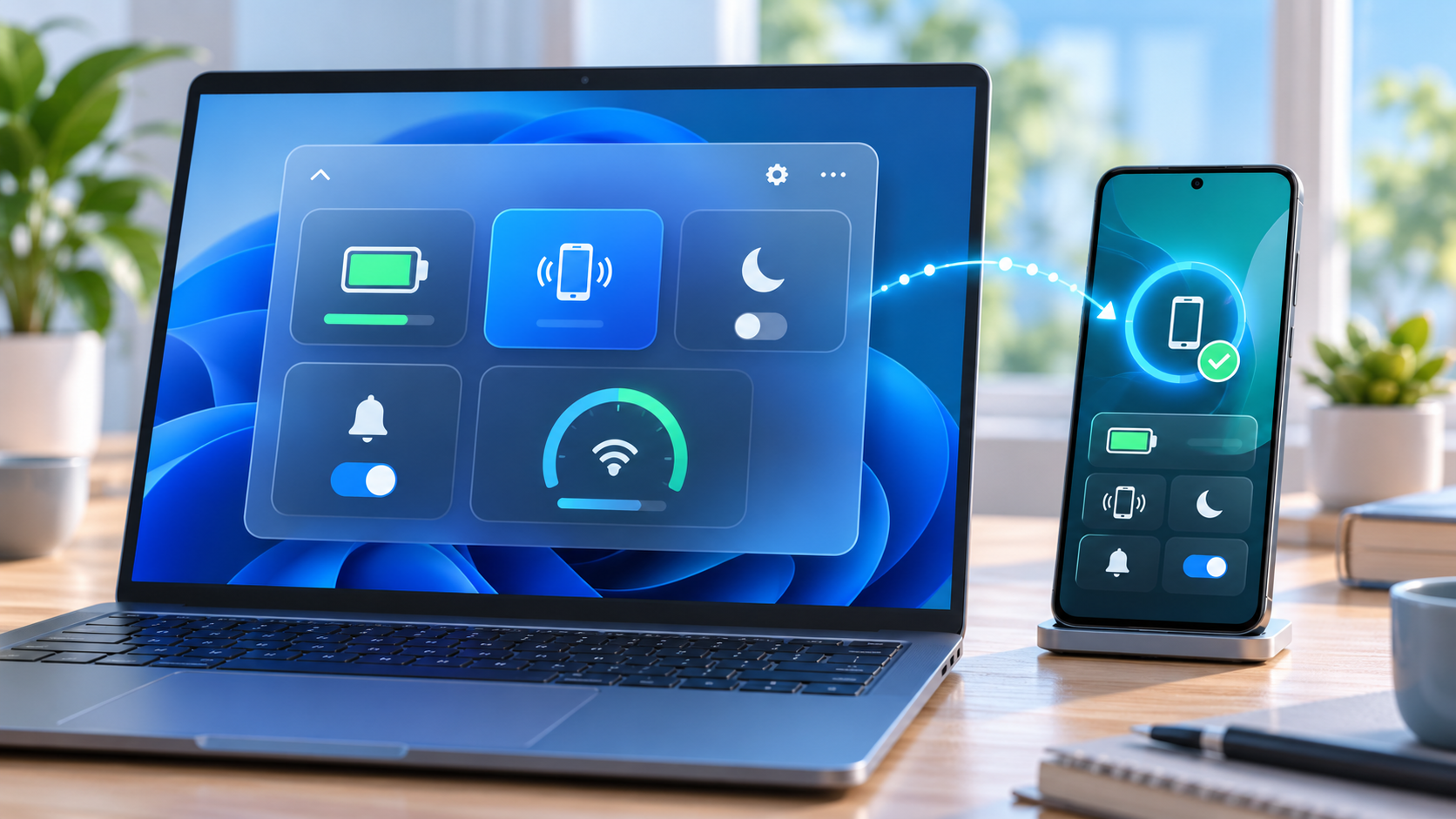
Microsoft is testing a new Windows 11 Quick Settings experience that puts connected-phone controls and an internet speed test directly inside the taskbar panel. The changes arrived October 23, 2026, in Experimental preview build 26340.9767 and are rolling out gradually to only a subset of Windows Insiders.

The distinction matters: these are preview features, not broadly available Windows 11 functions. Android phones receive the fuller initial control set, while iPhone support begins with a more limited status-focused view. A separate Beta build adds a redesigned, customizable File Explorer context menu, but that feature is not part of the same Experimental rollout.

Windows 11 preview changes at a glance

  • Quick Settings can show a connected phone’s battery status and supported controls.
  • Android users may be able to change Do Not Disturb, adjust ringer mode or make the phone play a sound.
  • Windows can run an internet speed test and display download, upload and ping results inside Quick Settings.
  • A new Magnifier option can disable the Windows key + Plus shortcut without disabling Magnifier itself.
  • Some Microsoft 365 subscribers can turn recurring billing back on from Windows Settings or Start.
  • The Experimental build improves network-location loading feedback and fixes recent taskbar and sign-in problems.
  • Beta build 26220.9757 separately tests a cleaner File Explorer right-click menu with customization controls.

These features are delivered through Controlled Feature Rollout. Installing the correct build does not guarantee that every switch appears immediately, and Microsoft says preview experiences can change, be removed or never reach normal Windows releases.

Phone controls move into Quick Settings

Phone controls move into Quick Settings

The new Mobile devices area is designed to reduce trips into the full Phone Link app. Open Quick Settings from the network, volume or battery area of the taskbar and look for Mobile devices. If a phone is already paired, Windows can show its battery status and the controls supported by that device.

Microsoft describes three practical actions for supported Android phones: turn Do Not Disturb on or off, change ringer mode and play a sound to locate the phone nearby. The last option is useful when a device is buried under a cushion or left in another room, while the notification and ringer controls can quiet a phone before a meeting without reaching for it.

Android receives the most complete initial implementation. Microsoft says iPhone support starts with a more limited, status-focused experience. Available controls can also vary by phone model, software version, region and PC configuration, so the presence of Mobile devices does not promise identical buttons on every setup.

If the phone is not connected, Quick Settings can guide the user into setup. Microsoft’s general Phone Link requirements call for a Windows PC, an Android device running Android 10 or later, and current Phone Link and Link to Windows software. The standard setup uses the same Wi-Fi network, although Phone Link can support mobile-data syncing when that option is enabled.

The speed test now stays inside the panel

Windows has previously exposed a taskbar speed-test command that opened the default browser. The new Experimental version goes further: it runs the test against the active connection and keeps progress and results inside Quick Settings.

The test can be started from the new Speed test tile, from the Wi-Fi or Cellular flyout, or by right-clicking the network icon in the system tray and choosing Test internet speed. The panel reports three measurements:

  • Download speed: how quickly data reaches the PC, affecting streaming, downloads and many cloud applications.
  • Upload speed: how quickly the PC sends data, important for backups, large file transfers and live video.
  • Ping: the round-trip delay to the test endpoint, which can matter more than raw bandwidth for calls, gaming and remote control.

A single result is a snapshot, not a diagnosis. Wi-Fi congestion, server distance, VPN routing, background downloads and the test endpoint can all affect the numbers. Compare several tests at different times, test both near and far from the router, and use Ethernet when possible to separate an internet-service problem from weak local Wi-Fi.

What to check when the result looks wrong

  • Pause cloud backups, game downloads and video streams, then repeat the test.
  • Confirm whether a VPN is active; it can add distance, encryption work and congestion.
  • Move closer to the access point and remove obvious obstructions for a Wi-Fi test.
  • Run a second test over Ethernet if the PC and router support it.
  • Compare another device on the same network to determine whether the slowdown is PC-specific.
  • Restart the modem and router only after noting current status lights and provider outage information.

Do not use one speed result to justify buying new networking hardware. First check the subscribed service tier, router placement, channel congestion, adapter driver, cable category and whether the PC is connected to 2.4GHz, 5GHz or 6GHz. A new router cannot make the provider connection faster than the plan or repair a damaged line.

The Beta channel gets a redesigned File Explorer menu

Microsoft released Beta preview build 26220.9757 on the same date, but its headline change is different. The build tests a redesigned File Explorer context menu intended to reduce top-level clutter, preserve common actions and let users control which commands appear.

That design targets a long-running Windows complaint: right-click menus can become crowded as applications register their own actions. A configurable menu could make everyday file operations easier to scan, but Microsoft is still collecting Insider feedback. It may change before release, and it is tied to the Beta channel rather than the Experimental phone and speed-test rollout.

The Beta build is based on Windows 11 version 25H2 through an enablement package. Experimental build 26340.9767 is based on version 26H2. Those branches should not be treated as interchangeable, and users should not switch channels solely to chase one menu or tile on a production computer.

Other changes in Experimental build 26340.9767

  • Windows Insider settings can filter feature flags by whether they are enabled.
  • Magnifier adds a toggle for the Windows key + Plus shortcut, which remains on by default.
  • Eligible Microsoft 365 subscribers with recurring billing turned off can re-enable it from Settings or Start.
  • File Explorer provides clearer progress feedback while loading slower locations such as network drives.
  • Narrator adds more math-reading languages, including Greek, Hungarian, Indonesian, Norwegian, Polish, Russian, Swedish and Vietnamese.
  • The Widgets picker gains a standard Windows frame with light and dark title bars.
  • Microsoft fixes a recent issue that could stop Explorer from loading after sign-in and another that incorrectly claimed the user’s password was wrong.

The recurring-billing control deserves a careful read. It is a convenience for people who deliberately want to restart subscription renewal; it should not be interpreted as a required Windows setting. Confirm the account, price, renewal date and payment method before turning billing back on.

How to check whether the features are available

  • Open Settings > Windows Update > Windows Insider Program and confirm the enrolled channel.
  • Install the offered preview update, restart when prompted and verify the build under Settings > System > About.
  • For the phone controls, open Quick Settings and look for Mobile devices.
  • For the network tool, look for Speed test in Quick Settings, the Wi-Fi or Cellular flyout, or the network icon’s right-click menu.
  • If the feature is absent, leave the PC enrolled and wait for the controlled rollout rather than forcing an unsupported package.

A watermark is normal on Insider preview builds. Microsoft also warns that active-development features may be incomplete, not fully localized or removed later. Back up important files and keep recovery options available before installing preview software.

Should you join the Insider Program for these features?

Most people should wait. Phone controls and an in-panel speed test are useful, but neither is worth adding preview risk to a work, school or family PC. Phone Link already provides broader device integration, and reliable browser-based speed tests remain available on stable Windows.

The Experimental channel is most appropriate for testers who understand staged features, can tolerate regressions and have a separate recovery plan. The Beta channel is closer to normal Windows behavior, but it is still pre-release software. Business-managed PCs should follow the organization’s update policy rather than personal preference.

A hardware option for faster local Wi-Fi

Readers who have confirmed that an older router—not the internet plan—is the bottleneck can compare the TP-Link Archer BE550 Wi-Fi 7 router on Amazon. The verified listing is ASIN B0CJSNSVMR; check the seller, modem compatibility, available Ethernet ports, client-device support and return terms before ordering.

As an Amazon Associate, ReaderSpice earns from qualifying purchases.

Bottom line

Windows 11’s new Quick Settings tests reduce friction in two believable ways: common phone actions can happen without opening Phone Link, and a basic network check can finish without sending the user into a browser. Android support is stronger than iPhone support at the start, and both features remain limited to a controlled Experimental rollout.

The customizable File Explorer context menu is promising too, but it belongs to a separate Beta build. Treat all three as previews, verify the exact channel and build, and wait for stable Windows if the PC cannot absorb bugs or unfinished behavior.

Sources

Windows Insider Blog: Announcing new builds for October 23, 2026

Microsoft Learn: Windows 11 Experimental Preview Build 26340.9767

Microsoft Learn: Windows 11 Beta Preview Build 26220.9757

Microsoft Support: Phone Link requirements and setup

Microsoft Support: Troubleshooting Phone Link connections

Microsoft Support: Why an internet connection can be slow

PowerToys 0.102 Adds Mouse Button Lock, CursorHide and Faster Shortcuts: What to Try

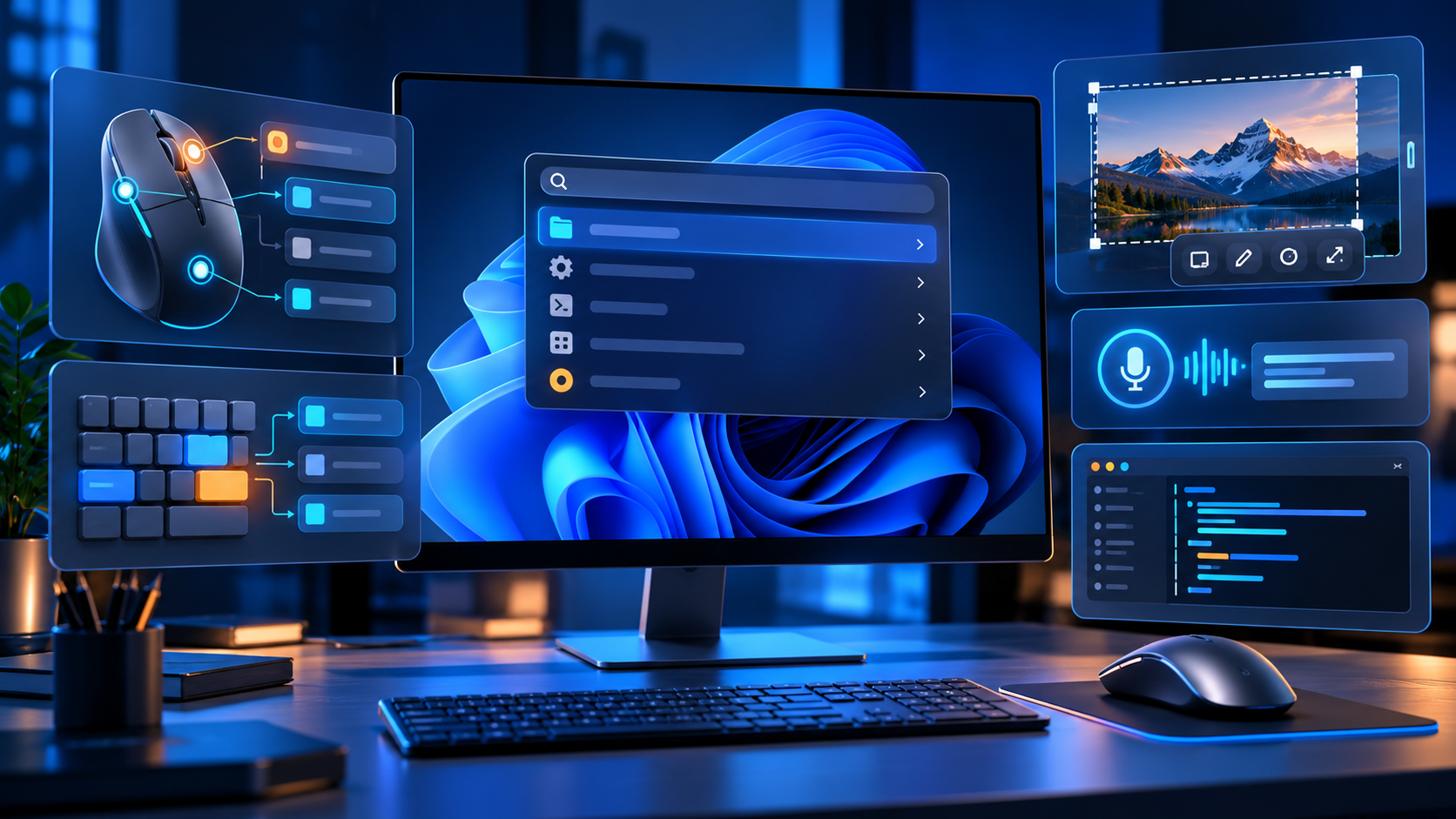
Windows desktop surrounded by mouse, keyboard, command palette, dictation and automation utility controls

Microsoft PowerToys 0.102 is a unusually practical Windows update. Released October 21, 2026, it adds two mouse tools that solve small but persistent annoyances, gives Command Palette a pinned quick-access shelf, adds on-device dictation to ZoomIt snips, and opens more utilities to terminal automation.

The current full release is version 0.102.2933.0. It is free, open source and available for 64-bit Windows 11 and Windows 10 version 2004 or newer. Existing users can update from PowerToys Settings; new users can install from Microsoft Store, GitHub or WinGet.

PowerToys 0.102 quick take

  • Mouse Button Lock lets Windows keep a mouse button logically held after a brief press-and-hold, then releases it on the next click.
  • CursorHide can hide the pointer while you type, after a chosen idle period, or both.
  • Command Palette gains an optional shelf for pinned and recent actions, with Alt+1 through Alt+9 shortcuts.
  • ZoomIt can pair a snipped screenshot with locally transcribed speech in one paste.
  • Keyboard Manager supports tap-alone remaps, and several PowerToys utilities can now be controlled from the command line.
  • Color Picker and Text Extractor move to WinUI 3, while FancyZones, Peek, Screen Ruler and other tools receive useful refinements.

This is not a Windows feature update and it does not arrive through the normal operating-system rollout. PowerToys is a separate Microsoft utility suite, so the changes appear only after PowerToys itself reaches version 0.102.

Two new mouse utilities solve a specific kind of friction

Two new mouse utilities solve a specific kind of friction

Mouse Button Lock is aimed at long drags and selections. Hold a mouse button for the configured delay, release your finger, and Windows continues treating the button as held. Click any mouse button to release the lock. That can help when moving large selections in creative software, dragging items across wide displays or using interfaces that demand sustained pressure.

The accessibility value is important. A long click-and-drag can be uncomfortable or impossible for some people. Mouse Button Lock does not replace Windows accessibility settings or specialized hardware, but it offers a low-friction option inside a tool many Windows users already run. Test the timing with a noncritical document before relying on it, because an overly short delay can activate unexpectedly.

CursorHide addresses a different annoyance: the pointer sitting on top of the sentence you are typing. It can hide the cursor during keyboard input, after inactivity, or under both conditions, then restore it as soon as mouse movement resumes. The option is especially useful in full-screen editors, code windows and presentation tools where a bright pointer can obstruct text.

Both features are opt-in under PowerToys Mouse Utilities. Enable one at a time, keep the defaults initially, and verify how it behaves with games, remote desktops and professional apps before leaving it active everywhere.

Command Palette gets a faster pinned shelf

PowerToys Command Palette already works as a searchable launcher for apps, files and commands. Version 0.102 adds an optional shelf to compact mode so pinned actions remain visible beneath the collapsed search box. Turn it on from Command Palette Settings > Appearance > Compact mode.

Once the shelf is enabled, Alt+1 through Alt+9 launches the visible items. Alt+Shift+number selects an item without running it. Pins can be dragged into a preferred order, and recent commands or apps can appear alongside them. The value is speed: a small set of repeated actions no longer requires expanding the palette and typing a query every time.

The update also adds fuzzy search inside Command Palette settings, keyboard-first dock navigation with Win+Alt+J, multiple dock clocks, copyable links to commands and settings, and support for assigning Command Palette to a supported Copilot key in Windows Settings.

Treat command links like any other automation shortcut. Review what they launch before sharing them, and be careful with links that execute scripts, elevated tools or commands copied from an untrusted message.

ZoomIt can combine a snip with spoken context

ZoomIt’s new Snip with dictation option is useful for bug reports, documentation and visual feedback. Enable it in ZoomIt settings, start a snip, hold Space while dragging the capture area and describe what the image shows. PowerToys transcribes the speech on the PC, and a single paste inserts both the screenshot and the text.

Local transcription reduces the need to send audio to a cloud service, but the resulting text still needs review. Product names, technical terms and noisy-room speech can be misheard. Confirm the microphone selected under ZoomIt’s Record settings, then proofread before sending a report.

ZoomIt 0.102 also brings smoother zoom transitions, better audio pacing in recordings and a correction for silent recordings on some multichannel and spatial-audio devices.

Keyboard Manager and the terminal become more capable

Keyboard Manager now supports tap-alone remaps. A key can perform a different action when tapped by itself while retaining its normal role inside a shortcut or mouse-key combination. This makes dual-purpose keys possible without sacrificing familiar chords. The editor also gains search, modifier and app filters, bulk deletion and a searchable key picker.

Large remapping sets deserve a backup and a gradual rollout. Change one mapping, test it in the apps that matter, and keep a way to open PowerToys Settings if the new behavior conflicts with sign-in, accessibility or remote-control software. IT teams can deploy and export profiles through Desired State Configuration v3.

The command line is another major theme. Advanced Paste can run built-in and saved custom actions without opening its interface, using files, standard input and output or the clipboard. Light Switch can report or change theme state and schedules. Settings can list or toggle utilities, while Peek can preview multiple files and folders. FancyZones, Image Resizer, File Locksmith and PowerDisplay commands are now available from any terminal folder when PowerToys is on PATH.

Automation makes repeatable workflows easier, but it also removes visual confirmation. Run the built-in help for a command before scripting it, test with copies of important files and avoid feeding sensitive clipboard content into an action you have not reviewed.

Smaller changes worth knowing about

  • Color Picker and Text Extractor move to WinUI 3. Existing shortcuts and settings should carry over.
  • FancyZones can switch layouts with the mouse wheel while a window is being dragged.
  • Peek adds read-only SQLite previews, folder item counts and Alt+Left or Alt+Right navigation.
  • Screen Ruler now measures device-independent pixels to account for monitor scaling.
  • Environment Variables can remove duplicate PATH entries while preserving their original order.
  • Quick Accent adds a searchable character reference inside Settings.
  • Workspaces asks for confirmation before launching an unverified app configured to run as administrator.
  • New+ fixes a File Explorer memory leak and improves handling of long paths.

Because PowerToys contains many independent modules, a release can be valuable even if the headline feature is not. Open the dashboard after updating and disable utilities you never use. That keeps shortcuts predictable and reduces the chance that two tools compete for the same key combination.

How to install or update PowerToys safely

  • If PowerToys is already installed, open Settings > General and choose Check for updates. Confirm that the version becomes 0.102.2933.0 or later.
  • For a new installation, use Microsoft Store, the official GitHub release page or WinGet. The supported WinGet command is winget install –id Microsoft.PowerToys –source winget.
  • On GitHub, choose the installer that matches the PC: x64 or ARM64. Per-user installers serve only the current account; machine-wide installers require broader access.
  • After setup, open the PowerToys dashboard and enable only the modules you plan to test.
  • Review shortcut conflicts, especially if you use screen capture, remote desktop, gaming overlays, macro software or accessibility tools.

Microsoft lists Windows 11 or Windows 10 version 2004, build 19041, as the minimum operating system and requires a 64-bit x64 or ARM64 processor. Setup can install the current Microsoft Edge WebView2 Runtime when needed. PowerToys includes an automatic update checker, and updates can also be requested manually.

Should you install version 0.102?

For current PowerToys users, the update is easy to recommend after normal backup and change-control practices. Mouse Button Lock and CursorHide are narrowly focused, Command Palette’s shelf saves repeated keystrokes, and the keyboard and command-line changes make the suite more flexible without forcing anyone to enable every module.

New users should start smaller. FancyZones, PowerRename, Peek and Image Resizer are approachable entry points; then add the 0.102 features that solve a real problem. PowerToys is not a performance booster, security suite or replacement shell. Its strength is reducing friction in specific Windows workflows.

A mouse that complements the new controls

Readers who want programmable buttons and a precision scroll wheel can compare the Logitech MX Master 3S on Amazon. The verified listing is ASIN B09HM94VDS; check the seller, receiver requirements, return policy and current compatibility details before buying.

As an Amazon Associate, ReaderSpice earns from qualifying purchases.

Bottom line

PowerToys 0.102 is a quality-of-life release rather than a dramatic Windows redesign. Mouse Button Lock can reduce the strain of sustained dragging, CursorHide clears the pointer from typing, and the Command Palette shelf brings pinned actions closer to one-keystroke access. ZoomIt dictation, tap-alone remaps and new command-line controls broaden the release for technical users.

The sensible approach is selective: update from an official source, turn on one utility at a time, test shortcuts in your real apps and keep only the features that remove friction. That is exactly where PowerToys is most useful.

Sources

Microsoft Windows Command Line Blog: PowerToys 0.102 release overview

Microsoft PowerToys GitHub: Version 0.102.2933.0 release notes

Microsoft Learn: PowerToys utilities overview

Microsoft Learn: Install PowerToys on Windows 11 and Windows 10

Inline image: Mouse Button Lock, CursorHide and compact shortcut shelf illustration

Inline image alt text: Hand using a mouse beside abstract cursor-lock and quick-access controls on a Windows desktop

OpenAI Dots Are Always-On AI Agents: Availability, Privacy and What They Can Do

Abstract always-on AI agent connecting work apps with visible security and approval controls

OpenAI has introduced dots, a new class of always-on AI agents designed to keep working toward a goal even when you are not actively chatting. The pitch is bigger than a smarter chatbot: each dot gets a cloud computer and browser, can connect to thousands of apps, and can return with progress as a project changes.

For readers, the useful question is not whether dots sound futuristic. It is whether the new agents are available on your plan, what they can safely access, and where human approval still matters. Here is the practical version.

What are OpenAI dots?

A dot is a persistent agent inside the OpenAI ecosystem. OpenAI says dots are powered by GPT-6 Astra and can be assigned ongoing work rather than a single prompt. A user might ask one to track a developing sales opportunity, research a purchase, organize a trip, update a proposal as requirements change, or build a working software demo for review.

Each dot has its own cloud computer and browser. It can also connect to more than 4,000 apps through plugins, which gives it a way to gather context and act across the services a person or team already uses. OpenAI says people can communicate with dots in ChatGPT, Slack and Microsoft Teams, with text-message access planned later.

That persistent setup is the main distinction. A dot is meant to notice new information, continue a task in the background and bring back a useful result without making the user reopen the same conversation and restate the entire job.

Who can use dots now?

The rollout is gradual, so two people on the same plan may not see the feature at the same time. OpenAI says access is beginning for eligible Pro, Business Premium and Enterprise customers in supported markets. Enterprise access is controlled by workspace administrators and is off by default.

OpenAI is initially including one primary dot with eligible Pro and Business Premium plans at no additional charge. The company also describes a launch-period allowance for deeper work, but work delegated by a dot to Codex or ChatGPT Work can count against those products’ usage limits. That makes the included dot different from unlimited background labor.

If the feature is absent from your account, the most likely explanation is the staged rollout or a workspace setting—not necessarily an unsupported device. Enterprise users should check with an owner or administrator before assuming the account is ineligible.

What dots can actually do

OpenAI’s examples position dots as general-purpose project workers rather than simple reminders. Depending on the connected apps and permissions, a dot can:

  • Monitor a changing project and revise a deliverable when new information arrives.
  • Research across the web and connected sources, then summarize findings.
  • Prepare documents, presentations and analysis for review.
  • Use Codex to build or update software and return a working demo.
  • Coordinate through ChatGPT, Slack or Teams instead of requiring one permanent browser tab.
  • Remember feedback about how the user wants recurring work handled.

The reader benefit is continuity. Instead of asking for isolated outputs, you can define a result and let the dot keep the project moving. That can be useful for travel planning, competitive research, recurring reporting, launch preparation and other jobs where the inputs change over time.

How dots differ from a normal ChatGPT conversation

A standard conversation is usually reactive: you ask, ChatGPT answers, and the next step waits for another message. A dot is designed to be proactive and persistent. It can keep a project open, observe permitted sources, and decide when new information is important enough to act on or report.

Dots also have a dedicated cloud environment. That separation matters because the agent is not simply taking over your personal computer by default. OpenAI says local computer access requires permission, while the cloud computer remains a separate workspace unless you explicitly connect more capabilities.

That does not make a dot infallible. It changes the operating model from ‘answer this prompt’ to ‘work toward this goal,’ which increases both usefulness and the need for careful rules.

Privacy, permissions and human approval

Privacy, permissions and human approval

OpenAI gives users and administrators several controls intended to limit what a dot can do. Custom Rules can allow an action, require approval before it happens, or block it entirely. An Activity View provides a record of what the dot has been doing, while automatic review systems are intended to check consequential actions.

OpenAI says especially sensitive actions—such as changing passwords or permanently deleting data—require explicit consent. Business customer data is not used to train OpenAI models by default. Personal-plan users can manage whether conversations and dot activity are used to improve models through their data controls.

These protections are meaningful, but they do not remove the need for review. A dot can still misunderstand a goal, use stale information or produce an incorrect draft. The safest starting point is a narrow task with clear approval rules and a result that a person can inspect before it reaches customers, colleagues or the public.

Read-only research has an important boundary

When a dot is proactively researching while you are away, OpenAI says connected-app tools are restricted to read-only access. In that mode, the agent can inspect available information but cannot send messages, change content, or control a browser or computer.

That boundary is reassuring, but it is also easy to misunderstand. A dot may gain broader abilities when you are actively working with it and approve an action, or when workspace rules explicitly permit one. Users should review both the current task and the configured rules instead of assuming every dot interaction is permanently read-only.

A sensible first configuration is to allow reading and drafting, require approval for messages or file changes, and block destructive actions unless there is a compelling reason to enable them.

What enterprise teams should know

Enterprise workspaces do not automatically gain an unrestricted agent. Owners can decide whether dots are available, whether Slack or Teams connections are allowed, whether local computer access is permitted, and which Custom Rules apply.

That makes deployment a governance decision as much as a productivity decision. Teams should identify the systems a dot may read, the actions it may propose, who approves consequential changes, and how Activity View records will be reviewed. Regulated teams should also confirm that their existing data-handling and retention requirements match the chosen configuration.

OpenAI’s administration guide says phone messaging is not available for Enterprise at launch. The company also cautions that the rollout is gradual and that individual capabilities may not appear immediately.

Limits and questions to watch

The launch leaves several practical questions that only real-world use will answer. Long-running agents can consume more compute than a short chat, so allowance details and delegated-tool limits matter. Reliability also matters: Reuters reported that some voice-update demonstrations encountered problems during the live launch event.

Users should also watch how well a dot distinguishes a useful update from noise, how clearly it explains the actions it took, and how easily a project can be handed back to a person. An always-on agent that requires constant correction is not much of a time-saver.

Finally, availability remains uneven. OpenAI has announced the product, but the feature is still rolling out. Treat broad demos as examples of the intended experience, not a guarantee that every integration and channel is already enabled on every account.

Who should try a dot first?

Dots make the most sense for people who already have a recurring, multi-step workflow with clear inputs and a reviewable output. Strong first experiments include a weekly market brief, a monitored travel itinerary, a product-research watchlist, a draft status report or a software prototype that must be reviewed before release.

Avoid starting with high-stakes or irreversible work. Do not make the first test a password change, a public announcement or an unsupervised customer message. Begin with read access, drafting and explicit approval. Expand permissions only after the dot has shown that it understands the job.

A practical setup for voice updates and calls

If you plan to communicate with an agent through frequent calls or voice updates, a comfortable USB headset for computer calls can make long sessions easier and keep audio more consistent than a laptop microphone.

ReaderSpice participates in the Amazon Associates program and may earn a commission from qualifying purchases made through affiliate links, at no extra cost to you.

The bottom line

OpenAI dots are a significant shift from on-demand chat toward persistent software that can keep working across apps. The most compelling features are the dedicated cloud computer, broad plugin connectivity and the ability to maintain a project as conditions change.

The tradeoff is that persistence raises the stakes. Availability is limited, usage is not boundless, and permissions deserve careful attention. Readers who get access should start with a narrow, reversible workflow, keep approval gates around consequential actions, and judge the product by the quality of its Activity View and finished work—not by the promise of an agent that is always on.

Sources