
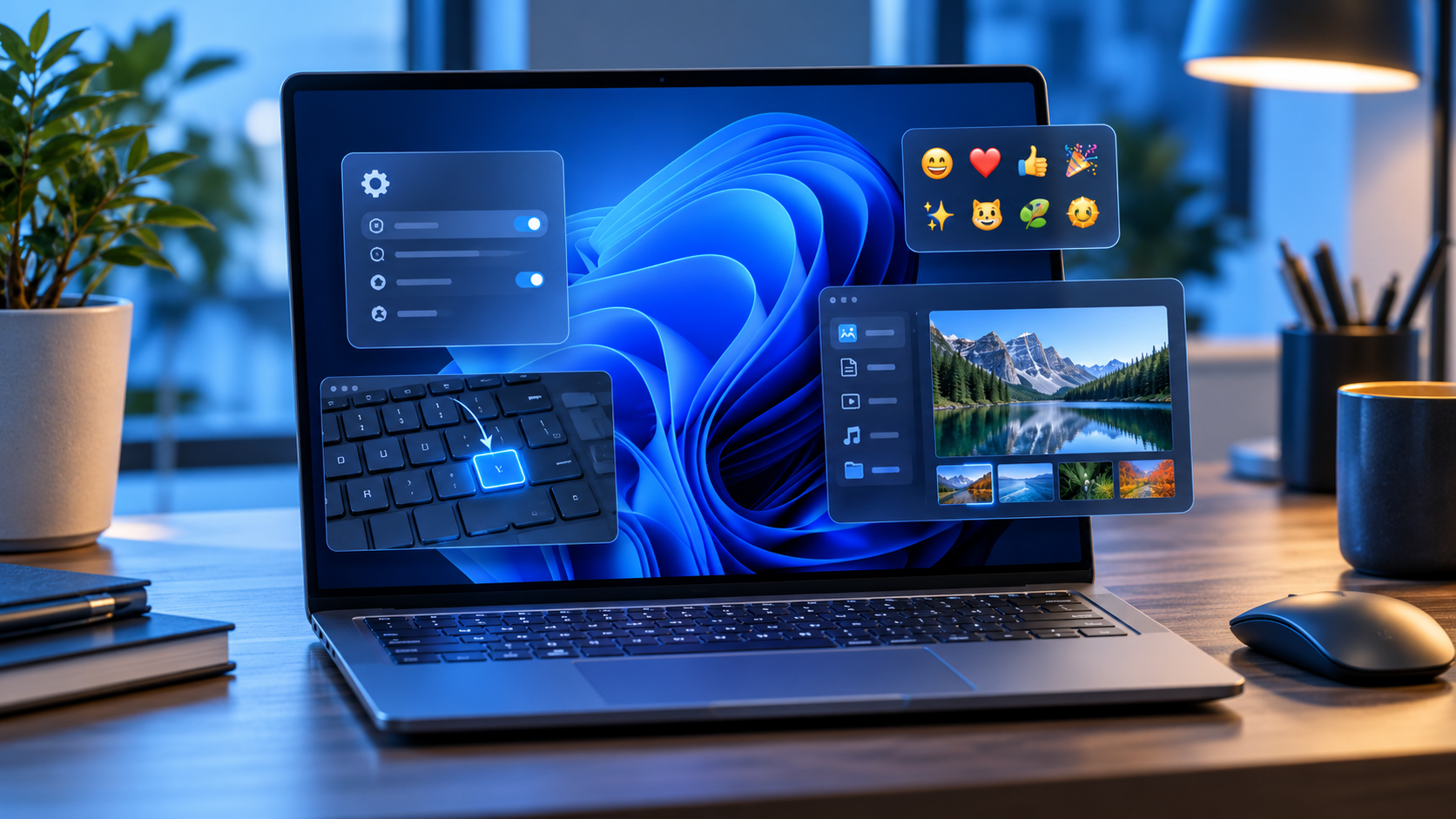
Microsoft released Windows 11 preview update KB5127653 on October 28, 2026, for version 26H1. The optional package moves supported PCs to OS build 28000.3365 and combines practical interface changes with reliability fixes, including Copilot-key remapping, Emoji 17.0, safer web-file previews and better Bluetooth behavior.
This is a non-security preview, not an urgent patch. Features are also rolling out in phases, so installing the update does not guarantee that every new control appears immediately. Most people can wait for the improvements to arrive in a later security update; testers and users who need a listed fix can install it after making a current backup.
Windows 11 KB5127653 at a glance
- Applies to Windows 11 version 26H1 and raises the OS build to 28000.3365.
- It is an optional non-security preview, available through Windows Update under Advanced options > Optional updates.
- File Explorer adds an explicit Preview anyway choice for downloaded HTML files while automatically previewing non-HTML files such as PDFs.
- The emoji panel gains Unicode Emoji 17.0 support, and several existing emoji receive refreshed artwork.
- The Copilot key can be reassigned to Right Ctrl or the Context Menu key.
- A Windows Security toggle begins rolling out for Administrator protection, which requires a restart when enabled.
- Microsoft still lists an unresolved USB Audio Class 1.0 problem that can cause Code 10, no output or unresponsive sound controls.
Microsoft labels many headline additions as gradual-rollout features. Availability can differ by device even after the package is installed, and a work or school PC may follow a separate administrator-controlled deployment schedule.
The most useful changes
Copilot-key remapping is finally more flexible
On keyboards with a dedicated Copilot key, Windows can now map that key to Right Ctrl or the Context Menu function. That is useful for people who rely on older shortcut layouts, accessibility workflows or applications that expect a right-side Control key. It does not turn the key into an unrestricted macro button; the choices remain limited to the functions Microsoft exposes.
File Explorer changes web previews without removing the warning
Downloaded HTML files can carry active content, so File Explorer continues to show a warning before previewing them. KB5127653 adds a Preview anyway button for users who understand the risk and still want to inspect the file. Non-HTML files such as PDFs are previewed automatically, while cloud-file thumbnails and the Details pane receive reliability and layout improvements.
A preview is not a security scan. Do not use Preview anyway for an unexpected attachment merely because the sender name looks familiar. Confirm the source, scan the file with current security software and open suspicious material only in an environment appropriate for untrusted content.
Emoji 17.0 and a new Tips widget
Press Windows + Period to open the emoji panel after the update. Microsoft lists new Emoji 17.0 characters including distorted face, fight cloud and hairy creature, while saluting face, face with peeking eye, goose, lotus and kissing cat receive updated designs. A separate Tips widget can be added to the Widgets board or the lock screen for short Windows guidance.
Accessibility, touchpad and Bluetooth improvements
An Open apps maximized option appears under Settings > Accessibility > Visual effects for people who prefer every application to start at full size. Precision touchpads gain one-finger side scrolling and an automatic edge-scrolling option. Bluetooth work covers connection-state accuracy, Settings stability, Classic Audio microphone compatibility, LE Audio performance and a crash seen while streaming audio.
Administrator protection becomes easier to enable
Administrator protection is designed around least privilege: the user normally operates without full administrative rights and explicitly approves elevation when a task needs them. Microsoft says the feature uses Windows Hello authentication and an isolated administrator token to make silent privilege abuse harder.
KB5127653 begins a gradual rollout of a user-facing switch under Windows Security > Account protection. When the toggle is available, turning it on requires a restart. Organizations should test the setting with line-of-business software and follow their security baseline rather than enabling it ad hoc on managed PCs.
Other fixes worth knowing about
- Edge Accelerated App Launch can reduce launch delay when Edge 150 or later is already running in the background; support covers Windows 11 25H2, 26H2 and 26H1.
- A Remote Desktop failure affecting non-admin users when Administrator protection was enabled is fixed.
- BitLocker pre-boot PIN retry handling is adjusted to reduce unintended repeated submissions and TPM lockout recovery.
- Always On VPN fixes target connections stuck on Connecting or reporting that the specified port is already in use.
- HDMI and DisplayPort audio playback failures on certain AMD graphics cards are addressed.
- WSL2 nested virtualization on AMD processors receives a fix.
- British Columbia and Alberta receive permanent daylight-saving-time support for November 2026, and Manitoba gains a dedicated time-zone entry.
Who should install it now—and who should wait
Install KB5127653 now only if the PC is already on Windows 11 26H1, you want to test the listed changes or one of the fixes addresses a real problem, and you can tolerate preview-update risk. A secondary PC is a better candidate than the only computer used for work, school, accessibility or live production.
Wait if the machine is stable, the new features are merely interesting, the PC depends on USB Audio Class 1.0 hardware, or the system is controlled by an employer or school. Because this is a non-security preview, waiting does not mean skipping the normal monthly security update. Microsoft says preview changes generally move into a later security release after broader validation.
How to install KB5127653 safely
- Confirm the PC is running Windows 11 version 26H1 by opening Settings > System > About or by running winver.
- Back up irreplaceable files. Windows Backup can preserve supported settings and folders, while File History can keep versions on an external drive or network location.
- If BitLocker or device encryption is enabled, make sure the recovery key is available before changing recovery settings or entering Windows Recovery Environment.
- Connect the laptop to power, save open work and disconnect nonessential accessories—especially any audio hardware you cannot risk troubleshooting during the restart.
- Open Settings > Windows Update > Advanced options > Optional updates, then choose the KB5127653 download and install link if it is offered.
- Restart when prompted. After signing in, run winver and confirm OS build 28000.3365.
- Test the functions the PC depends on: sound, VPN, Bluetooth, printers, cameras, accessibility tools, development environments and external displays.
Microsoft requires the latest servicing-stack update, but normal Windows Update handles that prerequisite. The Microsoft Update Catalog path is intended for advanced or managed deployments and should not be used to force a package onto an incompatible PC.
How to uninstall or recover if something breaks
- If Windows starts normally, open Settings > Windows Update > Update history > Uninstall updates, select the relevant update and choose Uninstall. Some updates cannot be removed.
- If Windows will not start, enter Windows Recovery Environment and choose Troubleshoot > Advanced options > Uninstall Updates > Uninstall latest quality update.
- If the problem is not resolved, use Microsoft’s recovery options in order from least disruptive to most disruptive. Windows 11 can reinstall the current version while preserving files, apps and settings on supported releases.
- Restore data only from a backup you verified. Keep the BitLocker recovery key available when using recovery tools.
A preview update should not be installed without a recovery plan. If the machine is business-managed, contact the administrator before removing an update because deployment policies, encryption and endpoint controls can affect the correct procedure.
A practical backup accessory
Readers who need an external drive for File History or a manual pre-update copy can compare the Samsung T7 Shield 1TB portable SSD on Amazon. The verified U.S. listing is ASIN B09VLK9W3S for model MU-PE1T0S/AM. Check the capacity, seller, included cables, system compatibility and return terms before ordering; an external SSD is optional, and any current, verified backup destination is more important than this specific model.
As an Amazon Associate, ReaderSpice earns from qualifying purchases.
Bottom line
KB5127653 is a substantial optional preview for Windows 11 26H1. Copilot-key remapping, Emoji 17.0, controlled HTML previews, accessibility improvements, Bluetooth fixes and an easier Administrator protection switch are all useful, but none makes the package urgent for a stable production PC.
Install it when a listed feature or fix matters and the machine has a tested backup and recovery path. Otherwise, leave the preview alone and let the changes reach a later security update after Microsoft has collected more real-world data.
Sources
Microsoft Support: KB5127653 release notes, features, known issue and installation method
Microsoft Learn: Windows 11 version 26H1 for IT professionals
Microsoft Learn: Administrator protection
Microsoft Support: How to uninstall a Windows update
Microsoft Support: Recovery options in Windows
Microsoft Support: Backup and restore with File History
Microsoft Support: Get Windows updates as soon as they are available