

A browser notification can look like a Windows security warning even when it came from a random website. The message may claim that a virus was found, show a countdown or urge you to call a support number. The alarm is the point: the sender wants a click before you notice that the warning is only a website notification.
Microsoft expanded Edge’s response in version 156. When Microsoft Defender SmartScreen or Scareware blocker identifies a scam reached through a notification, Edge can automatically turn off notifications from the sending site. A new Block and report choice also lets users reject a suspicious permission request and submit the requesting URL and a screenshot for review.
That protection is useful, but it does not replace good notification hygiene or antivirus software. This guide explains what changed, how to confirm Scareware blocker is active, how to remove a site’s permission and what to do if you already interacted with a fake alert.
What changed in Edge 156
- Automatic enforcement: if Edge detects a scam opened from a website notification, it disables future notifications from that sender site.
- A notice appears the next time Edge starts, with a path to review the blocked sender and restore permission if the detection was wrong.
- Notification permission prompts now include Block and report, which can send the requesting URL and a screenshot to Microsoft.
- Scareware blocker continues to analyze suspicious full-screen pages locally and can interrupt aggressive audio, fake support warnings and other pressure tactics.
Microsoft says the feature has been enabled by default on qualifying PCs for more than a year and now protects tens of thousands of people per day. Reports from those detections can feed broader SmartScreen protections, but individual users should still review their own notification permissions.
How malicious notification scams work
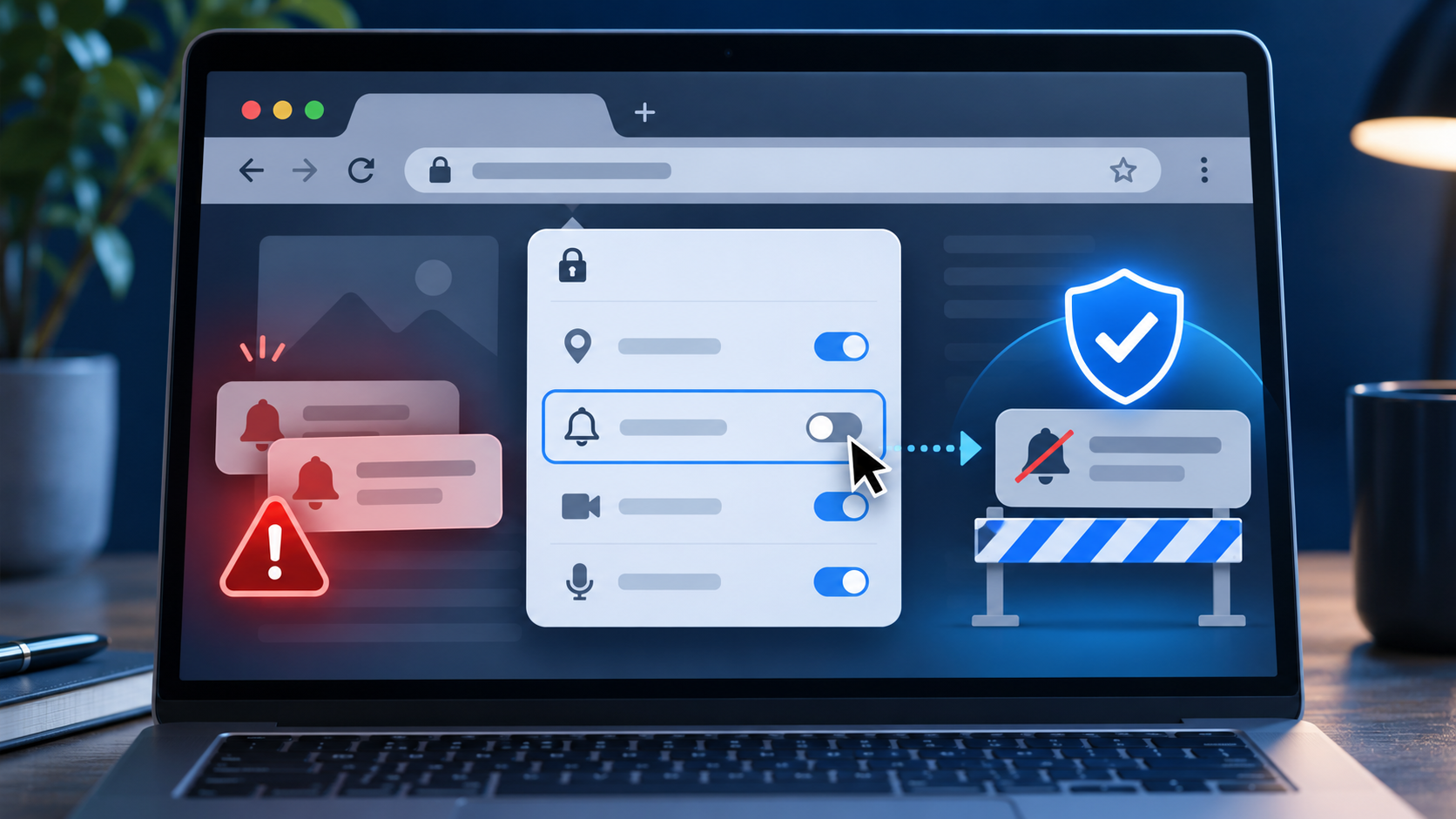
The scam often begins with a page that asks you to click Allow to prove you are human, continue to a download, watch a video or dismiss an invented warning. Accepting does not install antivirus software; it grants that website permission to send notifications. Edge notes that those alerts can appear even when the browser is closed.
A malicious sender can then imitate a system alert with alarming colors, brand-like icons and phrases such as ‘virus detected’ or ‘subscription expired.’ Clicking the notification may open a scam page that locks itself into full screen, plays loud audio or displays a phone number for fake technical support.
The Federal Trade Commission warns that legitimate security pop-ups do not ask you to call a phone number. Tech-support scammers may request remote access, claim to find infections and demand payment through gift cards, bank transfers, cryptocurrency or payment apps. A real warning should send you to the security product itself—not to an unsolicited phone number.
How Edge’s Scareware blocker works
On-device detection
Scareware blocker uses a machine-learning model on the device to evaluate full-screen scam patterns. According to Microsoft, screenshots and page images used for detection are not sent to the cloud. When the model flags a page, Edge exits full screen, stops aggressive audio and shows a warning with a thumbnail so the user can close the page or continue if it is a false positive.
SmartScreen and community reports
SmartScreen checks known dangerous destinations, while Scareware blocker is designed to catch newly created pages before a reputation system has enough history. If a user reports a detection, Microsoft can use that evidence to expand protection for other Edge users. The new notification enforcement connects those layers: a scam reached from an abusive notification can cause the sender’s permission to be revoked automatically.
How to check whether Scareware blocker is enabled
- Open Microsoft Edge and select Settings and more (the three-dot menu).
- Choose Settings, then Privacy, search, and services.
- Scroll to Security and find Scareware blocker.
- Turn the switch on if it is available. On a managed work computer, an administrator may control the setting.
Microsoft enables the feature by default on devices with more than 2GB of memory and at least five processor cores. It can be turned on manually on systems with 2GB of memory or fewer than five cores, but it is not supported on devices with less than 1GB of memory or fewer than two cores. If the switch is missing, update Edge from Settings and more > Help and feedback > About Microsoft Edge, then check again.
How to remove a suspicious site’s notification permission
- In Edge, open Settings and select Privacy, search, and services.
- Open Site permissions, then All sites.
- Choose the suspicious site, open Notifications and set the permission to Block.
- Repeat for any unfamiliar sender. If you are already on the site, select the site information icon in the address bar, open Permissions and set Notifications to Block.
You can also use the three-dot menu on an individual Edge notification to stop future notifications from that site. Do not press buttons inside the alert itself—even a button labeled Close or Cancel may open another scam page. If Edge automatically blocked a sender, review the information bar on the next browser start before restoring anything.
What to do when a fake virus alert appears
- Do not click the notification, call its phone number, install its suggested software or grant remote access.
- Dismiss the operating-system notification using its own close control or menu. If a page entered full screen, press Esc; then close the tab. If the page resists, close Edge from the operating system and reopen it without restoring the suspicious tab.
- Block the sender’s notification permission using the steps above, and remove unfamiliar extensions from Edge’s Extensions page.
- Update Edge and your computer’s security software. Run a full security scan if you downloaded or opened anything from the alert.
- Report the site through Edge when offered and report the scam to the FTC at ReportFraud.ftc.gov if it targeted payment, personal information or remote access.
If you clicked, paid or granted remote access
Disconnect any active remote-support session and uninstall remote-access software you did not intentionally keep. Update security software, run a scan and remove anything it identifies. If you disclosed a password, change it immediately from a clean device, change reused passwords on other accounts and turn on multi-factor authentication.
Contact your bank or card issuer promptly if you paid or shared financial information, and ask about reversing an unauthorized transaction. If a scammer asked for gift cards, cryptocurrency or a bank transfer, contact the payment provider immediately; recovery may be difficult, but speed matters. Preserve receipts, phone numbers and screenshots for your report.
What the blocker does not do
- It does not scan every file on the computer or replace Microsoft Defender Antivirus or another maintained security product.
- It cannot protect you after you deliberately call a fake support number, approve remote access or send money.
- A new scam may evade detection, and a legitimate page may occasionally be flagged. Read the warning and verify the site independently before continuing.
- The Scareware blocker policy is supported on desktop Edge for Windows and macOS, not on Android or iOS.
The practical defense is layered: keep Edge current, deny notification requests you do not recognize, review permissions periodically, use maintained endpoint protection and slow down when a message tries to create urgency.
Optional account protection after a scam
A hardware security key cannot block a malicious browser notification, but it can strengthen account sign-in if a scam exposed a password. The Yubico YubiKey 5C NFC on Amazon (ASIN B08DHL1YDL) supports USB-C, NFC, FIDO2 and WebAuthn for compatible services, including Microsoft accounts. Verify that each important account supports security keys before buying, and enroll a backup authentication method or second key.
As an Amazon Associate, ReaderSpice earns from qualifying purchases.
Bottom line
Edge 156 makes abusive notifications harder to ignore by linking scam detection to notification-permission enforcement. The best response is still simple: do not interact with an alarming website alert, block the sender, keep Scareware blocker enabled and run a trusted security scan if you downloaded anything. If money, credentials or remote access were involved, move quickly to secure accounts and contact the relevant financial provider.
Sources
Microsoft Support: Prevent online scams with Scareware blocker in Microsoft Edge
Microsoft Support: Manage website notifications in Microsoft Edge
Microsoft Learn: ScarewareBlockerBlocksDetectedSitesEnabled policy
FTC Consumer Advice: How to spot, avoid and report tech-support scams
FTC Consumer Advice: What to do if you were scammed
Yubico: YubiKey 5C NFC product specifications