
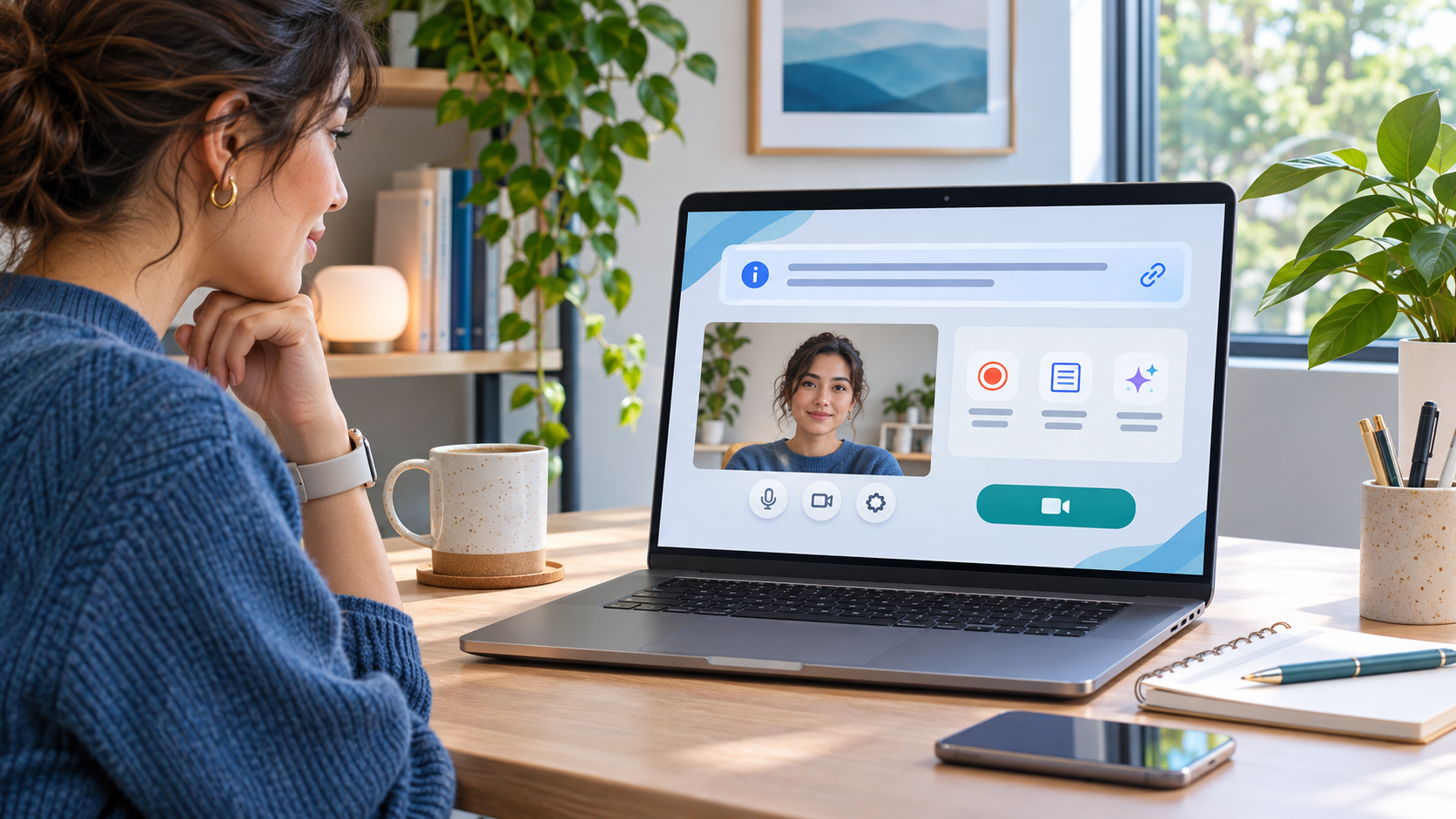
Google Meet administrators can now place an organization-written policy notice in the Green Room before a user joins a call. The message can appear before every meeting or only when recording, transcription or Gemini note-taking is active. Administrators may also attach a link to a longer internal policy.
Google announced the feature on November 3, 2026, with an extended rollout that began November 2 for both Rapid Release and Scheduled Release domains. It is off by default and configured for an organizational unit, so eligible customers should not expect a new banner until an administrator deliberately enables and tests it.
The custom notice fills a communication gap, but it is not the same as Google Meet’s separate explicit-consent control. A company-written message can explain policy before entry; when explicit consent is required, Meet can still ask the participant to Start, Join or Continue before capture begins. Organizations should have privacy or legal owners approve the wording instead of treating the new banner as automatic compliance with every recording law.
Google Meet pre-call policy notices at a glance
- Administrators can show a short custom policy in the Green Room before users join a Google Meet call.
- The notice can include a URL that points to a fuller company, school or agency policy.
- It can appear before every meeting or only while recording, transcription or Gemini notes are active.
- The feature is off by default and can be enabled at the organizational-unit level in Meet Safety settings.
- Rapid Release and Scheduled Release domains entered an extended rollout on November 2, 2026, which Google says may take longer than 15 days.
- Supported editions include Business Standard and Plus, Enterprise Standard and Plus, Education Fundamentals, Standard and Plus, Frontline Plus, and the Google AI Pro for Education add-on.
- End users do not configure the message; they see the notice before joining when their organization’s policy and display conditions apply.
What users will see in the Green Room

The Green Room is Meet’s pre-join screen, where a participant checks camera and microphone settings before entering. With the new control enabled, that screen can also display the organization’s short policy text and, if configured, a link to fuller information.
The administrator chooses the trigger. An always-on notice is useful when every meeting follows the same participation or confidentiality rules. A capture-only notice is narrower: it appears when the meeting is actively being recorded, transcribed or documented with Gemini notes. That distinction helps prevent a general banner from becoming background noise while still surfacing the message when data will be retained.
The notice should be readable before a user commits to joining. Avoid dense legal language in the short field. A concise purpose statement, a clear link and an accessible policy page are more useful than trying to compress every retention and access rule into the banner itself.
How administrators can enable the notice
- Sign in to the Google Admin console with an account that can manage Meet settings.
- Open Google Meet’s Safety settings and select the organizational unit that should receive the policy.
- Find the custom policy option for the Green Room and turn it on. The feature is disabled by default.
- Enter a short, plain-language notice and add a URL to the full policy when users need more detail.
- Choose whether the notice should always appear or only when recording, transcription or Gemini note-taking is active.
- Save the setting, allow time for the extended rollout and policy propagation, then test with an account in the affected organizational unit.
- Run separate tests for an internal user, an invited external guest and the capture modes the organization actually permits.
Google’s launch post describes organizational-unit control rather than a universal user setting. A large organization can therefore stage the notice for a pilot group, validate the wording and expand only after support, HR, privacy and meeting owners agree on the behavior.
Always show versus capture-only
Always show
Use the always-on option when the rule applies to every call, even when no artifact is being created. Examples include confidentiality expectations, acceptable-use language, a notice that external participants may attend, or a reminder that meeting links should not be redistributed. The trade-off is frequency: users may stop noticing a message they see before every call.
Only while capture features are active
Use the conditional option when the important fact is that a durable artifact will be created. Google names three triggers: recording, transcription and Gemini notes. A conditional notice reduces repetition, but administrators should verify that their policy covers all three artifacts because each has different content, sharing and retention implications.
The custom notice is not the consent prompt
A pre-call policy message and explicit consent solve related but different problems. The custom notice communicates organization-specific information in the Green Room. Google Meet’s explicit-consent control, when an administrator requires it, asks users to acknowledge active recording, transcription or note-taking with actions such as Start, Join or Continue. A participant who does not agree can leave instead.
Do not write the custom notice as if merely seeing it proves consent. Whether notice, acknowledgment or affirmative consent is required depends on jurisdiction, employment or education rules, the participant’s location and the type of data being captured. The organization remains responsible for its policy and should provide a workable alternative when someone cannot participate under the proposed conditions.
Meet also provides in-product status indicators when capture features are running. Those signals complement the organization’s message; they do not replace a clear explanation of purpose, access, retention and contact options.
What a useful policy notice should cover
- Purpose: explain why the meeting may be recorded, transcribed or summarized with Gemini.
- Artifacts: name which outputs may be created instead of using a vague phrase such as ‘this meeting may be monitored.’
- Access: identify the role or team that can view the recording, transcript or notes.
- Retention: summarize how long artifacts are normally kept or link directly to the governing schedule.
- External guests: explain whether files can be shared outside the host’s organization.
- Choice: state how a participant can ask a question, request an alternative or leave before capture starts.
- Policy link: use a stable, accessible URL rather than a temporary document or a page that requires unrelated permissions.
The short message should not promise behavior the settings cannot guarantee. For example, a Calendar attachment does not automatically give every guest permission to open Gemini notes, and a host can change sharing after the meeting. Phrase the notice around the organization’s enforced process, then audit the actual Drive and Meet controls behind it.
Recording, transcripts and Gemini notes remain different
Recording
A recording preserves meeting video and audio. It can contain faces, screen shares, spoken discussion and other visual context that does not appear in text. Access and retention should therefore be reviewed separately from a transcript or summary.
Transcription
A transcript produces a written record of speech and associates content with speakers. It is easier to search and quote than video, which can increase its usefulness and its sensitivity. Google says participants who join while supported capture features are active receive an on-screen warning, and explicit consent may also be required by the administrator.
Gemini notes
‘Take notes for me’ creates a Google Doc rather than a verbatim transcript. The document includes a quick-notes view and fuller notes, and the organizer receives a recap link. AI-generated notes can omit context or assign a statement incorrectly, so they should be treated as an editable summary rather than a definitive record.
Hosts can preconfigure recording, transcription and Gemini notes from a Calendar event under Video call options and Meeting records. Google says those features start automatically only after the host or co-host joins, even when they were enabled in advance.
Where Gemini notes are stored and who can access them
Google’s help documentation says the notes document is saved in the meeting organizer’s Drive, inside the Google Meet folder and a meeting-specific subfolder. The file follows the organization’s retention policy. A recap link can appear in email and the Calendar event, but the Calendar attachment alone does not automatically grant access.
Sharing depends on organizer settings and the meeting’s configuration. Before rollout, administrators should test who can open the note document as an organizer, an internal attendee, an invited external guest and a person who only received a forwarded calendar link. The same test should be repeated after a retention or sharing-policy change.
The policy page should also explain that an AI summary is not guaranteed to be complete or accurate. A human owner should review consequential decisions, action items, names, dates and commitments before the document is distributed or used as an official record.
Eligible editions and rollout timing
Google lists the Green Room policy control for Business Standard and Plus, Enterprise Standard and Plus, Education Fundamentals, Education Standard, Education Plus, Frontline Plus and customers with the Google AI Pro for Education add-on. Editions not named in the launch availability should not be assumed to receive it.
Both Rapid Release and Scheduled Release domains entered an extended rollout on November 2, 2026. Google says the rollout may take longer than 15 days. An eligible organization can therefore have the correct edition and settings yet still wait for the control to appear. Treat delayed visibility as a rollout question before rebuilding policies or repeatedly changing organizational units.
Why a user may not see the notice
- The administrator has not enabled the feature; it is off by default.
- The account is outside the organizational unit where the notice is configured.
- The extended rollout has not reached the organization yet.
- The admin chose capture-only display, but recording, transcription and Gemini notes are not active.
- The user is joining through a client or app version that does not yet show the updated Green Room experience.
- The meeting belongs to another organization whose settings and host controls differ.
A good support ticket should include the user’s Workspace edition, organizational unit, client and version, meeting owner, capture state and whether the expected behavior is always-on or conditional. That information is more useful than a screenshot of a missing banner by itself.
Privacy and compliance rollout checklist
- Define the business purpose for each artifact: recording, transcript and Gemini notes.
- Have legal, privacy, HR or education-policy owners approve the short notice and the linked policy.
- Confirm the linked page is accessible to external guests before they join.
- Align the wording with Meet’s explicit-consent setting rather than implying the banner replaces it.
- Verify organizer Drive location, sharing defaults, retention rules and deletion responsibilities.
- Pilot with a small organizational unit and test every supported capture mode.
- Document an alternative for participants who cannot agree to capture.
- Review the policy after any change to Workspace editions, retention rules, Gemini settings or meeting ownership.
A webcam buying note for Meet users
A policy notice does not change camera quality, but a clear image can make remote meetings easier to follow. Readers upgrading a desktop setup can compare the Logitech Brio 4K webcam on Amazon (ASIN B01N5UOYC4). Logitech lists 4K capture, autofocus, multiple fields of view and broad Windows, macOS and ChromeOS compatibility; actual Meet output still depends on the application, bandwidth, lighting and account settings.
Check the seller, exact model number, region, warranty, return policy, operating-system requirements and included mount or cable before buying. A 4K sensor does not guarantee that a particular meeting runs at 4K, and a better microphone, lighting position or wired network connection may improve a call more than extra resolution.
Affiliate disclosure: ReaderSpice may earn a commission from qualifying Amazon purchases made through the link above, at no additional cost to you.
What remains unknown
- The exact date every eligible domain will receive the control during the extended rollout.
- The maximum custom-message length, URL validation behavior and localization workflow in each Admin console language.
- How consistently older mobile and desktop clients will display the new policy experience during rollout.
- Whether Google will add separate wording or triggers for other meeting artifacts in a future update.
- How an organization’s custom notice is presented when an external host’s meeting has different policy and consent settings.
Bottom line
Google Meet’s pre-call policy notice gives administrators a useful place to explain organization-specific rules before a participant joins. The option to show it only when recording, transcription or Gemini notes are active is especially practical because it connects the message to the moment a durable artifact may be created.
The control works best as one layer of a broader process. Keep the Green Room text short, link to a complete policy, preserve Meet’s separate explicit-consent behavior, test sharing and retention, and give participants a real way to ask questions or decline. A banner can improve transparency; it cannot replace the policy, configuration and human review behind it.
Sources
Google Meet Help: Use ‘Take notes for me’
Google Meet Help: Use transcripts with Google Meet
Google Meet Help: Record a video meeting
Google Meet Help: Start or schedule a meeting and configure meeting records
Logitech: Brio 4K professional webcam specifications
Amazon: Logitech Brio 4K webcam (ASIN B01N5UOYC4)
Inline image position: Immediately after the H2 ‘What users will see in the Green Room’
Inline image alt text: Fictional video meeting Green Room displaying a linked policy card before a user presses Join