
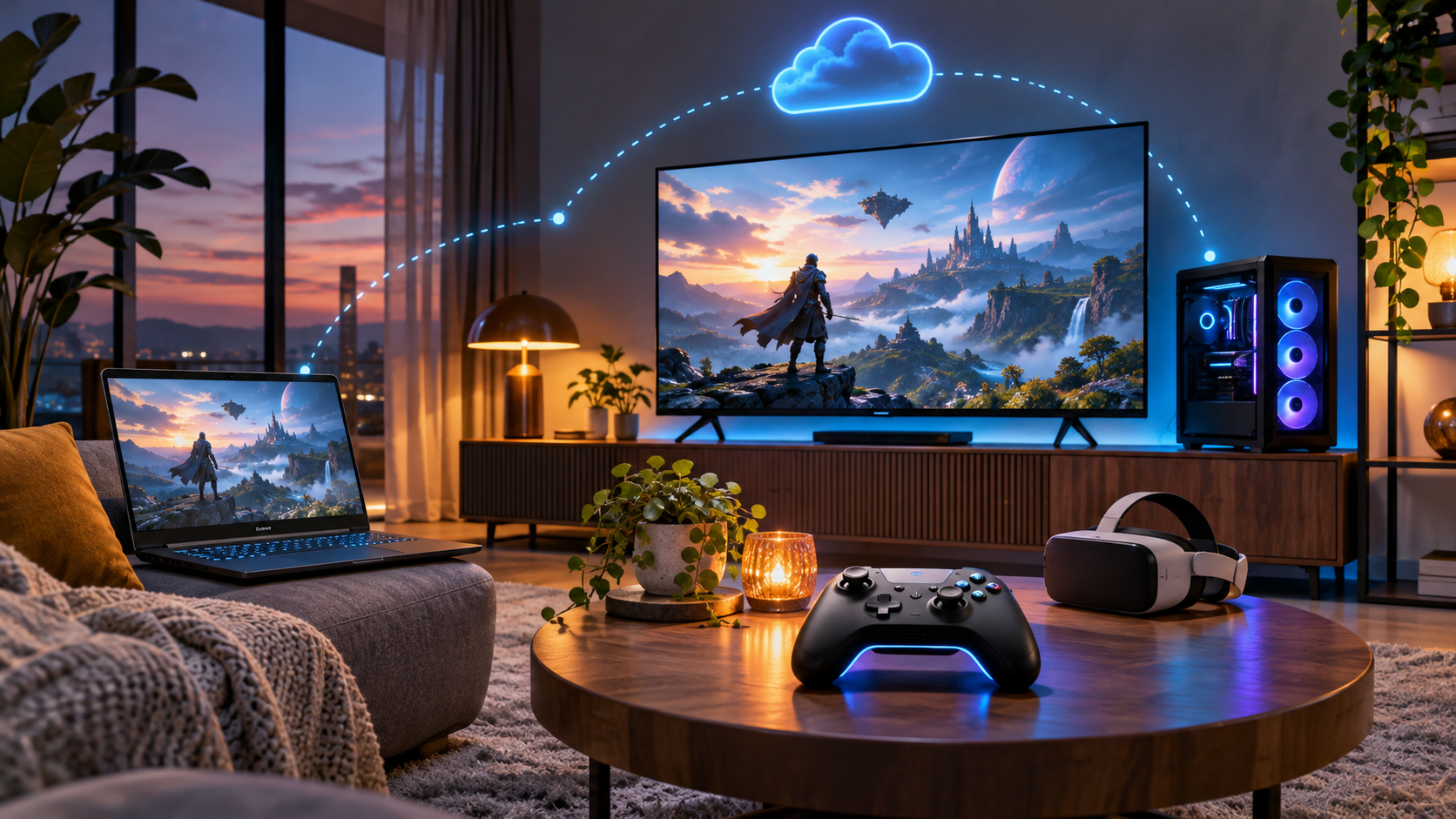
Microsoft is testing a redesigned Xbox experience that reaches beyond one app or one screen. Starting November 5, 2026, Xbox Insiders began receiving a faster Xbox PC app, while Microsoft started expanding a refreshed cloud-gaming website and updated navigation for supported TV and VR apps.
The headline number is a claimed launch-time improvement of up to 60 percent for the PC app. Microsoft also says Home, Store and Game Pass pages can load up to 50 percent faster, while in-app windows can open up to 65 percent faster. Those figures come from Microsoft testing, so the gain on a specific PC will depend on its storage, network, configuration and app state.
This is a preview and staged rollout, not a universal overnight update. The most useful way to approach it is to know which changes are in the Insider PC app, which web improvements should arrive automatically, and which TV or headset combinations already support Xbox Cloud Gaming.
Xbox cross-screen update at a glance
- PC app preview: Xbox Insiders can test faster startup, simplified navigation, a cleaner library, broader search and easier access to friends.
- Measured claims: Microsoft reports up to 60 percent faster app launch, up to 50 percent faster loading for major pages and up to 65 percent faster in-app windows.
- Web rollout: the refreshed play.xbox.com experience is expanding automatically over the following weeks with a consolidated cloud library and more filters.
- Accessibility: the web interface adds light and dark themes plus five high-contrast choices.
- TV and VR: Microsoft is bringing the refreshed visual language and navigation to supported cloud-gaming apps on compatible televisions, streaming devices and Meta Quest headsets.
- Availability limit: the PC changes begin with Xbox Insiders, and Microsoft has not promised that every user or device will receive each interface at the same time.
- Cloud requirement: most games need an eligible Game Pass plan, a supported device and region, a compatible controller and a stable broadband connection.
What is actually faster in the Xbox PC app
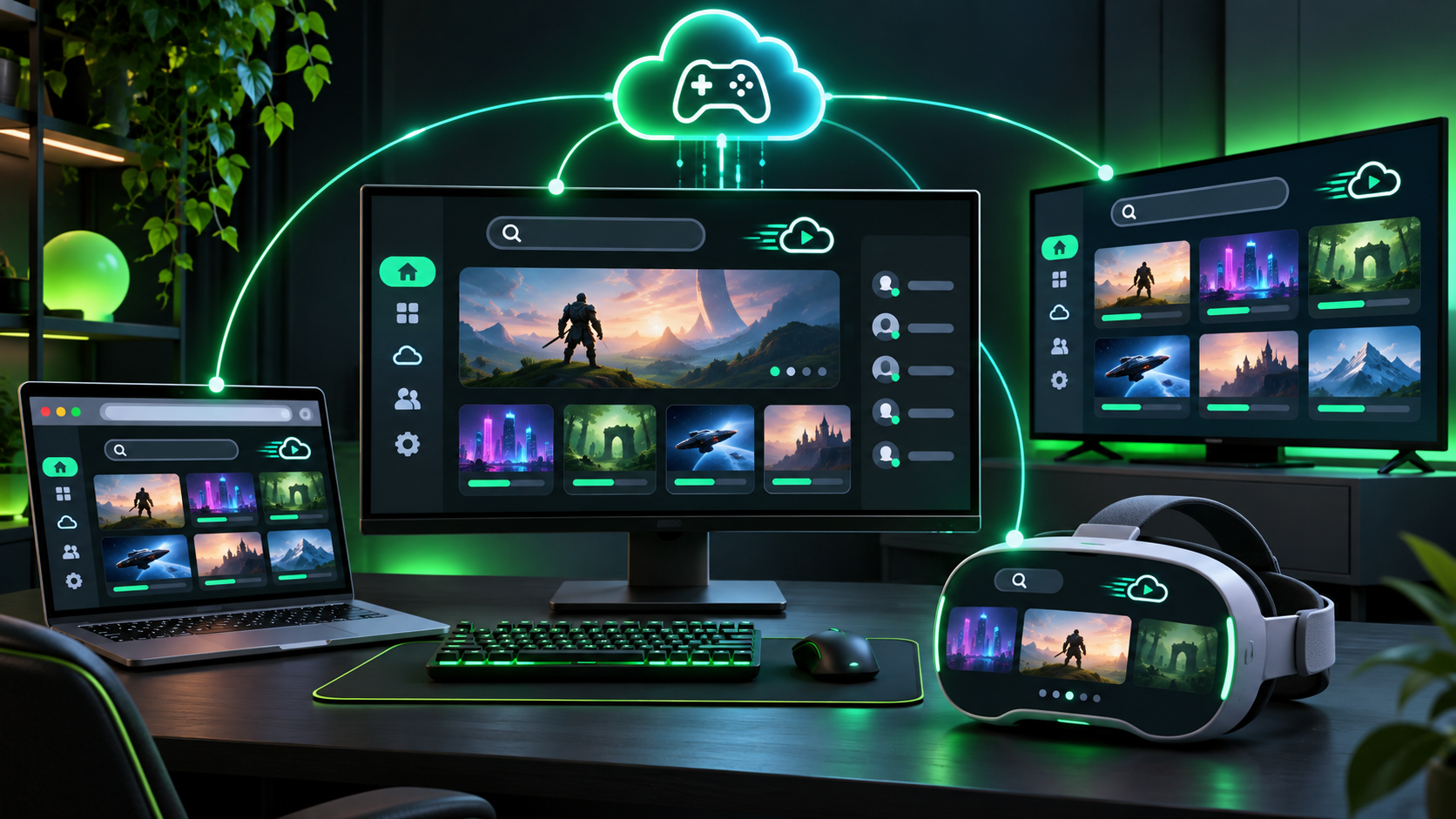
The redesign uses a more consistent library, search and navigation model across PC, browser, television and VR screens.
Microsoft describes the PC work as a performance and organization update rather than a new game platform. Faster launch and page loading should reduce the delay between opening the app and reaching a library or Game Pass title. The company has not published a hardware-by-hardware benchmark, so an older system with a slow drive or a congested network may not reproduce the maximum percentage.
The library receives simpler navigation, updated filters and more ways to organize games. Search is also broader: a single search can return installed games, catalog titles, add-ons and people. That is more useful than treating the local library, store and social graph as separate destinations, especially for players who move between downloaded games and cloud play.
Friends and social features move into the main navigation. The goal is to make it easier to see what friends are playing, start a chat or join a party without hunting through secondary panels. Refreshed cards, settings pages and animations complete the visual update, but the performance changes matter more than the decoration.
How the web experience changes
The redesigned Xbox cloud-gaming site centers the Library tab. It combines cloud-playable games a subscriber can access through Game Pass with supported games the player owns. Filters can narrow the library by recently played titles, genre and input method, which helps on devices where a gamepad or touch control is not always available.
Desktop mode uses more of a large browser window instead of stretching a phone-like layout across a monitor. Microsoft is also adding five high-contrast choices alongside light and dark themes. The web rollout is separate from the Insider PC app: Microsoft says the refreshed site will reach more players automatically over several weeks, while anyone can check the current experience at play.xbox.com.
A browser session still depends on the cloud-gaming service, the account and the game being available in the user’s region. Microsoft lists Edge, Chrome and Safari as supported browsers. Its current cloud-gaming guidance recommends at least 20 Mbps for PCs and larger devices, with 5 GHz Wi-Fi or a wired connection preferred when possible.
What changes on TVs and VR headsets
Microsoft is extending the refreshed look and navigation to Xbox cloud-gaming apps on supported televisions and VR headsets. This does not turn every smart TV or headset into a compatible Xbox device. The app must exist for the platform, the model must meet Microsoft’s requirements, and the region, account, subscription, game and controller must all be eligible.
Supported televisions and streaming devices
Xbox currently lists select Samsung televisions from 2020 onward, Samsung monitors from 2022 onward, select LG sets running webOS 24 or a supported update, selected VIDAA OS devices running version 9.6 or later, and several Amazon Fire TV models. Compatibility can vary within a model year, so check the exact model and operating-system version before buying a controller or subscription for cloud play.
Supported Meta Quest headsets
Xbox Cloud Gaming is available on Meta Quest 2, Quest Pro, Quest 3 and Quest 3S. The app presents games on a large virtual 2D screen; it does not convert conventional Xbox games into immersive VR software. Microsoft recommends a 5 GHz Wi-Fi connection and 20 Mbps downstream bandwidth, while latency and local wireless conditions can matter more than a speed-test peak.
How to try the new PC app safely
- Update Windows and the Microsoft Store before joining a preview. Save open work and restart the PC so pending Gaming Services or app updates are not mixed with the test.
- Install the Xbox Insider Hub from Microsoft Store and sign in with the Microsoft account that will participate in the preview.
- Open Previews in the Insider Hub, review the eligibility, data and stability notes, then join only the Xbox PC app preview that matches the feature you want to test.
- Open Microsoft Store, choose Library and select Get updates. Confirm that the Xbox app and Gaming Services have finished updating.
- Launch the Xbox app and record its version before testing. Check startup time, Library filters, search, friends, chat and party entry points rather than judging only the new appearance.
- Use the same PC, account and network when comparing before and after behavior. A download, antivirus scan or cloud-sync job can distort a simple stopwatch test.
- Send reproducible feedback through the route Microsoft provides for Xbox Insiders. Include the app version, Windows build, hardware and steps without sharing account or payment information.
Do not join a preview solely for the advertised percentage. Insider software can be incomplete, change without notice or behave differently across accounts. A production gaming PC used for tournaments, travel or paid streaming should favor stability unless the preview solves a specific problem that can be tested and reversed.
Troubleshooting slow launch or missing changes
Confirm the update is actually assigned
The rollout is staged. Confirm that the account is enrolled in the relevant Insider preview, that Microsoft Store has updated the Xbox app, and that the app version changed. Reinstalling repeatedly will not force a server-side assignment that has not reached the account or region.
Repair before resetting
If the Xbox app opens incorrectly, Windows can repair supported apps under Settings > Apps > Installed apps > Xbox > Advanced options > Repair. Repair aims to fix the installation without removing app data. Reset is more disruptive and can clear local app data, so use it only after sign-in details and any locally important information are understood.
Separate app speed from network speed
A fast local launch does not guarantee fast cloud play. Test the app with downloads paused, then test the connection separately. Prefer Ethernet or a clean 5 GHz Wi-Fi channel, keep the playing device near the access point and avoid double VPN or proxy paths that add latency. Cloud gaming can feel poor even when the app itself meets Microsoft’s loading claims.
Check controller pairing and input support
A controller that works on a console may need a Bluetooth re-pair or USB connection on a PC, television or headset. Update the controller firmware through the Xbox Accessories app when supported. On a TV, confirm that the exact controller is listed by the platform; not every USB port, Bluetooth stack or accessory function is available through cloud play.
What Microsoft has not promised
- The maximum percentage improvements are test results, not a guarantee for every PC.
- The announcement does not provide a universal stable-release date for the redesigned PC app.
- A consistent interface does not make all games, purchases or accessories available on every screen.
- Cloud streaming quality still varies with region, latency, network congestion, device decoding and service demand.
- The TV and VR updates do not add native VR modes, local game installation or console-class peripheral support to those devices.
- Game catalogs, subscription benefits, supported regions and device lists can change after publication.
A compatible controller to compare
Readers who need a gamepad for Windows or supported cloud-gaming devices can compare the Xbox Wireless Controller in Carbon Black on Amazon (ASIN B0F1HX3WXX). Microsoft lists the current controller as compatible with Xbox Series X|S, Xbox One, Windows 10 and 11 PCs, Android and iOS through Xbox Wireless, Bluetooth or USB-C where supported. Check the exact model, seller, included cable or batteries, device compatibility, price and return terms before ordering.
Buying a new controller is not required if a compatible controller already works with the target PC, browser, television or headset. Controller support differs by device, and cloud games can have limited accessory, vibration or audio behavior compared with a local console.
Affiliate disclosure: ReaderSpice may earn a commission from qualifying Amazon purchases made through the link above, at no additional cost to you.
The bottom line
The November Xbox update is meaningful because it attacks the waiting and navigation friction that follows players across screens. A PC app that starts faster, a unified cloud library, better search and clearer access to friends are practical improvements even without a new console or game announcement.
The rollout deserves careful wording. The fastest numbers are Microsoft test results, the PC app begins with Insiders, the web update expands over time, and TV or VR support remains device-specific. Update through official channels, test with the same hardware and network, and keep a stable setup if reliability matters more than early access.
Sources
Xbox Wire: A Faster, Simpler Xbox Experience Is Coming to PC, Web and Cloud – November 5, 2026
Xbox: Xbox PC app features and system requirements
Xbox: Cloud Gaming requirements, supported devices, browsers and connection guidance
Xbox: Supported televisions and streaming devices for cloud gaming
Xbox: Supported Meta Quest headsets and VR cloud-gaming requirements
Microsoft Support: Repair apps and programs in Windows
Xbox: Xbox Wireless Controller specifications and compatibility
Amazon: Xbox Wireless Controller Carbon Black (ASIN B0F1HX3WXX)