
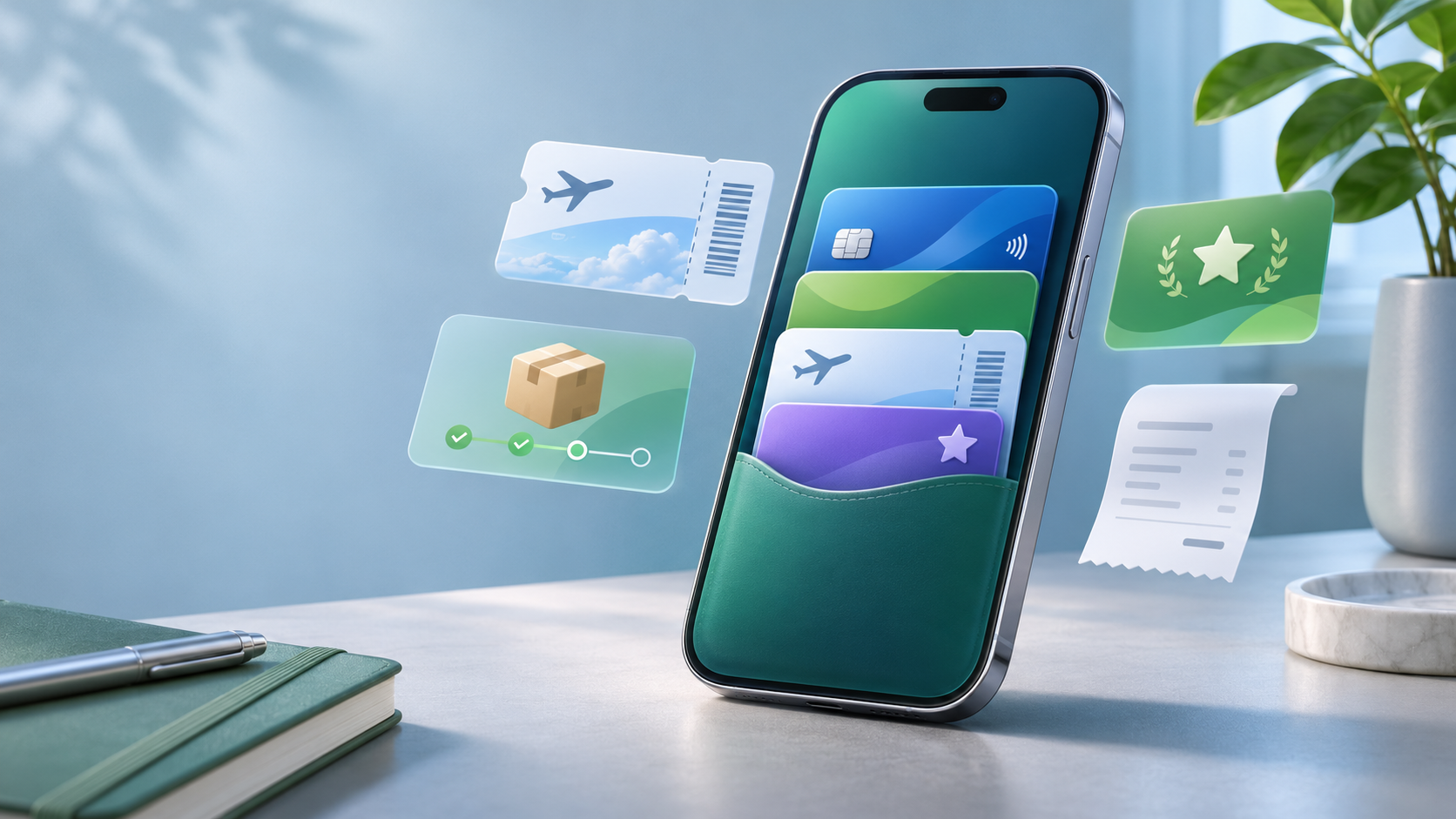
Google Wallet is now available as an iPhone app in the United States, giving iOS users a single Google destination for payment cards, boarding passes, loyalty cards, package tracking, receipts and purchases made through Google agents. The app launched on November 17, 2026, and requires iOS 17 or later.
The important qualifier is in the name of the feature Google did not bring over: Google Wallet on iPhone cannot make contactless payments in stores or tap through transit gates. Apple Wallet remains the system wallet for those NFC transactions. Google Wallet’s iOS value is organization, Google-account continuity and online Google Pay management—not replacing the double-click-to-pay routine at a checkout terminal.
This guide explains what works, how to configure the app without handing it more access than you want, where payment cards fit, and which Android Wallet features are still missing. Availability and menus can change as Google expands the app, so the steps below reflect Google’s current U.S. launch documentation rather than a ReaderSpice hands-on test.
Google Wallet on iPhone at a glance
- Availability: the iPhone app launched in the United States on November 17, 2026.
- Software: Google lists iOS 17.0 or later and a valid Google Account as the baseline requirements.
- What it stores: payment cards for Google Pay online, boarding passes, event tickets, loyalty cards, gym memberships and supported passes.
- Google services: optional Gmail syncing can surface package deliveries, boarding passes, tickets and receipts automatically.
- Agent purchases: the Agents tab can show eligible purchases completed through Google’s agentic shopping experience in the U.S.
- What is missing: no in-store tap-to-pay, no tap-to-ride transit, no digital IDs and no Apple Watch sync.
What changed with the U.S. iPhone launch
Google previously let iPhone owners manage some payment information through Google Pay on the web and access individual passes through links or other Google apps. The dedicated Wallet app turns those pieces into a persistent library. A boarding pass created from Gmail, a loyalty card scanned with the camera and a payment method used for an online Google Pay checkout can now be viewed from one app.
The launch is also a reminder that a mobile wallet can mean two different things. One is a secure system credential that talks to a nearby terminal over NFC. The other is an account-backed organizer for cards, passes, receipts and transactions. On iPhone, Google’s app is currently the second kind. That distinction prevents the most common setup mistake: adding a payment card and assuming it will work when the phone touches a store terminal.
How to set up Google Wallet on iPhone
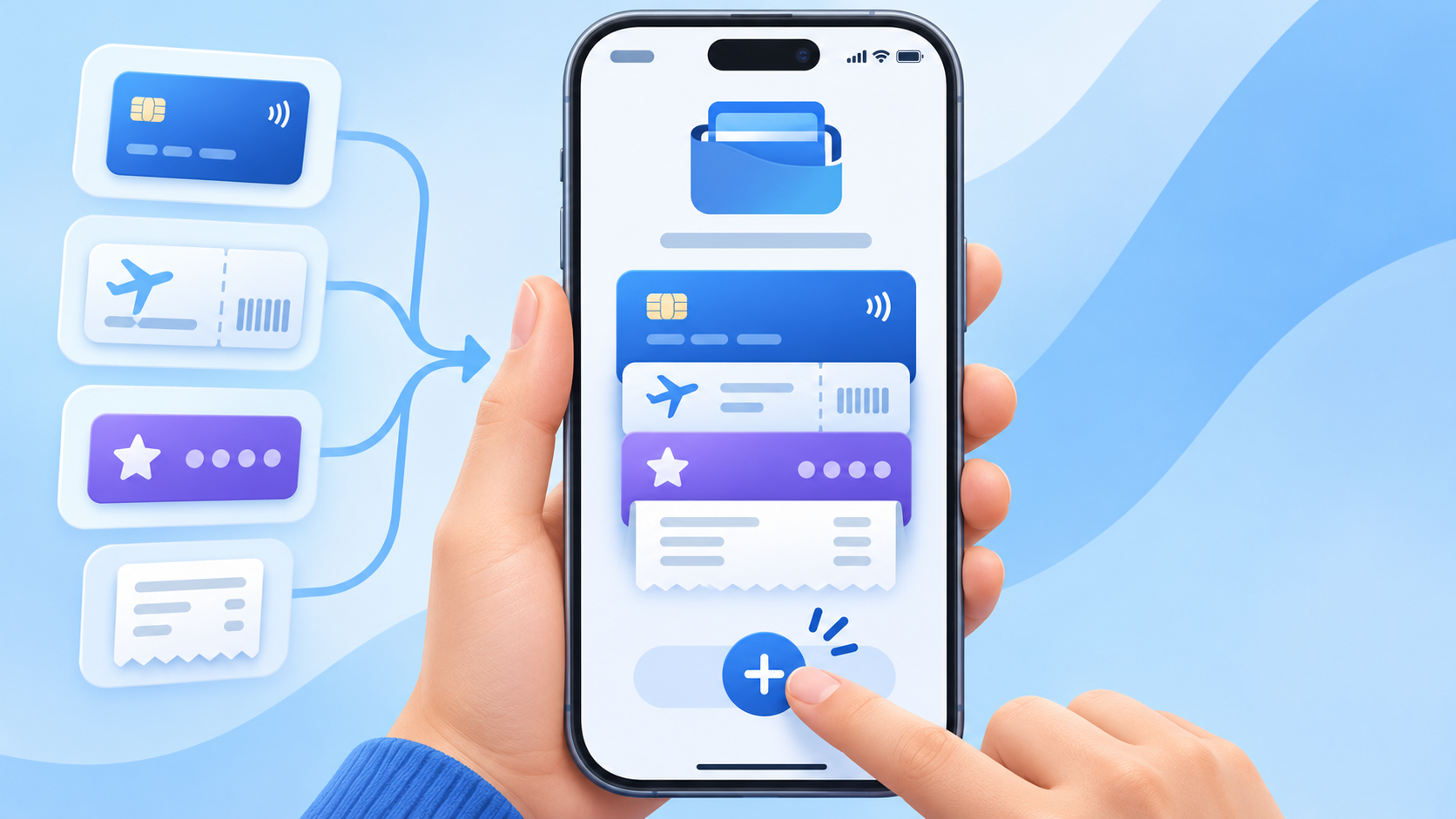
- Install the official app. Download Google Wallet from the Apple App Store and confirm that the iPhone runs iOS 17.0 or later.
- Choose the intended Google Account. Open the app, select Get Started and sign in with the account that should own the Wallet library.
- Decide whether to connect Gmail. Google may offer an “I’m in” option that lets Wallet use eligible items from Gmail. Accept only if automatic package, boarding-pass, ticket and receipt organization is useful to you.
- Review what appeared automatically. Check that imported travel or purchase items belong to the right account and are still current. Remove expired or incorrect items from the source or Wallet where Google provides that control.
- Add passes manually. Use Add to Wallet to scan supported loyalty cards or gym memberships and to add eligible passes from partner apps, websites or email links.
- Add a payment card if needed. Choose Add to Wallet, Payment card, scan or type the card details, select Save and continue, then complete the bank’s verification step.
Selecting the wrong Google Account is easy on a shared or work-managed phone. Before adding sensitive items, open the account menu and verify the email address. A work or school administrator may also restrict Google services, while supervised child accounts are not supported for Wallet on iOS at launch.
What you can add and where each item comes from
Payment cards for online Google Pay
Payment cards in the iPhone app are saved to the Google Account for participating online or in-app Google Pay checkouts. A bank decides whether a card can be added and may require a one-time code, banking-app approval or a call. Adding the card does not make it an Apple Pay card and does not authorize the Google Wallet app to transmit that card at a physical terminal.
Boarding passes, tickets and travel items
Eligible travel and event passes can arrive from Gmail, a partner’s Add to Google Wallet button or another supported link. Treat Wallet as the container, not the issuer: seat changes, cancellations and barcode validity still come from the airline, venue or ticket seller. Keep the original confirmation and the issuer’s app available for time-sensitive changes.
Loyalty cards and memberships
The iPhone camera can scan many loyalty cards and gym memberships. A successful scan creates a convenient barcode or membership entry, but it does not guarantee that every merchant’s scanner can read the result. Verify the number after import and keep the physical card until the first successful use.
Packages, receipts and Google purchases
If Gmail access is enabled, Wallet can organize supported shipment updates and receipts associated with that account. The app can also display eligible purchases made through Google services and, in the United States, agentic purchases under the Agents tab. These views depend on the transaction appearing in Google’s systems; they are not a universal replacement for carrier tracking or card statements.
Why tap to pay is missing on iPhone
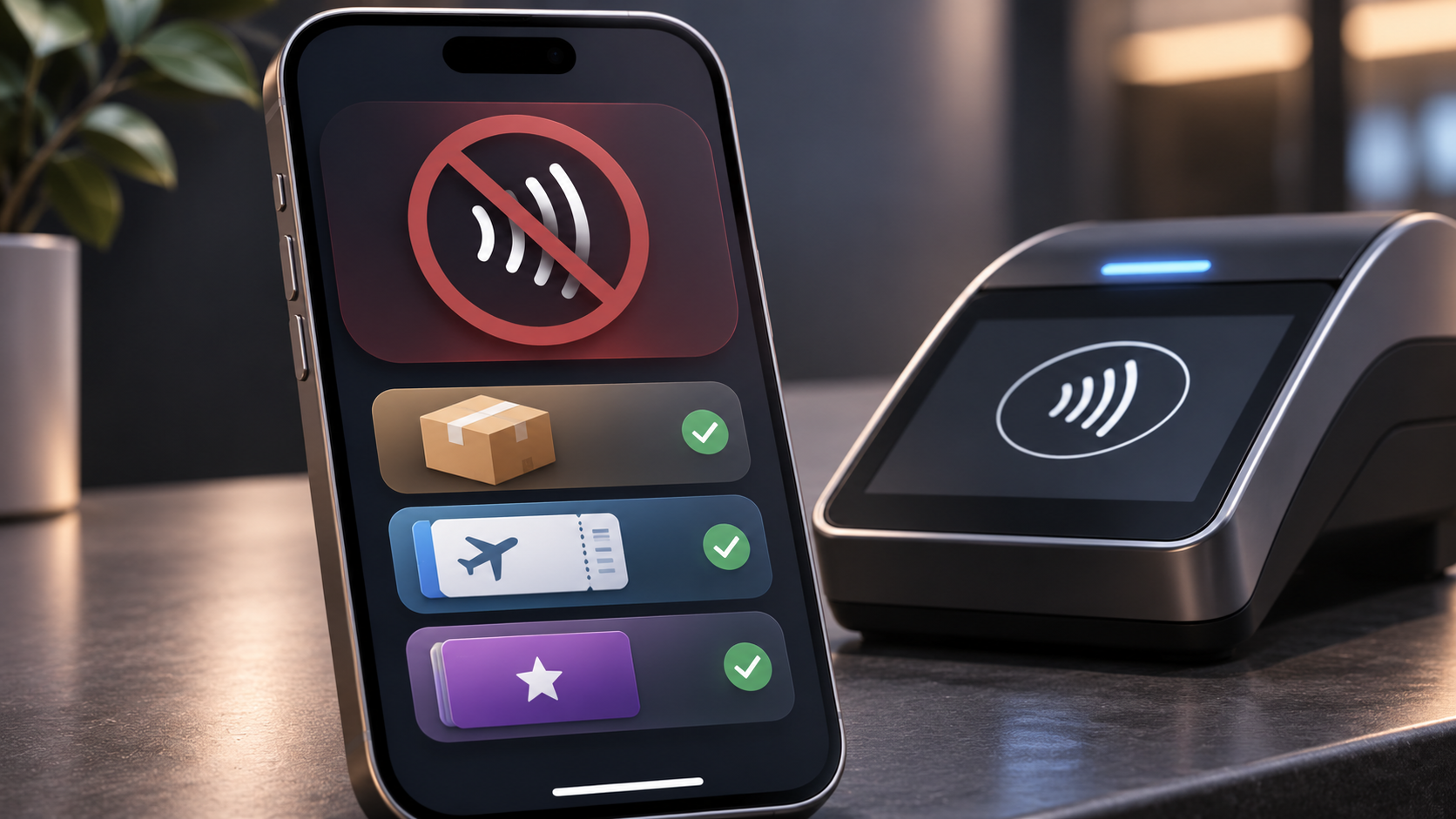
Google’s launch documentation states plainly that contactless payments and tap-to-ride transit are not supported in Google Wallet for iOS. The same card may be useful for a Google Pay button on a website yet do nothing when the iPhone is held near a register. That is expected behavior, not evidence that the card verification failed.
For physical contactless payment, add an eligible card to Apple Wallet and follow the bank’s Apple Pay verification process. For transit, use the transit authority’s supported Apple Wallet card, app, ticket or physical fare medium. A card saved to both wallets remains two separately provisioned uses governed by the bank and each platform’s rules.
Google’s U.S. supported-payment-method page also distinguishes Android contactless support from iOS. Even on Android, card support is determined by the issuing bank; on iPhone, Google Wallet currently does not expose the contactless-payment path at all.
Other Android features that do not carry over
- Digital IDs: Google says digital IDs are not available in the iPhone app.
- Tap-to-ride transit: the app cannot act as an NFC fare credential on iOS.
- Apple Watch: Wallet items do not sync to Apple’s watch from the Google app.
- Supervised accounts: children using supervised Google Accounts cannot use the iOS Wallet app at launch.
- Card order: Google’s help page says payment-card reordering is not available from Manage Payment Methods on iOS.
How the Agents tab works
Google’s iPhone help page describes an Agents tab for purchases made through eligible Google agent experiences. The Google Account, device location and payments profile must be based in the United States. Restricted categories are excluded, and an order may still require the merchant’s site or support channel for changes, returns or fulfillment questions.
Think of the Agents tab as a transaction history for a specific purchase channel, not permission for an AI system to spend independently. Review the product, merchant, final price, shipping information and payment method at the confirmation stage. Keep the merchant receipt because Wallet’s record does not replace the seller’s return policy or a card issuer’s dispute process.
Privacy and account settings worth reviewing
The largest optional data decision is Gmail syncing. Enabling it can save time because Wallet recognizes supported packages, passes, tickets and receipts, but it also gives the app more account context. If the automation is not useful, leave it off and add items manually. You can revisit Google Account and Gmail smart-feature settings later rather than making the decision permanently during onboarding.
Also review iPhone notification permissions. Delivery alerts and flight changes can be useful; marketing or low-priority loyalty notifications may not be. On a lost phone, use Apple’s device controls to lock or erase the iPhone and review the Google Account’s signed-in devices. If payment information may be exposed, contact the card issuer as well.
Troubleshooting common setup problems
- The app will not install: confirm iOS 17.0 or later and that the App Store region and Google Wallet availability match the U.S. launch.
- A Gmail item is missing: check the signed-in Google Account, Gmail integration setting and original message; not every issuer or receipt format is supported.
- A card is rejected: verify the card details, billing information and bank support, then complete the issuer’s authentication step. Contact the bank rather than repeatedly deleting and re-adding the card.
- A pass will not scan: increase screen brightness, clean the display and open the issuer’s original pass if the merchant cannot read the Wallet copy.
- Tap to pay does nothing: this is a platform limitation in Google’s iOS app. Use an eligible card in Apple Wallet for contactless checkout.
A compatible iPhone option to compare
Google requires iOS 17 or later. One current Amazon Renewed listing is the Apple iPhone 15, 128GB, Black — Unlocked (Renewed), ASIN B0CMPMY9ZZ. The listing identifies iOS 17, but buyers should still verify the exact condition grade, battery policy, carrier status, seller, included accessories, return coverage and the phone’s ability to install current security updates. Buying a phone only to gain Google Wallet is unnecessary if an existing iPhone already meets the software requirement.
Affiliate disclosure: ReaderSpice may earn a commission from qualifying Amazon purchases made through this link, at no additional cost to you.
The bottom line
Google Wallet on iPhone is most useful for people who already live in Gmail, Google Pay and Google’s travel or shopping ecosystem. It consolidates passes, packages, receipts, loyalty cards and online payment methods without forcing those items into separate browser pages or email searches.
It is not an Apple Wallet replacement. The absence of tap-to-pay, transit tapping, digital IDs and Apple Watch syncing is the defining limitation of the launch. Install it for organization and Google-account continuity, choose Gmail access deliberately, and keep using Apple Wallet or issuer apps for the system-level credentials only iOS can present at the point of use.
Sources
Google — Google Wallet is now available on iOS in the United States
Google Wallet Help — Download the Google Wallet app
Google Wallet Help — Add a debit or credit card
Google Wallet Help — Supported payment methods in the United States
Google Wallet Help — Countries or regions where Google Wallet is available
Google Wallet Help — Find purchases made through Google agents
Amazon — Apple iPhone 15 Renewed, ASIN B0CMPMY9ZZ (affiliate link)
Inline image 1: Google Wallet setup on iPhone. Alt text: An iPhone adds abstract payment, boarding, loyalty and receipt cards to a digital wallet.
Inline image 2: Google Wallet iPhone tap-to-pay limitation. Alt text: A generic iPhone shows package, boarding and loyalty cards while NFC payment at a terminal is unavailable.