
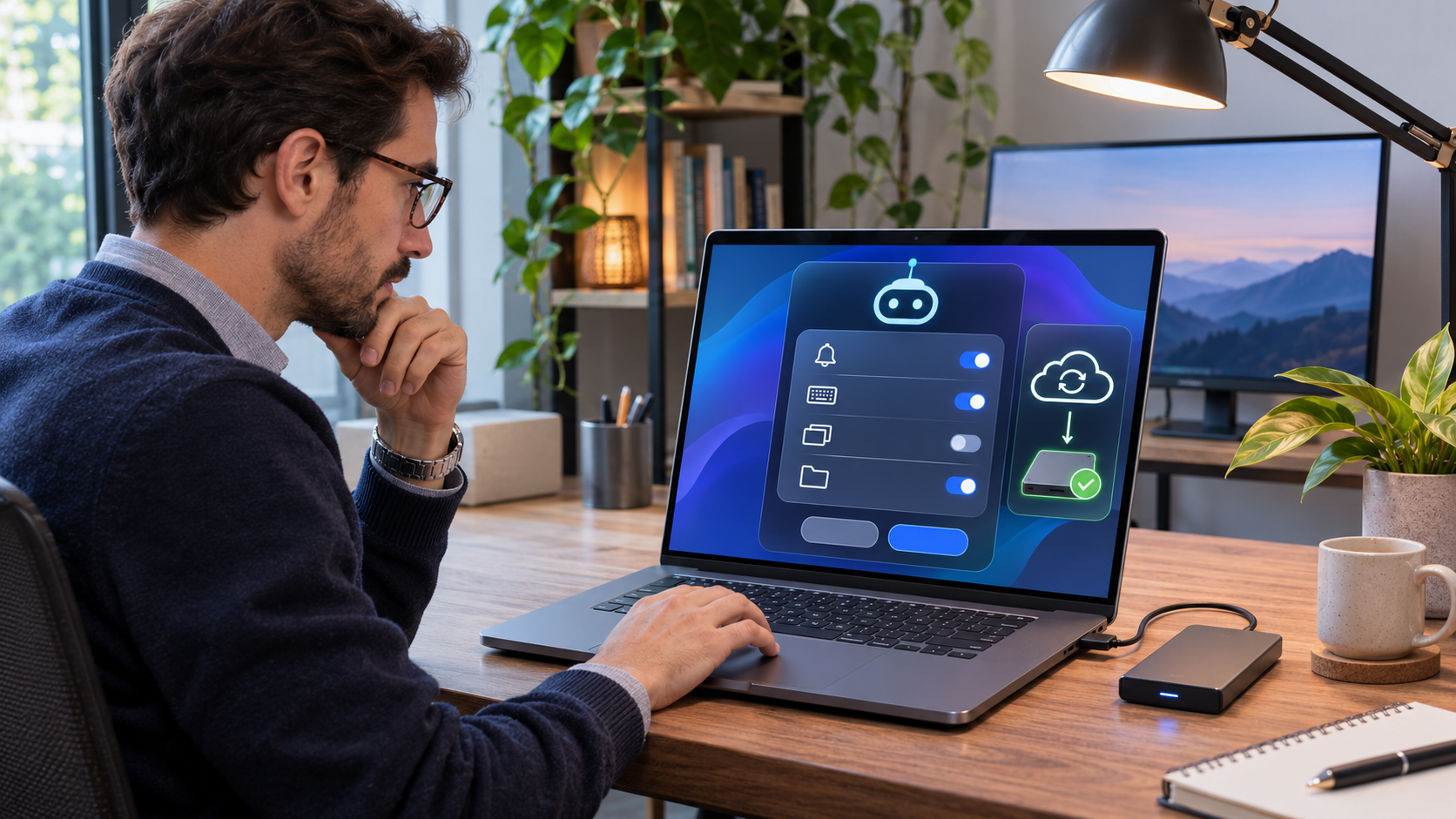
Anthropic’s November 24, 2026 release adds a meaningful new path for Claude Artifacts: supported artifacts can now be installed as standalone apps on macOS and Windows. This is more than a browser shortcut. An installed artifact can have its own window and icon, remain linked to the underlying artifact, use Claude and connectors, and—when a user allows it—reach selected operating-system capabilities.
The beta could turn a useful internal tool, tracker or calculator into something that behaves more like everyday desktop software. It also moves the trust decision closer to the device. Full access can let an artifact launch programs and read, modify or delete local files without asking again for each action, and Anthropic says it does not review apps before users install them.
This guide separates three things that are easy to blur together: installing an artifact as an app, granting that app desktop permissions, and using Claude’s newer connected-app file transfers. The safest setup treats each as a separate approval and starts with a tested backup.
What changed on November 24
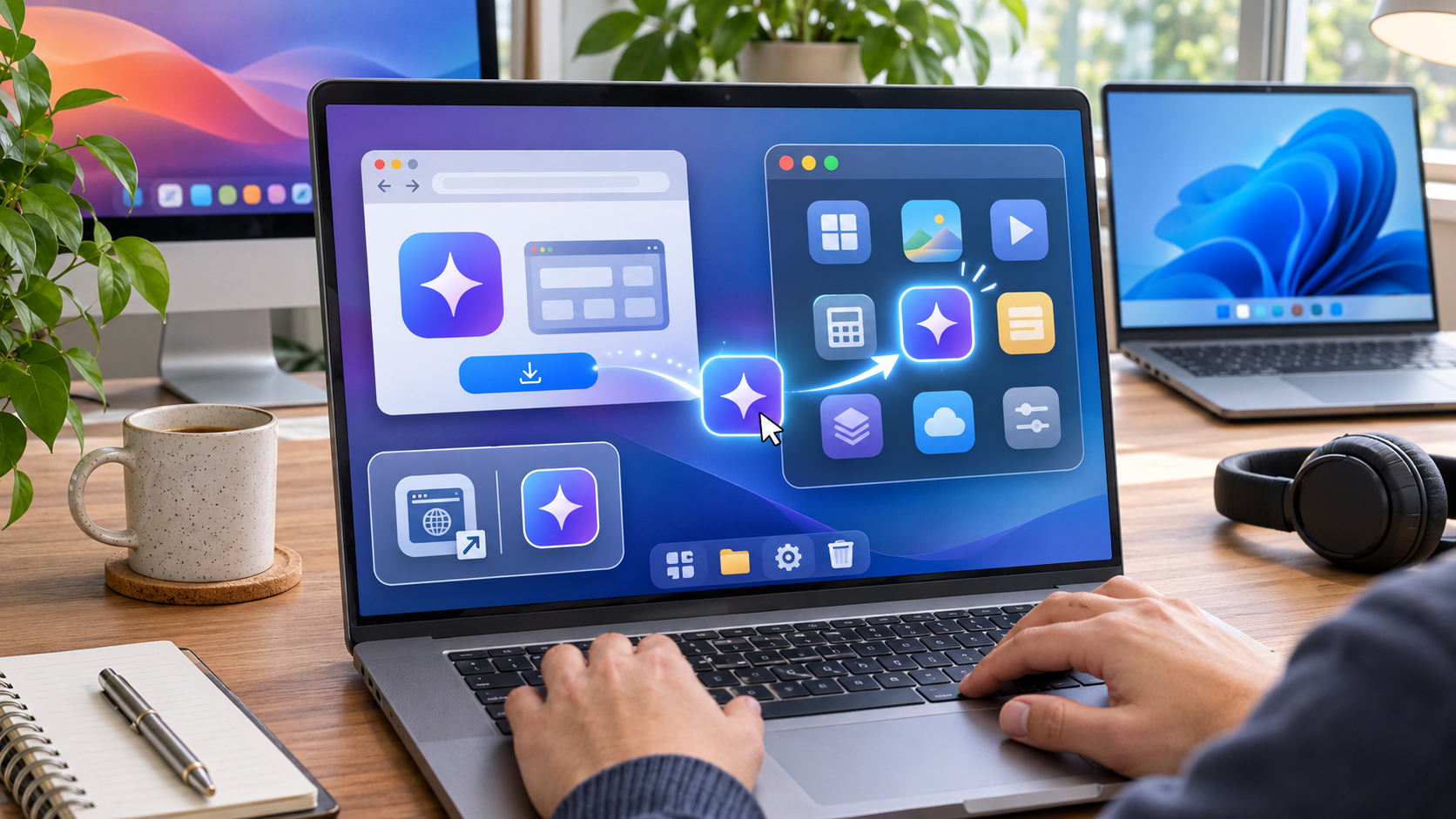
Installable artifacts remain linked to the original artifact but open like desktop apps.
Installable artifacts are rolling out in beta to Free, Pro, Max, Ultra, Team and Enterprise users. The feature requires Claude Desktop for Mac or Windows version 6.28899.0 or newer. Team accounts have the feature on by default, but the full-access permission tier stays off until an administrator enables it. Enterprise owners must enable the broader feature first.
An installed artifact stays the same artifact: when its creator edits the artifact, the installed app receives the update. It still requires an internet connection and an active Claude sign-in. On macOS it appears in a Claude Apps folder inside Applications; on Windows it can appear in the Start menu and as a desktop shortcut. Claude Desktop also lists installed apps under File > Apps.
A browser command such as Add to Dock, Create shortcut or Add to Home Screen is not equivalent. Those options produce a shortcut to the web experience and do not enable the desktop capabilities described below.
How to install a Claude artifact as a desktop app
- Update Claude Desktop to version 6.28899.0 or later, then sign in on the Mac or Windows PC where the app will run.
- Open the artifact in a Claude conversation. Choose the artifact title or right-click the artifact, then select Install as app. The same command can also appear in the Share menu.
- Review the confirmation prompt and install the app. Open it from Applications on macOS, the Start menu or desktop shortcut on Windows, or File > Apps in Claude Desktop.
- After the first launch, check whether the app remains active in the macOS menu bar or Windows system tray when its window closes. Quit it there when you are finished if it does not need to run continuously.
The list of artifacts that can be installed is narrower than the complete Artifacts catalog. Template-based Docs, Slides and Sheets artifacts, older legacy artifacts and live artifacts created in Cowork cannot currently be installed. The beta also does not provide a Linux, web-only or mobile installation path.
Permission tiers and what full access really means

Permissions should escalate only when a feature clearly requires them.
The app can request individual capabilities rather than receiving everything automatically. Lower-impact requests include notifications, keyboard shortcuts, floating above other windows, reading the cursor position and adding a menu-bar or system-tray item. Each can be useful, but each also expands what the app can observe or do while it is running.
Full access is the highest-risk tier. With it, an app can run programs and read, change or delete files without a new prompt for every operation. Grant it only when the app’s core function genuinely requires that reach, and only after checking the artifact’s creator and behavior. Anthropic explicitly notes that it does not review apps before installation.
- Permission approval applies to one version of the artifact. A new version or edit should trigger a fresh request.
- Code loaded from an external source may change without an artifact-version change, so a familiar app can still behave differently later.
- Closing the window may not stop a menu-bar or system-tray app. Check the background process before assuming access has ended.
- Disabling full access does not undo file changes already made. A program launched separately by the app may also keep running until it is stopped.
How to revoke access
- Open the app’s permissions menu or use Claude Desktop’s installed-app controls to disable any capability that is no longer necessary.
- Quit the app from its menu-bar or system-tray control, then inspect running applications or processes if it previously launched another program.
- Uninstall the app to remove its permissions. The artifact itself remains available in Claude unless it is separately deleted or access is removed.
- Review the affected files and restore a clean copy if the app changed or deleted something unexpectedly. Revocation prevents future use; it does not reverse the past action.
If access to a shared artifact is withdrawn, an installed app can stop working, but Anthropic warns that programs it started may continue for up to roughly 20 minutes. Treat that interval as a cleanup window rather than proof that every process has already ended.
A safer first-run checklist
- Start with an artifact you created yourself or one whose creator and purpose you can verify.
- Use a test folder containing copied, non-sensitive files. Do not begin in Documents, Desktop, a cloud-sync root or another folder holding irreplaceable work.
- Deny full access unless a specific feature cannot function without it. Grant the narrowest individual permission that completes the job.
- Keep passwords, recovery codes, private keys, tax records and confidential client files outside the app’s working area.
- Run one small task, inspect every changed file and verify that the app stops when quit. Expand access only after the observed behavior matches the request.
- Retain an offline or disconnected backup created before the test, and verify that at least one sample file can be restored.
Connected file transfers are separate—and can outlive the chat

A destination copy can remain after the Claude conversation is deleted.
Anthropic is also rolling out a separate file-transfer beta for connected apps. It is available first to Pro, Max and Ultra users; Team and Enterprise owners must turn it on, while Free access is planned later. Transfers can work in new Claude chats across web, desktop, iOS and Android, as well as Claude Code in the terminal, VS Code and on the web.
The feature does not work in incognito chats, scheduled tasks or sessions started through Remote Control. It is limited to apps from the Claude connector directory; custom connectors and MCP servers are not supported for this transfer flow. The first file sent to each connected app prompts for approval, while later transfers depend on the permission settings selected for that connection.
Deleting a Claude conversation does not delete a file already sent to the connected destination. Files attached to a chat or selected from cloud storage remain tied to that session’s retention rules. Claude Code stores downloaded connector files in a project-specific connector-downloads folder and deletes them after 30 days by default. Files pass through Anthropic during transfer; temporary encrypted copies used for transfer and scanning may persist for a limited period, with image and video scanning copies typically removed within about two weeks.
Incoming files deserve the same skepticism as incoming links. A document can contain text designed to steer an AI system toward an unsafe action. Use trusted connected apps, review the destination and filename, and confirm that a failed-looking send did not actually arrive before retrying. A blind retry can create duplicate or conflicting copies.
Limits worth knowing
- Claude Code desktop sends files up to 500 MB each and up to eight files at a time.
- Claude chats and the web experience accept up to 10 files and 500 MB total in one transfer, with a 400 MB maximum for an attached file.
- Saving from a connected app supports files up to 500 MB each and up to 10 files at a time.
- Claude Code plan mode does not download connector files.
Back up before experimenting with full access
A full-access test should begin with a restorable copy, not a promise that the app will behave. A small external SSD can provide a practical second copy for a laptop user, provided it is disconnected after the backup and checked periodically. Samsung lists the T7 Shield 1TB model MU-PE1T0S/AM as a USB 3.2 Gen 2 portable SSD with rated sequential speeds up to 1,050 MB/s read and 1,000 MB/s write and an IP65 rating.
A verified listing for the Samsung T7 Shield 1TB (ASIN B09VLK9W3S) is one relevant option for making that second copy. Check the exact model, capacity, seller, condition, warranty and current price before buying; listings and offers can change. The drive is not required to use Claude, and it should not be the only copy of important data.
Affiliate disclosure: ReaderSpice may earn a commission from qualifying Amazon purchases made through the link above, at no added cost to you.
What the beta still cannot do
- Install artifacts as native apps on Linux, the web or mobile devices.
- Install template-based Docs, Slides or Sheets artifacts, legacy artifacts or live Cowork artifacts.
- Run without an internet connection and an active Claude sign-in.
- Guarantee that external code loaded by an app will remain unchanged between artifact updates.
- Let Claude’s macOS computer-use feature click or type inside an installed artifact app, even though it may be able to see the app window.
Organizations with HIPAA, education or zero-data-retention requirements should also confirm the current eligibility and policy notes in Anthropic’s help documentation before enabling the beta. Availability and controls differ by plan.
How this differs from Gemini Computer Use on Mac
ReaderSpice’s Gemini Computer Use on Mac setup and risk guide focuses on an agent acting through a controlled computer-use session. An installed Claude artifact is instead a persistent app derived from a specific artifact, with its own icon, update relationship, background behavior and permission set.
The practical security lesson overlaps—start with limited data, narrow permissions and a verified backup—but the lifecycle is different. A Claude artifact app can stay installed and run from the menu bar or tray after the original chat is no longer in front of you, so app inventory and permission review become recurring maintenance tasks.
The bottom line
Installable Claude Artifacts make the feature more useful and more consequential. A trusted artifact can become a focused desktop tool without a separate software project, but full access crosses the line from convenient interface to local automation with real file-system consequences.
Install only from a known source, begin with the narrowest permission, test against copied data, check background processes and preserve a verified backup. Treat connected-app transfers as a separate workflow with separate retention and destination risks. That discipline keeps the beta useful without assuming that an app window is automatically a safe app.
Sources
- Anthropic Claude release notes — November 24, 2026
- Anthropic Help Center — Install an artifact as an app
- Anthropic Help Center — Send files to connected apps and save files from them
- Samsung — Portable SSD T7 Shield 1TB product specifications
- ReaderSpice — Gemini Computer Use on Mac: Setup, App Permissions, Backups and Risks
- Amazon — Samsung T7 Shield 1TB, ASIN B09VLK9W3S (affiliate link)