
Gemini 4 Argon Is Now Available: Pricing, Access, 1M Tokens and Who Should Use It

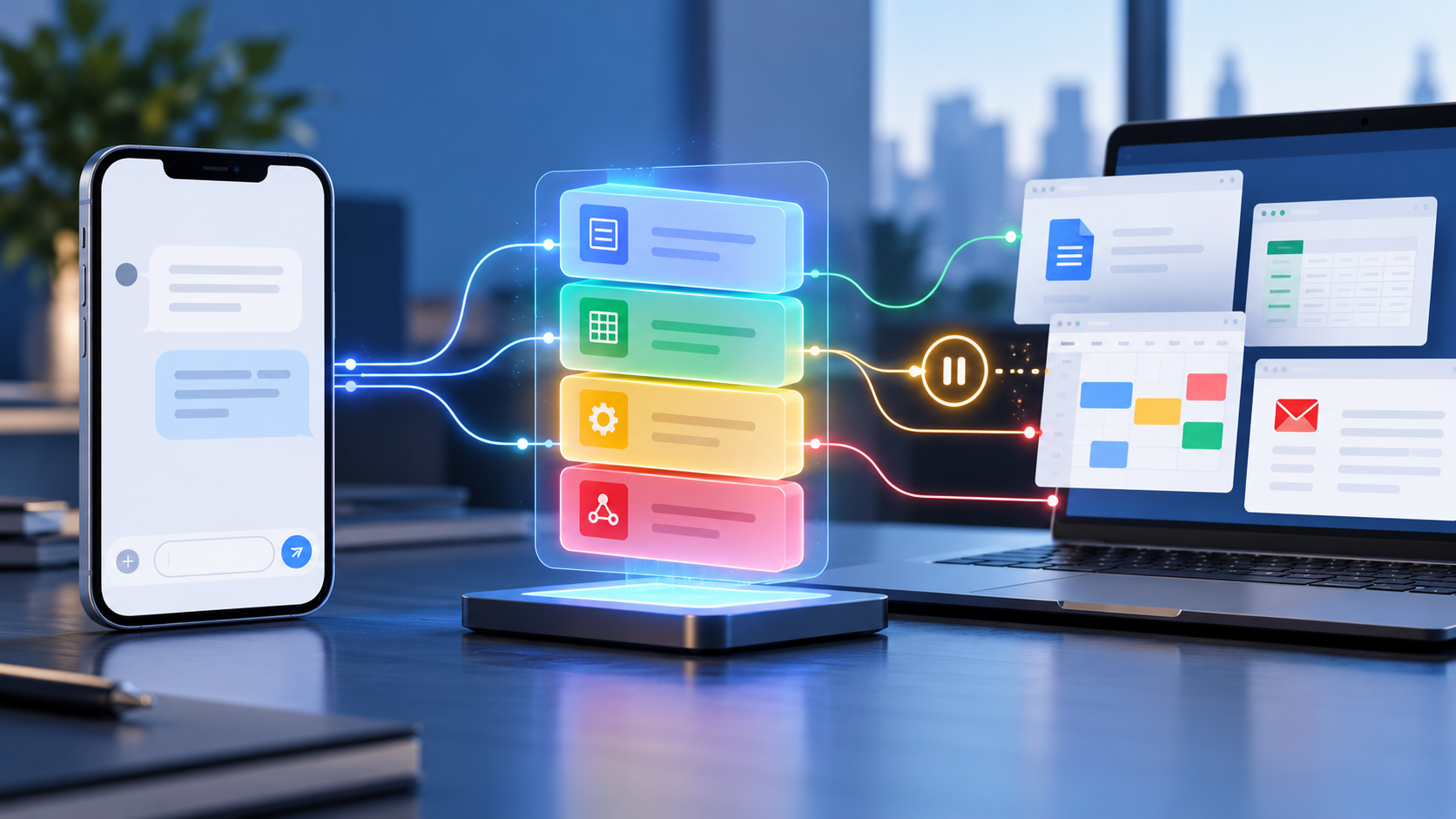
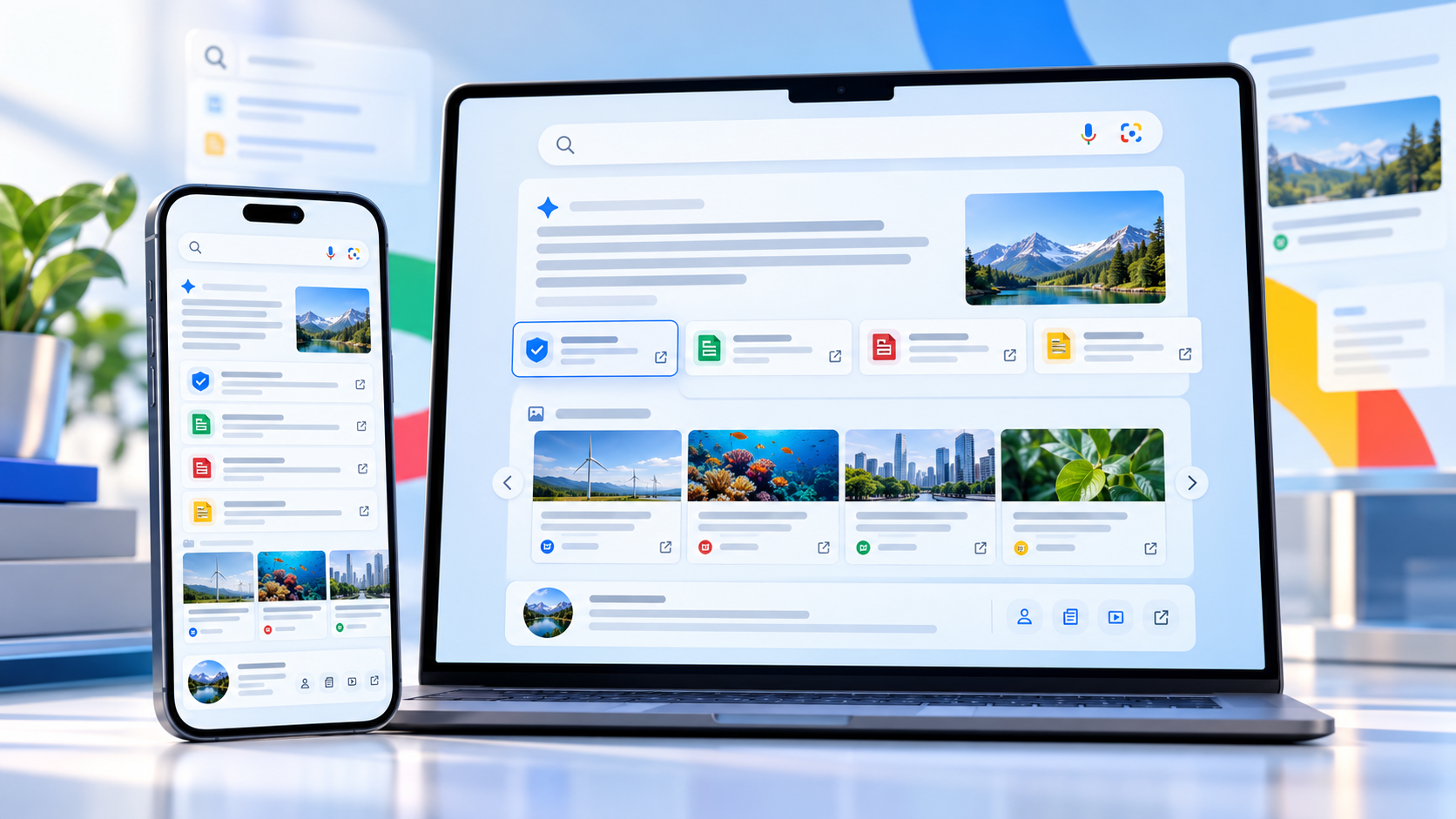
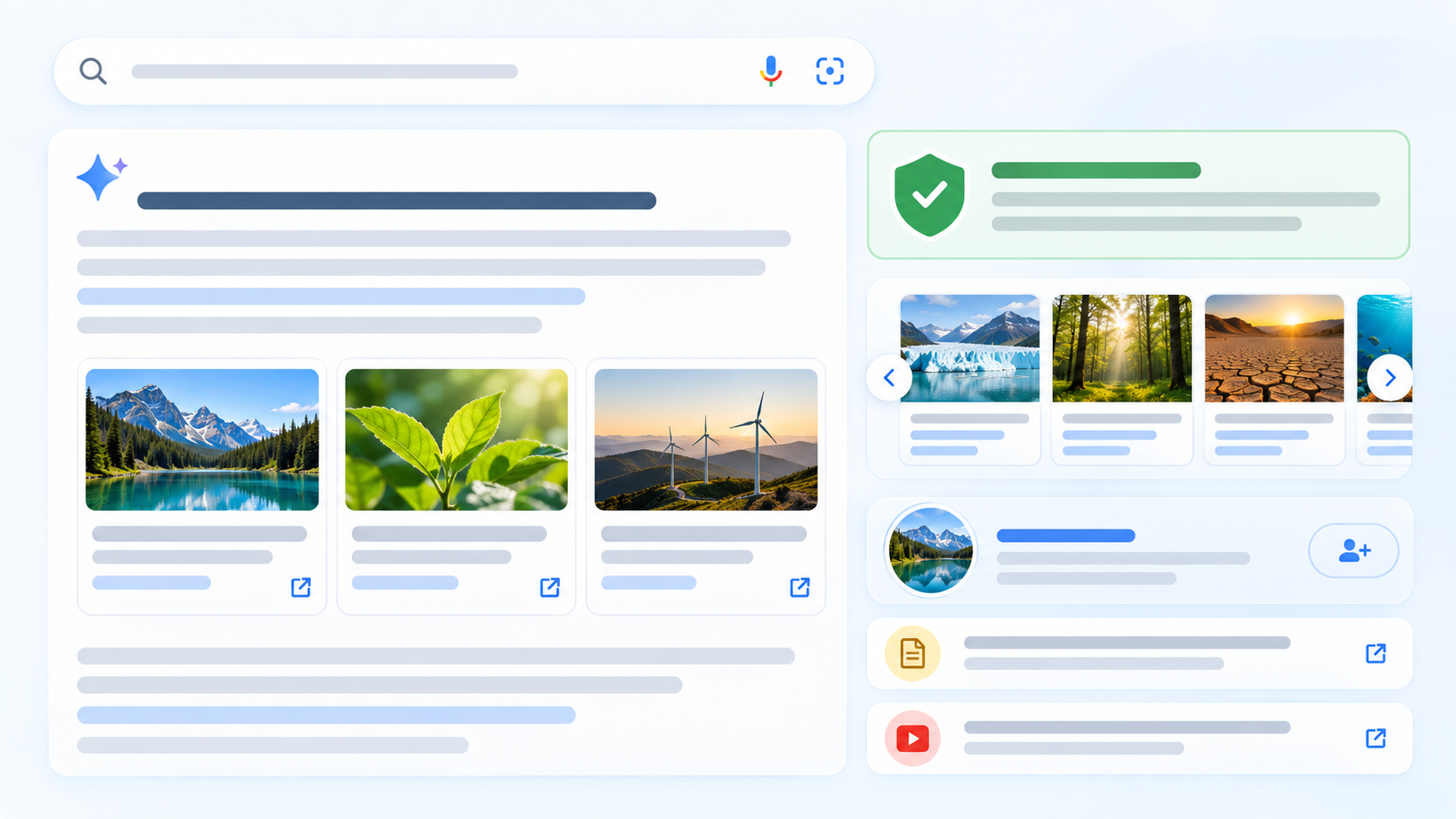
Glowing multifaceted AI core connects coding, science, research and financial analysis at a modern workstation

Google has moved Gemini 4 Argon from a limited early-access model to broad commercial availability. Since October 13, 2026, developers and enterprises can use it through the paid Gemini API, while Google AI Pro and Ultra subscribers can select it in the Gemini app and AI Mode in Search. Ultra subscribers also receive access through Google Antigravity.

The launch is aimed at difficult work rather than quick everyday questions. Google positions Argon for long-running software engineering, multimodal document analysis, science, finance, legal research and defensive cybersecurity. Its headline specification is a unified input-and-output limit of 1,048,576 tokens, but access, pricing and feature support differ sharply between the consumer app and the API.

Gemini 4 Argon at a glance

  • Availability: globally available from October 13, 2026, through the paid Gemini API and selected Google AI subscription products.
  • Consumer access: Google AI Pro and Ultra subscribers can use Argon in the Gemini app and AI Mode in Search.
  • Developer access: the stable API model ID is gemini-4-argon in Google AI Studio and the Gemini API paid tier.
  • Context and output: a unified 1,048,576-token limit, with synchronous output capped at 65,536 tokens unless long decode is used.
  • Introductory API price: $2 per million input tokens and $10 per million output tokens through November 30, 2026.
  • Standard price beginning December 1: $4 per million input tokens and $20 per million output tokens.
  • Supported inputs: text, images, video, audio and PDF; output is text.
  • Important omissions: no image generation, audio generation or Live API support on this model.

Who can use Gemini 4 Argon now

Who can use Gemini 4 Argon now

The simplest route is the Gemini app. Google AI Pro and Ultra subscribers can choose Argon for complex prompts without configuring an API. The same subscriber tiers can use it in AI Mode in Search, where web grounding and follow-up exploration are part of the interface. Free Gemini accounts are not listed for Argon access in Google’s launch announcement.

Developers can call the stable gemini-4-argon model through the paid Gemini API in Google AI Studio. Google also lists enterprise access through its business products and Gemini platform. Antigravity, Google’s agentic coding environment, is narrower: the announcement identifies Google AI Ultra subscribers for consumer access there, while enterprises have a separate path.

Availability does not mean unlimited use. Consumer plans can apply usage caps, and API customers pay for tokens and any other billable services. Teams should confirm the plan, region and account policy shown in their own Google console before committing a production workflow.

What Gemini 4 Argon is built to do

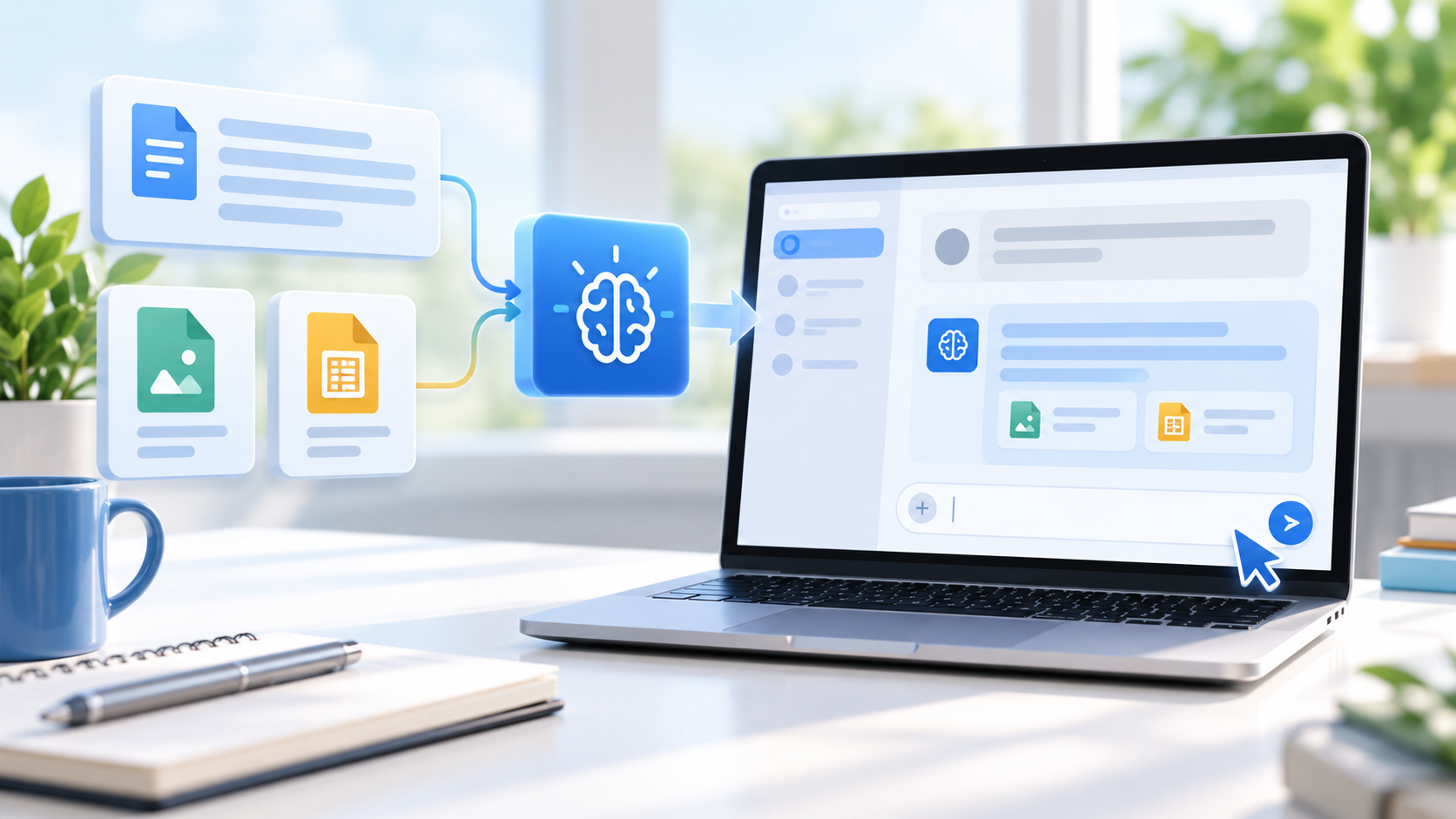
Argon is Google’s flagship reasoning model for tasks that require many connected steps and substantial context. Google highlights large-codebase refactoring, professional document analysis, scientific reasoning, autonomous agents and defensive security work. The model can accept text, images, video, audio and PDFs, which makes it useful when a project mixes source code, specifications, diagrams, recordings and long reference documents.

Its tool support includes code execution, function calling, file search, URL context, structured outputs, Search grounding and Google Maps grounding. Computer use is available in preview. Thinking can be set to low, medium or high, giving developers a way to trade speed and cost against deeper reasoning.

Argon is not a universal media model. It returns text and does not support image generation, audio generation or the Live API. Teams that need real-time voice interaction or generated media will still need another Gemini model or a multi-model workflow.

The one-million-token limit needs careful reading

Google describes Argon as having an industry-leading one-million-token unified input-output limit. Unified means the input and generated response share the same overall budget. A very large prompt therefore leaves less space for the answer, and a long answer leaves less room for source material.

The API reference lists a default synchronous maximum output of 65,536 tokens. Reaching output lengths closer to the full one-million-token ceiling requires Google’s long-decode continuation workflow. Developers should not assume that a normal single request will return a book-length response merely because the headline limit is one million.

A large context window also does not guarantee perfect recall. Important instructions can be diluted by redundant files, conflicting policies or repeated drafts. Strong workflows still need a clear task, organized source material, explicit output requirements and validation against the original evidence.

Gemini 4 Argon pricing before and after November 30

The launch price is temporary. Through November 30, 2026, Google charges $2 per million input tokens and $10 per million output tokens for the public Argon model. Cached input receives a 95 percent discount, although the model page says Argon supports implicit caching rather than explicit caching.

Beginning December 1, the published rate doubles to $4 per million input tokens and $20 per million output tokens. That date matters for pilots: a workflow that looks affordable in October or November can cost twice as much at the same token volume in December.

For a simple illustration, one million input tokens plus 100,000 output tokens would cost about $3 during the introductory period: $2 for input and $1 for output. At the standard rate, the same uncached request would cost about $6. This example excludes other platform charges and assumes the published public-model rates.

  • Measure real prompt and output sizes before estimating a monthly budget.
  • Remove duplicate files and stale context instead of paying to resend them.
  • Test whether a lower thinking level is sufficient for routine work.
  • Track the December 1 price change separately from usage growth.
  • Use production limits, logging and human approval for costly agent loops.

Gemini app, AI Mode, API and Antigravity are different products

In the Gemini app, Argon is packaged as a model choice for subscribers. Users provide prompts and files through Google’s interface, while plan limits and product settings control availability. AI Mode in Search adds a research-oriented surface that can ground responses in current web results.

The API gives developers much more control over tools, thinking level, structured outputs and application logic, but it also creates responsibility for authentication, budgets, logging, safety and data handling. Antigravity is designed for agentic coding and longer software tasks. It is not simply another name for the Gemini chat interface.

A team should choose the surface around the job. Occasional analysis may fit the Gemini app. A repeatable business workflow belongs in the API only after the team has tested costs, permissions and failure handling. Large autonomous coding tasks may justify Antigravity, but they still require review before code is merged or deployed.

Capabilities developers should verify before migrating

  • Multimodal inputs are supported, but generated output is text only.
  • Code execution, file search, function calling and structured outputs are supported.
  • Search and Google Maps grounding are supported; URL context is also available.
  • Computer use is marked preview and should not be treated as a fully stable production dependency.
  • Implicit caching is supported, while explicit caching is not listed for Argon.
  • Batch, Flex and Priority inference are listed as consumption options.
  • Live API, image generation and audio generation are not supported.

These differences can break an application that swaps only the model ID. A system designed for explicit caches, live audio or generated images needs architectural changes rather than a one-line migration. Google’s latest-model guide is the correct place to check request changes and continuation behavior before production use.

How to interpret Google’s performance claims

Google reports that Argon ranks first on the Vals Index and cites internal or partner results across coding, science and cybersecurity. Examples include faster codebase refactoring, improved framework performance and assistance with vulnerability discovery. These are useful signals, but they are not a promise that every customer will reproduce the same gains.

Workload design matters. A model can perform strongly on a curated benchmark while struggling with an organization’s private terminology, incomplete documentation or unusual approval process. The safest evaluation uses representative tasks, blinded scoring where practical and a fixed comparison against the current system.

Google also reports improvements from internal Antigravity use, including more agentic code submissions and fewer rollbacks. Because those figures come from Google’s own environment, buyers should treat them as launch evidence rather than an independent service-level guarantee. Reuters separately reported the wider October 13 commercial launch and its focus on developers and businesses.

Safety and cybersecurity limits still matter

Argon’s ability to inspect code and work across tools raises the consequences of a bad instruction. Google says the model received new jailbreak defenses, prompt-injection training and agent monitoring. The company reports a 0.7 percent attack success rate on a multi-attempt indirect prompt-injection benchmark and says shortcut attempts fell to 2 percent in selected coding evaluations.

Those are vendor-reported evaluation results, not proof that prompt injection is solved. A production agent can still encounter malicious instructions in webpages, email, documents or source repositories. Tool permissions, network access and approval gates should be limited to the smallest scope the workflow needs.

For consequential changes, keep a human checkpoint before deployment, deletion, permission changes, purchases or messages to third parties. Security teams should also separate defensive testing from unrestricted exploit generation and follow the access conditions of Google’s Fairwind Program.

Should existing Gemini users switch

Subscribers should choose Argon when the task is genuinely difficult: a large repository, a long multimodal evidence set, a multi-stage research problem or an analysis that benefits from extended reasoning. It is likely excessive for rewriting a short email, summarizing one page or answering a simple factual question.

API users should run a controlled trial before migrating traffic. Compare quality, latency, token use, tool reliability and total cost with the current model. Recalculate the budget at the December rates, not only the introductory price. If a smaller model meets the quality target, routing easy requests away from Argon can reduce cost and delay.

Organizations in legal, financial, medical or security-sensitive work should keep domain review. Google describes strong professional capabilities, but the output remains generated text and can contain mistakes, unsupported conclusions or outdated assumptions.

A practical first-week test plan

  • Choose five to ten real tasks that are difficult for the current model.
  • Define success criteria before testing, including factual accuracy, completeness, latency and cost.
  • Run the same inputs through Argon and the current baseline without changing the rubric.
  • Inspect citations, calculations, code changes and tool actions against primary evidence.
  • Record token use under both introductory and December pricing.
  • Keep permissions read-only during early agent tests whenever possible.
  • Move only the workloads with a meaningful, repeatable improvement.

A relevant resource for AI-assisted coding

Readers building their first agentic development workflow can look up AI Vibe Coding by Jordan R. Ashford on Amazon. The book’s verified ISBN is 9798253607541; confirm the seller, edition and price before ordering.

As an Amazon Associate, ReaderSpice earns from qualifying purchases.

Bottom line

Gemini 4 Argon is now a real option for paid subscribers, developers and enterprises, with a combination of deep reasoning, multimodal input, broad tool support and an unusually large unified token budget. The most important limits are easy to miss: normal synchronous output is much smaller than the headline ceiling, several media and real-time features are unsupported, and the introductory API price ends after November 30.

Use Argon for work that earns the extra reasoning and context. Test it on representative tasks, validate the output, keep agent permissions narrow and budget at the December rate before making it a default. For simple prompts, a faster and less expensive model may remain the better choice.

Sources

Google Blog: Gemini 4 Argon is now available for developers, enterprises and subscribers

Google AI for Developers: Gemini 4 Argon model specifications

Google AI for Developers: What’s new in Gemini 4 Argon

Google DeepMind: Gemini 4 Argon model card

Google Blog: Gemini 4 Argon availability in the Gemini app

Reuters: Google launches Gemini 4 Argon for developers and businesses
Windows 11 Gets Faster and Lighter: Microsoft Claims Up to 20% Better Responsiveness

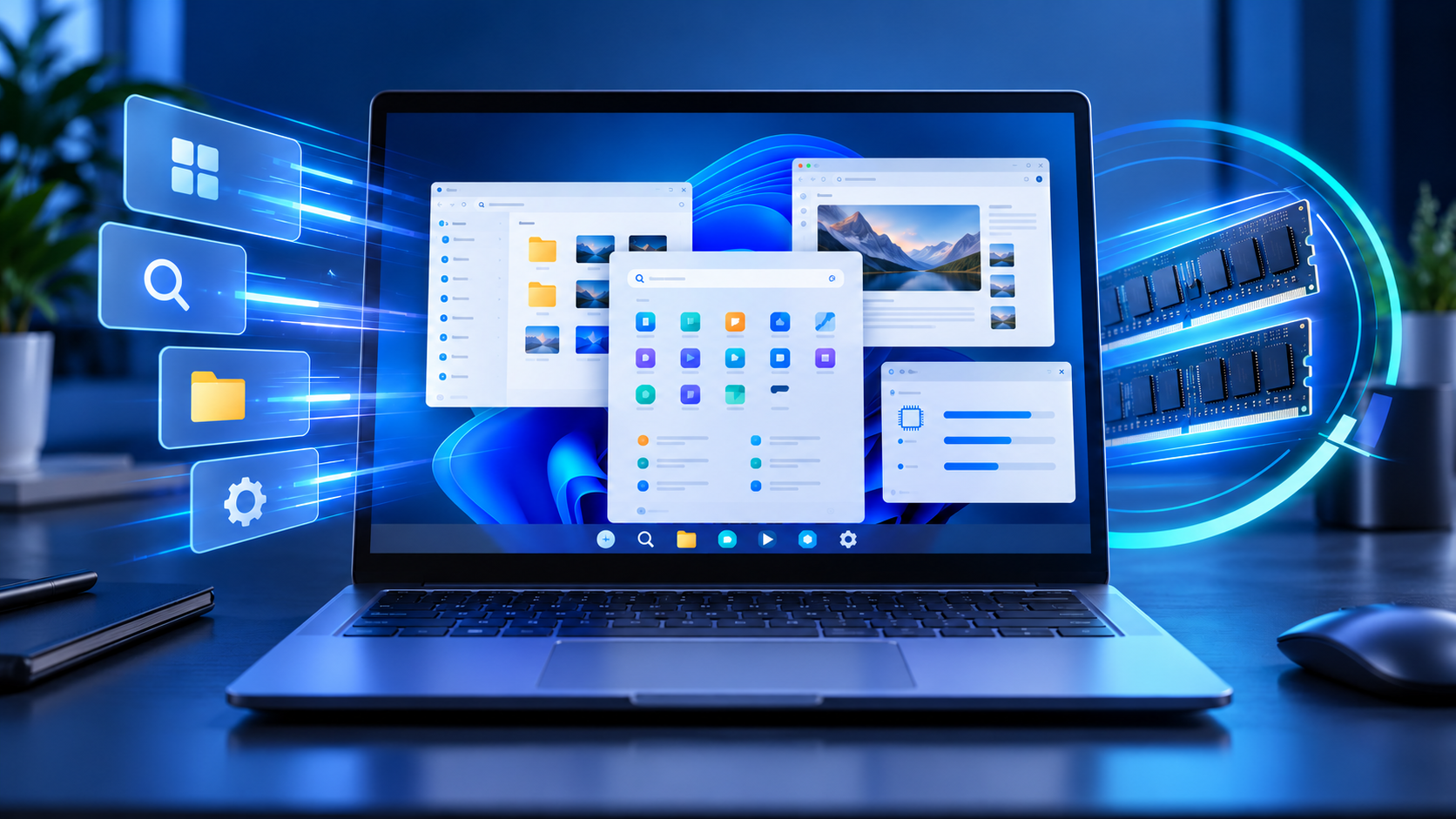
Windows 11 laptop surrounded by responsive app windows, memory modules and performance effects

Microsoft says Windows 11 is becoming up to 20% more responsive after a year of work on the operating system, shell and built-in apps. The claim covers everyday interactions such as opening Start, searching, right-clicking, navigating File Explorer and launching Settings—not a blanket 20% boost to every application or game.

The October 15 announcement also describes concrete memory changes that could matter most on affordable PCs with 8GB of RAM. Windows can keep more active data in memory instead of moving it to slower storage, while Widgets can stay unloaded until requested. Several related improvements are rolling out broadly, but others—including a redesigned Windows Search experience—remain limited to Windows Insiders for now.

Windows 11 performance changes at a glance

  • Microsoft reports response-time improvements of up to 20% across Search, Start, right-click menus, Settings, Snipping Tool and File Explorer.
  • The comparison used Windows 11 build 26300.9550 against build 26200.7628; real results vary by device, configuration and workload.
  • Windows can keep up to 2GB more active data in memory rather than paging it to slower storage.
  • On PCs with 8GB of RAM or less, Widgets now load only when opened, making more than 200MB available for other work.
  • Microsoft is also improving boot, sign-in, updates, Bluetooth reliability and Windows Hello.
  • The new taskbar Search interface with inline actions is still an Insider preview, not a broadly available feature.

What Microsoft’s 20% claim actually measures

Microsoft’s footnote is more useful than the headline. The company measured response times for Search, Start, right-click actions, Settings, Snipping Tool and File Explorer on Windows 11 build 26300.9550, then compared them with build 26200.7628. The result is described as up to 20% more responsive, which means the best measured interaction improved by that amount; it does not mean every PC or every action will be exactly 20% faster.

This is also different from a processor benchmark. The claim does not promise a 20% increase in frame rates, video exports, code compilation or battery life. It targets latency in common Windows interactions—the time between clicking something and seeing the interface respond.

That distinction still matters. Small delays across Start, Explorer and Settings accumulate over a full day, and reducing them can make a modest PC feel less frustrating even when its processor has not changed. The effect should be judged by responsiveness, not by expecting a higher synthetic benchmark score.

Why 8GB PCs may notice the biggest difference

Why 8GB PCs may notice the biggest difference

Windows relies on physical memory for active applications and uses storage when that memory becomes constrained. Moving data between RAM and a page file on an SSD is much slower than keeping it in memory, so a heavily loaded 8GB PC can stutter while switching tabs, reopening windows or returning to an app that has been pushed out of active memory.

Microsoft says its new memory-management work can keep up to 2GB more active data in memory instead of moving it to storage. The actual benefit depends on the PC and workload, but the direction is important: retaining more working data close to the processor should reduce some of the pauses caused by paging.

The change does not turn an 8GB machine into a 16GB machine. Large games, professional video editors, virtual machines and dozens of heavy browser tabs can still exceed the available RAM. It should, however, improve the operating system’s ability to protect active work when resources are tight.

Widgets stop consuming memory until they are opened

On systems with 8GB of RAM or less, Microsoft says Widgets now load only when the user opens them. That lazy-loading behavior can leave more than 200MB available for applications and documents. The saving sounds small next to modern game sizes, but it is meaningful on a machine where every background process competes for a limited memory pool.

The tradeoff is that Widgets may take a moment to initialize the first time they are opened. For users who rarely open the panel, keeping it dormant is usually the better exchange. It also signals a broader effort to reduce the Windows memory footprint rather than asking users to manually disable features.

Boot, Windows Hello and Bluetooth are also changing

Microsoft says boot and sign-in times have improved as part of the same quality program. Windows Hello face and fingerprint recognition are being tuned for faster, more dependable authentication, while a Driver Quality Initiative is intended to improve stability, security and performance across hardware partners.

Bluetooth work covers pairing, reconnection, audio and calls. Microsoft specifically says AirPods can pair up to 15 seconds faster, although that figure is a best-case result and Bluetooth behavior still depends on the adapter, driver, headphones and nearby interference.

These changes matter because reliability often feels like performance. A PC that boots quickly but repeatedly fails to reconnect headphones does not feel fast. Microsoft is treating those interruptions as part of the same everyday experience rather than as isolated accessory problems.

Windows Update aims for fewer disruptive restarts

Microsoft says Windows Update is coordinating packages more effectively, reducing installation time and giving users more control over when updates occur. Some updates that require a restart can be combined with the next cumulative update, which may reduce the number of separate reboot events.

That does not eliminate restarts. Security and platform updates still need to be applied, and turning on early access to non-security features can mean receiving more updates. Use active hours and scheduled restarts if an unexpected reboot would interrupt work.

Start and taskbar personalization are expanding

The October overview says users will get more flexibility to personalize Start and the taskbar, including choosing where the taskbar appears on the screen. Widgets are also being made quieter and easier to control. Microsoft describes these experiences as beginning to roll out broadly, but availability can differ by device, region and update stage.

That wording matters. The October announcement is a collection of improvements delivered across Windows, not one universal switch or one specific KB package. A fully updated PC may receive one feature before another, and an administrator can delay optional changes on a managed device.

The redesigned Windows Search is still a preview

Microsoft’s new taskbar Search interface is built on WinUI 3 and uses a streamlined single-list design. It can also perform inline actions, such as toggling dark mode or Bluetooth, adjusting brightness, muting the device and arranging open windows directly from search results.

This is not broadly available yet. Microsoft began rolling it out to Windows Insiders in the Experimental channel on October 7 and supports English for the initial preview. The company says a wider release is planned later in 2026, but it has not promised a single public date.

The same caution applies to features mentioned in a broad Windows showcase. Some are shipping, some are gradually enabled through controlled feature rollout, and some remain previews. Readers should not join an Insider channel solely to chase one interface change on a production PC.

How to receive the latest Windows improvements

  • Open Start, choose Settings and select Windows Update.
  • Install the current security updates first, then restart if prompted.
  • Turn on Get the latest updates as soon as they’re available if you want priority access to eligible non-security improvements.
  • Select Check for updates and review any offered download before installing it.
  • Open Windows Update > Update history after restarting to see what was installed.
  • Keep manufacturer drivers current, especially for graphics, Bluetooth, fingerprint readers and audio hardware.

The early-access toggle does not bypass hardware safeguards or guarantee every feature immediately. Microsoft uses controlled feature rollout, so a feature can remain unavailable while compatibility and reliability are evaluated. Security updates continue whether the toggle is on or off.

Should you expect a dramatic speedup?

A well-equipped recent PC may feel only a little smoother because it already has enough memory and fast storage. An 8GB laptop with many browser tabs is more likely to benefit from reduced background use and smarter paging, especially when returning to an app that would otherwise have been moved to storage.

The easiest way to evaluate the changes is to watch normal behavior after updates: Start response, Explorer navigation, task switching, sign-in and Bluetooth reconnection. Avoid drawing conclusions from one boot, because Windows may complete maintenance or indexing shortly after an update.

If performance suddenly becomes worse, check Task Manager for a specific process, review Update history and confirm that storage is not nearly full. Microsoft’s broader quality work cannot compensate for a failing SSD, overheating, unwanted startup programs or an application with a memory leak.

A practical upgrade path for an aging PC

Before replacing a computer, install current updates, remove unnecessary startup apps and verify whether the laptop’s memory can be upgraded. If the hardware is limited to 8GB and your workload regularly exceeds it, a newer machine with 16GB or more will still offer more headroom. Readers comparing options can browse current Windows 11 laptops on Amazon.

ReaderSpice may earn a commission from qualifying purchases made through affiliate links, at no additional cost to you.

Bottom line

Microsoft’s October Windows 11 update is less about one flashy feature and more about reducing friction. The strongest claims are specific: up to 20% better response times in selected shell interactions, as much as 2GB more active data retained in memory and more than 200MB recovered by loading Widgets only when needed on low-memory PCs.

Those numbers should not be treated as universal benchmarks, and several headline experiences remain staged or Insider-only. Keep Windows current, use the early-access toggle only if you accept gradual non-security changes and judge the update by everyday responsiveness. For an 8GB PC, the memory work may be more valuable than any visual redesign.

Sources

Microsoft Windows Experience Blog: What’s new in Windows 11 — October 15, 2026

Microsoft Windows Insider Blog: Windows quality progress and memory priorities

Microsoft Windows Insider Blog: New Windows Search preview and inline actions

Microsoft Support: Get Windows updates as soon as they are available

Microsoft Learn: Windows 11 version 26H2 rollout status

Gemini Skills Rollout Starts, but Workspace Launch Is Delayed: What Users Need to Know

Modular AI instruction cards connecting a Gemini-style chat interface to workplace apps, with the Workspace path paused

Google has started rolling out Skills in the Gemini app, giving users a way to save reusable instructions instead of rebuilding the same prompt for every chat. The feature can combine focused directions with reference files and can be called manually or applied when Gemini decides a skill matches the task.

The broader workplace launch is not moving on the same schedule. Google’s October 13 update says Skills in Workspace Studio and Workspace apps are delayed until further notice, replacing the earlier plan to finish Rapid Release deployment by October 12 and begin Scheduled Release on October 19. That distinction matters: seeing Skills in the Gemini app does not mean they are ready inside Docs, Gmail or Workspace Studio.

Gemini Skills rollout at a glance

  • Skills began a gradual Gemini-app rollout on October 13, 2026, with completion expected by mid-November.
  • Google says the Workspace rollout for both Rapid Release and Scheduled Release domains is delayed until further notice.
  • A skill stores reusable instructions and can include reference files, reducing repeated setup for recurring tasks.
  • Gemini-app Skills and Workspace Skills do not currently sync; users must create them separately on each surface.
  • Gems remain available during the transition, but Google plans to replace them with Skills on a staged timeline.
  • Sharing and Google Drive integration for Gemini-app Skills are still promised for the coming weeks, not available everywhere today.

What Gemini Skills actually do

What Gemini Skills actually do

A Skill is a reusable set of instructions that tells Gemini how to handle a particular kind of work. Instead of pasting a brand voice, formatting checklist or analysis method into every conversation, a user can save that guidance once and invoke it again. Google’s help pages compare Skills to focused cheat sheets: they should capture the process, preferences, output format and common mistakes for one recurring job.

Skills can be created from a chat, from the Skills page or from a template. They can also include supported reference files such as text documents, PDFs or images. Gemini can apply a relevant Skill automatically, or the user can choose one directly. Multiple Skills can be combined in a single task, which is the biggest functional difference from a standalone Gem.

The underlying format is Markdown-based and uses a SKILL.md file. That open structure is designed to make a Skill portable and inspectable, although Google’s products still control where it can run and which account features are available.

How to create and run a Skill in the Gemini app

  • Open Gemini on the web, in the mobile app or in the Mac app, then find Customize in the sidebar and choose Skills.
  • Select Create with Gemini, start from a recommended template, use a blank template or upload a folder containing a SKILL.md file and optional references.
  • Give the Skill a narrow, action-oriented name and a description that makes its trigger clear.
  • Write short instructions covering the steps, required format and errors Gemini should avoid.
  • Test the Skill on a real task, inspect the result and revise instructions that are vague or easy to misread.
  • Invoke the Skill from the prompt interface or allow Gemini to use it when the task matches.

The rollout is gradual, so the Skills menu may not appear immediately. Google’s Gemini help page also says the feature is currently reaching personal Google Accounts first, even though the Workspace announcement lists eventual Gemini-app availability for all Workspace customers. That documentation mismatch is a strong reason to treat account access as phased rather than guaranteed on a specific day.

Why the Workspace launch is delayed

Google has not identified a bug, security incident or revised launch date. Its official explanation is that more work is needed to launch Skills in Workspace safely and reliably. The status applies to both Rapid Release and Scheduled Release domains, and the company says it will publish an updated timeline when one is confirmed.

That means administrators should discard the old October 12 and October 19 milestones when planning training or migration. A domain that does not show Skills in Workspace is not necessarily misconfigured. The feature may simply not be available yet, even if a personal Gemini account on the same device already has it.

The delay also affects workflows that expected to build or share Skills inside Workspace Studio or Workspace apps. Teams can prepare instructions and test the Gemini-app version, but should avoid promising a production Workspace launch date until Google posts a replacement schedule.

Gemini-app and Workspace Skills are separate

Google says Skills do not currently synchronize between the Gemini app and Workspace apps. A Skill created in Gemini chat will not automatically appear in Docs, Gmail or Workspace Studio. If a team wants the same behavior in both environments, it must recreate the Skill separately after Workspace support becomes available.

The separation has practical consequences. Changes made to one copy will not automatically update the other, reference files may need to be attached again and access controls can differ. Teams should keep a canonical set of instructions in a controlled document or repository so that both versions can be rebuilt consistently.

Sharing is also incomplete in the initial Gemini-app rollout. Google says sharing and Google Drive integration are coming in the weeks after launch. Until those features arrive, an individual Skill should not be mistaken for a centrally managed Workspace asset.

What happens to Gems

Gems are not disappearing immediately. Users can continue creating and using them in the Gemini app during the transition, but new Workspace Studio flows can no longer be created with the “Ask a Gem” step. Existing flows using that step continue to work for now.

Google plans to auto-migrate remaining Gemini-app Gems into draft Skills when Gem support ends. Users who want to move earlier can manually recreate a Gem as a Skill. Because Gemini-app Skills do not sync to Workspace, an early manual migration does not create a Workspace copy.

The transition dates that still matter

  • November 17, 2026: Gems move to the Settings panel in the Gemini app, while creation, editing and use continue.
  • No sooner than March 1, 2027: Business and enterprise users lose the ability to create, edit or use Gems; remaining Gems are converted to draft Skills.
  • No sooner than June 1, 2027: The corresponding Gems shutdown applies to education users, including supported Classroom and Gemini LTI experiences.

Google says administrators will receive at least 30 days’ notice before automatic migration. These are earliest dates rather than promises that every change will occur on the first possible day.

Admin controls, eligibility and age limits

The Gemini-app rollout is designed for personal accounts and Workspace customers, but Google says there are no administrator controls for Skills inside the Gemini app. Workspace Skills will have separate administrative controls once they launch. That difference can matter for organizations that allow Gemini access but need to govern reusable instructions or shared reference material.

Google lists future Workspace Skills availability for Business Starter, Standard and Plus; Enterprise Starter, Standard and Plus; Google AI Pro for Education; and AI Expanded Access. Workspace Skills are limited to users over 18, while the Gemini-app announcement says Skills will be available to users of all ages.

Administrators should review who can access Gemini, which data may be attached as references and how reusable instructions fit retention and confidentiality policies. A Skill can make a workflow more consistent, but it can also repeat a bad rule or expose a reference file to the wrong audience if governance is unclear.

Three practical Skills worth building first

A repeatable document reviewer

Create a Skill that checks a draft for missing evidence, unclear claims, inconsistent terminology and a required output structure. Keep it focused on review rather than asking it to rewrite everything automatically.

A meeting-to-action converter

Use a Skill to turn pasted meeting notes into decisions, owners, deadlines and unresolved questions. Require the output to distinguish explicit commitments from inferred next steps so reviewers can spot uncertainty.

A consistent research brief

Define the sources to prioritize, the date range to check, the fields to capture and the format for separating confirmed facts from assumptions. This is more reliable than repeatedly asking for “a summary” without a standard.

Start with one narrow workflow, test it against several examples and revise the instructions when the output fails. Google’s own guidance recommends short, focused Skills rather than large manuals covering unrelated jobs.

A practical device for Gemini Skills

Skills are rolling out in Gemini on mobile as well as the web, so a current Android phone can be useful for testing reusable instructions away from a desk. Readers comparing compatible hardware can view the unlocked Google Pixel 11 on Amazon.

ReaderSpice may earn a commission from qualifying purchases made through affiliate links, at no additional cost to you.

Bottom line

Gemini Skills are now a real product rollout, but only part of Google’s original schedule is active. Personal Gemini users may begin seeing reusable, stackable instructions through mid-November, while Workspace customers must wait for a new launch timeline.

The safest plan is to experiment without forcing a migration. Keep Gems working where they are still needed, document reusable instructions in a neutral source, and do not assume a Skill in Gemini chat exists in Workspace. When Google resumes the Workspace rollout, teams can recreate tested Skills with clearer governance instead of rebuilding them under deadline pressure.

Sources

Google Workspace Updates: Skills rollout status and Workspace delay

Google Workspace Updates: Introducing Skills and the Gems transition

Google Blog: Let Skills in Gemini tackle repetitive tasks

Gemini Apps Help: Create and manage Skills

Gemini Apps Help: Write effective Skills

Microsoft Edge Tests Seamless Updates and Adds Idle Restarts: What Works Now

Laptop browser updating in the background while preserving open tabs and adding security protection

Microsoft is rethinking one of the browser’s most awkward security chores: the restart that finishes an update. On October 15, 2026, the Edge team detailed a seamless-updates prototype designed to move an active browser session to a newer version without closing the window, interrupting tabs or asking the user to restart.

That promising system is not ready for everyday use. What Edge users can enable now is Restart to update on idle, an opt-in feature that waits until the browser has been inactive and then performs a conventional restart. Microsoft also added Security Update Alerts to the Edge management service for organizations that need to find exposed devices quickly.

Microsoft Edge update changes at a glance

  • Seamless updates are an early prototype, not a released Edge feature.
  • The prototype is intended to carry open tabs, windows and browser processes into the updated version without a visible restart.
  • Restart to update on idle is available now as an opt-in setting, but it still closes and restarts Edge in the background.
  • The idle restart waits for at least 20 minutes of inactivity: 15 minutes before a notice, followed by a five-minute countdown.
  • Unsaved forms or browser-based documents can still be lost during an idle restart.
  • Security Update Alerts are available to administrators for managed Windows devices without an extra Edge management license.

Seamless updates are still a prototype

Microsoft describes seamless updates as an experimental architecture rather than a product announcement. The work is not in Edge production code and has not been added to Chromium, the open-source browser project that underpins Edge, Chrome and several other browsers. Microsoft has not announced a release date.

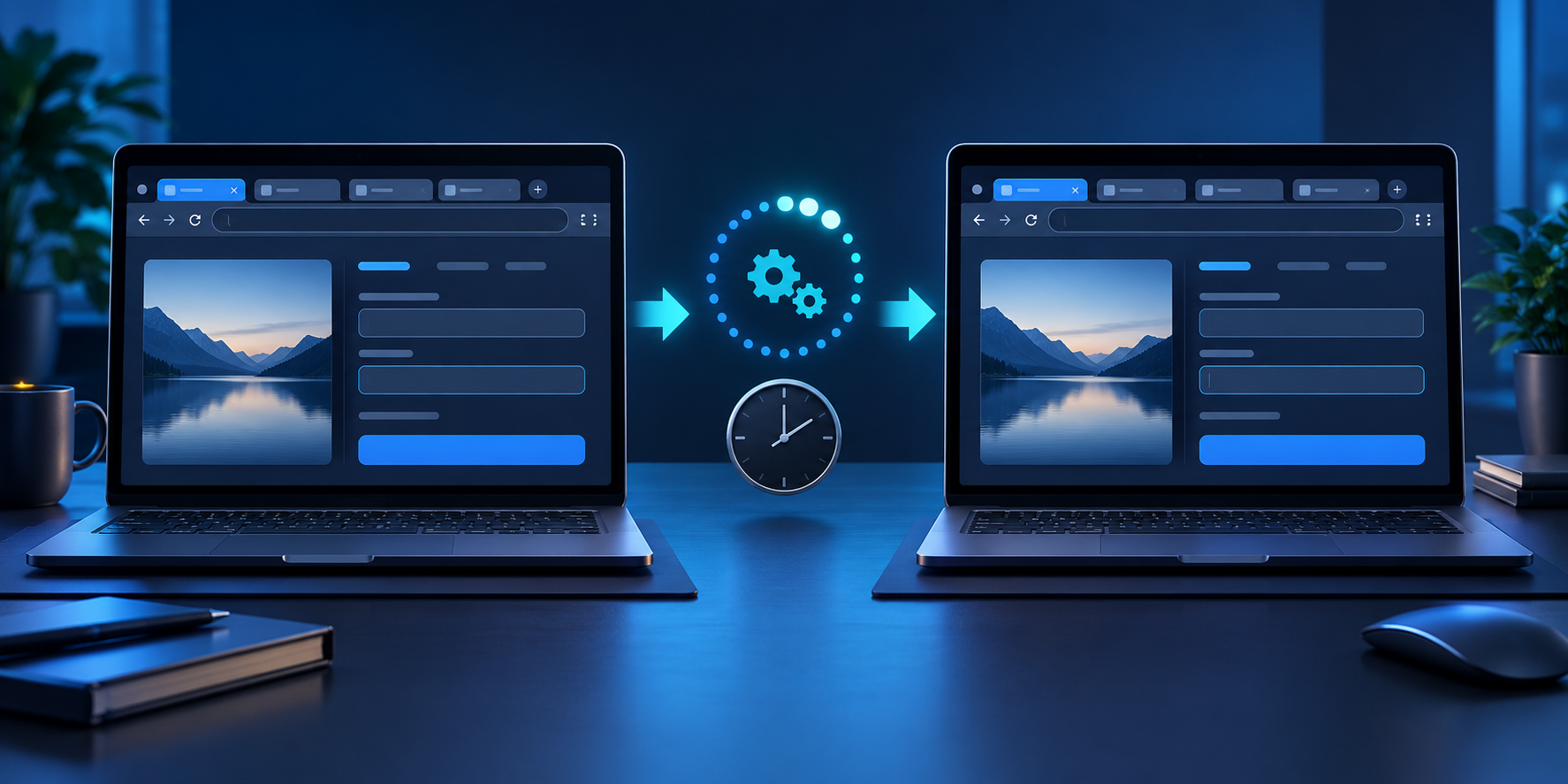
The goal is to remove the forced choice between continuing work on an older browser build and interrupting that work to restart. The proposed design would launch the updated browser components in parallel, transfer the active session, then retire the older processes after the handoff. If it works reliably, security fixes could take effect sooner while users keep their place.

How the prototype preserves tabs and open work

How the prototype preserves tabs and open work

A normal browser update downloads new files in the background but cannot replace every running component until Edge restarts. The seamless prototype changes that sequence. Instead of terminating the current session first, it prepares the new version, starts it alongside the old one and transfers browser state to the updated processes.

Microsoft says the handoff is being designed around the things users care about most: open windows, tab groups, pinned tabs and active work. The browser would continue to appear open while the processes underneath it change. That is more ambitious than simply restoring tabs after a restart because the visible interruption is supposed to disappear.

Why the experimental label matters

Moving live browser state between versions is difficult because an update can change process boundaries, security rules, storage formats and extension behavior. A failed handoff could be worse than a restart if it corrupts session data or leaves some processes on the old build. Microsoft is testing the architecture before deciding whether it is safe enough for production.

For now, treat seamless updates as a direction rather than a promised Edge feature. Do not change workplace policies or delay normal restarts in anticipation of it.

Restart to update on idle works today

Edge’s released option is called Restart to update on idle. Microsoft previously called it Instant Updates before Edge 156, so older screenshots or policy documentation may use that name. The setting is off by default and must be enabled by the user or managed by an organization.

This feature does not use the seamless prototype. Edge still closes and reopens, but it tries to do so only after the device and browser have been idle long enough that the interruption is less likely to matter. Open tabs are restored automatically after the restart.

How to turn on Restart to update on idle

  • Open Microsoft Edge.
  • Select Settings and more, choose Help and feedback, then open About Microsoft Edge. You can also enter edge://settings/help in the address bar.
  • Turn on Restart to update on idle.
  • Leave Edge running. A minimized browser can update, but a browser that is fully closed will apply the update the next time it opens.

The option does not operate in InPrivate windows. If the switch is unavailable on a work PC, an administrator may control it through policy.

The 20-minute idle window explained

Microsoft’s support documentation describes two stages. Edge first looks for 15 minutes without user activity and without an active wake lock. If those conditions are met, it shows a notice and begins a five-minute countdown. The earliest restart is therefore about 20 minutes after activity stops.

A wake lock is a request from a site, extension or application that keeps the system or display active. Video playback, an ongoing download, a presentation or a web app performing background work can prevent the idle restart. Edge waits rather than overriding that activity.

If the countdown appears when you are not ready, interact with the browser or use the available control to postpone it. The point of the feature is to find a quiet moment, not to force an update while you are actively working.

When Edge will not restart automatically

  • The browser has not been idle for the required period.
  • A tab, extension or app holds an active wake lock.
  • Edge is running in an InPrivate window.
  • The device sleeps, shuts down or closes Edge before the countdown finishes.
  • An administrator has disabled the setting or configured a different update policy.

Advanced users can inspect edge://discards/ for tab activity. On Windows, powercfg /requests can reveal system wake requests; on macOS, pmset -g assertions provides similar information. These tools are useful when the browser never appears idle even after it has been left alone.

Unsaved work is still at risk

Restoring tabs is not the same as preserving every bit of page state. Microsoft explicitly warns that an idle restart can lose unsaved form entries or work in browser-based documents. A draft held only in memory may not survive even when the tab itself reopens.

Before enabling the feature on a computer used for long web forms, content management systems, remote consoles or other sensitive workflows, confirm that those services autosave reliably. Save important work manually and avoid leaving a critical transaction unfinished overnight.

Organizations should test line-of-business web apps before enforcing idle restarts. A policy that improves patch speed but regularly disrupts unsaved work will encourage users to work around it.

Security Update Alerts help administrators find exposed devices

Microsoft also added Security Update Alerts to the Edge management service. The dashboard is designed to show which managed Windows devices have not yet received important browser fixes. Alerts can include severity, associated CVEs, device counts and affected Edge channels.

Administrators can set a severity threshold and receive specific alerts for zero-day vulnerabilities. Microsoft says the feature does not require an additional license, although the devices must be managed and reporting into the Edge management service.

Edge Stable 155.0.4283.60, released October 15, 2026, is the first Stable Channel release note that lists Security Update Alerts in the Edge management service. Version numbers change quickly, so use Edge’s About page or the organization dashboard for current status rather than treating that build as a permanent target.

Diagnostic data choices deserve review

Version monitoring requires administrators to enable device reporting. Microsoft offers diagnostic configurations with or without URL data. Organizations should choose the least intrusive option that meets their security needs, document the choice and involve privacy or compliance teams where appropriate.

A separate management option can force an automatic restart after 20 minutes of idle time. Microsoft warns that it may cause loss of unsaved input, so it should be tested and communicated before broad deployment.

How to confirm Edge is updated

  • Open edge://settings/help. Edge checks for updates and displays the installed version.
  • If an update has downloaded and a restart is required, save your work and select Restart rather than waiting indefinitely.
  • On a managed Windows device, administrators can compare the browser version with the Edge Stable Channel release notes and the management dashboard.
  • If the idle update never runs, look for media playback, downloads, active web apps or extensions that may hold a wake lock.

Should you enable the idle restart?

For a typical home computer, Restart to update on idle is a reasonable convenience if your important web apps autosave and you routinely leave Edge open. It can shorten the time between downloading a security update and actually running the protected build.

Leave it off if you often keep unsaved form entries, browser-based creative work or remote sessions open for long periods. In that case, a deliberate restart after saving may be safer. Either way, the worst choice is to ignore a waiting security update for days.

A practical Windows laptop upgrade

If an older PC makes browser restarts or large tab sessions painfully slow, you can compare current Windows 11 laptops on Amazon. Prioritize a solid-state drive, at least 16GB of memory for heavy multitasking and a processor that still receives current Windows security updates.

As an Amazon Associate, ReaderSpice earns from qualifying purchases.

Bottom line

Microsoft’s seamless-update prototype is the more exciting idea, but the idle-restart setting is the feature readers can use today. Enable it only after checking how your web apps save work, and remember that it still performs a conventional restart. For organizations, Security Update Alerts add a useful way to identify lagging devices while Microsoft continues the harder work of making browser updates effectively disappear.

Sources

Microsoft Edge Blog: Faster protection, fewer interruptions — how Microsoft Edge is rethinking updates

Microsoft Support: Automatically update Microsoft Edge when your device is idle

Microsoft Learn: Microsoft Edge management service Monitoring dashboard

Microsoft Learn: Microsoft Edge Stable Channel release notes

Google Meet Adds Automatic Follow-Ups: Email Drafts, Google Tasks and Who Gets It

Video meeting automatically converted into an email draft and organized task checklist

Google Meet can now turn a finished video call into follow-up work without making participants rebuild the conversation by hand. A new post-meeting area called “Routines for this meeting” uses Gemini and Workspace Studio to draft follow-up emails or send action items to Google Tasks.

Google announced the feature on October 12, 2026, after rollout began October 5. The idea is practical, but the feature is not universal: it requires an eligible paid Workspace edition, a Calendar-based meeting on a computer, and the correct Gemini and note-taking settings. The email routine also has narrower rules than the Tasks option.

Google Meet automatic follow-ups at a glance

  • Google Meet’s post-call screen can suggest two routines: draft a follow-up email or add action items to Google Tasks.
  • “Take notes for me” and Ask Gemini must be enabled during the meeting, and Workspace smart features must be on.
  • The meeting must be attached to a Google Calendar event, and the post-call setup is performed on a computer.
  • The rollout began October 5, 2026, and Google says visibility may take longer than 15 days.
  • Eligible editions include Business Standard and Plus, Enterprise Standard and Plus, and the Google AI Pro for Education add-on.
  • The email-draft routine requires the meeting host, a one-off meeting, and at least one participant outside the host’s organization.
  • Generated next steps cannot be edited after they are created, but users or administrators can turn them off.

What the two routines actually do

The first routine prepares a follow-up email from the meeting context. Instead of opening Gmail and reconstructing the discussion, the host receives a draft that can be reviewed, corrected and sent. Google says some completed routines, including email drafts, can also trigger a Google Chat notification.

The second routine takes action items found in the meeting notes and exports them to Google Tasks. This is the broader option because it can support recurring meetings, while Google’s help page places special restrictions on automatic email drafts.

Neither routine sends an email or completes a task by itself. The useful part is moving structured follow-up work into the apps where people already manage it. A human still needs to confirm recipients, wording, ownership and deadlines before treating the output as authoritative.

How the workflow moves from meeting to follow-up

How the workflow moves from meeting to follow-up

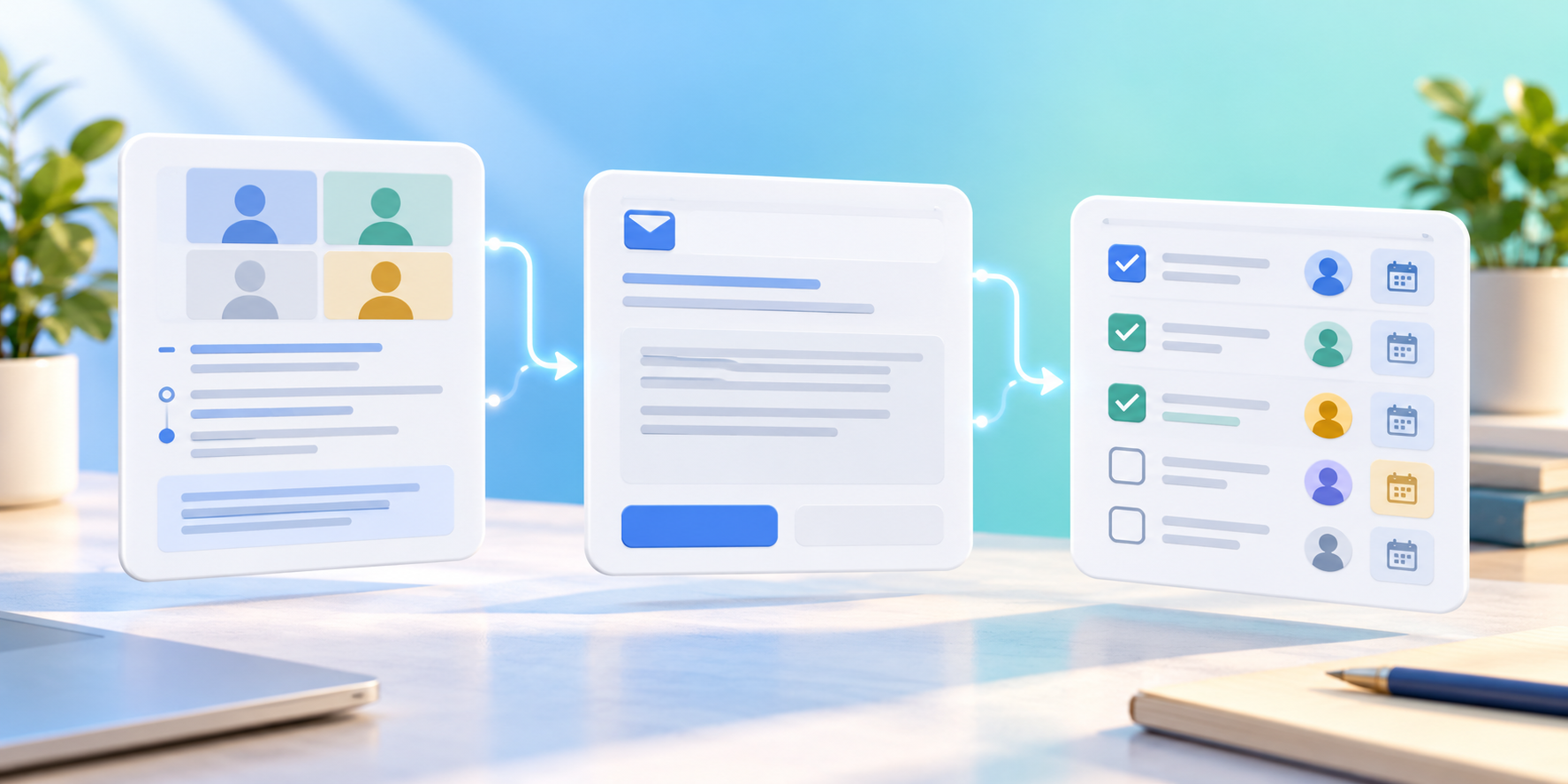
The workflow starts inside the meeting. “Take notes for me” captures the discussion in a Google Doc, while Ask Gemini can identify key points and action items. When the call ends, eligible users may see “Routines for this meeting” on the post-call screen.

Enabling a routine creates a system-managed flow in Workspace Studio. The first time a user turns one on, Google sends an email confirming that the next step is active. The flow can then draft the email or create tasks from future eligible meeting notes, depending on the selected routine and scope.

This is different from asking Gemini a question during a live call. Ask Gemini is designed for private in-meeting summaries and questions; “Take notes for me” creates the shared notes document that remains after the call. The new routine layer acts after the meeting and turns that retained context into work.

Who gets it and when rollout starts

Google lists the feature for Business Standard and Plus, Enterprise Standard and Plus, and customers with the Google AI Pro for Education add-on. Business Starter, Enterprise Starter, free personal Google accounts and other editions are not listed in the launch availability.

Rapid Release and Scheduled Release domains share the same extended rollout, which began October 5. Google warns that visibility may take longer than 15 days, so an eligible account can meet every requirement and still not see the feature immediately.

The feature is on by default for eligible organizations, but administrators can disable it at the domain, organizational-unit or group level through Workspace Studio controls or the “Take notes for me” setting. Users should therefore check with an administrator before assuming a missing routine is a technical failure.

Requirements before routines appear

  • Use a work or school Google Account on an eligible edition.
  • Join a Google Meet call from a computer; the routine setup is not presented as a mobile workflow.
  • Make sure the meeting belongs to a Google Calendar event rather than an instant, uncalendared call.
  • Turn on Workspace smart features, “Take notes for me” and Ask Gemini during the meeting.
  • Wait for the meeting to end, then look for “Routines for this meeting” on the post-call screen.

Google’s help documentation says suggested next steps can vary or may not appear, depending on meeting content and settings. A call with no clear actions may therefore produce a different result from a structured project review with explicit owners and deadlines.

How to enable and manage the routines

At the end of an eligible meeting, use the post-call screen on a computer and find “Routines for this meeting.” Turn on the suggested email or Tasks next step. If the meeting is part of a repeating series, Google can apply an enabled routine to future meetings in that series.

After the first activation, the routine appears in the Workspace Studio Flows library with a “system” label. That is where users can inspect activity history, confirm whether a run succeeded and turn the flow off. Google does not allow users to edit a system-generated next step after it is created.

To disable a routine, turn it off from the Meet post-call screen after another meeting or open Workspace Studio, select Flows, find the system flow and choose Turn off. Disabling a series-level or all-meetings routine stops it for future calls in that scope.

Why email drafts have stricter rules

Google’s help page says the follow-up email routine is available only when the user is the meeting host, the meeting is not part of a repeating series and at least one participant is outside the host’s organization. Those conditions make the email routine most relevant to customer calls, interviews, vendor discussions and other one-off external meetings.

The restrictions also reduce ambiguity. An external follow-up usually has an obvious audience and purpose, while a standing internal meeting could generate repetitive drafts with unclear recipients. Recurring teams can still use the Tasks routine to carry action items into a persistent work list.

Because the result is a draft, hosts should check names, commitments, dates and confidential details before sending. Meeting summaries can omit context or assign an action incorrectly, and an automatically prepared message should not be treated as a transcript or final record.

Recurring meetings can make routines persistent

When a next step is enabled for a repeating meeting, Google says it can remain active for future instances of that series. Users may also enable a specific next step across all meetings when “Take notes for me” is on.

That persistence is powerful, but it can surprise teams that assume each call is a one-time action. Review the Workspace Studio Flows library after testing the feature, confirm which scope was selected and turn off any routine that creates duplicate tasks or no longer matches the meeting’s purpose.

A recurring routine depends on the meeting continuing to meet its prerequisites. If an administrator disables Gemini features, note-taking is turned off or the Calendar event changes, the downstream automation may not have the source material it needs.

What admins and users should watch

Administrators should decide whether automated follow-ups fit the organization’s policies before leaving the feature broadly enabled. The same settings that control Workspace Studio and “Take notes for me” determine whether the routines are available, so a staged rollout to selected groups may be easier to evaluate.

Users should treat the generated email or Tasks list as a first draft. Confirm action owners, remove irrelevant notes, add missing deadlines and avoid sending sensitive details to people who do not need them. Google warns that Gemini can make mistakes, including mistakes about people.

For highly sensitive calls, decide before the meeting whether AI note-taking is appropriate at all. Turning off a routine after the call does not undo the meeting-notes document that was already created.

Privacy and accuracy implications

When “Take notes for me” is active, Google Meet notifies participants. The notes document is saved in the organizer’s Google Drive under the Google Meet folder and follows the organization’s Meet retention policy. Sharing depends on the organizer’s settings, and appearing as an attachment on a Calendar event does not automatically grant everyone permission to open it.

Ask Gemini conversations are private to each user, but the new routines rely on meeting context that can persist through the notes workflow. Organizations should align note sharing, retention and downstream task creation with their existing data-handling rules.

Generated summaries and action items are not guaranteed to be complete or accurate. Connectivity problems, short meetings, unsupported language combinations or unclear discussion can reduce quality. Teams should keep a human review step for consequential commitments.

If routines do not appear

  • Confirm that the account uses an eligible Workspace edition and that the extended rollout has reached the organization.
  • Use a computer and a meeting attached to a Google Calendar event.
  • Verify that Workspace smart features, “Take notes for me” and Ask Gemini were enabled during the call.
  • Ask the administrator whether Workspace Studio or note-taking was disabled for the domain, organizational unit or group.
  • Check Workspace Studio’s Flows and Activity views for an existing system routine or a failed run.
  • Remember that suggested next steps vary and may not appear for every meeting.

Google’s automatic follow-ups are unrelated to the post-quantum encryption protection that also started rolling out in Meet this month. Readers interested in that separate security change can read ReaderSpice’s Google Meet post-quantum encryption guide.

A practical upgrade for better meeting input

Automation is only as useful as the audio and video it receives. Readers improving a laptop meeting setup can compare the Logitech Brio 4K webcam on Amazon. It supports 4K video, HDR correction and multiple fields of view, although actual Meet quality still depends on bandwidth, lighting and account settings.

ReaderSpice may earn a commission from qualifying purchases made through affiliate links, at no additional cost to you.

Bottom line

Google Meet’s new routines close a real productivity gap between finishing a call and acting on it. Drafting a follow-up email or turning action items into Google Tasks can save time, particularly when “Take notes for me” already captures a structured record.

The limits matter as much as the convenience. Only selected paid editions are included, setup happens on a computer, administrators can disable the feature and email drafts require a one-off external meeting hosted by the user. Treat every generated follow-up as editable work product: review it, correct it and keep the routine only if it consistently improves the team’s process.

Sources

Google Workspace Updates: Find your routine next steps on the Google Meet post-meeting screen

Google Meet Help: Complete routine tasks with post-meeting next steps

Google Meet Help: Use “Take notes for me”

Google Meet Help: Ask Gemini in Google Meet

Amazon Bee Frontier and Eclipse Launch: Prices, Privacy, Battery Life and Who They’re For

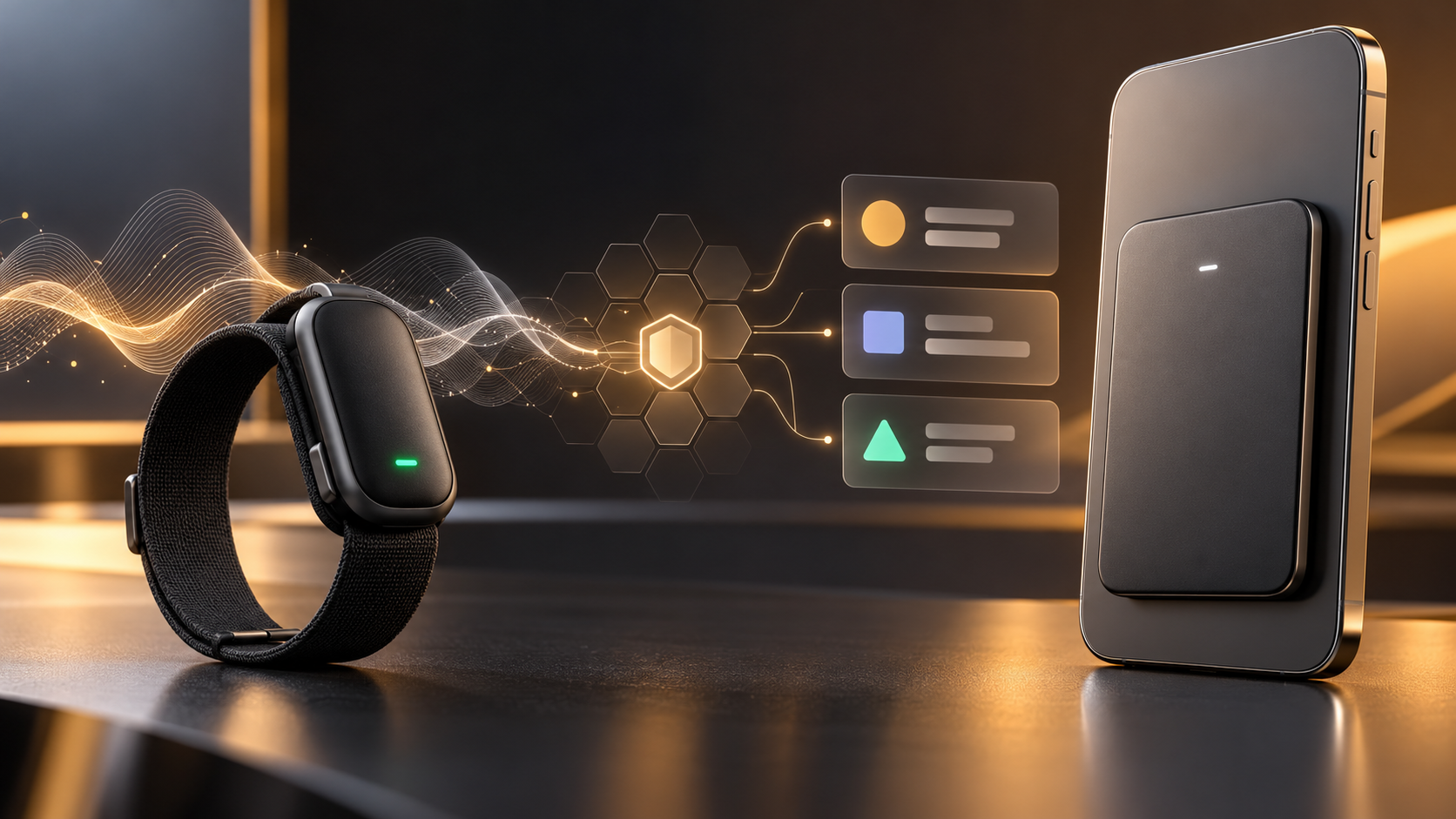
Bee Frontier wearable and Bee Eclipse phone attachment beside secure AI summary cards

Amazon has expanded its Bee personal-AI lineup with two conversation-capture devices: the $74.99 Bee Frontier wearable, which is available now, and the $99.99 Bee Eclipse phone attachment, which is listed as coming soon. Both are designed to turn spoken conversations into searchable summaries, reminders, insights and suggested follow-ups.

The products are affordable compared with many dedicated AI note-taking gadgets, but the purchase price is only part of the decision. Buyers also need to understand the Bee Pro subscription, the privacy architecture, the difference between a wearable and a phone-mounted recorder, and the legal and social responsibility that comes with capturing other people’s words.

Amazon Bee Frontier and Eclipse at a glance

  • Bee Frontier costs $74.99 and is available now in Onyx, Lavender and Sage.
  • Bee Eclipse will start at $99.99 in Silver, Midnight, Honey and Blush, but Amazon has not announced a firm release date.
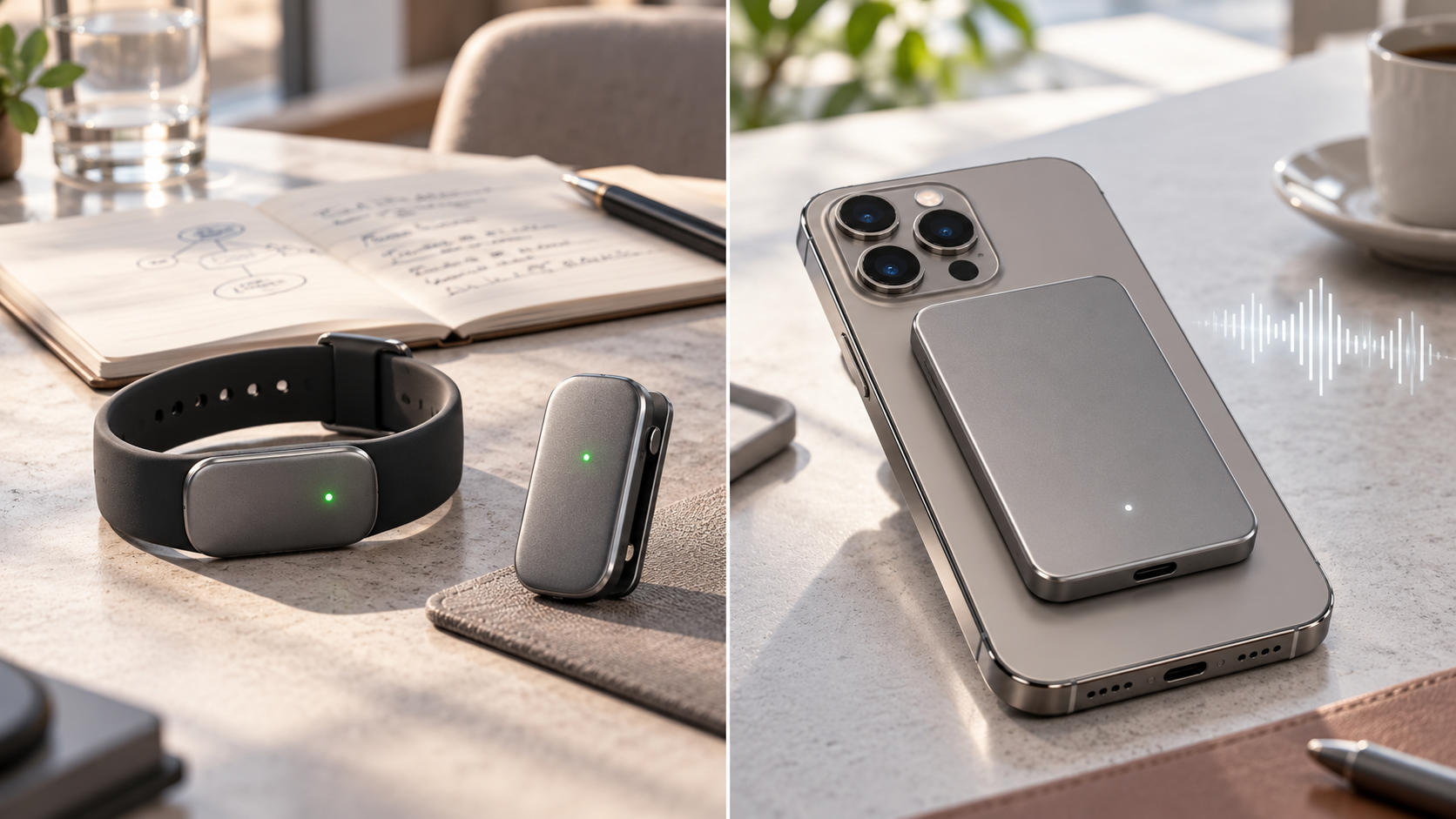
  • Frontier can be worn on a wrist or clipped to clothing; Eclipse is a 4.6mm-thin magnetic phone attachment.
  • Frontier is rated for up to seven days of battery life and IP67 water resistance; Eclipse is rated for more than 21 days.
  • The free service includes conversation summaries, recaps and 14-day memory. Bee Pro costs $11.99 per month and unlocks additional integrations and AI tools.
  • Amazon says raw audio is processed in real time and deleted rather than stored, while transcripts and insights are protected with device-controlled encryption keys.

What Bee actually does

Bee is not a fitness tracker or a conventional voice recorder. When the microphone is activated, the device listens to a conversation, transcribes it, extracts useful details and sends the resulting timeline to the Bee mobile app. The goal is to surface commitments, follow-up tasks, names, dates and themes that a person might otherwise forget.

The app can search past conversations and generate summaries or action items. Bee also supports integrations with services such as Gmail, Google Calendar, Microsoft Outlook and Apple HealthKit. Depending on the plan and permissions, it can help draft a follow-up email, prepare a calendar event or connect a conversation with other information in the user’s account.

Connecting Bee to Alexa+ adds hands-free access to summaries and to-dos. An optional Amazon.com connection can surface shopping suggestions when a product is mentioned. Both connections are opt-in, and readers who do not want conversation context influencing shopping should leave the Amazon integration disabled.

Bee Frontier versus Bee Eclipse

Bee Frontier versus Bee Eclipse

Bee Frontier: the wearable option

Frontier is the model for people who want Bee available away from a desk or phone. The small module fits into an included silicone wristband or clothing clip. It has dual microphones with noise filtering, a physical action button, a green recording indicator, USB-C charging and support for more than 40 languages.

Amazon rates the battery for up to seven days, or roughly 160 hours, and gives the device an IP67 rating. That makes it better suited to everyday movement, commuting and casual meetings than a recorder that must stay on a desk. IP67 does not make it an invitation to swim with the device, and real battery life will vary with capture time and settings.

Bee Eclipse: the phone-mounted option

Eclipse is a credit-card-sized device that attaches magnetically to the back of a compatible phone. A metal ring is included for devices or cases that need it. The 4.6mm body carries a larger battery rated for more than three weeks and is designed to process in-person conversations as well as both sides of a phone call when the user deliberately starts capture.

That makes Eclipse the more natural option for calls, client conversations and long workdays, but it is not yet shipping. Amazon says it will be available soon and has not supplied a specific date. Buyers should also confirm case compatibility and how the attachment affects wireless charging before ordering.

What the free plan includes—and what Bee Pro adds

A Bee device works without a paid subscription. The included tier provides conversation summaries, recaps and 14-day memory. In this context, memory refers to the account’s retained conversation information and generated insights, not stored raw audio. New customers receive a 30-day Bee Pro trial.

Bee Pro costs $11.99 per month. Amazon lists unlimited recent conversation summaries, suggested to-dos, daily memories, a personal chat assistant, conversation templates, the desktop app, third-party application integrations and connections with Alexa+ and Amazon.com among the paid benefits.

The subscription changes the long-term value calculation. Frontier costs $74.99 once, but a year of Bee Pro at the stated monthly rate adds $143.88. Buyers should begin with the included plan, identify which paid features they actually use during the trial and subscribe only if those tools save enough time to justify the recurring cost.

Privacy protections—and the questions buyers should still ask

Amazon says both devices use Bee Private Compute, an isolated processing environment built so that Amazon and outside model providers cannot access a user’s conversation data. According to the company, raw audio is processed in memory and immediately discarded. Transcripts, summaries and to-dos are encrypted with keys created and controlled by the user’s device.

A physical button starts or stops capture, and an LED shows when the microphone is active. Users can delete transcripts and summaries, revoke connected-service permissions and configure the device to stop after a chosen period of silence. Amazon also says its servers must prove they are running approved software before the device shares protected data.

Those safeguards address several common ambient-AI concerns, but they do not eliminate every risk. A transcript can still contain sensitive information, a connected account can be compromised, an inaccurate summary can misstate a commitment, and another person may object even when local law permits recording. ReaderSpice has not independently tested Bee’s transcription accuracy, battery claims or privacy implementation.

Recording consent matters more than the indicator light

Bee’s LED and permission prompts help, but they are not a substitute for consent. U.S. recording rules vary by state and circumstance. Federal law establishes a one-party-consent baseline for many conversations, while several states require everyone’s consent in at least some situations. Calls involving people in different states can be especially complicated.

The safest everyday practice is simple: tell everyone that Bee is active and obtain permission before recording. Stop capture in medical appointments, confidential workplace discussions, classrooms, legal consultations, private homes or any setting where policy or another person prohibits it. Employers should establish written rules before allowing ambient-AI devices in meetings.

This section is practical guidance, not legal advice. Anyone using Bee for regulated, professional or interstate conversations should review the applicable law and organizational policy before switching on the microphone.

Who should choose each model

Choose Bee Frontier if you:

  • Want a wearable or clip-on device for in-person conversations and daily reminders.
  • Need IP67 water resistance and do not want another accessory attached to your phone.
  • Prefer the lower $74.99 entry price and need a device that is available now.
  • Can accept a weekly charging routine.

Wait for Bee Eclipse if you:

  • Spend more time on phone calls than in face-to-face conversations.
  • Prefer a magnetic phone attachment over a wristband or clothing clip.
  • Want the longer 21-plus-day battery claim.
  • Can wait for Amazon to confirm shipping and compatibility details.

What to check before buying

  • Confirm that the free tier covers the summaries and retention window you need.
  • Review which connected apps require Bee Pro and limit permissions to the minimum necessary.
  • Check workplace, school and venue policies before bringing an ambient microphone into shared spaces.
  • Plan how you will disclose capture and document consent for important calls.
  • Treat generated summaries as notes to verify, not an authoritative record of what every participant agreed to.

Should you buy Bee Frontier now or wait?

Frontier is the straightforward choice for early adopters who want conversation summaries today and are comfortable wearing or clipping on a dedicated device. Readers can check the current Bee Frontier price and availability on Amazon. The hardware price is reasonable, but its usefulness depends on whether the free plan is enough and whether people around you are comfortable with the device.

Eclipse is more interesting for phone-heavy work because it can capture both sides of a call when activated and promises triple the battery life. Waiting is sensible until Amazon publishes a ship date, confirms compatibility details and provides real-world units for independent testing.

ReaderSpice may earn a commission from qualifying purchases made through affiliate links, at no additional cost to you.

Bottom line

Bee Frontier and Bee Eclipse are practical attempts to make ambient AI less distracting: press one button, stay in the conversation and review the details later. Frontier is the available wearable with a lower price and week-long battery, while Eclipse is the coming-soon phone attachment with longer endurance and a stronger focus on calls.

The deciding factor is not only hardware. Buyers should weigh the $11.99 monthly Pro tier, verify every important summary, minimize connected-account permissions and make consent part of the routine. If those habits feel burdensome, a phone’s existing recorder or a traditional note-taking workflow may be the better choice.

Sources

Amazon Devices: Bee Frontier and Bee Eclipse launch, features, pricing and availability

Bee: Frontier specifications, included accessories and battery details

Bee: Eclipse specifications, phone-call features and coming-soon status

Amazon Devices: Bee Private Compute architecture and data protections

Reporters Committee for Freedom of the Press: State recording-consent guide

Reuters: Amazon’s Bee device launch and privacy context

Google Meet Adds Post-Quantum Encryption: What Changes and Who Gets It

Laptop video meeting protected by a quantum-resistant encryption shield and secure data connections

Google Meet is adding post-quantum cryptography to calls, giving everyday video meetings an extra layer of protection against a threat that does not exist at practical scale yet: a future quantum computer capable of breaking widely used public-key encryption.

Google began the gradual rollout on October 12, 2026, for laptop web clients and Google Meet room hardware. Mobile support is coming later. The change is automatic, applies to personal and paid Workspace accounts, and does not add a new button or setting. That simplicity is welcome, but it also makes the update easy to misunderstand.

Google Meet post-quantum encryption at a glance

  • Google is adding post-quantum cryptography, or PQC, to Meet calls to reduce future quantum-computing risk.
  • The rollout started October 12 for laptop web clients and Meet room hardware, with up to 15 days for visibility.
  • Mobile support is planned, but Google has not announced a specific Android or iPhone date.
  • The protection is available to all Workspace customers, Workspace Individual subscribers and personal Google accounts.
  • There is no administrator control or user setting, and Google says no action is required.

What Google changed inside Meet

Google says Meet calls now use post-quantum cryptography as an additional protection for the cryptographic exchanges that secure a session. The first wave covers browsers on laptops and Google Meet room hardware. The rollout is server-managed, so a host does not need to recreate meetings, change an organization policy or ask every participant to enable a feature.

The update is designed to be invisible during normal use. Meeting links, joining steps, call controls, captions, recordings and collaboration features should behave as before. Google has not announced a special PQC badge, and its rollout post explicitly says users can continue using Meet normally.

Google previously used quantum-safe encryption for client-side encrypted Meet calls. The October rollout expands that direction to ordinary Meet traffic rather than reserving quantum-resistant protection for organizations using the more specialized client-side encryption configuration.

Why “store now, decrypt later” matters

Why “store now, decrypt later” matters

A cryptographically relevant quantum computer does not exist today. The concern is that an attacker could capture encrypted traffic now, preserve it for years and attempt to decrypt it after future hardware becomes powerful enough. Security teams call this a “store now, decrypt later” attack.

That risk is most important when information remains valuable for a long time. A routine team check-in may age quickly, while legal discussions, medical research, product plans, government work or merger conversations can stay sensitive for years. Protecting today’s traffic before a capable quantum computer arrives reduces the value of collecting that traffic in advance.

This is also why migration is beginning before the threat becomes immediate. Encryption changes take years to standardize, test and deploy across browsers, mobile apps, room systems, networks and identity services. Waiting until a large quantum computer is operational would leave too little time to replace vulnerable systems safely.

What post-quantum cryptography does—and does not do

Post-quantum cryptography uses mathematical problems that are believed to resist both conventional and quantum attacks. NIST has finalized standards including ML-KEM for establishing shared secrets and ML-DSA and SLH-DSA for digital signatures. Google has been deploying standardized PQC in hybrid configurations that combine new algorithms with established cryptography.

A hybrid approach is important because it avoids betting the connection on only one new construction. The classical component preserves familiar protection, while the post-quantum component adds resistance to future quantum attacks. Google’s Meet announcement does not publish every protocol detail, so readers should not assume a specific algorithm or parameter set beyond what Google has formally documented.

PQC does not make a meeting invulnerable. It cannot stop a participant from recording the screen, prevent phishing, repair a compromised Google account or remove an unwanted guest who was admitted. It also should not be confused with a promise that every Meet session is end-to-end encrypted.

How this differs from Meet’s existing encryption

Google Meet already encrypts meeting traffic in transit between a participant’s device and Google’s data centers. Recordings stored in Google Drive are encrypted at rest. Google’s help documentation says standard meetings and upgraded Meet calls are cloud-encrypted, using established transport protections including DTLS and SRTP.

Personal accounts can enable additional end-to-end encryption for certain direct calls, although doing so disables some cloud-assisted features. Business and education accounts use cloud encryption for normal calls and do not receive that personal-account toggle.

Client-side encryption is a separate enterprise feature. With CSE, an organization connects an external identity provider and key service, and Google’s servers cannot decrypt the meeting media. It is limited to eligible Workspace editions and changes how meetings are created, joined and managed. The new PQC rollout does not replace CSE or eliminate its administrative requirements.

Who gets the upgrade and when

Google lists the new protection for all Google Workspace customers, Workspace Individual subscribers and users with personal Google accounts. Rapid Release and Scheduled Release domains share the same rollout window because the change is infrastructure-level rather than a visible productivity feature.

The initial deployment began October 12 for laptop web clients and meeting room hardware, with Google allowing up to 15 days for the rollout. Mobile support is described only as “coming soon.” Until Google publishes a mobile date, Android and iPhone users should not assume the feature has reached every call.

There is no admin control and no end-user toggle. That means an organization cannot accelerate the deployment, while an individual cannot verify it by hunting through Meet settings. The safest interpretation is that eligible web and room clients receive the protection progressively as Google completes the rollout.

What users and administrators should do

Google says no action is required to receive the update. Even so, normal maintenance still matters because a secure service depends on the browser, operating system, room hardware and account remaining trustworthy.

  • Keep Chrome or another supported browser updated and restart it after major security updates.
  • Keep Meet room hardware and mobile apps on their supported release channels.
  • Use multifactor authentication or passkeys to reduce the risk of account takeover.
  • Review guest access, host controls and recording permissions for sensitive meetings.
  • Use client-side encryption when organizational policy requires control of encryption keys and the edition supports it.

Organizations with long-lived confidential data should treat Meet’s rollout as one part of a wider migration. NIST advises organizations to inventory quantum-vulnerable cryptography and begin moving toward finalized standards now. Email gateways, VPNs, code signing, identity systems, backups and custom applications will not become quantum-ready merely because a meeting service has been upgraded.

A practical upgrade for clearer Meet calls

Encryption works in the background, but call quality still depends on the camera and microphone. Readers improving a laptop meeting setup can compare the Logitech Brio 4K webcam on Amazon. It supports 4K video, HDR correction and multiple fields of view, although actual Meet quality also depends on bandwidth, lighting and account settings.

ReaderSpice may earn a commission from qualifying purchases made through affiliate links, at no additional cost to you.

Bottom line

Google Meet’s post-quantum rollout is a meaningful infrastructure update precisely because most users will not notice it. It reduces the future value of intercepted meeting traffic without changing how people schedule or join a call, and Google is extending the protection across personal accounts, paid Workspace editions and room systems.

It is not a signal that today’s encryption has suddenly failed, nor is it a substitute for access controls, account security or client-side encryption. The practical takeaway is simpler: keep clients current, continue applying ordinary meeting security, and let Google’s gradual rollout add quantum-resistant protection in the background.

Sources

Google Workspace Updates: Google Meet now uses post-quantum cryptography

Google Meet Help: Learn about call and meeting encryption

Google Meet Help: Learn about client-side encryption

Google Cloud: Post-quantum cryptography roadmap

NIST: Post-quantum cryptography standards and migration guidance

Gmail Live and AI Inbox Reach Workspace: Voice Search, Source Cards and Action Items

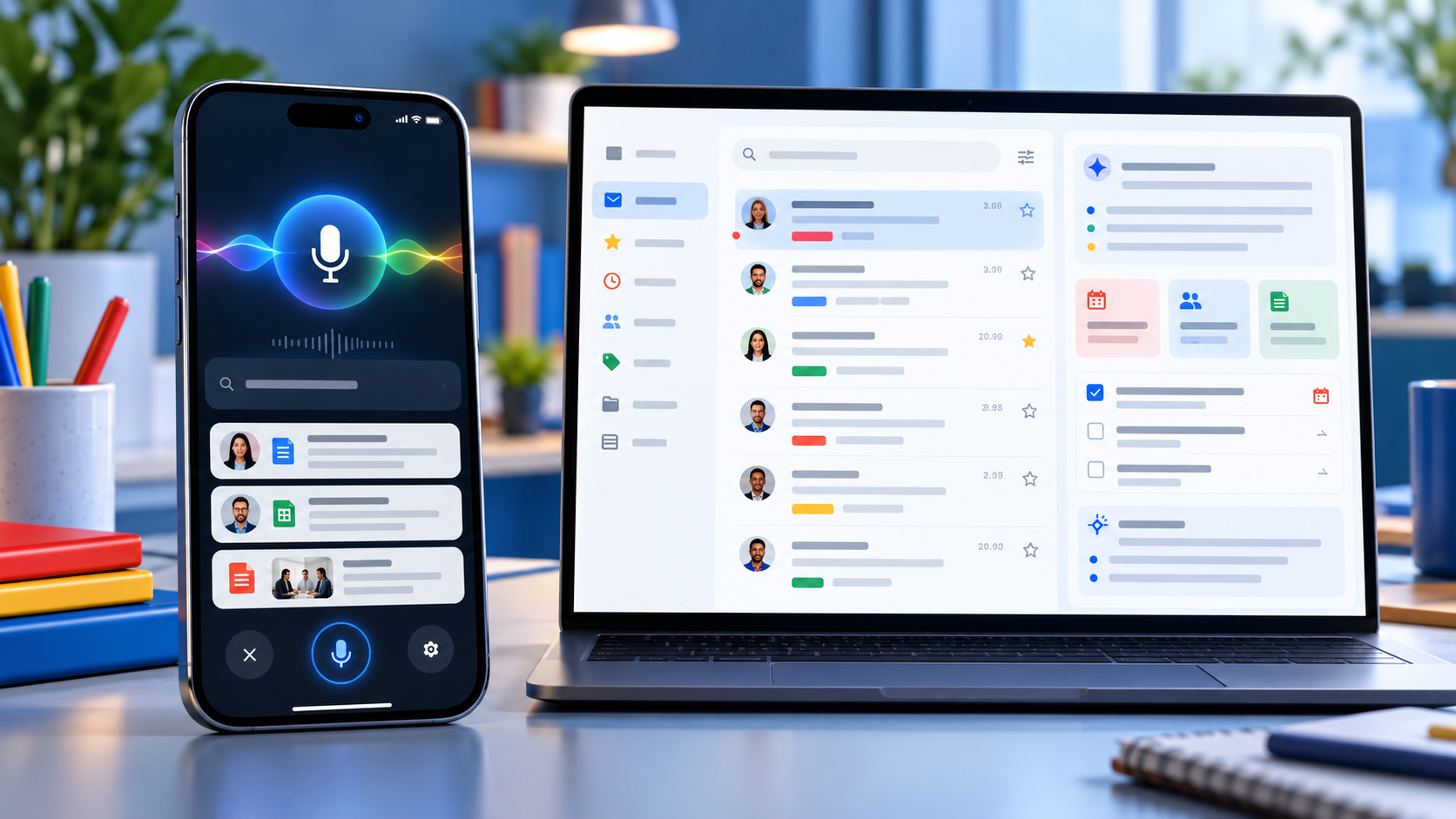
Smartphone and laptop showing Gmail Live voice inbox search, source cards and AI-prioritized email tasks

Google is bringing two of Gmail’s most ambitious Gemini features to more paid Workspace accounts. Gmail Live turns inbox search into a spoken conversation on Android and iPhone, while AI Inbox builds a separate view of priority topics, deadlines and suggested to-dos drawn from email.

The October 2026 expansion can save time, but availability is unusually specific. Both features are currently limited to the United States and English, require eligible plans and depend on Gmail smart-feature settings. Google also labels both experiences as beta, so readers should verify important answers against the original messages.

Gmail Live and AI Inbox at a glance

  • Gmail Live lets users ask spoken questions about their email and hear synthesized answers on supported Android phones and iPhones.
  • Each Gmail Live turn can show an email source card, giving users a path back to the messages behind an answer.
  • AI Inbox extracts suggested to-dos, deliverables and deadlines, then summarizes priority topics across conversations.
  • Both features currently require U.S. availability, English language settings, eligible plans and Gmail smart features.
  • Google is using gradual rollouts, so an eligible account may wait as long as 15 days—or longer for some editions—before the features appear.

Gmail Live turns inbox search into a conversation

Gmail Live is designed for questions that would otherwise require several searches or long email threads. A user can ask for a flight gate, an order update, a training deadline or the latest message from a manager, then interrupt, refine the question or follow up without starting a new search.

Google says the feature uses current Gemini models to provide low-latency, inbox-aware voice search. Answers are spoken aloud, making the experience useful when typing is inconvenient. The feature is available inside the Gmail mobile app rather than on the desktop web interface.

This is not a hands-free license to trust every response. Email can contain old reservations, revised deadlines or several messages with similar subjects. Before acting, open the cited message and confirm that the sender, date, attachment status and latest reply match the answer.

Source cards make Gmail Live answers easier to audit

Google now surfaces an email source card prominently at each conversational turn. Users can tap a link inside a response to open the exact email or open the Sources card to see all cited messages. Selecting an email ends the Live session, while a View search page option returns the user to Gmail’s standard results.

That source path is the most important reliability feature in the update. If Gmail Live says a payment is due or a flight leaves from a certain gate, the original message remains the authoritative record. The source card also helps reveal when an answer blended details from more than one thread.

Google’s rollout post says users can choose a preferred Gmail Live voice. At publication time, Google’s Android help page still says the voice cannot be changed. That documentation mismatch likely reflects a staged interface update, so do not assume the voice selector has reached every account yet.

How to start Gmail Live

  • Open the Gmail app on a supported Android phone or iPhone and sign in to an eligible account.
  • Look for the Gmail Live entry point near the top of the app or in the search area.
  • Grant microphone permission the first time Gmail asks, then accept the displayed terms.
  • Ask a question aloud, interrupt to refine it or select a suggested prompt.
  • Use the Sources card to inspect the messages behind the response before acting.

Google’s help page says Gmail Live does not currently work on Android tablets. Work and school users also depend on their administrator allowing Gemini beta access, while personal accounts need Google AI Plus, Pro or Ultra. Smart features in Workspace and other Google products must be enabled.

AI Inbox builds a prioritized view of work and deadlines

AI Inbox builds a prioritized view of work and deadlines

AI Inbox appears as a separate destination in Gmail’s menu. Its Suggested to-dos section extracts high-priority tasks from incoming messages and can emphasize a deadline or required action. Topics to catch up on summarizes important projects, travel plans, reservations, purchases and other threads that may be scattered across the inbox.

Users can open the related message, reply, mark a to-do complete or remove an inaccurate item. Feedback controls allow a positive or negative rating, and Google includes a report-abuse option for unsafe suggestions.

The feature may take time to populate. Google says the first set of to-dos and topics can take a few hours after smart features are enabled and, in some cases, as long as seven days. A quiet account may show an empty AI Inbox.

What AI Inbox includes—and what it misses

AI Inbox currently focuses on Gmail’s Primary tab. It does not use messages filed under Social or Promotions, and it filters out spam plus messages that are archived, deleted, muted or snoozed. That means a valid deadline can be absent simply because the message sits outside Primary.

Google’s help documentation also says AI Inbox does not support attachments, delegated inboxes or encrypted email. A task described only in a PDF, a shared mailbox or a client-side encrypted message may therefore be invisible to the feature.

The practical rule is simple: treat AI Inbox as a triage layer, not a complete task manager. Continue checking labels, calendar events, shared mailboxes and any project system that holds obligations outside ordinary Gmail messages.

Availability and rollout timing

Gmail Live began a gradual rollout to Rapid Release and Scheduled Release domains on October 15, with Google allowing up to 15 days for visibility. Eligible editions include Business and Enterprise plans, Frontline Plus, Workspace for Nonprofits, several Gemini add-ons, Google AI Pro for Education and Google AI Plus, Pro and Ultra consumer plans.

AI Inbox started reaching Rapid Release domains on October 12 and is scheduled to begin for Scheduled Release domains on October 26, also with a gradual rollout of up to 15 days. Google lists Business, Enterprise, Frontline Plus and AI Pro for Education availability, but separately notes that Starter and Education editions will receive the feature later. That means plan eligibility does not guarantee the same launch date.

Both features currently require a U.S. account experience with English set to EN-US. App version, administrator settings, account type and rollout stage can all explain why one eligible user sees the new menu while another does not.

Privacy and history controls deserve a review

Gmail Live saves transcripts in the user’s Gemini in Workspace conversation history. Google says users can review and delete that history from a web browser. The microphone can be muted during a session, and Gmail cannot start Live if microphone permission is denied.

AI Inbox generates its recommendations from content and activity across Workspace apps. Google notes that some to-dos or topics may be generated for optimization without appearing in the visible AI Inbox. Users can open View all on the web to inspect more of that generated data.

For work accounts, administrators control several Gemini and smart-feature settings, but Google says AI Inbox itself currently has no dedicated admin control. Organizations handling regulated or confidential information should review Workspace’s data-protection terms, retention policies and beta-feature settings before treating either feature as a standard workflow.

Five checks before relying on Gmail’s AI features

  • Open the cited email and confirm the latest date, sender and thread before acting.
  • Check attachments manually because AI Inbox does not support them.
  • Look outside Primary for deadlines that may be in Promotions, an archived label or a delegated inbox.
  • Review Gemini in Workspace conversation history and delete sensitive transcripts when appropriate.
  • Keep important tasks in a real calendar or project system instead of assuming AI Inbox is complete.

A practical device for Gmail Live

Gmail Live is built for mobile use, so a current Android phone with strong battery life and reliable microphones is the most natural fit. Readers comparing compatible hardware can view the unlocked Google Pixel 11 on Amazon.

ReaderSpice may earn a commission from qualifying purchases made through affiliate links, at no additional cost to you.

Bottom line

Gmail Live and AI Inbox make Gmail more proactive in two different ways: one answers spoken questions with source cards, while the other organizes tasks and priority topics before the user searches. For busy inboxes, both can reduce the time spent opening threads.

Their limits matter as much as their convenience. U.S.-only availability, English requirements, beta status, rollout delays and unsupported message types mean neither feature should be treated as a complete record. The safest workflow is to use Gemini for triage, then verify every consequential detail in the original email.

Sources

Google Workspace Updates: Gmail Live rollout for Workspace users

Gmail Help: Talk naturally with Gmail Live

Google Workspace Updates: Gmail AI Inbox rollout

Gmail Help: Manage to-dos and topics with AI Inbox

Google: Gmail is entering the Gemini era

Google AI Search Adds More Source Links, Official Pages, News Carousels and Creator Profiles

Smartphone and laptop showing Google AI Search source links, an official page card and a news carousel

Google is changing how AI Mode and AI Overviews lead people back to the web. Announced on October 15, 2026, the update adds clearer inline links, tests a dedicated section for official webpages, expands timely-article carousels and makes related stories more visual.

The changes do not turn an AI answer into a verified source, but they should make it easier to inspect where a claim came from, find the first-party page behind it and move from a summary to fuller reporting. For readers who use Google Search for news, shopping research or travel planning, that is the practical improvement to watch.

Google AI Search’s new source tools at a glance

  • More inline links can appear higher inside AI Mode and AI Overview responses.
  • Google is testing a dedicated top section that surfaces official webpages with useful context.
  • Prominent carousels of timely articles are expanding to more locations and languages.
  • Related-article cards are becoming more visual, with larger thumbnails and clearer paths to the original page.
  • Clickable creator and publisher names are being tested on video results, opening a Search profile with more of that source’s work.

More inline links should make AI answers easier to audit

Google says AI responses will show more links directly in the answer and place them higher on the page. That matters because a link buried below a long summary is easy to miss. A link next to the relevant sentence gives readers a faster way to see whether the supporting page is an official announcement, a reported article, a forum post or something less authoritative.

The useful habit remains the same: open the link before relying on a consequential detail. Check that the page actually supports the summary, note when it was published and look for important limitations that the AI response may have compressed. This is especially important for medical, legal and financial questions, where an AI answer can be incomplete or wrong.

Google’s help documentation says AI Mode uses a query fan-out technique that breaks a question into subtopics and searches for them at the same time. That can broaden the material used in a response, but it also means the answer may blend claims from pages with different scopes, dates and levels of authority.

Official webpages get a dedicated place in the answer

Official webpages get a dedicated place in the answer

Google is testing a section near the top of some AI responses that highlights official webpages and explains why they may be useful. For a product search, that could make it easier to reach a manufacturer’s support page, specification sheet or policy document instead of hunting through several layers of summaries.

The word “official” should be treated as a description of the source, not a guarantee that every statement is neutral or complete. A company page is often the best place for release dates, compatibility lists and warranty terms; independent reporting or hands-on testing is still better for performance, reliability and tradeoffs.

The placement is a test, so readers should not expect it on every query or account immediately. Google regularly rolls Search changes out in stages, and the company did not promise a single global switch-on date for every element.

News carousels are expanding, with Preferred Sources highlighted

Google is expanding its prominent carousels for timely articles to more locations and languages. The cards are designed to help readers move from an AI summary to current reporting, and Google says publishers selected through Preferred Sources can be highlighted.

Preferred Sources is a personalization control, not a subscription and not a promise that a selected site will appear for every search. Google says use of the feature has grown sevenfold since the beginning of 2026. A selected source can receive a preferred badge in Top Stories, AI Mode and AI Overviews when its coverage is relevant.

This is useful for readers who already know which publications they trust, but it can also narrow discovery if the list is too small. A practical setup is to select several sources with different strengths—such as a primary source, a specialist publication and a broad news outlet—then continue comparing coverage when the stakes are high.

Related articles and creator profiles become easier to explore

Related-article cards are getting more visual, with thumbnails that make them easier to distinguish at a glance. Google is also testing clickable creator and publisher names on video results. Selecting a name opens a Search profile that gathers more content from that source.

That extra context can help readers decide whether a video came from the product maker, an established reviewer or an unfamiliar account. It is still worth checking the creator’s disclosures, publication date and testing method, especially when a result recommends a purchase.

How to set and review Preferred Sources

  • Open Google Search while signed in, select your profile picture and choose Search personalization.
  • Open Source preferences, then search for and select the publications you want Google to prioritize.
  • Choose a mix of primary sources and independent reporting instead of relying on one viewpoint.
  • Revisit the list periodically and remove sources that no longer match your needs.
  • Remember that Preferred Sources influences eligible surfaces; it does not replace normal ranking or guarantee placement.

What readers should do when an AI answer looks convincing

Start with the link closest to the claim you care about, then confirm the wording and date on the source page. If the answer concerns a changing topic—prices, software availability, travel restrictions or safety guidance—look for a current first-party page and at least one independent source.

Watch for missing conditions. A summary may say a feature is available without noting that it is limited to a country, language, account type or staged rollout. Product recommendations can also omit return policies, subscriptions and compatibility requirements.

Use the new official-page section for facts that organizations control, such as support status or eligibility. Use timely-article carousels and related coverage for context, criticism and real-world results. The update is most valuable when it helps readers compare sources, not when it encourages them to stop at the generated answer.

A practical way to use AI Search on the go

Google’s AI Mode is available across phones and computers, so a current Android phone is a convenient way to use voice, camera and typed searches while traveling or shopping. Readers comparing compatible hardware can shop Google Pixel 11 phones on Amazon.

ReaderSpice may earn a commission from qualifying purchases made through affiliate links, at no additional cost to you.

Bottom line

Google’s latest AI Search update addresses one of the biggest usability problems with generated answers: finding the pages behind them. More inline links, official-source sections, timely news carousels and creator profiles should make source checking faster when they appear.

The safeguards still depend on reader behavior. Open the source, verify the date and read beyond the snippet before acting. Used that way, the new design can make AI Mode and AI Overviews a better starting point for research without turning them into the final authority.

Sources

Google: More ways to connect with the web from Search

Google Search Help: Get AI-powered responses with AI Mode

Google: New ways to find favorite sources and original content

Google Search Help: Manage Preferred Sources

Google Universal Cart Launches in Search and Gemini: Price Alerts, Promo Codes and Checkout

Laptop and smartphone showing a universal shopping cart with price alerts promo codes and secure checkout

Google’s Universal Cart is now rolling out in the United States across Search and the Gemini app, giving shoppers one place to save products from multiple retailers, watch for price changes and move toward checkout. Google announced the launch on October 15, 2026, after previewing the system at Google I/O earlier this year.

The useful part is not simply another cart icon. Universal Cart can keep a cross-store list synchronized across Google, notify users about price drops or restocks, surface promo codes and consider eligible card perks in Google Wallet. It can also send products to a merchant’s cart or support Google Pay checkout with participating stores. Those conveniences do not replace the need to verify the seller, return policy and final total before buying.

Google Universal Cart at a glance

  • The rollout began October 15 for U.S. users across Google Search and the Gemini app.
  • Products from several retailers can stay together in one persistent cart instead of separate tabs, screenshots or wish lists.
  • Google can alert users when a saved item drops in price or returns to stock.
  • The cart can surface promo codes and use Google Wallet information to help compare eligible payment-method perks.
  • Participating merchants can support Google Pay checkout in the cart; users can also transfer items to the retailer’s own checkout.
  • The merchant remains the seller of record and handles the order confirmation and customer support.

How Universal Cart works across Search and Gemini

A product saved while shopping in Search or AI Mode can appear later in the Gemini app, and an item added during a Gemini conversation can remain available when the user returns to Google. The goal is continuity: a shopper can research in one place, save the result and resume later without rebuilding the list.

Google says the cart is powered by its Shopping Graph, which contains more than 60 billion continually refreshed product listings. That gives the system inventory and price signals across many merchants, but it does not guarantee that every listing is current at the exact moment you buy. A price, shipping date or stock notice should still be confirmed on the final checkout page.

The May preview also described future integration with YouTube and Gmail. Google’s October launch announcement names Search and Gemini as the services rolling out now, so YouTube and Gmail should be treated as planned expansion rather than assumed launch-day availability.

Price-drop, restock and promo-code alerts

Universal Cart can monitor the collection rather than forcing shoppers to track each store separately. Google says it can notify users when a saved product gets cheaper or comes back in stock, and it can display relevant promo codes inside the cart.

That can reduce repetitive checking during holiday sales, but alerts are best used as a signal, not proof of a bargain. Compare the current price with recent history, check shipping and membership fees, and make sure the discounted item is the same size, color, storage capacity or model you intended to buy. A promo code can also have exclusions or a short expiration window.

Google Wallet can help compare card perks

Google Wallet can help compare card perks

Google says Universal Cart can use Google Wallet to understand eligible card benefits and merchant offers, then help identify a payment method that may provide better rewards or savings. The cart can show a useful reminder when a particular card includes cash back, points or another relevant perk.

This feature deserves a careful final check. Reward categories, spending caps, activation requirements and excluded merchants can change, and the card issuer’s terms remain authoritative. Never choose a payment method solely because an AI-generated suggestion says it is best; verify the offer in the issuer’s app or website first.

Checkout keeps the merchant in charge of the order

When a participating store supports the experience, a shopper can use Google Pay in the cart. The other option is to transfer the product to the merchant’s own cart and finish on the retailer’s website. Google lists merchants including Nike, Sephora, Target, Ulta Beauty, Walmart, Wayfair and many Shopify stores, but support can differ by item and account.

Google explicitly says the retailer remains the seller of record. That means the merchant—not Google’s shopping assistant—sends the confirmation and handles fulfillment, returns and customer support. Before authorizing payment, confirm the merchant name, exact product, quantity, delivery address, shipping cost, taxes, subscription status and return window.

What Universal Cart does not guarantee

A universal cart can organize shopping information, but it cannot make every retailer equally trustworthy or every recommendation correct. Listings can be stale, marketplace sellers can differ from the brand shown in a product image, and a low headline price can hide shipping charges, used condition or a restrictive return policy.

Payment convenience also does not erase the privacy tradeoff. Google Pay documentation explains that transaction data may be used to facilitate purchases, show history, resolve problems and provide other Pay features. Users should review Google Wallet and payments privacy settings, keep account security protections enabled and avoid saving more payment methods than they actually need.

Five checks before buying through Universal Cart

  • Open the final product page and verify the seller, condition, model number, size, color and warranty.
  • Compare the all-in total, including shipping, taxes, memberships and any recurring subscription.
  • Confirm a promo code or card reward in the merchant or issuer terms before relying on the savings.
  • Use a unique Google Account password, two-step verification and device screen lock before storing payment methods.
  • Keep the human approval step: review every detail before tapping the final purchase button.

ReaderSpice’s earlier guide to AI shopping agents has a broader eight-point checklist for fraud, privacy and authorization risks.

Who can use Universal Cart now

Google says the launch is rolling out in the United States across Search and the Gemini app. As with many account-based features, appearance may vary by account, app version and rollout stage. If the cart is missing, update the Google app or Gemini app, sign in to the intended Google Account and check again later rather than assuming the device is unsupported.

Google has not announced a complete international schedule for Universal Cart itself in the October launch post. The company has separately discussed expanding parts of its Universal Commerce Protocol checkout experience to Canada, Australia and later the United Kingdom, but that is not the same as confirming the full cart in every market.

Should you use Google Universal Cart?

Universal Cart is most useful for a deliberate purchase spread across several retailers: holiday gifts, a home-office setup, travel gear or components for a PC build. Centralizing price and stock alerts can save time, and the merchant-transfer option lets cautious shoppers finish on the retailer’s own site.

It is less compelling when the purchase is simple, privacy is the top priority or the shopper already uses a retailer-specific wish list with reliable alerts. The best default is to let Google organize and surface savings while keeping the final decision manual.

If you want a current device for using Gemini and Google shopping tools on the go, you can browse Google Pixel phones and tablets on Amazon, then compare the seller, storage, warranty and return policy before ordering.

As an Amazon Associate, ReaderSpice earns from qualifying purchases.

Bottom line

Google Universal Cart turns Search and Gemini into a shared shopping workspace rather than two separate discovery tools. Cross-store saving, price and restock alerts, promo codes and Wallet-based perk suggestions can be genuinely useful during a busy sale season.

The value depends on discipline at the last step. Treat alerts and AI recommendations as assistance, not authority; verify the seller, total, terms and card benefit yourself. Used that way, Universal Cart can cut shopping friction without surrendering control of the purchase.

Sources

Google: An intelligent new shopping cart

Google: Introducing the Universal Cart and more ways to help you shop

Google Pay Help: Keep your payment info safe

The Verge: Google launches its universal online shopping cart

ReaderSpice: AI shopping agents raise fraud and privacy risks