
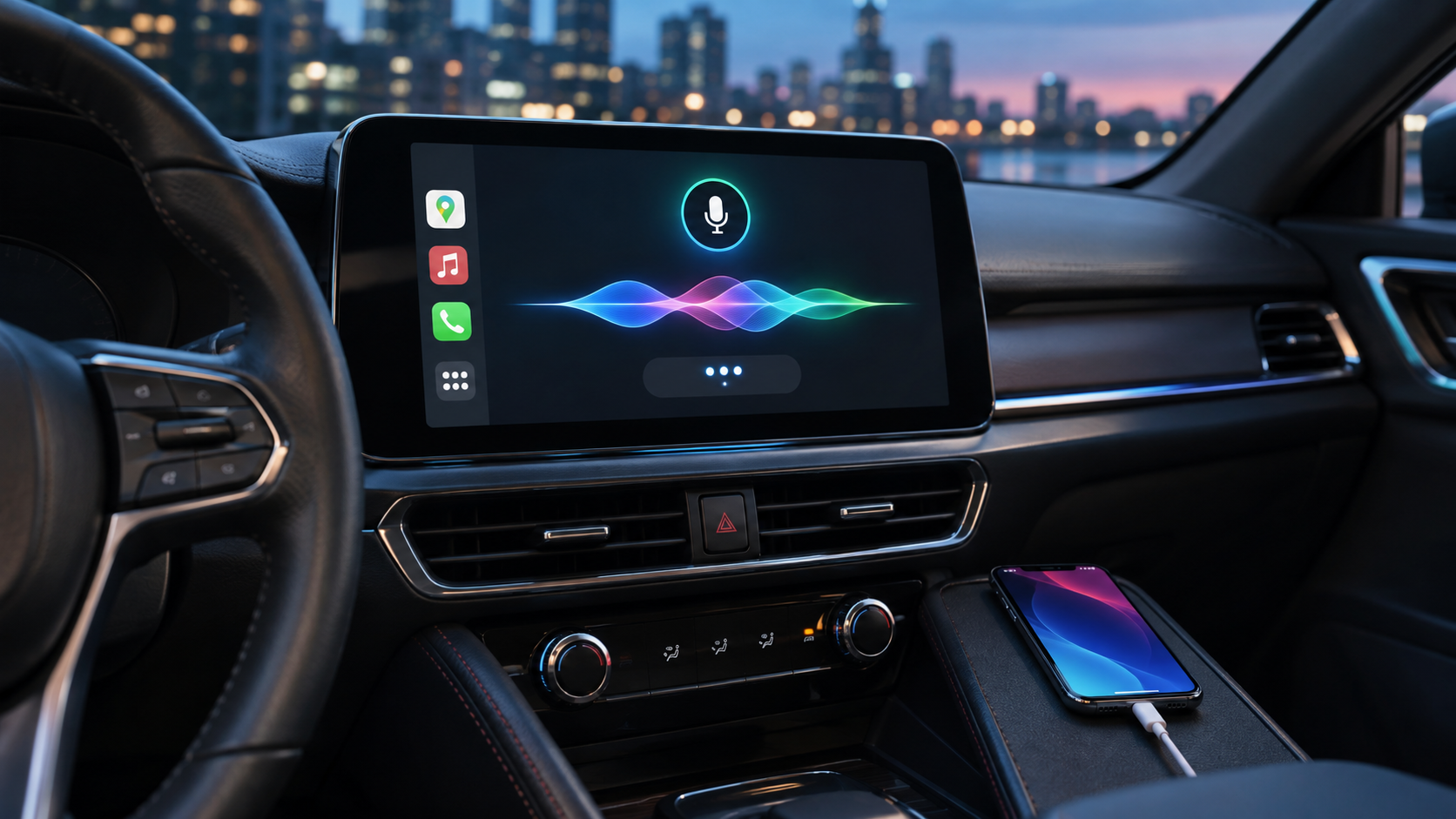
Google began rolling out the Gemini app and Gemini Live to Apple CarPlay globally on November 11, 2026. The new CarPlay app gives iPhone users a dedicated way to hold hands-free, back-and-forth conversations from a compatible car display, continue recent Gemini chats, review a daily brief and talk through email or calendar information.
This is not a replacement for every CarPlay control, and it does not make an unsupported vehicle compatible with CarPlay. The useful part is conversational access to Gemini while the phone remains connected; the important caveats are rollout timing, Google-account permissions, chat retention, connected-app data and the risk of treating a longer AI conversation as distraction-free.
Gemini Live on Apple CarPlay at a glance
- Launch date: global rollout began November 11, 2026.
- Availability: Gemini users on iOS in supported Gemini Live languages; rollout timing can vary by account and App Store update.
- Vehicle requirement: a car or aftermarket receiver that already supports Apple CarPlay.
- Phone requirement: an iPhone with the latest Gemini app, microphone permission enabled and a working wired or wireless CarPlay connection.
- First-use requirement: Google says Gemini Live must be used on the iPhone at least once before the CarPlay app is started.
- Core uses: natural conversation, calendar and email summaries, daily briefs, local recommendations, brainstorming and presentation practice.
- Key privacy point: conversations sync to the Gemini app on the iPhone, and connected-app access depends on the user’s Google settings and permissions.
- Safety limit: hands-free does not mean attention-free; setup and privacy changes should be completed while parked.
What Google actually launched
Gemini on CarPlay is a dedicated conversational app rather than a new version of Apple’s CarPlay platform. When the Gemini icon appears on CarPlay Home or the side rail, the driver can open a recent conversation or begin a new Gemini Live session. The interface indicates when Gemini is listening, thinking or responding, and the conversation continues through the car’s microphone and speakers.
Google emphasizes free-flowing speech: the user can interrupt an answer, add a detail, change the subject or pause to focus on traffic. Chats synchronize with the Gemini app on the iPhone, so notes or summaries can be reviewed after parking. The launch follows Gemini on Android Auto and cars with Google built-in, but Apple CarPlay remains a separate iPhone-driven environment.
The announcement says the rollout is global across supported Gemini Live languages. That wording still allows a staged release: an updated app can be installed before the CarPlay icon reaches every eligible account, region or vehicle. An absent icon on launch day is therefore not proof that a car is permanently unsupported.
Requirements before the Gemini icon can appear
- A CarPlay-compatible vehicle or aftermarket receiver.
- An iPhone connected to that vehicle through the wired or wireless method supported by the car.
- The current Gemini app from the App Store, signed in to the intended Google Account.
- Microphone access for the Gemini app in iPhone settings.
- At least one completed Gemini Live session on the iPhone before trying CarPlay.
- A supported Gemini Live language and internet access through the iPhone.
- Permission for any Google apps or data sources the driver expects Gemini to use, such as Gmail or Calendar.
Google did not publish a new minimum iPhone model or a universal minimum iOS version in the launch post. The practical baseline is therefore the current Gemini app plus a functioning CarPlay setup. Check the App Store compatibility line and the vehicle manufacturer’s current CarPlay requirements rather than assuming every older iPhone will qualify.
How to start Gemini Live on Apple CarPlay
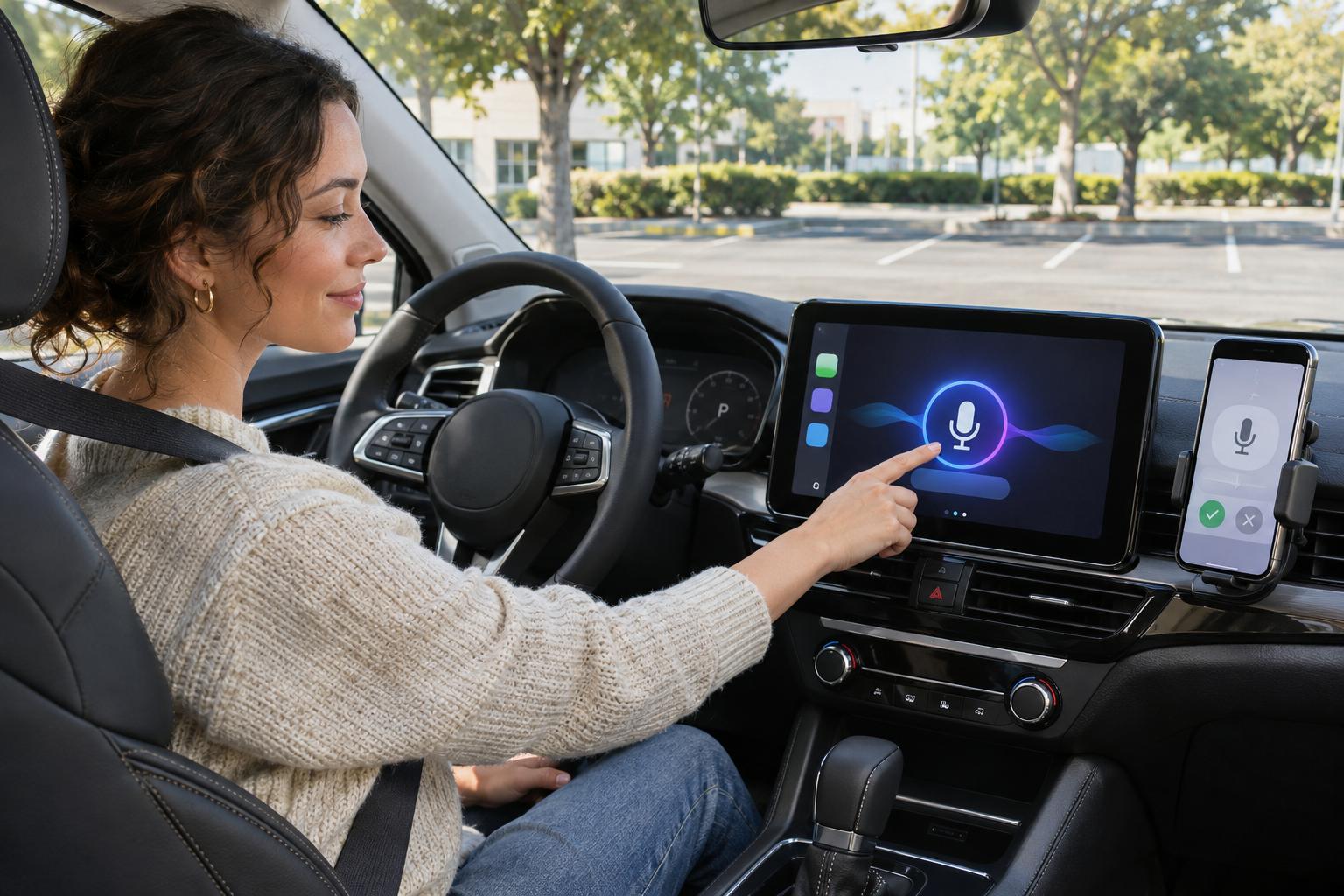
- Park the vehicle and confirm ordinary CarPlay works with the iPhone.
- Update the Gemini app in the App Store, open it on the iPhone and sign in to the Google Account you want to use in the car.
- Allow microphone access when prompted, or review the Gemini microphone permission in iPhone Settings.
- Start Gemini Live on the phone once and complete a short test conversation.
- Reconnect the iPhone to CarPlay and look for the Gemini icon on CarPlay Home or the side rail.
- Tap Gemini, choose a recent conversation or start a new one, and test a low-risk request while the vehicle remains parked.
- Review connected-app and activity settings on the phone before using email, calendar or other personal data in the car.
Wired CarPlay
Connect the iPhone to the vehicle’s CarPlay-capable USB port with a direct data cable that matches both ports. Apple notes that the port may carry a CarPlay or smartphone symbol. A cable that only charges will not provide the required data connection, and some vehicles expose multiple USB ports but enable CarPlay on only one of them.
Wireless CarPlay
For a wireless-only vehicle, Apple instructs drivers to place the stereo in wireless or Bluetooth mode, keep Wi-Fi and Bluetooth enabled, allow Auto-Join for the CarPlay network and select the car under Settings > General > CarPlay. Wireless CarPlay still depends on the iPhone’s data connection for cloud-based Gemini responses.
What Gemini Live can do during a drive
- Continue a recent Gemini chat or begin a new conversation without holding the phone.
- Ask for a daily brief or discuss upcoming calendar appointments when the relevant Google services are connected.
- Summarize unread Gmail messages or a long email thread, subject to account eligibility and permissions.
- Talk through a reply, meeting plan or presentation, then review the synchronized conversation after parking.
- Ask for nearby restaurant ideas or background on a local landmark using available public and location context.
- Brainstorm, rehearse, learn about a topic or ask follow-up questions in a continuous voice session.
These examples describe conversational assistance, not guaranteed completion of every task. Gemini can misunderstand speech, summarize a message incorrectly or return outdated public information. Anything involving money, an appointment change, a sensitive reply or a route decision should be confirmed on the phone or in the source app when it is safe to do so.
What the CarPlay app does not replace
- Vehicle support: Gemini cannot add CarPlay to a car that lacks compatible hardware or an approved receiver.
- Car controls: Google’s launch post does not promise control of climate, seats or vehicle settings.
- Every iPhone app: connected-app access is limited by Gemini eligibility, the account type and permissions.
- Dedicated navigation: asking about a place is not the same as starting verified turn-by-turn guidance in a navigation app.
- Offline use: Gemini Live needs the iPhone’s network connection for cloud responses.
- Accuracy: the conversational format does not remove the need to verify important information.
Apple continues to provide Siri and CarPlay’s native app controls for directions, calls, messages, media and supported vehicle functions. Use the tool matched to the job: a navigation app for active routing, Siri or CarPlay controls for supported device actions, and Gemini Live for open-ended conversation, summaries and planning.
Gmail, Calendar and other connected apps
The most useful CarPlay examples depend on data Gemini does not receive automatically from every account. Google’s Connected Apps controls let eligible users add or disconnect services. On iPhone, the available connectors can include Google Workspace services such as Gmail and Calendar, plus other Google services depending on account, country and feature eligibility.
Only connect the sources that are genuinely useful in the car. Calendar may be enough for appointment context without granting broad access to email or photos. Work and school accounts can follow different administrator rules, and some personal-intelligence options are limited to eligible personal accounts. If Gemini cannot find a message or event, check the signed-in account and connector settings before repeatedly asking while driving.
Privacy, chat history and permissions
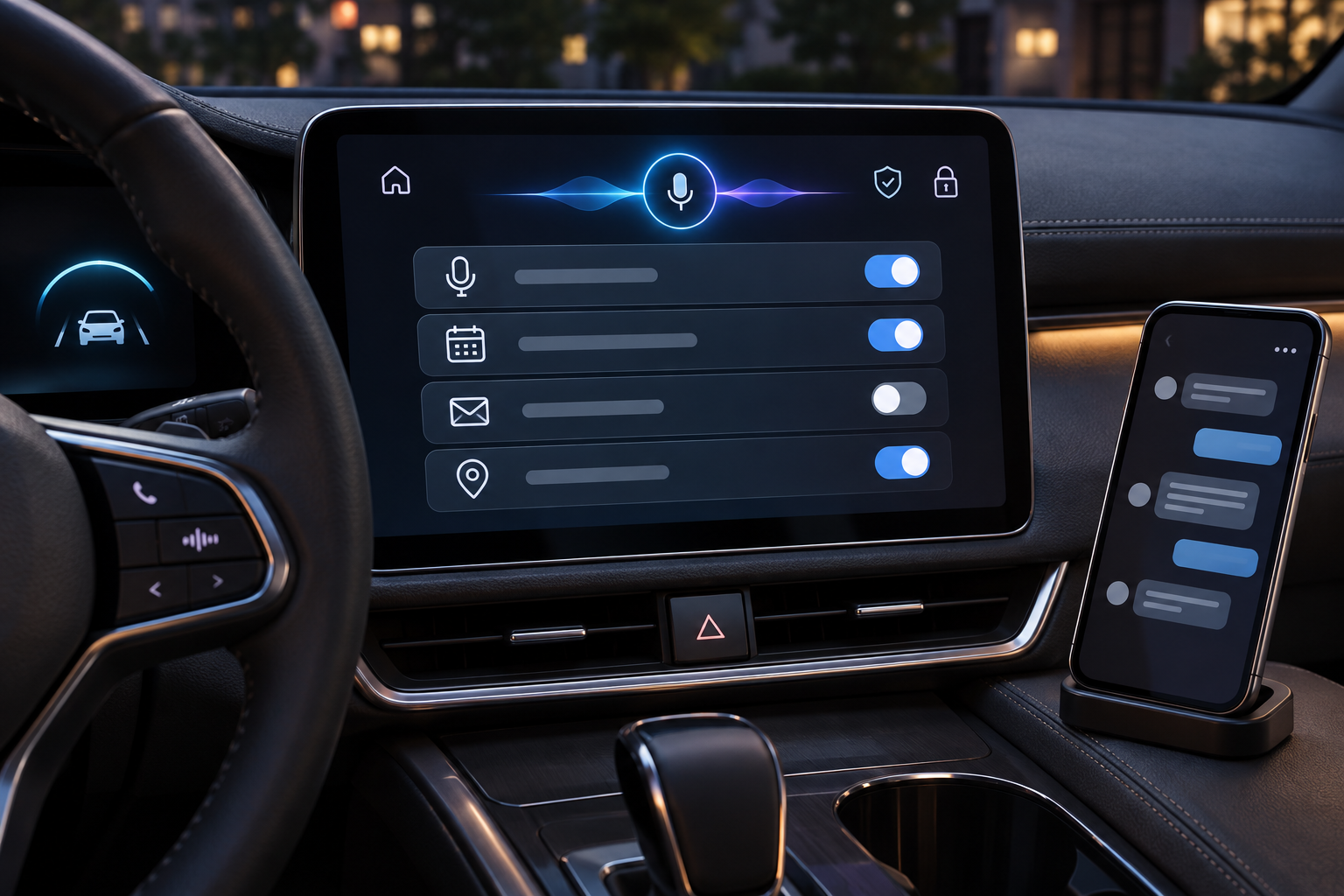
Google says CarPlay conversations synchronize automatically with the Gemini app on the iPhone. That continuity is convenient, but it also means the conversation is not confined to the car display. The Gemini Apps Privacy Hub says chats and shared content can be saved in Gemini Apps Activity when Keep Activity is on, along with product-usage and location information.
- Review Keep Activity before using Gemini in the car and delete saved activity from the Gemini app when appropriate.
- Check whether audio contribution for improving Google services is enabled; Google says Gemini Live audio is not used for improvement by default, but the setting can be changed.
- Disconnect Gmail, Calendar or other services that are not needed for driving use.
- Remember that disconnecting an app does not automatically delete earlier Gemini Apps Activity.
- Use a personal account carefully in a shared vehicle; the display and car speakers can expose conversation context to passengers.
- Avoid reading, dictating or summarizing confidential work, health, legal or financial information in a car cabin where others can hear it.
Connected-app data can include emails, files, events, contacts and location context, and Google notes that some of it may be sensitive. The safest setup is the smallest useful permission set, combined with periodic review of chat history and connected services.
Hands-free still requires driving discipline
A long, natural conversation can demand more attention than a one-command voice assistant. Google designed the interface so a driver can pause, interrupt or end the session, and those controls should be used whenever traffic, weather or navigation becomes complex.
- Complete installation, sign-in, permissions and first use while parked.
- Keep requests short in dense traffic and avoid emotionally intense role-play or complicated work discussions while moving.
- Do not look at the phone to correct a response; wait until parked.
- Use Driving Focus to reduce unrelated notifications when the iPhone connects to CarPlay.
- Follow local distracted-driving law and the vehicle manufacturer’s instructions even when the feature is hands-free.
If Gemini does not appear in CarPlay
- Confirm the new standalone Gemini feature has reached the account; a staged global rollout can take time.
- Update the Gemini app, restart the iPhone and reconnect CarPlay.
- Open Gemini Live on the iPhone and complete a short conversation before reconnecting.
- Check microphone permission and verify the intended Google Account is signed in.
- Confirm ordinary CarPlay apps appear and that the vehicle’s infotainment firmware is current.
- For wired CarPlay, try the designated CarPlay USB port and a known data-capable direct cable.
- For wireless CarPlay, verify Wi-Fi, Bluetooth and Auto-Join, or forget the car and pair it again while parked.
If other CarPlay apps work but Gemini still does not appear, wait for the account rollout rather than repeatedly resetting the vehicle. Google’s announcement establishes availability, not simultaneous activation for every user.
A wired CarPlay cable option on Amazon
Cars with a USB-A CarPlay port and a newer USB-C iPhone need a data-capable USB-A-to-USB-C cable. One relevant option is the Anker USB-A to USB-C Cable, 6-foot 2-pack in black (ASIN B07DC5PPFV). Anker identifies the B8173 family as a braided USB-A-to-USB-C cable with data transfer, and the exact ASIN corresponds to the 6-foot black two-pack. Before buying, verify the ASIN, seller, cable length, return policy and that the vehicle’s selected USB port supports wired CarPlay. Older Lightning iPhones or USB-C vehicle ports require a different direct cable.
Affiliate disclosure: ReaderSpice may earn a commission from qualifying Amazon purchases made through the link above, at no additional cost to you.
Who should use Gemini on CarPlay
The strongest fit is an iPhone user who already uses Gemini Live and keeps useful calendar, Gmail or planning information in Google services. Commuters can prepare for meetings, summarize a long thread or capture a spoken brainstorming session without holding the phone.
Wait or keep connected apps disabled if the vehicle is shared, the account contains highly confidential material, the CarPlay connection is unreliable or long voice conversations are distracting. The core CarPlay experience continues to work without granting Gemini broad access to personal data.
Bottom line
Gemini Live on Apple CarPlay is a meaningful expansion for iPhone users who want a conversational assistant on the dashboard. The setup is straightforward once the rollout reaches the account: update Gemini, allow the microphone, use Gemini Live once on the phone, connect to CarPlay and tap the new icon.
Its value depends on realistic boundaries. Gemini can discuss email, calendar information, local ideas and open-ended topics, but it does not create CarPlay hardware, replace verified navigation or guarantee accurate answers. Set permissions while parked, connect only the apps needed, review activity settings and keep conversations short enough to preserve attention on the road.
Sources
Google Blog: Talk it through with Gemini, now on Apple CarPlay — November 11, 2026
Apple Support: Connect iPhone to CarPlay
Apple Support: Use other apps with CarPlay
Apple Support: Stay focused while driving with iPhone
Gemini Apps Help: Connect Google apps on iPhone and iPad
Gemini Apps Help: About personalization with Connected Apps
Anker: Premium Nylon USB-C to USB-A Cable B8173
Amazon: Anker USB-A to USB-C Cable 6-foot 2-pack (ASIN B07DC5PPFV)