
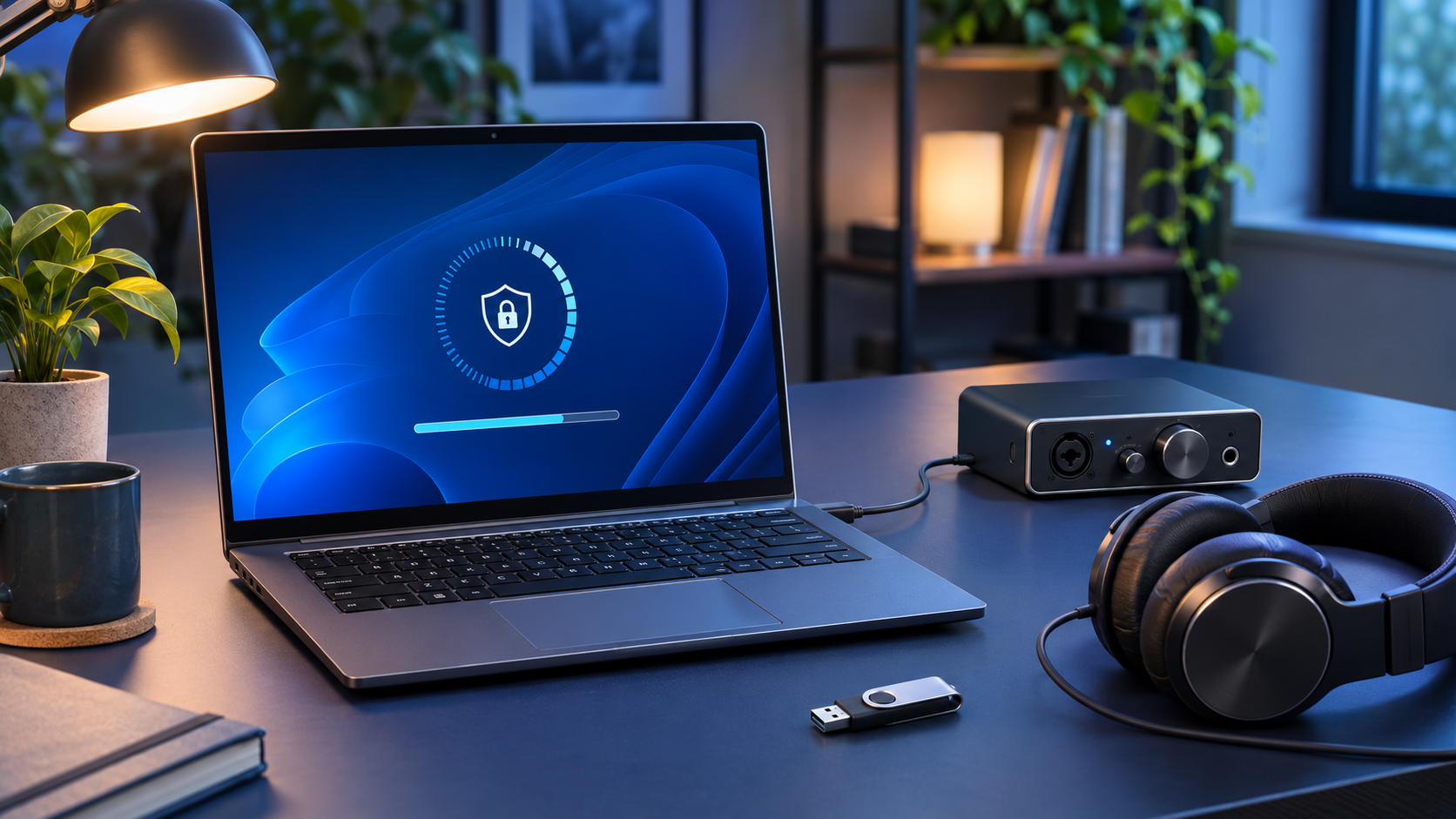
Microsoft released Windows 11 cumulative update KB5132061 on November 10, 2026 for versions 24H2, 25H2 and 26H2. It moves those releases to builds 26100.9974, 26200.9974 and 26300.9974, adds the month’s security fixes, resolves the widely reported USB Audio Class 1.0 failure and expands delivery of newer Secure Boot certificates.
The update is worth installing on supported PCs, but two details deserve preparation. Microsoft documents a temporary installation failure affecting some Windows 11 24H2 Enterprise and Education devices, and its stricter PowerShell signature validation can expose malformed script encodings that previously passed. Neither issue is a reason to turn off security protections or use unofficial update packages.
This is a sourced update guide, not a hands-on benchmark. The build numbers, fixes, prerequisites, known issues and recovery guidance come from Microsoft’s current support and release-health documentation. Individual PCs can receive the package at different times because hardware eligibility, edition, management policy and staged servicing all affect Windows Update.
Windows 11 KB5132061 at a glance
- Release date: November 10, 2026 as the monthly Windows security update.
- Versions and builds: 26H2 becomes 26300.9974, 25H2 becomes 26200.9974 and 24H2 becomes 26100.9974.
- USB audio: resolves the Code 10, no-sound, stuck-volume and unavailable-settings problem affecting some USB Audio Class 1.0 devices.
- Other fixes: addresses certain AMD HDMI and DisplayPort audio failures, Active Directory printer-add error 87 and a Remote Desktop certificate-mismatch failure.
- Security changes: expands automatic targeting for newer Secure Boot certificates and makes NTLM clients offer message signing by default for non-anonymous connections.
- PowerShell: enforces stricter encoding validation for signed scripts; malformed UTF-8 can cause signing or verification failures.
- Known install issue: some 24H2 Enterprise and Education devices may loop or show 0x80070306, 0x800f0989 or 0x800f0993; Microsoft says an automatic repair is delivered through Windows Update.
- Servicing note: Microsoft says there will be no December 2026 non-security preview update; normal preview servicing returns in January 2027.
The USB Audio Class 1.0 fix is the clearest consumer change
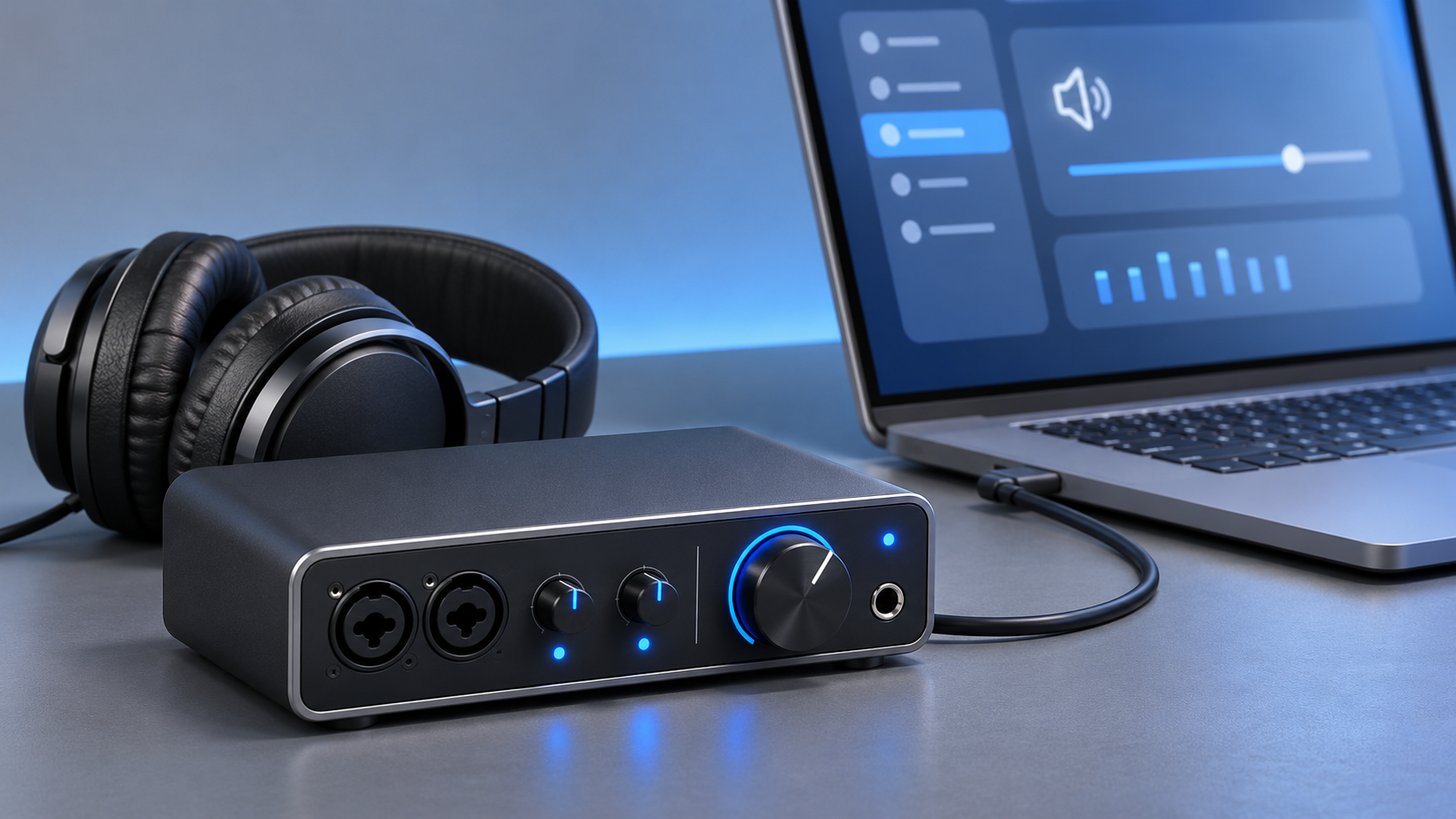
KB5132061 resolves the documented USB Audio Class 1.0 startup and no-sound issue. Illustration: ReaderSpice.
Microsoft opened the USB audio issue on November 3 after reports from Windows 11 26H2 systems. An affected device could appear in Device Manager with “This device cannot start (Code 10),” produce no output, leave volume controls at zero or make Sound settings unresponsive. Microsoft’s release-health page now marks the problem resolved by KB5132061 and later updates.
The scope matters: Microsoft identifies USB Audio Class 1.0, not every USB headset, DAC, microphone or interface. A device using a different USB audio class, a vendor driver or another transport may have a separate cause. Do not assume an unrelated audio failure is fixed until Windows, the device firmware and the manufacturer’s supported driver are current.
The package also fixes an audio problem affecting HDMI or DisplayPort playback on certain AMD graphics cards. After installation, test the exact path you use: system sounds, a browser video, a call app, recording input and any multichannel mode. A green Device Manager status alone does not prove that every application selected the intended input and output.
Secure Boot certificate deployment expands
KB5132061 adds more high-confidence targeting data so Windows Update can deliver newer Secure Boot certificates to additional eligible PCs. Microsoft is replacing certificates originally issued in 2011 with a newer set. Secure Boot validates trusted startup components, so certificate maintenance affects the ability to keep receiving protected boot-manager and Secure Boot updates.
For most supported home PCs managed directly by Microsoft, this remains an automatic Windows Update process. Microsoft advises keeping Windows current and Secure Boot enabled. To check the current state, press Windows + R, type msinfo32, open System Information and look for Secure Boot State. If it is Off, use the PC maker’s model-specific guidance before changing firmware settings.
Secure Boot and BitLocker are related during recovery but are not the same control. Before firmware changes or major servicing, confirm that the BitLocker recovery key is available from a trusted account or organizational escrow. Do not disable Secure Boot simply because an update is offered; Microsoft documents that as a recovery step for specific startup failures, not a routine installation requirement.
PowerShell script signing becomes stricter
The November security release tightens encoding validation for PowerShell script signing and signature verification. A script containing malformed UTF-8, ambiguous encoding without a byte order mark or language-specific text interpreted under the wrong code page may now report NotSigned, UnknownError or a constrained execution mode even if it appeared to validate before.
This is an intentional hardening change, not evidence that the update damaged every signed script. Microsoft cautions that a signature error can have other causes. Administrators should scan the affected file, preserve the original, identify its actual encoding and review any converted copy. Adding a UTF-8 byte order mark does not repair invalid bytes by itself.
Microsoft’s repair guidance provides a script with Scan, Repair and ConvertToUtf8Bom modes. The tool creates a separate output and does not overwrite the source. Conversion removes the old signature, so the text must be reviewed and signed again with the organization’s normal code-signing process before deployment. Home users who do not run signed PowerShell automation are unlikely to notice this change.
Known installation errors and the safest response
Microsoft lists a known issue for Windows 11 24H2 Enterprise and Education editions in which installation can repeat or fail with error 0x80070306, 0x800f0989 or 0x800f0993. Its current documentation says the repair runs automatically on affected internet-connected devices that use Settings > Windows Update, with no manual end-user action required.
If the update fails once, restart the PC, keep it connected to the internet and try Windows Update again after Microsoft’s repair has had time to arrive. If the same error continues, use Microsoft’s Get Help route or organizational support. Do not download an MSU from a forum, disable antivirus permanently or run an unknown cleanup script.
The Microsoft Update Catalog remains an official path for administrators, but KB5132061 can require a checkpoint cumulative update to be installed first. Microsoft publishes separate x64 and Arm64 packages and an explicit order. Ordinary home users should prefer Windows Update unless a trusted administrator has a reason to service the device manually.
How to install KB5132061 and verify the build
- Save open work, back up irreplaceable files and connect a laptop to power. Confirm that you can access the BitLocker recovery key before changing firmware or servicing a business-critical PC.
- Open Settings > Windows Update and select Check for updates. Install the November 2026 cumulative security update when it is offered for the device’s Windows version.
- Restart when prompted. Do not force power off while Windows is applying the update.
- After sign-in, press Windows + R, type winver and press Enter. Confirm build 26300.9974 on 26H2, 26200.9974 on 25H2 or 26100.9974 on 24H2.
- Open Device Manager and Settings > System > Sound if the PC uses USB audio. Test playback, recording, volume controls and the applications that depend on the device.
- Open msinfo32 and confirm Secure Boot State is On. If it is Off or the system enters BitLocker recovery, follow the PC maker’s and Microsoft’s recovery instructions rather than improvising firmware changes.
- For managed PCs, confirm VPN, Remote Desktop, printer deployment and signed PowerShell automation in a test ring before broad rollout.
Prepare recovery media without confusing it with a backup
A USB recovery drive can help start Windows recovery tools if a PC will not boot, but it is not a replacement for a current backup of documents, photos and authentication data. Creating recovery media erases the selected drive, so confirm the capacity and copy anything needed elsewhere before beginning.
A practical option for recovery media is the SanDisk Ultra 64GB USB 3.0 flash drive (ASIN B00KYK2ABI). SanDisk lists USB 3.2 Gen 1, Windows 10 or later compatibility and capacities including 64GB. Check the current seller, warranty, capacity and connector before ordering it on Amazon.
Affiliate disclosure: ReaderSpice may earn a commission from qualifying Amazon purchases made through the link above, at no additional cost to you.
What the update does not prove
- It does not mean every USB audio failure has the same cause or that every interface uses USB Audio Class 1.0.
- It does not confirm that a PC has already received the newer Secure Boot certificates; certificate delivery remains staged and device-dependent.
- It does not mean a signed PowerShell script is malicious when validation fails; encoding must be diagnosed before repair or re-signing.
- It does not make unofficial update packages safe. Use Windows Update, Microsoft Update Catalog or an organization’s approved deployment system.
- It does not guarantee a restart-free experience. Even hotpatch-managed environments can require a restart for additional standalone fixes or pending components.
Bottom line
KB5132061 is a meaningful November update for supported Windows 11 PCs. It closes the loop on Microsoft’s USB Audio Class 1.0 failure, fixes several practical audio, printing and Remote Desktop problems, expands Secure Boot certificate targeting and hardens PowerShell signature validation.
Most users should install it through Windows Update, then verify the build and the hardware they rely on. The documented installation errors are narrow and have an automatic repair path. The right response is measured preparation and official troubleshooting, not disabling protections or reaching for an unverified package.
Sources
Microsoft Support: KB5132061 release notes, builds, fixes, prerequisites and known issues
Microsoft Learn: Windows 11 26H2 resolved issues and USB audio status
Microsoft Learn: Windows message center and November 2026 servicing announcements
Microsoft Learn: Windows 11 release information and current build table
Microsoft Support: Secure Boot certificate guidance for Microsoft-managed Windows devices
Microsoft Support: Encoding guidance for signed PowerShell scripts
Microsoft Support: Install Windows Updates
SanDisk: Ultra USB 3.0 flash drive data sheet
Amazon: SanDisk Ultra 64GB USB 3.0 flash drive (ASIN B00KYK2ABI)