
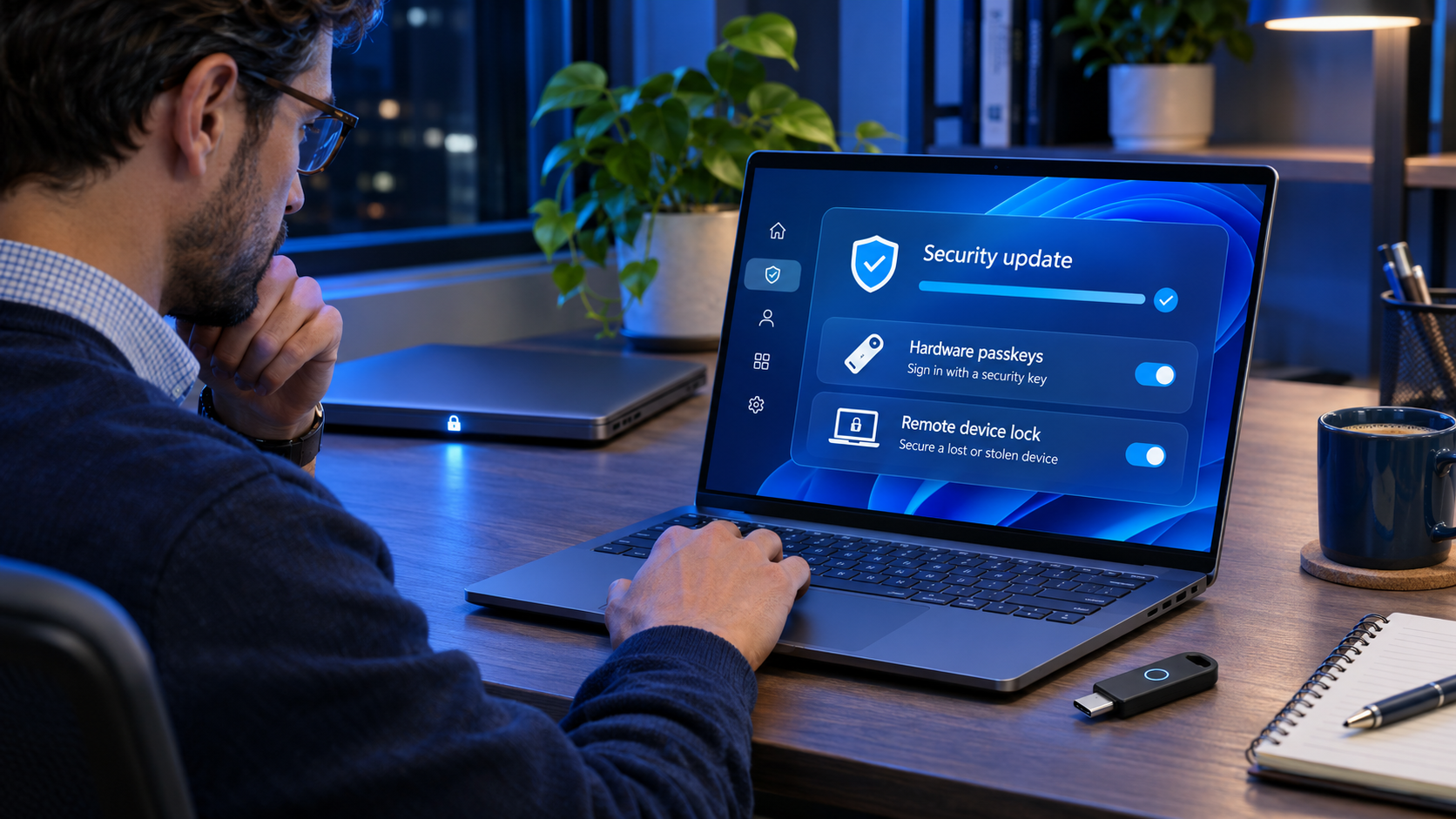
Microsoft has released Windows 11 Insider Preview Build 26320.10003 to the Beta Channel and Build 26340.10013 to the Experimental Channel. The Experimental build carries the more consequential security work: granular passkey management for FIDO2 security keys, policy controls for those keys, and a preview of Remote Lock through Microsoft Intune. The Beta build is less dramatic, but it includes practical changes for managed PCs, File Explorer search and everyday reliability.
The distinction between the two channels matters. Build 26320 is the broader test bed, while Build 26340 contains features Microsoft is evaluating for future platforms and controlled rollouts. These are preview builds, not promises for the next public Windows update, and Microsoft says some features may change or never ship.
What changed at a glance
- Build 26340 can show passkeys stored on a FIDO2 security key and remove one credential at a time instead of forcing a full reset.
- Administrators gain new FIDO2 policy choices covering minimum PIN length, user verification and attestation.
- Microsoft Intune can remotely lock supported Windows devices without wiping data or removing management enrollment.
- The Experimental build introduces an early Pluton Cryptographic Provider for supported hardware.
- Both builds let standard users on managed devices configure a BitLocker preboot PIN when administrators enable the required policies.
- Build 26320 switches This PC search in File Explorer to the Windows indexer and fixes several Remote Desktop, cursor and voice typing problems.
- Microsoft is removing Offline Maps because the underlying UWP Map control and APIs are deprecated.
- A Task Manager CPU-speed display issue remains known in both builds, and movement into the Experimental channel is temporarily restricted.
Beta and Experimental are not the same promise
The Beta Channel release is Build 26320.10003. Its changes are intended for a wider Insider audience, although Microsoft still uses controlled feature rollouts and can withhold individual features from some PCs. The Experimental Channel release is Build 26340.10013, a branch for future-platform work where security and management features can appear before Microsoft decides whether they belong in a public release.
Microsoft is also temporarily blocking moves from Beta or an earlier Experimental configuration into Experimental for Future Platforms. That block makes this a poor time to switch a production-adjacent test machine merely to reach the new security features. If a lab depends on a stable comparison group, keep the existing channel assignment until Microsoft lifts the restriction.
How individual FIDO2 passkey deletion changes recovery
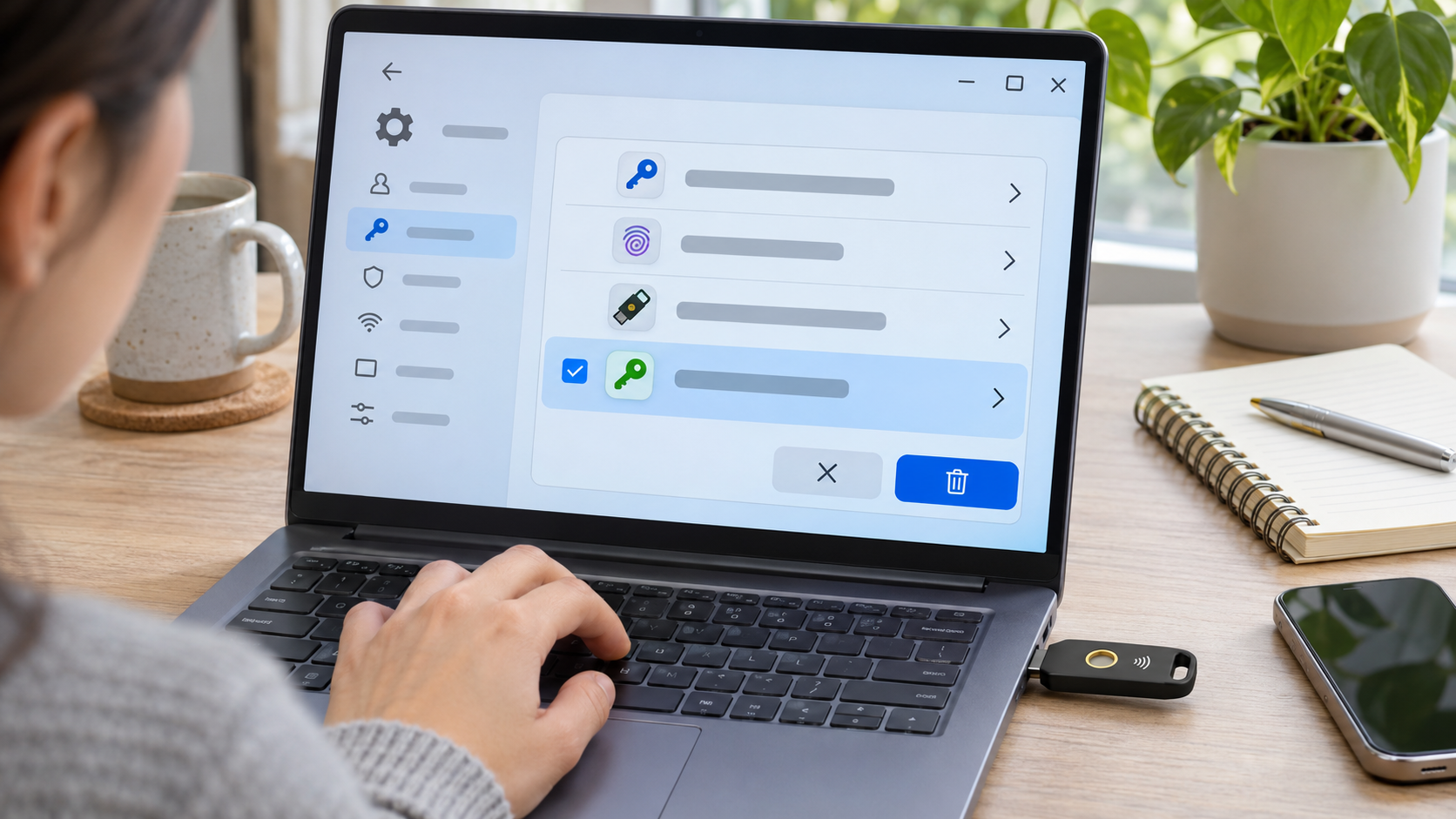
The Experimental build adds a more selective way to inspect and remove credentials stored on a FIDO2 security key.
Current Windows passkey settings already provide a place to manage passkeys saved on the PC. External FIDO2 keys are different: they can hold discoverable credentials for multiple accounts, and older recovery guidance often ends with resetting the key. A reset erases every credential on that device. Build 26340 instead lets a user see stored passkeys and remove one entry at a time, which can preserve working accounts while clearing a stale or compromised credential.
That is an operational improvement, not a reason to treat the key casually. A deleted passkey can strand an account if no second sign-in method or backup key exists. The exact screens may also vary while the feature is in controlled rollout, so administrators should test the workflow on noncritical accounts before documenting it for end users.
Why granular deletion matters
Selective removal is useful when an employee changes roles, a consumer abandons one account, or an organization rotates a credential after a suspected compromise. It also reduces the temptation to reset a multi-account key merely because one entry is no longer recognizable. The new policy controls extend that work by letting administrators require stronger PIN lengths, user verification and attestation where their identity design calls for it.
A safer deletion checklist
- Identify the relying party and account behind the passkey before deleting it; similar account names can be easy to confuse.
- Confirm that the account has another working sign-in or recovery method, ideally a separately stored backup security key.
- Remove only the obsolete credential, then test sign-in to the remaining accounts on the key.
- Record the change in the organization’s identity or access-management process when the key belongs to a managed user.
What Intune Remote Lock does and does not do

Remote Lock is designed to deny interactive access to a managed PC while leaving the device enrolled and its data intact.
Remote Lock gives administrators a containment option between doing nothing and wiping a machine. When the command reaches a supported PC, Windows signs out active sessions, hides normal sign-in and keeps the device locked through a restart. The device remains enrolled in management, BitLocker stays in place, and files are not erased. Microsoft says only an authorized remote administrator can unlock the device.
The command persists if the PC is offline and is applied when it reconnects. That makes it useful for a misplaced corporate laptop or a device that should not be interactively used during an investigation. It is not a complete incident-response action by itself, however, because it does not revoke cloud sessions, disable the user account or isolate the machine from the network.
Eligibility and preview configuration
Microsoft’s preview documentation requires a device that is Microsoft Entra joined or hybrid joined, enrolled in mobile device management, and running a supported Pro, Enterprise or Education edition. During the preview, administrators configure Remote Lock through custom OMA-URI policy and use group-based lock and unlock actions. The lock reason and recovery hint have documented character limits, which matters for help-desk text and compliance workflows.
Important limits before deployment
- Remote Lock does not wipe the PC, disable an account or revoke the user’s cloud tokens.
- It does not isolate the device from a network, so a separate endpoint-response action may still be necessary.
- It does not block Windows Recovery Environment, Safe Mode or booting from removable media. BitLocker should remain enabled.
- A user at the machine cannot perform the unlock; the process depends on an authorized remote administrator and working management connectivity.
Standard users can set a BitLocker preboot PIN
Both builds let a standard user on a managed device configure a BitLocker preboot PIN when the organization enables the applicable BitLocker policy. This closes a practical gap in environments where users are not local administrators but must complete a preboot authentication setup. The change does not bypass policy: IT must enable the required operating-system-drive authentication and standard-user PIN settings first.
Organizations should treat the PIN as one factor in a broader recovery plan. Help-desk procedures still need a verified way to deliver recovery information, and the user should understand that the preboot PIN is separate from a Windows Hello PIN. Pilot the policy on a small device group, verify recovery escrow, and confirm that accessibility and remote-support procedures still work before broad deployment.
File Explorer search and smaller usability changes
Build 26320 changes searches from This PC in File Explorer to use the Windows indexer. That can make results faster and more consistent on indexed locations, but it also means the quality of the result depends on indexing scope and health. If a tester thinks files have disappeared from search, checking Indexing Options is more useful than immediately rolling back the build.
The Beta build also fixes a Remote Desktop certificate-name mismatch problem, an invisible mouse cursor in some scenarios and a voice typing failure. Build 26340 includes an experimental taskbar list view and new Magnifier gestures, alongside the security work. These smaller changes are useful signals for testing, but they should not overshadow the higher-risk identity and device-management features.
Offline Maps is being removed
Microsoft is removing the Offline Maps feature because the UWP Map control and associated APIs are deprecated. This is broader than hiding a menu item: applications that depended on that legacy platform may need replacement mapping components or a different offline workflow. Field teams should inventory any line-of-business app that expects downloaded Windows maps before these builds become their regular test baseline.
For travelers and mobile workers, the practical response is to verify offline support inside the mapping app they actually use. A saved route, a downloaded region and a cached web page are not interchangeable. Test the full workflow in airplane mode before relying on it away from a connection.
Known issues and rollout caveats
Microsoft lists a known issue in which Task Manager may not refresh the displayed CPU speed correctly. The company also uses controlled feature rollout, so two PCs on the same build can expose different settings. That makes screenshots and exact menu paths less durable than policy and behavior checks during this phase.
These builds should be evaluated as previews. A feature appearing in Experimental does not establish a public release date, and a Beta feature can still be revised or removed. Testers should capture the build number, channel and feature availability when filing feedback so Microsoft can distinguish a product defect from a rollout difference.
Should you install either build
For home users
Build 26320 is the more reasonable choice for an existing Insider test PC because its changes are less disruptive and its fixes are broadly useful. Build 26340 makes sense only if you deliberately test passkeys, hardware-backed security or future Windows management. Neither build belongs on the only PC you rely on for work, travel or account recovery.
For IT and security teams
Build 26340 is worth a controlled lab evaluation. Create test accounts, use nonproduction security keys, keep a second administrator available, and confirm that Intune lock and unlock signals behave through restart and offline recovery. Measure what Remote Lock does alongside the actions it does not perform, then decide where it fits in the incident-response playbook.
Build 26320 deserves a separate pilot for BitLocker PIN enrollment by standard users and the File Explorer indexing change. Combining every experiment on one device makes it harder to isolate failures and can turn a useful preview into a confusing support case.
A compatible FIDO2 key for testing
Yubico’s Security Key C NFC is a straightforward FIDO2/WebAuthn option with USB-C and NFC. Yubico lists support for up to 100 resident FIDO2 credentials. If you need a physical key for a nonproduction passkey test, the verified Amazon listing for the Yubico Security Key C NFC matches ASIN B0BVNRXFHT. This article is not a review of the key, and buyers should confirm connector type, platform compatibility and recovery needs before ordering.
Affiliate disclosure: ReaderSpice may earn a commission from qualifying purchases made through the Amazon link above, at no extra cost to you.
Bottom line
The standout change in Windows 11 Build 26340.10013 is not a visual refresh but better control over identity and device state. Granular FIDO2 credential deletion can make passkey recovery less destructive, while Remote Lock gives managed-device teams a reversible containment step. Build 26320.10003 contributes a practical BitLocker workflow and search and reliability improvements. The right response is targeted lab testing, not a rushed channel switch.
Sources
- Microsoft Windows Insider: new builds for November 16, 2026
- Microsoft Learn: Windows 11 Beta Build 26320.10003 release notes
- Microsoft Learn: Windows 11 Experimental Build 26340.10013 release notes
- Microsoft Learn: Remote Lock for Windows
- Microsoft Support: manage saved passkeys in Windows
- Microsoft Learn: passwordless sign-in and passkeys in Windows
- Microsoft Learn: passkeys in Windows
- Yubico: Security Key C NFC product specifications
- Amazon: Yubico Security Key C NFC, ASIN B0BVNRXFHT (affiliate link)
Inline image 1 alt text: Windows security settings showing individual passkeys stored on a FIDO2 hardware security key beside the physical key
Inline image 2 alt text: IT administrator using Microsoft Intune to lock a managed Windows laptop while preserving its encrypted data