
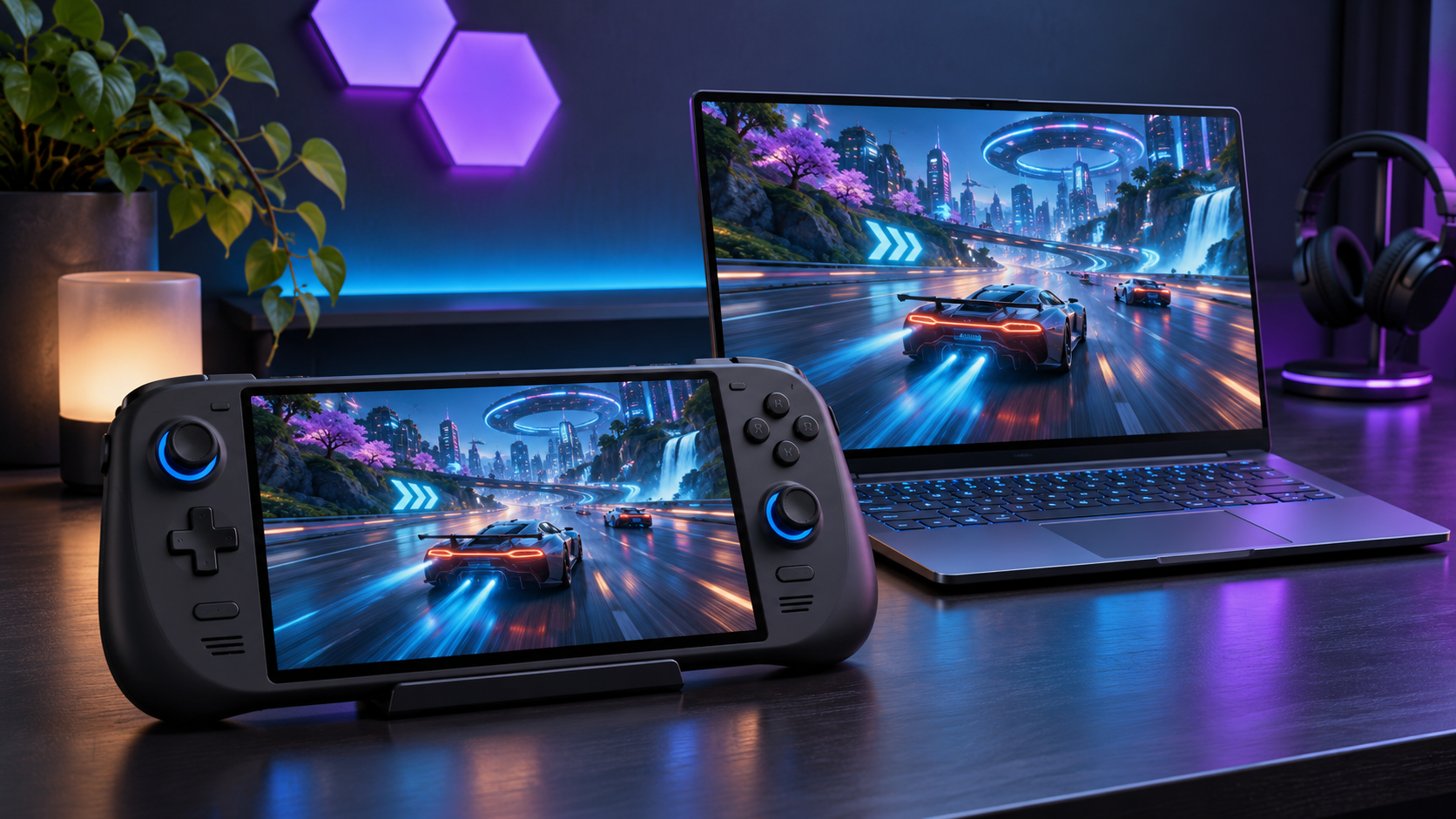
Microsoft has moved Automatic Super Resolution, or Auto SR, beyond its earlier preview boundaries. The November 10 update brings support to select AMD Ryzen AI Copilot+ PCs, including handheld play on battery, expands supported input resolution to 1080p, and introduces a Performance mode that can target up to 120 frames per second. The feature can make compatible games look sharper without requiring a game-specific patch, but it still depends on the right PC, game, display mode, package version and rollout status.
The quick take
- Auto SR now works on select AMD Ryzen AI Copilot+ PCs, including ROG Xbox Ally X and X20 handheld systems identified by Microsoft.
- The feature can run on a handheld’s internal screen while the system is unplugged, not only when it is docked or connected to external power.
- Quality mode is designed for image fidelity at up to 75 FPS; the new Performance mode can reach up to 120 FPS in supported combinations.
- 1080p input is now supported, though Microsoft says lower input resolutions may produce a better tradeoff on some handheld screens.
- Auto HDR integration is rolling out through Windows updates, initially on compatible AMD devices. Native-HDR games cannot use native HDR and Auto SR at the same time.
What changed in the November Auto SR release
Auto SR now supports handheld play on the internal display while the device is running on battery power.
The most important change is not simply another compatible processor. Microsoft is widening the situations in which Auto SR can be useful. On supported AMD handhelds, the upscaler can now run on the built-in display and on battery, removing the earlier dock-and-power limitation. That makes the feature relevant to the way a handheld is normally used rather than only to a living-room setup.
Microsoft has also added 1080p as a supported base resolution. That matters for newer handhelds and thin laptops with 1080p panels, but it does not mean 1080p is always the ideal input. On a compact screen, a lower render resolution can free more GPU time and may produce a better frame-rate gain after upscaling. The right setting is therefore the one that preserves readable interface elements while delivering the responsiveness you want.
Performance mode is the headline option. Microsoft positions Quality mode for visual fidelity at up to 75 FPS and Performance mode for higher output, up to 120 FPS. In Microsoft’s Rocket League example on an ROG Xbox Ally X at 720p with high settings, the company measured roughly 70 FPS in Quality mode and 115 FPS in Performance mode. That is a single demonstration, not a result buyers should expect from every game.
Requirements: which PCs and games qualify
Auto SR is a Copilot+ PC feature with platform-specific packages and drivers. Microsoft currently lists qualifying systems built around AMD Ryzen AI, Intel Core Ultra Series 3 with Intel Arc Graphics and AI Boost, and Qualcomm Snapdragon X or X2 processors. The exact model still matters: being a Windows 11 PC, or even having a discrete graphics card, does not by itself make a system eligible.
PC and software checklist
- A supported Copilot+ PC using a qualifying AMD Ryzen AI, Intel Core Ultra Series 3, or Snapdragon X/X2 platform.
- Windows 11 version 24H2 or later, fully updated through Windows Update.
- The latest graphics and NPU drivers supplied for the device.
- The latest platform-specific Auto Super Resolution Package from the Microsoft Store.
- The latest Xbox Game Bar, which provides the easiest per-game control and status indicator.
- A display resolution of at least 1080p, even when the game itself is rendered at a lower supported input resolution.
Game and rendering limits
The game must use DirectX 10 or later and run as native x64, x64 emulation, or Arm64 code. Microsoft does not support x86 games, DirectX 9, Vulkan, or OpenGL through Auto SR. Fullscreen or Exclusive Fullscreen is generally required so Windows can apply the upscaling path. A game can be technically compatible yet still deliver a poor result if its interface, anti-aliasing or render pipeline does not respond well to a reduced input resolution.
Microsoft’s current guidance lists 720p to 1080p as the ideal input range for AMD systems, 800p to 1080p for Intel systems, and 800p for Snapdragon systems. Those are starting points, not universal prescriptions. A game with small text or a dense strategy interface may benefit from a higher input resolution even if that reduces the performance gain.
How to turn on Auto SR in Xbox Game Bar
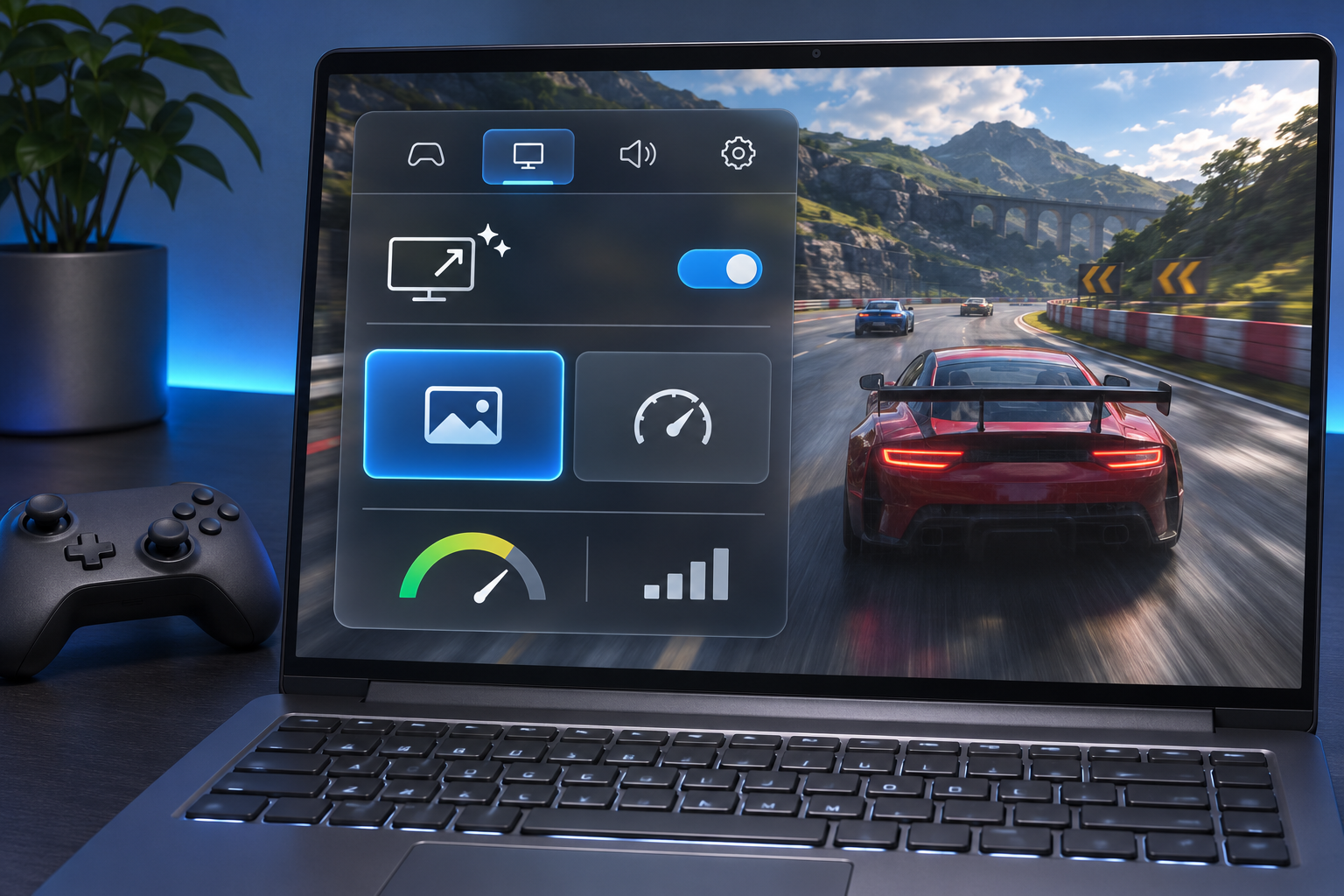
Xbox Game Bar provides a per-game Auto SR switch, mode selection and an on-screen status indicator.
Game Bar is the clearest way to configure one game without changing a system-wide default. Update Windows, the Auto Super Resolution Package and Game Bar before troubleshooting a missing control.
- Launch the game you want to configure and wait until it reaches a playable scene or menu.
- Press Windows key + G to open Xbox Game Bar.
- Open Widgets, select Display, and then choose Graphics.
- Turn on Auto Super Resolution for the current game.
- Choose Quality for the sharper presentation or Performance when a higher frame-rate ceiling matters more.
- Enable the status indicator so you can confirm that Auto SR is active after returning to the game.
- Set a supported in-game resolution and use Fullscreen or Exclusive Fullscreen, then restart the game if the control asks you to do so.
How to enable Auto SR in Windows Settings
Windows Settings is better when you want a default policy or need to inspect the graphics options Windows has assigned to an application.
- Open Settings and go to System, Display, then Graphics.
- Use the global Auto SR setting if you want Windows to apply the feature by default where it is supported.
- For a per-game choice, select the game in the app list and open its custom graphics options.
- Choose the Auto SR behavior, save the setting, and relaunch the game.
- If Windows offers maximum display resolution automation, decide whether you want it to adjust the desktop and game resolution for Auto SR automatically.
Quality mode versus Performance mode
Quality mode should be the first choice for story-driven games, slower action, fine scenery and interfaces where text clarity matters. Its published ceiling is up to 75 FPS. Performance mode trades some reconstruction quality for a higher ceiling of up to 120 FPS and is better suited to competitive or fast-motion games when the display can show the additional frames.
- Start with Quality mode and a supported input resolution that keeps menus readable.
- Switch to Performance mode only if the game is GPU-limited and the display refresh rate can benefit from higher output.
- Compare motion, thin geometry, particle effects and small interface text rather than judging only a static screenshot.
- Check frame pacing and input response. A higher average FPS does not automatically mean a smoother experience if delivery is uneven.
- Treat 75 FPS and 120 FPS as maximum targets. The game, thermal profile, battery mode, resolution and device determine the actual result.
Why Auto SR may not activate
- The PC or processor is not on Microsoft’s supported Copilot+ PC list.
- Windows, Game Bar, the device drivers, or the platform-specific Auto SR Package is out of date.
- The game uses DirectX 9, Vulkan, OpenGL, or an unsupported x86 executable.
- The game is running in a borderless or windowed mode that does not engage the supported upscaling path.
- The selected input resolution falls outside the platform’s supported range.
- The Windows update containing the new mode or Auto HDR integration has not reached the device yet. Microsoft says the rollout can take time.
- A multi-GPU arrangement or capture layer is interfering with the rendering path.
Image quality, HDR and capture limits
Auto SR works without a game developer adding a dedicated integration, which is its central appeal. The tradeoff is that Windows has less control over individual interface elements than a game-native upscaler can have. Fine text, HUD lines, particle effects and transparent surfaces can look unstable in some games. If the result is distracting, raise the input resolution, switch back to Quality mode or disable Auto SR for that title.
Auto HDR and Auto SR can operate together on compatible AMD systems as the Windows update rolls out, with support for other platforms planned later. That is different from a game’s own native HDR pipeline: Microsoft says native HDR games cannot use native HDR and Auto SR simultaneously. If color or brightness looks wrong, confirm which HDR path is active before changing the game’s calibration.
Screenshots and capture tools can also be misleading because some tools record the pre-upscaled image rather than the final image sent to the display. Judge the feature on the screen first. When recording a comparison, verify that the capture method includes the upscaled output before publishing a side-by-side result.
Privacy and local processing
Microsoft says Auto SR processes game graphics on the device using the PC’s GPU and NPU. Graphics and game details do not leave the device for the upscaling operation. The feature is opt-in on current platforms, apart from a set of previously verified Snapdragon games where Microsoft may enable it by default. Per-game controls make it possible to turn the feature off when a title does not benefit.
A controller can make the setup easier
Auto SR does not require a specific controller, and buying one does not unlock the feature. A controller can still make a docked Copilot+ PC or handheld more comfortable to use from a couch. The Xbox Wireless Controller in Carbon Black (ASIN B0F1HX3WXX) is a relevant option for Windows gaming and is the same model ReaderSpice has previously linked in its Xbox PC coverage.
Affiliate disclosure: ReaderSpice may earn a commission from qualifying purchases made through the Amazon link above, at no additional cost to you.
The bottom line
The November Auto SR release makes the feature materially more useful: it reaches select AMD Ryzen AI Copilot+ PCs, works on supported handhelds away from a dock, accepts 1080p input, and offers a higher-performance path for fast games. It is still a compatibility layer rather than a universal boost. Confirm the hardware and rendering requirements, begin with Quality mode, keep the status indicator visible, and test the specific game before deciding whether Performance mode improves the experience.
Sources
- Microsoft DirectX Developer Blog: Auto SR handheld, 1080p, Performance mode and Auto HDR update
- Microsoft Support: Automatic Super Resolution requirements, setup and limitations
- Microsoft DirectX Developer Blog: Auto SR support on Intel Copilot+ PCs
- ASUS ROG: Earlier ROG Xbox Ally docking and Auto SR preview
- Xbox: Xbox Wireless Controller official product page
- Amazon: Xbox Wireless Controller Carbon Black, ASIN B0F1HX3WXX
Inline image 1: Handheld gaming PC used on a train while running on battery power.
Inline image 2: Generic gaming graphics overlay with upscaling and performance controls.