
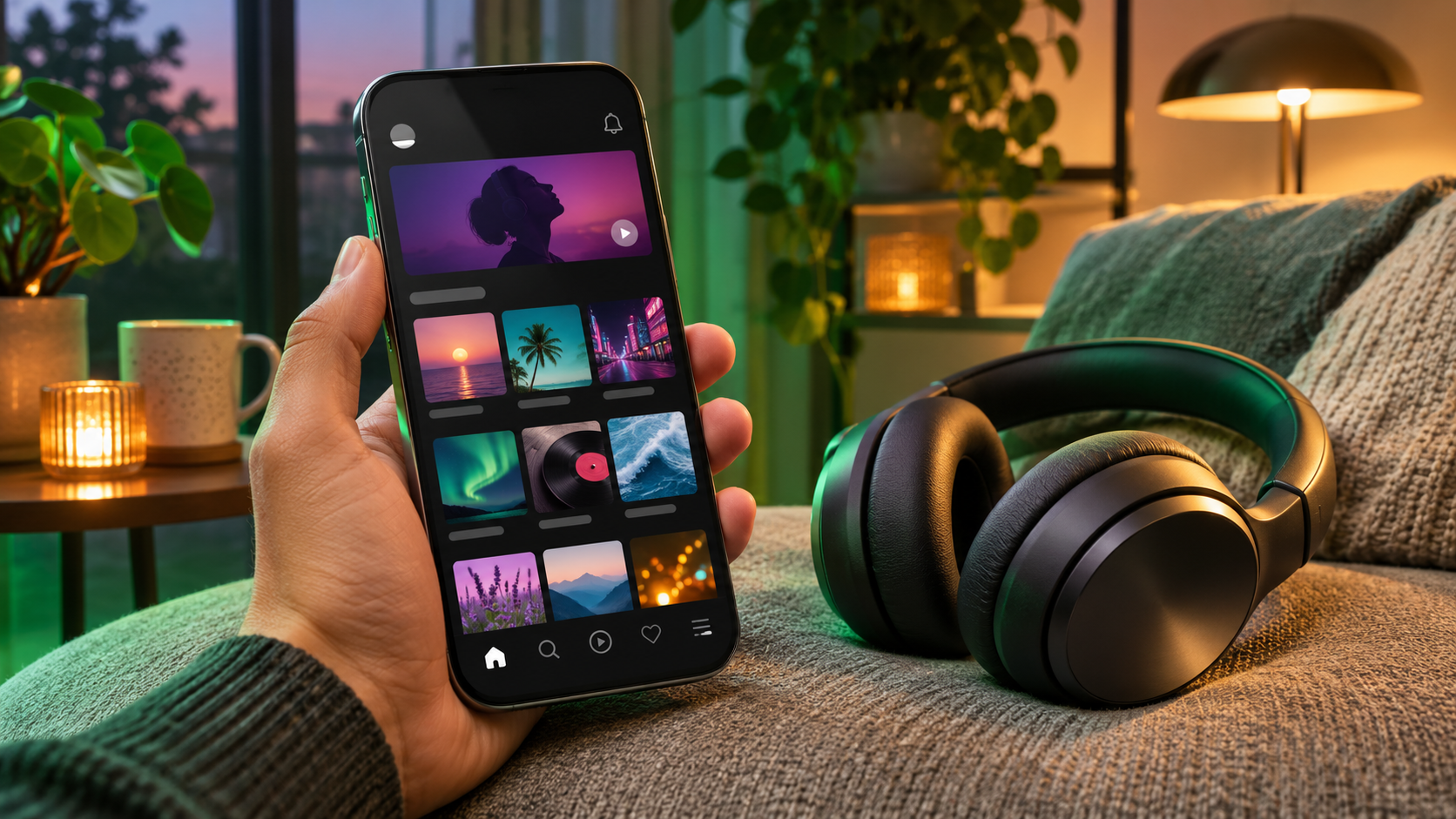
Spotify is giving listeners more control over the first screen they see. Announced November 12, 2026, the new mobile controls let Free and Premium users hide individual music, podcast or audiobook tiles from the top of Home, remove one item at a time from the Recents shelf, and tell Spotify they are not interested in selected shows or authors.
The controls look similar, but they do different jobs. “Remove from this section” cleans up what is visible without changing future recommendations. “Not interested” is recommendation feedback. Neither control is a complete listening-history delete button, and neither automatically changes what other people can see on a public Spotify profile.
Spotify Home controls at a glance
- Availability: rolling out globally on mobile to Spotify Free and Premium listeners.
- Top-of-Home tiles: press and hold an eligible music, podcast or audiobook tile, then choose Remove from this section.
- Recents shelf: remove individual entries with the same Remove from this section option.
- Recommendations: use Not interested on eligible Home suggestions to hear less from specific shows or authors.
- Recommendation impact: removing a tile is visual cleanup; Not interested is intended to shape later suggestions.
- Important limit: Spotify did not announce a Clear all button for Recents or a full listening-history reset.
- Desktop and web: Spotify’s announcement describes the rollout as mobile; it does not promise the new controls everywhere at launch.
How to hide a tile at the top of Spotify Home
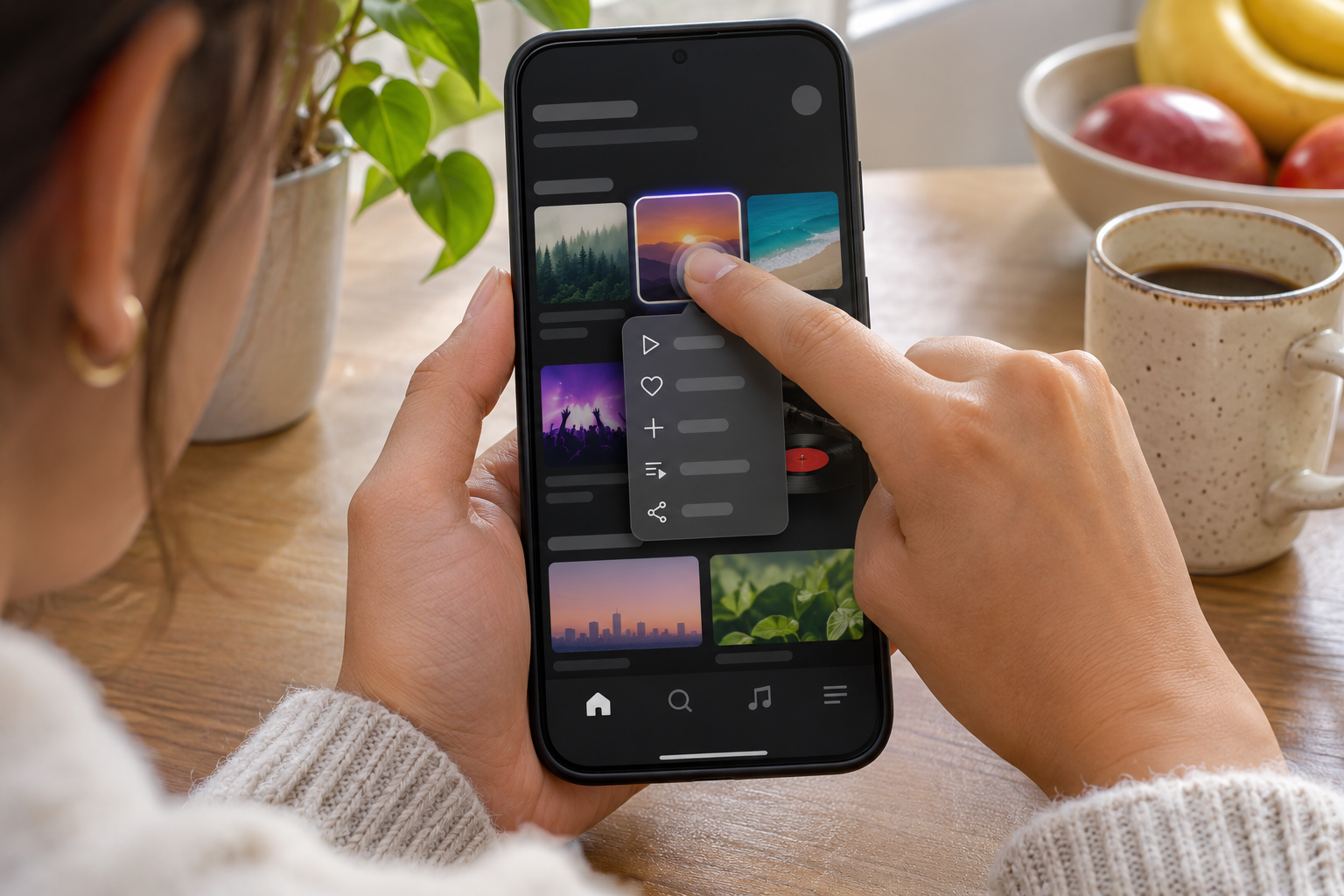
Use this when the shortcut itself is the problem: an album you sampled once, a finished audiobook, a podcast episode you do not need at the top of Home, or a playlist someone else opened on your account. Spotify says the control works with music, podcasts and audiobooks as the rollout reaches an account.
- Update Spotify from the official App Store or Google Play listing, then open the mobile app.
- Tap Home and find the unwanted tile in the group at the top of the screen.
- Press and hold the tile until its menu opens.
- Choose Remove from this section.
- Check that the tile disappears from that Home section; repeat only for other individual tiles you want to hide.
Removing the shortcut does not unsave the album, show or book from Your Library, and it does not tell Spotify to avoid similar content. Search and Library remain the safer places to find something again. If the same title appears in another Home module, that separate placement may need its own control.
How to remove one item from Spotify Recents
The Recents shelf is separate from the shortcut group at the top of Home. Spotify’s new option hides one entry at a time rather than wiping the whole shelf.
- Open Home in the Spotify mobile app.
- Scroll to the Recents shelf and locate the individual item.
- Press and hold the item.
- Choose Remove from this section when the option appears.
Spotify has not described this as erasing the underlying account activity or downloaded files. It changes what is shown in that section. If privacy is the reason for cleaning the screen, review Spotify’s separate profile and listening-activity settings rather than treating Home cleanup as a privacy tool.
How to steer recommendations with Not interested
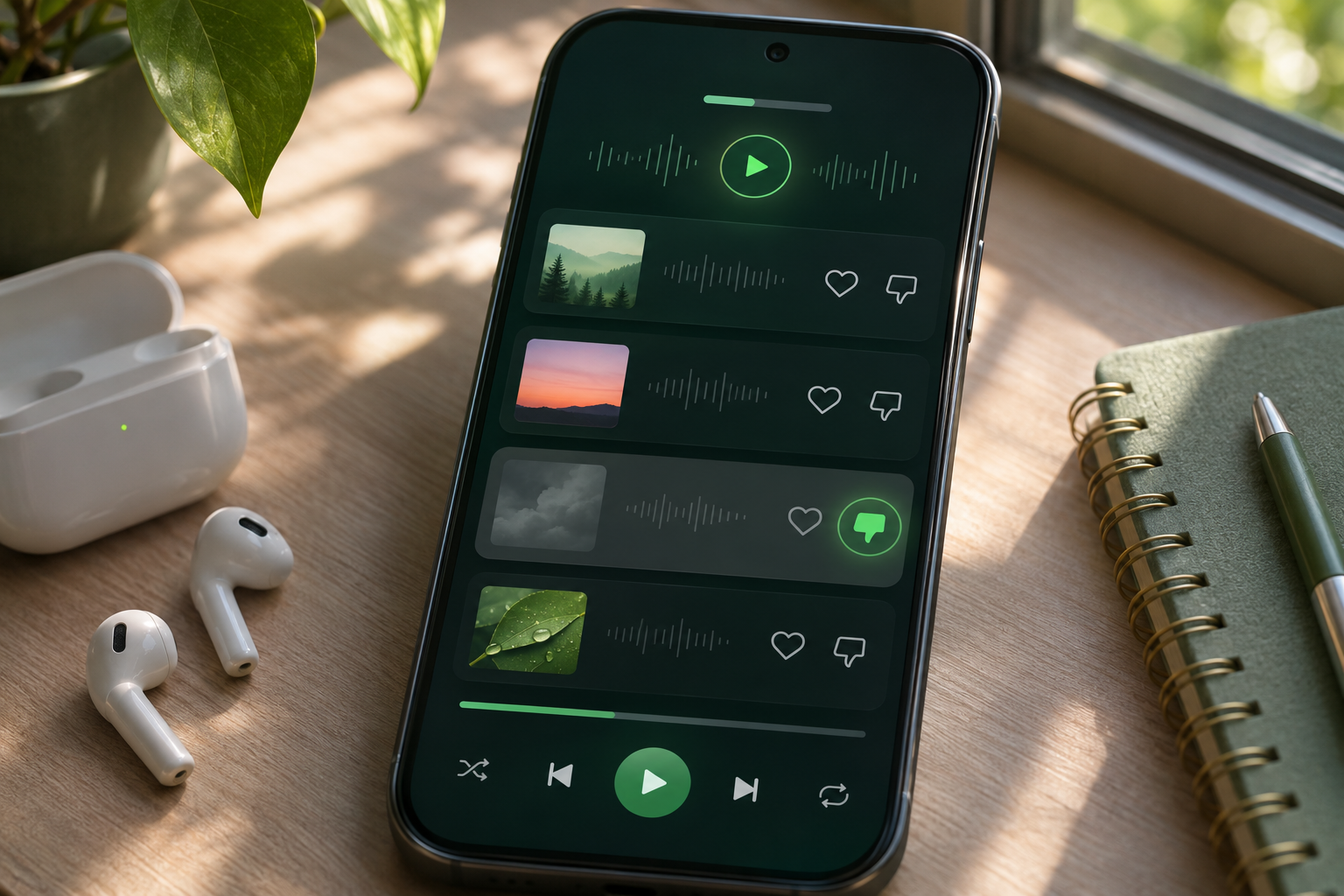
Use Not interested when you want Spotify to recommend less from a particular show or author, not merely hide one card. Spotify says it has expanded this feedback across Home. Open the options for an eligible recommendation and choose Not interested when offered. The exact menu placement can vary by card and app version.
This is a stronger signal than Remove from this section, so use it deliberately. A one-off stale shortcut belongs in the removal workflow. A recurring podcast, audiobook author or similar recommendation you do not want is the better candidate for Not interested. Spotify does not promise that one action blocks every related item permanently.
Remove, Not interested and Taste Profile are different
Spotify now has several controls that can look interchangeable. Choosing the one that matches the problem avoids accidentally changing recommendations when you only meant to tidy the screen.
- Remove from this section: hides one tile or Recents item from that visible Home section; Spotify says it does not affect future recommendations.
- Not interested: provides feedback intended to reduce recommendations from selected shows or authors.
- Taste Profile beta: lets eligible Premium listeners age 18 or older describe what they want more or less of on Home; Spotify says it affects Home recommendations, not Wrapped.
- Exclude from your taste profile: reduces the influence of past and future listens from a specific track or playlist on recommendations and taste summaries.
- Private Session: temporarily prevents listening from appearing in Friends Activity, updating recently played artists or personalizing recommendations during the session.
Taste Profile remains a beta and is limited by plan, age, device and market availability. Spotify’s November announcement identifies the beta in the United States and New Zealand. If the profile option is absent, that does not prevent a Free or Premium listener from receiving the new Home cleanup controls.
When Exclude from your taste profile is the better choice
Sleep tracks, children’s music, a shared workout playlist or a song used for testing speakers can distort recommendations even when the listener wants to keep the content. Spotify’s exclusion control is designed for that situation.
- Open the track or playlist.
- Open its three-dot menu.
- Choose Exclude track from your taste profile or Exclude from your taste profile.
- Use Include in your taste profile later if you want to reverse the decision.
Spotify says an exclusion can take up to 48 hours to affect the taste profile, and a weekly feature such as Discover Weekly may not reflect it until the following week. Streams from an excluded track or playlist are omitted from most Wrapped story and data points, although they still count toward total listening time. Playing the same song outside an excluded playlist can still influence the profile.
Home cleanup is not the same as privacy
Hiding a Home tile does not automatically hide recently played artists from a public profile or stop listening activity from reaching friends. Spotify provides separate switches under Settings and privacy.
Hide recently played artists on your profile
- Tap your profile picture in the mobile app.
- Open Settings and privacy, then Privacy and social.
- Turn Recently played artists off.
Use a temporary Private Session
Private Session is useful when a temporary listening session should not affect recommendations or public activity. Spotify says it applies across devices, turns off automatically after six hours or when the app restarts, and prevents that session from influencing Wrapped. It only changes listening while the session is active; it is not a retroactive deletion tool.
Why the new controls may be missing
- The rollout is gradual even though Spotify describes it as global.
- Spotify announced the controls for mobile; checking only desktop or the web player may show no change.
- The menu depends on the type and location of the card. Use a top shortcut or Recents item for Remove from this section and an eligible recommendation for Not interested.
- The Taste Profile beta has narrower eligibility than the Home cleanup controls.
Start with an official app update and then wait for the account-side rollout. Deleting downloads, repeatedly reinstalling Spotify or using an unofficial app package is unnecessary and can create new account or storage problems.
A verified listening accessory on Amazon
For listeners who use Spotify on the move, the Shokz OpenFit 2 on Amazon (ASIN B0DN11MTZ6) is a verified open-ear Bluetooth option. Confirm the exact OpenFit 2 model, seller, color, current price, warranty and return terms before ordering. The Home-feed controls are account and app features; buying headphones does not unlock them or speed up the rollout.
Affiliate disclosure: ReaderSpice may earn a commission from qualifying Amazon purchases made through the link above, at no additional cost to you.
The bottom line
Spotify’s November Home update solves two different frustrations. Remove from this section tidies individual shortcuts and Recents entries without changing recommendations. Not interested tells Spotify to reduce selected show or author suggestions. For broader personalization, use Taste Profile or exclude a track or playlist; for privacy, use the separate profile, activity and Private Session controls.
The practical rule is simple: remove when the screen is cluttered, use Not interested when the recommendation is wrong, exclude when repeat listening should carry less weight, and change Privacy and social settings when visibility to other people is the concern.
Sources
Spotify Newsroom: Three New Ways to Shape What You See on Spotify Home — November 12, 2026
Spotify Support: Taste Profile beta eligibility and controls
Spotify Support: Exclude a playlist or track from your taste profile
Spotify Support: Recently played artists privacy setting
Spotify Support: Privacy and social controls
Spotify Support: Private Session behavior and limits
Amazon: Shokz OpenFit 2 (ASIN B0DN11MTZ6)