
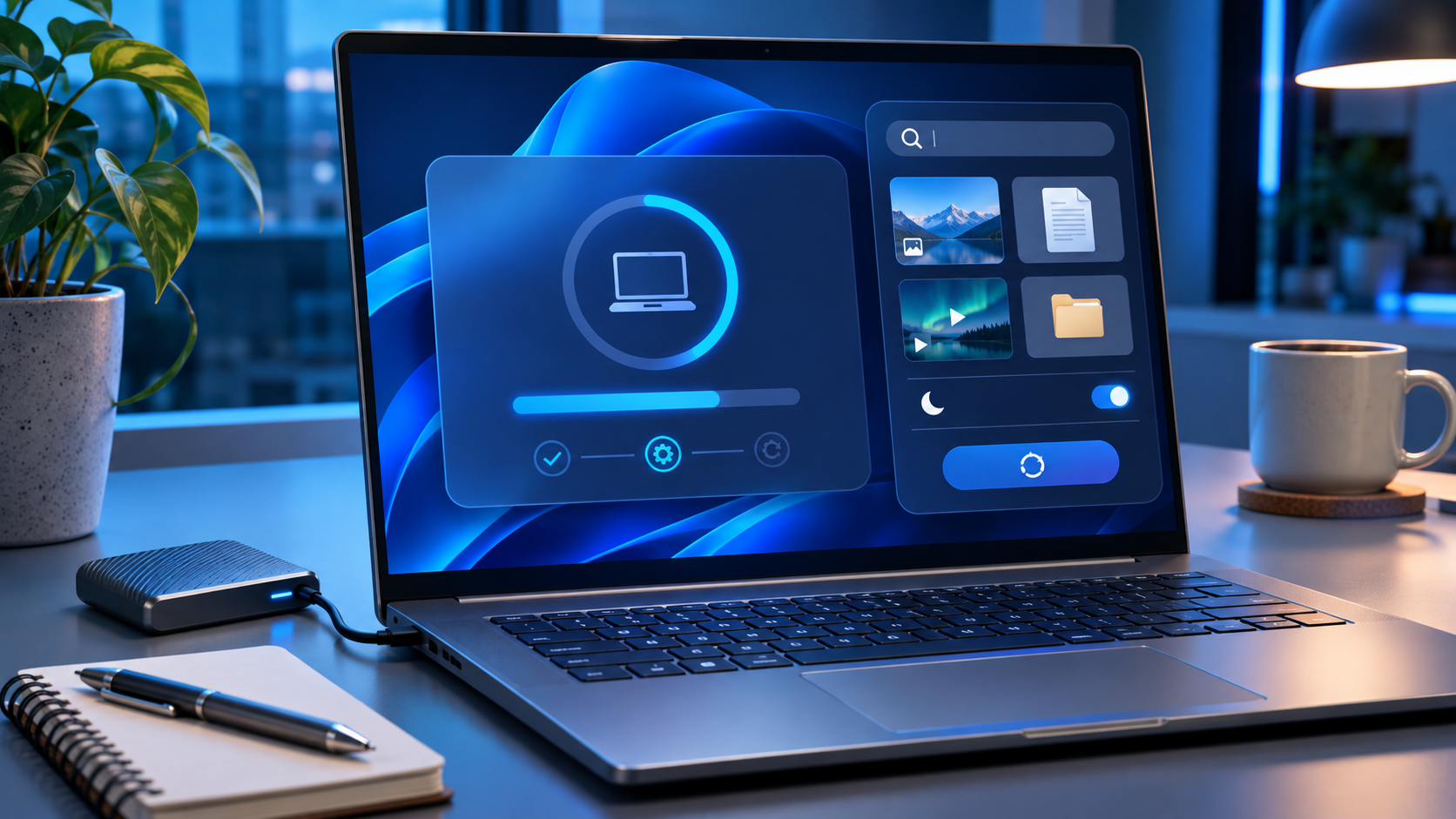
Microsoft’s Windows 11 preview update KB5132057 adds a redesigned Search experience that can preview files and perform common actions, plus changes to File Explorer, Windows Hello, accessibility tools and the Copilot key. It moves Windows 11 version 26H2 to build 26300.10075 and version 25H2 to build 26200.10075.
This is an optional non-security preview released November 19, 2026 and updated in Microsoft’s notes on November 25. It is not an urgent security patch. The most important reason to wait is not a consumer bug: Microsoft documents a SQL Server linked-server connection issue that can degrade affected servers over time. Home users still need to understand staged feature delivery and have a rollback plan before installing a preview.
This guide is based on Microsoft’s current release notes and support pages, not independent performance testing. Feature availability can differ by edition, language, hardware, region and Microsoft’s gradual rollout controls.
Windows 11 KB5132057 at a glance
- Release: November 19, 2026; Microsoft updated the documentation on November 25.
- Applies to Windows 11 26H2 and 25H2; the resulting builds are 26300.10075 and 26200.10075.
- Type: optional non-security preview, commonly called the monthly D release; it is not the November security update.
- Main feature: a streamlined Windows Search with one result list, file previews, inline system actions and improved handling of typos and synonyms.
- Other additions: brighter Windows Hello face sign-in in dim rooms, a modern Run dialog, faster This PC search, pointer and Magnifier tools, more Live Captions control and Copilot-key guidance.
- Normal fixes include File History restore detection, Miracast resolution, Android cross-device passkeys, false shutdown warnings and Sage 50 Accounting crashes.
- Known issue: SQL Server linked-server OLE DB connections to external databases can remain open and accumulate.
- Servicing note: Microsoft says there will be no second-half December 2026 non-security preview; normal preview servicing resumes in January 2027.
The redesigned Search is the headline change
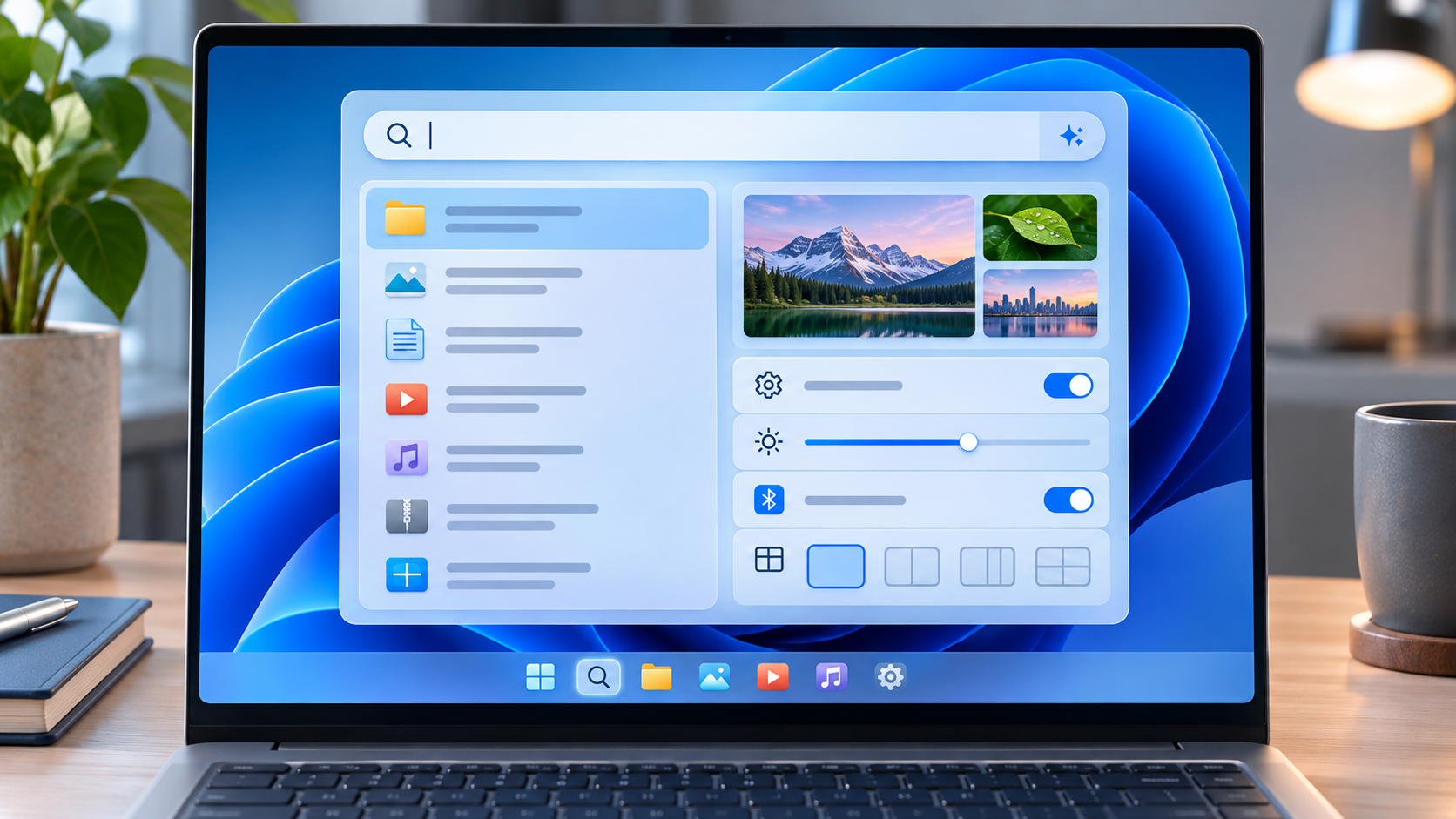
The new Search design combines results, file previews and selected system actions, but Microsoft is rolling it out gradually and initially in English.
Windows Search now presents results in a single simplified list rather than separating them into as many surfaces. Microsoft says the change improves performance and memory efficiency. File results can show a preview plus details such as location, creator and modified date, while quick answers can surface weather, stock and factual information without opening another app.
The more consequential shift is from searching to acting. Microsoft lists examples such as toggling dark mode or Bluetooth, changing brightness, muting the PC and arranging open windows. With an Android phone connected through Phone Link, Search can also expose actions including calling or texting a contact, finding the phone and changing Do Not Disturb.
Those actions still operate inside the user’s existing Windows and Phone Link permissions. A result appearing in Search does not grant new access, and it does not mean every setting or phone action is supported. The experience is initially English-only and part of a gradual rollout, so two PCs on the same build can temporarily look different.
File Explorer, Hello and the Run dialog also change
This PC search becomes indexer-based
Search from This PC in File Explorer now uses the Windows indexer, aligning it with File Explorer Home. The practical benefit should be faster, more consistent results for indexed content. Files or locations excluded from indexing can still behave differently, and network, removable or enterprise-managed locations may not have the same coverage as a local indexed folder.
Windows Hello can brighten the screen
Windows Hello facial recognition can temporarily raise screen brightness in a dark room. The setting is under Settings > Accounts > Sign-in options > Facial recognition (Windows Hello) as “Automatically adjust screen brightness during face recognition.” It is an optional aid, not a replacement for an infrared camera or compatible biometric hardware.
The modern Run dialog is opt-in
A redesigned Run dialog can be enabled under Settings > System > Advanced > New Run dialog. Because Microsoft labels it as a new experience, administrators and support staff should confirm that scripts, keyboard habits and assistive tools still behave as expected before enabling it broadly.
Accessibility and productivity changes are substantial
- Pointer indicator: a new low-vision aid under Settings > Accessibility > Mouse pointer and touch. After enabling it, press Windows + Ctrl + Shift + X to toggle it.
- Magnifier: adds control over the Windows + Plus shortcut and a help menu with support and Feedback Hub access.
- Live Captions: can transcribe system audio, microphone audio or both, useful for meetings and in-person conversations.
- Narrator: expands math-reading support to Greek, Hungarian, Indonesian, Norwegian Bokmål, Polish, Russian, Swedish and Vietnamese.
- Sticky, Filter and Toggle Keys: an accidental shortcut prompt can now disable the triggered feature directly.
- Screen capture: the active-capture border changes from yellow to red, and Microsoft says pointer latency during capture is reduced.
- Xbox mode: Gaming Task View gains access to the full taskbar Quick settings set without leaving Xbox mode.
The Copilot key does not force an unassigned action
Microsoft added a November 25 clarification for PCs where the Copilot key has no assigned app. Pressing the key can help the user find and install a compatible app from Microsoft Store, with behavior varying by region. This does not mean every keyboard gains a Copilot key or that an organization’s managed assignment is overwritten. Check Settings > Personalization > Text input for the available customization path on the specific device.
The SQL Server warning is narrow but serious
Microsoft says Windows updates released October 13, 2026 and later can leave SQL Server linked-server connections open after queries finish. The documented path involves OLE DB providers used to reach external databases, with Oracle and PostgreSQL among the known affected connections. Over time, open connections can accumulate and slow or degrade a server.
Closing identifiable idle connections or restarting the SQL service can temporarily relieve load, but either action can interrupt active work and the problem can return. Microsoft says an enterprise mitigation is available through Microsoft Support for business while it works on a permanent resolution. Do not apply a forum script, terminate connections indiscriminately or restart a production SQL service without the database owner’s change and recovery plan.
This warning is unlikely to matter to a normal home PC that does not host SQL Server linked-server workloads. It is a strong reason for businesses that do use them to hold the preview in a test ring and monitor connection counts before wider deployment.
Who should install now—and who should wait
Consider installing if a listed change solves a real problem
- You want to test the new Search, File Explorer indexing, Hello brightness, Live Captions or accessibility controls on a non-critical Windows 11 25H2 or 26H2 PC.
- A documented fix matters, such as File History not finding a selected backup drive, Miracast choosing a low resolution, an Android cross-device passkey error or a false “someone else is using this PC” shutdown warning.
- You can back up important files, verify the BitLocker recovery key and tolerate a restart plus possible rollback.
Wait for a later security update if stability matters more
- The PC is business-critical, performs live production or depends on drivers and tools that have not been validated with the preview.
- The environment uses SQL Server linked servers with OLE DB connections to Oracle, PostgreSQL or other external databases.
- You do not need the listed fixes. Preview changes normally roll into a later cumulative security update after additional real-world testing.
- You run Windows 11 24H2 or 26H1. KB5132057 targets 25H2 and 26H2; 26H1 uses a separate November preview package.
How to install KB5132057 safely
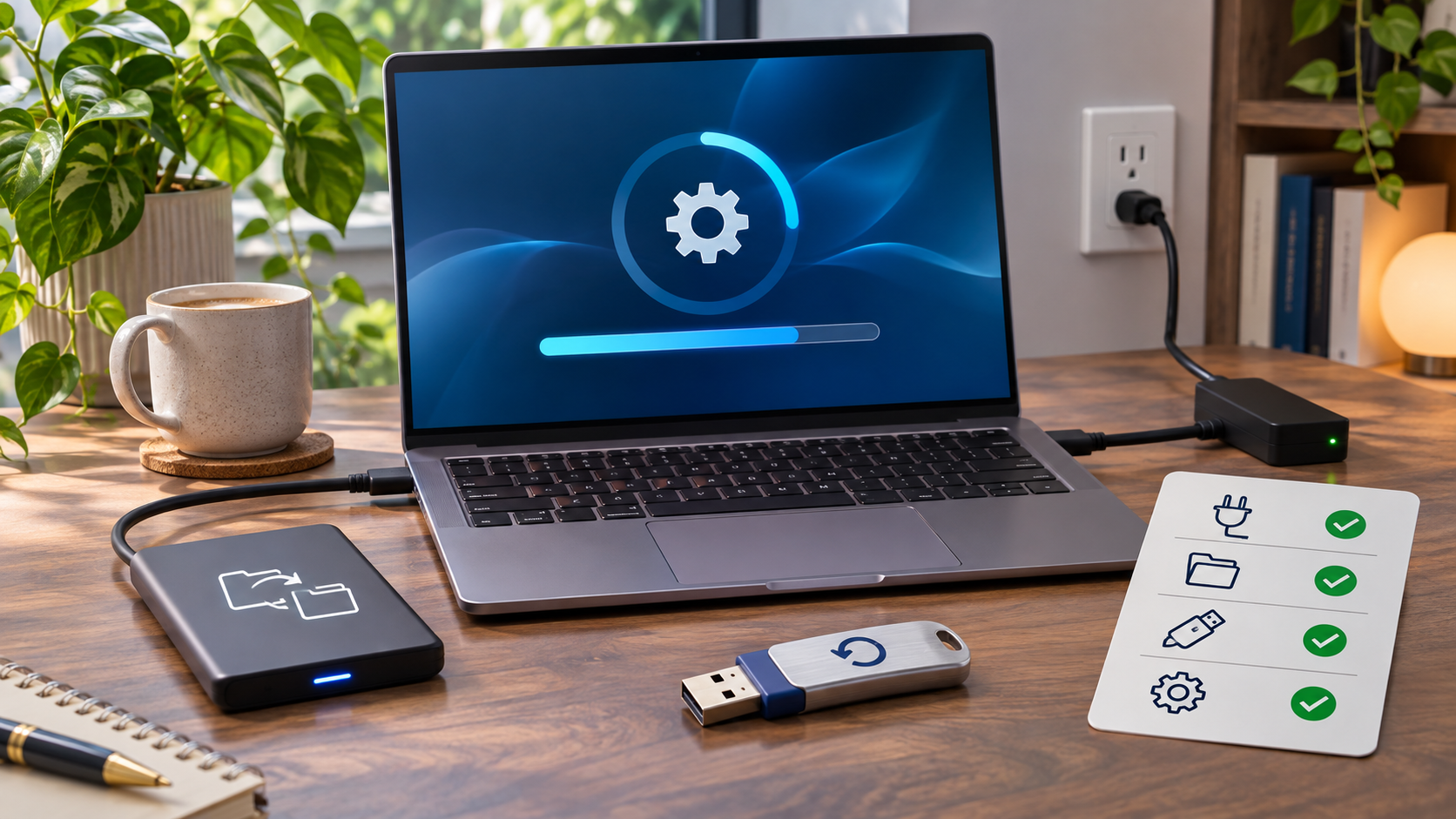
Back up irreplaceable files, connect to power and confirm recovery access before choosing an optional preview update.
- Open Settings > System > About and confirm Windows 11 version 25H2 or 26H2. Do not force the package onto a different version.
- Back up irreplaceable files and confirm you can retrieve the BitLocker or Device Encryption recovery key. A recovery USB is useful, but it is not a substitute for a current file backup.
- Connect a laptop to power, save open work and disconnect nonessential hardware that would complicate troubleshooting.
- Open Settings > Windows Update > Advanced options > Optional updates. Select the available KB5132057 download-and-install link only if Windows offers it to the device.
- Restart when prompted. Do not force power off during servicing.
- After sign-in, press Windows + R, type winver and confirm build 26300.10075 on 26H2 or 26200.10075 on 25H2.
- Test the functions that matter: Search, File Explorer, sign-in, audio, VPN, Bluetooth, printers, external displays, accessibility tools and backup restore browsing.
A missing feature does not mean installation failed
Microsoft divides the release into gradual and normal rollout features. The build number can be correct while the new Search, Run dialog or another staged feature is not yet enabled. Language, region, device type and managed policy can also affect availability. Do not modify hidden feature flags or run an unverified enablement script simply to force a staged component.
Rollback and recovery options
If a repeatable problem begins after the preview, document it first: record the build, error, affected device and whether the issue persists after a normal restart. For an update Windows allows you to remove, go to Settings > Windows Update > Update history > Uninstall updates, select the relevant package and choose Uninstall. Some packages cannot be removed.
If Windows will not start, Windows Recovery Environment can offer Troubleshoot > Advanced options > Uninstall Updates. Microsoft also recommends less destructive recovery paths before a reset, including reinstalling the current version through Windows Update while keeping files, apps and settings. A managed work or school PC should go through IT rather than an improvised rollback.
A practical pre-update backup accessory
An external SSD can hold a manual copy or File History backup before testing a preview. One verified option is the Samsung T7 Shield 1TB portable SSD (ASIN B09VLK9W3S). It is optional: any current, verified backup destination is more important than this specific drive. Confirm capacity, seller, included cables, file-system needs and return terms before ordering.
Affiliate disclosure: ReaderSpice may earn a commission from qualifying Amazon purchases made through the tracked link above, at no additional cost to you.
Bottom line
KB5132057 is a feature-heavy Windows 11 preview, led by a genuinely broader Search experience and useful improvements to File Explorer, Windows Hello, Live Captions and accessibility. It is still optional. Home users should install only when a listed change is worth testing and recovery is prepared; stable production PCs can wait for the changes to mature into a later security update.
Businesses using SQL Server linked servers should be especially cautious because Microsoft’s open-connection issue can degrade servers and requires an official mitigation path. Preview updates are for controlled evaluation, not a reason to bypass staged delivery or normal change management.
Sources
- Microsoft Support: KB5132057 features, fixes, installation and known issue
- Microsoft Learn: Windows 11 release information and build table
- Microsoft Learn: November Windows message center
- Microsoft Support: How to uninstall a Windows update
- Microsoft Support: Recovery options in Windows
- Microsoft Support: Backup and restore with File History
- Amazon: Samsung T7 Shield 1TB portable SSD (ASIN B09VLK9W3S)