
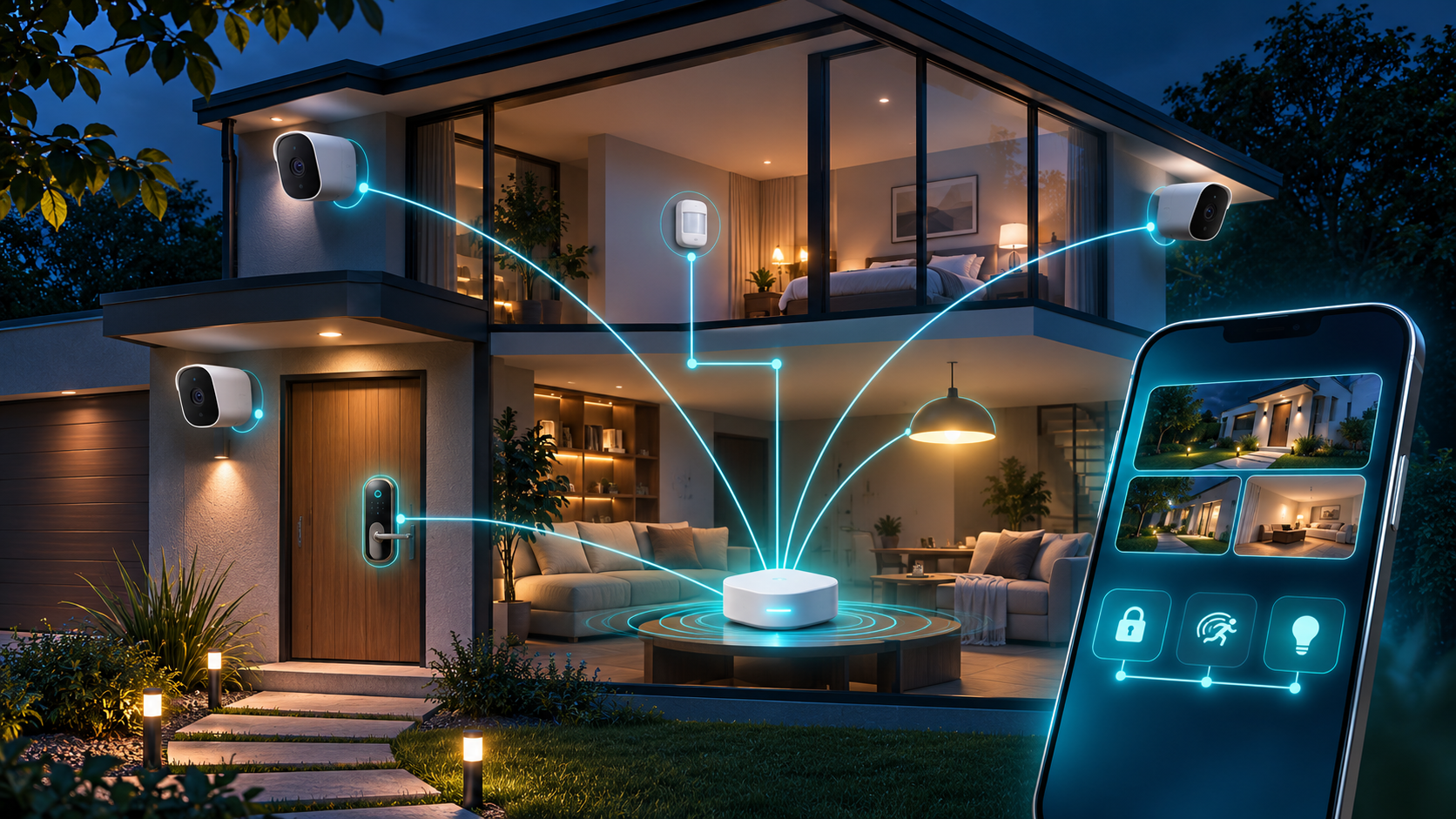
Samsung SmartThings announced full Matter-camera support on November 20, 2026, bringing compatible cameras from multiple brands into the same app as Matter lights, locks and sensors. The launch covers live streaming, two-way talk, motion alerts, event history, clip storage and motion or privacy zones on a defined set of SmartThings hubs.
The useful part is interoperability: a camera can remain in its manufacturer app while also joining SmartThings through Matter. The important limits are equally practical. Not every SmartThings hub is confirmed, cloud clips are model-dependent, remote viewing still needs the internet, and a Matter logo does not guarantee that every camera exposes every feature. This guide separates the current launch list from the broader Matter 1.5 specification and explains how to add a camera without discarding a working setup.
SmartThings Matter cameras at a glance
- Announcement: SmartThings published the full Matter-camera launch on November 20, 2026.
- Core functions: live streaming, two-way talk, motion detection, event history, advanced settings, clip storage, and motion or privacy zones.
- Confirmed launch hubs: Aeotec Smart Home Hub 2, Aeotec Smart Home Hub, SmartThings Hub 2018 and ThingsOne Smart Home Hub.
- Named launch partners: the November announcement lists Aqara, Eve and Xthings; SmartThings’ current partner page separately lists Aqara, Eve, Ulticam and TP-Link.
- Connection: cameras use Wi-Fi, while a supported SmartThings hub acts as the Matter controller for the full SmartThings experience.
- Multi-platform use: a camera can stay in its original app and be shared to SmartThings with a new Matter pairing code.
- Storage: SmartThings describes an optional Matter Basic Lite tier with 12 hours of rolling storage for 10-second motion clips across up to two cameras, but support depends on the exact model.
- Offline boundary: local live viewing can continue through the hub during an internet outage; remote access and cloud storage require an active connection.
What SmartThings Matter cameras support
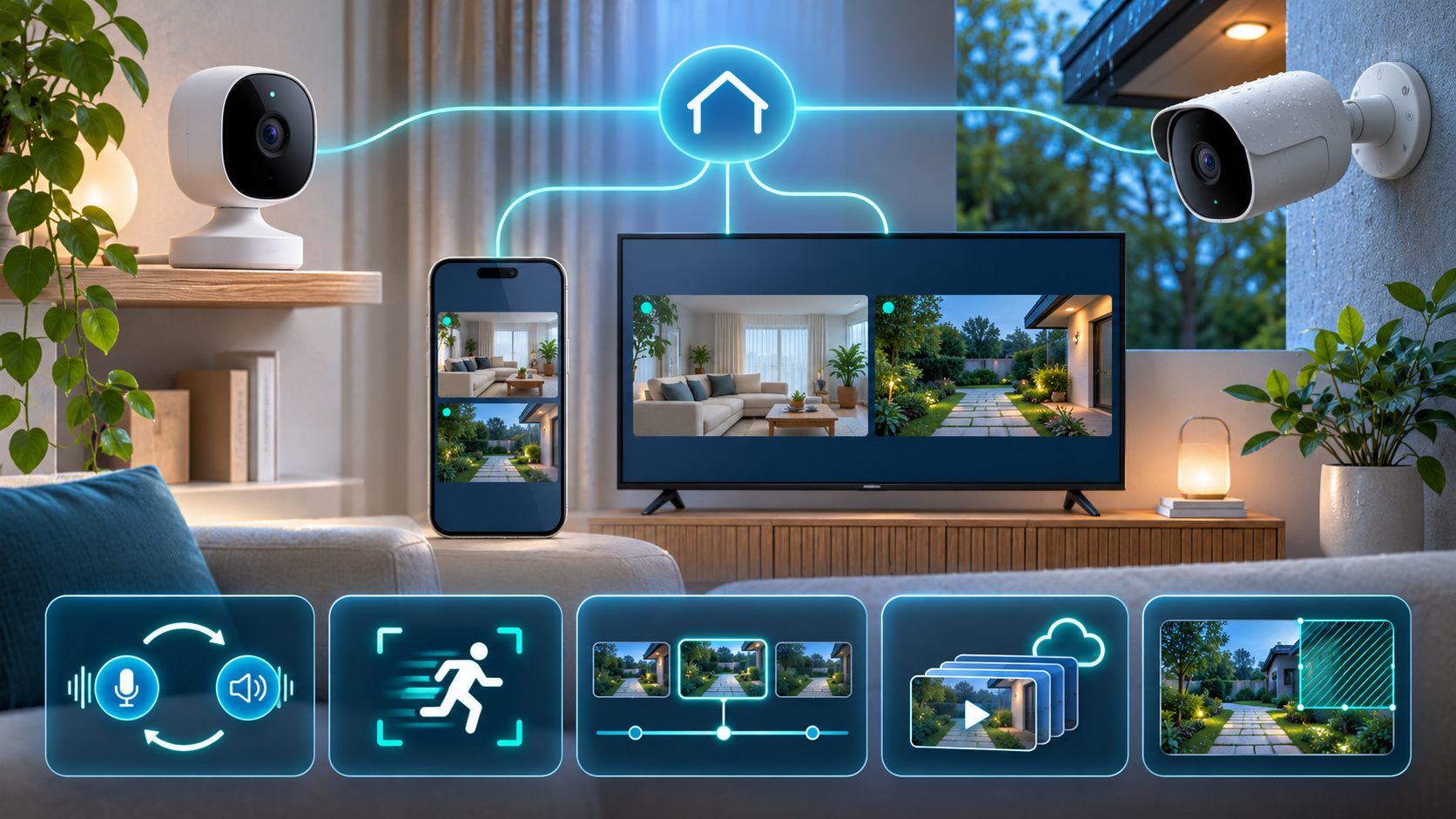
Matter-camera support brings live views, talkback, alerts, clips and privacy controls into a shared SmartThings interface. Illustration: ReaderSpice.
SmartThings’ launch list covers the functions most people expect from a modern security-camera dashboard. A live feed can be opened from the app, two-way talk can carry a conversation through a compatible camera, and motion events can appear in a history view. Motion zones can reduce alerts from a road, tree or neighboring property, while privacy zones can obscure sensitive parts of the frame.
That list describes platform capabilities, not a universal feature guarantee. Matter 1.5 defines a wider camera foundation that can include multiple streams, pan-tilt-zoom control, detection and privacy zones, and local or cloud recording. A particular camera still decides which capabilities it implements, and SmartThings decides which of those it exposes in its current interface. Check the exact model rather than assuming that a certified camera has motorized movement, continuous recording or identical clip retention.
SmartThings also extends viewing beyond the phone. Its current camera page says compatible feeds and two-way communication can appear on supported Samsung televisions and Family Hub refrigerators, with monitoring options on Galaxy Watches and Samsung Smart Monitors. Availability still depends on the appliance model, account, region, network and camera capability.
The partner roster is growing, but model numbers matter
Samsung’s November 20 article names Aqara, Eve and Xthings as the first Works With SmartThings Matter-camera partners. A separate current SmartThings partner page lists Aqara, Eve, Ulticam and TP-Link. The difference is a useful warning that the catalog is evolving: a brand name is not a substitute for a compatible model number and firmware version.
Before buying or migrating, open the product page for the exact regional model and look for Matter-camera support rather than ordinary Matter support, HomeKit support or a generic Works With SmartThings badge. A Matter bridge can expose only the capabilities it implements, and an older Wi-Fi camera does not become a Matter camera merely because another device in the home uses Matter.
ReaderSpice has not tested the new SmartThings camera stack or compared video quality, latency, detection accuracy and talkback delay across brands. The feature and compatibility claims here come from SmartThings, the Connectivity Standards Alliance and manufacturer documentation. Treat the first few weeks as an interoperability rollout, not proof that every advertised combination is equally mature.
Which SmartThings hubs are confirmed
- Aeotec Smart Home Hub 2: the current compact hub with Matter, Thread, Zigbee, Ethernet, Wi-Fi and Bluetooth onboarding; it does not include Z-Wave.
- Aeotec Smart Home Hub: the earlier SmartThings-compatible hub with Matter, Thread, Zigbee and Z-Wave support.
- SmartThings Hub 2018: Samsung’s third-generation hub, explicitly named in the launch list.
- ThingsOne Smart Home Hub: included in SmartThings’ confirmed launch hardware.
The current November launch list does not name SmartThings Hub 2015, SmartThings Station or every Samsung device with a built-in hub. A 2025 SmartThings announcement said a Hub 2015 update would come in 2026, but the newer launch article still lists only the four hubs above. Use the current compatibility page and the app’s hub information as the deciding evidence; do not replace or reset a working system based on an older promise.
A camera itself uses Wi-Fi, so the hub is not carrying the video over Thread. The hub serves as the Matter controller and coordinates the SmartThings experience, routines and local live-stream path. High-bandwidth camera traffic also makes network quality important: place the camera on stable Wi-Fi and connect the hub by Ethernet when practical before troubleshooting the application layer.
Set up a Matter camera in SmartThings
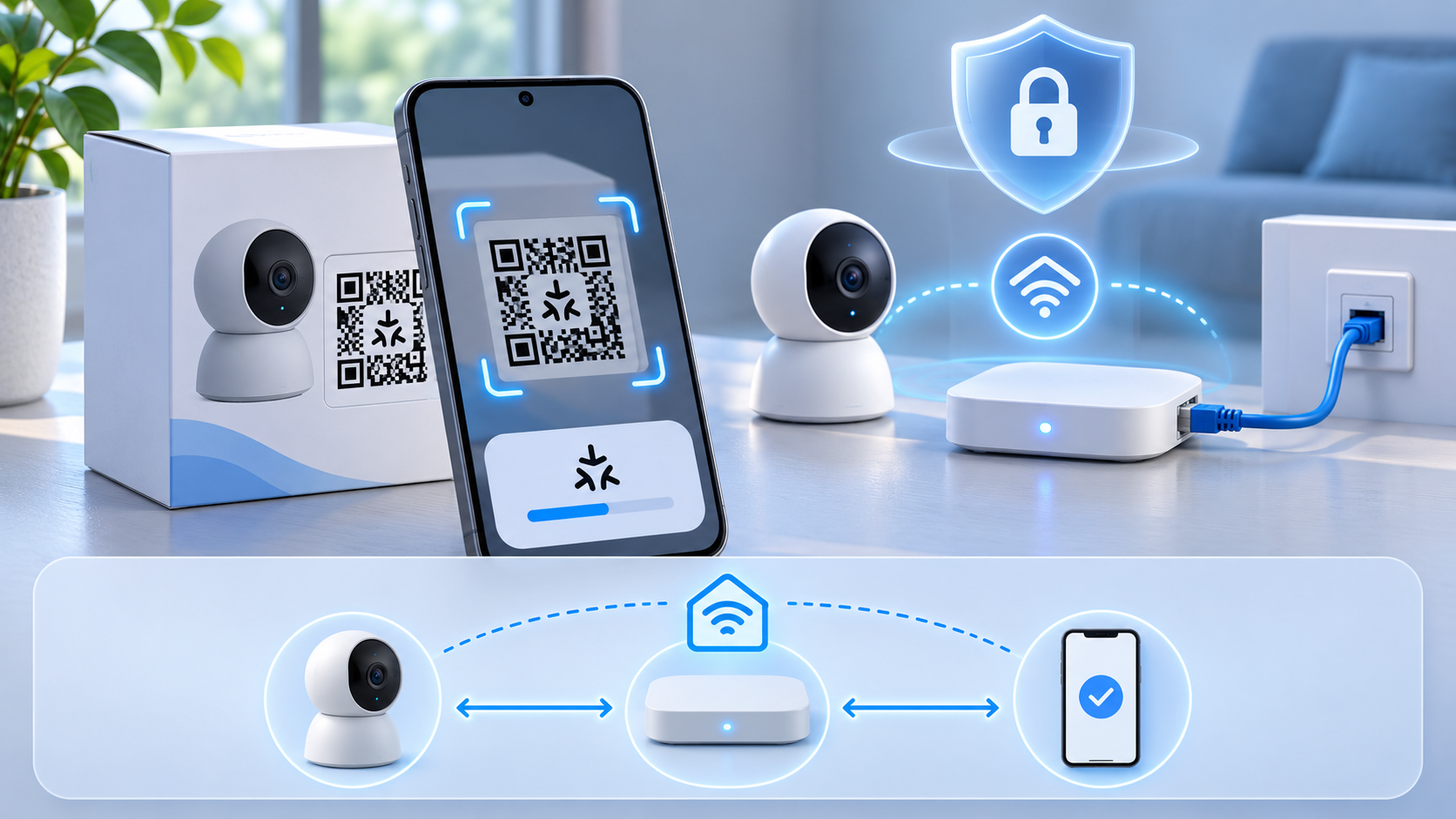
Pair the camera to a confirmed hub, then test local viewing, remote viewing, alerts and storage separately. Illustration: ReaderSpice.
- Update the SmartThings app, the selected hub and the camera firmware. Record the existing camera settings before changing anything.
- Confirm the exact camera is a Matter-camera model and that the chosen hub appears in SmartThings’ current supported list.
- If the camera is already installed in its manufacturer app, use that app to generate a new Matter pairing code. Do not factory-reset the camera merely to add another platform.
- Open SmartThings, tap Add, choose Add device and scan the camera’s Matter QR code. Enter the numeric setup code if scanning fails.
- Select the correct SmartThings location, supported hub and room. Keep the phone, camera and hub on the intended home network during commissioning.
- Wait for the device to finish connecting, then rename it by location and purpose rather than by a generic model name.
- Test live video and audio on the local network. Next, test motion alerts, two-way talk, event history, privacy zones and clip storage one feature at a time.
- Turn off home Wi-Fi on the phone and test remote access separately. Then simulate an internet outage without powering down the router to verify the local live-view path.
- Review every routine that can react to the camera. Keep locks, alarms and safety actions manual until the event behavior is reliable.
Keep the original app with Matter multi-admin
Matter multi-admin is designed to let one device join more than one ecosystem. SmartThings says users can keep a camera in its original app, create a new pairing code there and add it to SmartThings. That is usually safer than removing a mature native integration on day one because the manufacturer app may retain firmware updates, advanced image controls, longer recording options or diagnostics that the Matter connection does not expose.
SmartThings support says a Matter device can be connected to as many as five services. Count existing ecosystems before adding another one, and remove stale fabrics through the appropriate app rather than repeatedly resetting the camera. Each additional administrator expands the number of accounts, phones and cloud services that can control or view the device, so multi-admin convenience should be matched with an account and access review.
Free clip storage has specific limits
SmartThings’ Matter-camera page describes Matter Basic Lite as a free storage option with a 12-hour rolling window for 10-second motion clips across up to two cameras. It also says clip storage is not universal: live view and motion alerts are broadly supported, while cloud clips depend on the camera model. Confirm eligibility inside the app before relying on the timeline after an incident.
A 12-hour rolling window can be useful for checking a recent arrival or motion alert, but it is not a substitute for long-term retention. Export an important clip promptly, verify that the saved file opens, and preserve the original timestamp and context. If a household needs continuous recording, several days of history or more than two cameras, compare the camera maker’s local storage, subscription or NVR options before migrating.
Storage and live viewing also have different network requirements. SmartThings says the supported hub can keep the live stream local during an internet outage. Remote access and cloud storage still need the internet. Test these paths independently instead of treating one successful local view as proof that alerts, uploads and off-site viewing will work.
Use cameras in routines cautiously
The main SmartThings advantage is combining a camera event with other devices. A front-door motion event can turn on a light, a contact sensor can prompt a live view, or a lock event can create a household notification. Start with informational routines that are easy to verify. A camera detection should not unlock a door, silence an alarm or make a safety decision without a separate trusted condition and human review.
Motion zones can reduce triggers from trees, sidewalks and vehicles, but image-based detection can still miss events or generate false positives. Run a routine in notification-only mode for several days, compare the event history with real activity, and only then add lighting or other reversible actions. Keep a physical control path for locks, lights and alarms when the app, cloud or network is unavailable.
Privacy and security checks before enabling a feed
Camera placement and zones
Place cameras at entrances and shared areas where monitoring has a clear purpose. Avoid bedrooms, bathrooms, neighboring property and spaces where visitors reasonably expect privacy. Configure motion and privacy zones in the actual viewing interface, then confirm that a recorded clip—not just the live preview—respects the boundary. A visual mask is useful, but it does not replace consent or local recording law.
Accounts, administrators and shared access
Use unique passwords and multifactor authentication for the Samsung account, camera-vendor account and any other ecosystem that can view the feed. Review household members and shared users after multi-admin setup. Remove old phones and former residents, and avoid sharing the owner account when a limited household invitation will work. A compromised secondary platform can matter even when the camera remains secure in SmartThings.
Retention, notifications and exports
Decide how long clips should remain available, who receives alerts and where exported files are stored. The free rolling tier intentionally expires older material, while vendor subscriptions or local storage can keep more. Limit notifications to meaningful zones, protect exported clips like other sensitive household records and delete tests that captured more than intended. Do not assume a cloud clip was uploaded until it appears and plays from another network.
Troubleshooting a camera that will not appear
- Confirm the exact camera model and firmware support Matter cameras, not only Wi-Fi, HomeKit or another Matter device type.
- Verify the hub is one of the four currently named for launch and that it is online in the correct SmartThings location.
- Put the camera back into pairing mode and use a newly generated Matter code if it is already commissioned elsewhere.
- Keep the phone near the camera and hub during setup, with Bluetooth, local-network access and the required app permissions enabled.
- Check that the home has not already reached the device’s limit of five Matter services.
- Restart the SmartThings app and camera before considering a reset. Preserve native-app recordings and settings first.
- Test with one controller and one live view. Multiple simultaneous streams can exceed a camera’s encoder or network capacity.
- If live viewing works locally but not remotely, investigate internet access and account permissions; if cloud clips are absent, confirm model eligibility and storage activation separately.
A confirmed SmartThings hub on Amazon
For a new installation, the Aeotec Smart Home Hub 2 on Amazon (ASIN B0G3YCFLJT) is one of the four hubs SmartThings explicitly names for Matter-camera support. Independent Amazon indexing identifies the U.S. model as GP-AEOHUBV4US. Aeotec documents Matter, Thread, Zigbee, Ethernet, Wi-Fi and Bluetooth onboarding, with a 900MHz processor and 512MB of memory.
This Hub 2 does not support Z-Wave, so it is not a drop-in replacement for an older Aeotec or SmartThings hub serving Z-Wave locks, switches or sensors. Check every existing protocol and device before migrating, and confirm the ASIN, seller, included power adapter, warranty, return terms and current price on the listing.
Affiliate disclosure: ReaderSpice may earn a commission from qualifying Amazon purchases made through this link, at no additional cost to you.
Who should add a Matter camera now
The launch is most useful for a household that already has one of the confirmed hubs and wants camera events beside SmartThings locks, lights and sensors without abandoning the camera maker’s app. It also makes sense for buyers who value cross-brand choice and are willing to test each feature before depending on it.
Wait if the home uses an unlisted hub, requires continuous or long-term recording, depends on advanced vendor analytics, or cannot tolerate early interoperability problems. The standard creates a common foundation, but the native app can remain the richer and more reliable path while SmartThings support matures. There is no reason to reset a stable camera system merely because the platform now supports a newer category.
The bottom line
SmartThings Matter-camera support is a meaningful smart-home step because video, talkback, alerts and privacy controls can finally join cross-brand Matter routines instead of living in a separate camera silo. The confirmed hub list and multi-admin path make a cautious trial possible without immediately replacing working hardware or deleting the original app.
The launch is not a universal camera upgrade. Verify the exact model and hub, keep the vendor app, test local and remote paths separately, understand the 12-hour clip limit, secure every administrator account and treat camera-triggered routines as untrusted until they have been observed. Interoperability is valuable when it adds choice; it is not a reason to lower privacy or reliability standards.
Sources
- SmartThings Blog — SmartThings is the first platform to support Matter cameras, November 20, 2026
- SmartThings — Matter cameras, compatible brands, setup, storage and offline limits
- SmartThings Support — Connect and troubleshoot Matter devices
- Samsung Support — Add and manage devices in SmartThings
- Connectivity Standards Alliance — Matter 1.5 camera capabilities, November 20, 2025
- SmartThings Blog — Matter 1.5 camera support preview and hub roadmap
- Aeotec — Smart Home Hub 2 specifications
- Amazon — Aeotec Smart Home Hub 2, ASIN B0G3YCFLJT (affiliate link)