
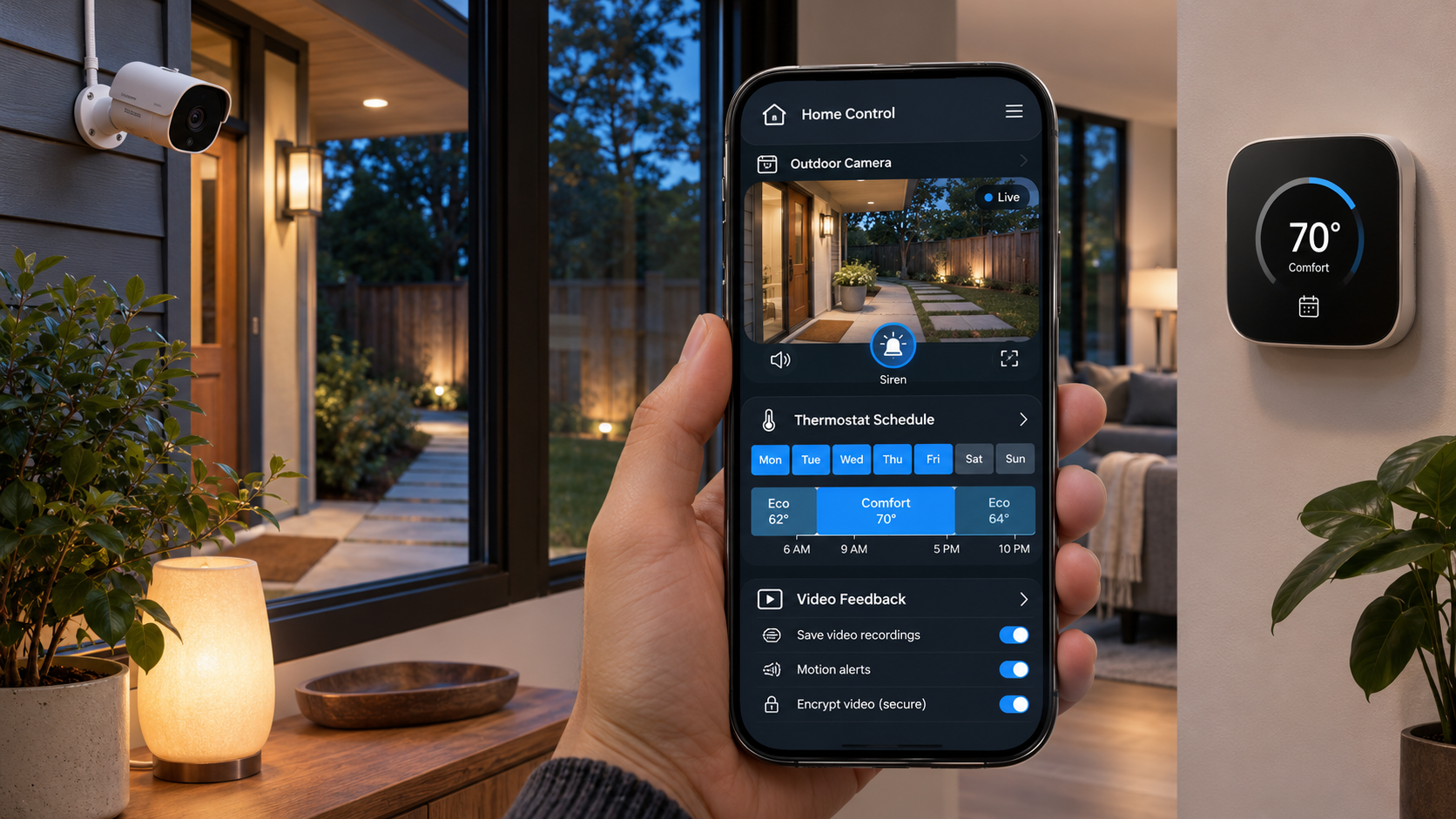
Google Home’s November 25, 2026 release adds controls that are more consequential than a routine bug-fix list. Owners of three supported outdoor cameras can start or stop a 30-second security siren while watching live video. Homes with multiple Google Home app admins can now submit camera-event feedback in supported regions, while sharing the underlying clip remains an optional choice with separate privacy consequences. Thermostat owners also gain a faster way to copy one day’s schedule across several days.
This is a narrower and newer update than ReaderSpice’s November 18 guide to the Fall 2026 Google Home package. That earlier article covered audio-enriched camera descriptions, Nest savings estimates, third-party Matter temperature sensors and faster Gemini responses. The November 25 release is about operating controls, feedback workflows, schedule editing and reliability fixes. Keeping those scopes separate avoids repeating the same launch story.
The headline features are conditional. Remote sirens are limited to Nest Cam Outdoor (wired, 2nd gen), onn Outdoor Camera Plug-In and onn Floodlight Camera Hardwired. Familiar Face alerts on the two onn outdoor cameras require Google Home Premium and can be unavailable in some regions. Schedule copying follows a slightly different interface on Nest Thermostat and Nest Learning Thermostat (4th gen). Google also says features may roll out gradually even when the app is current.
Google Home November 25 update at a glance
- Release date: November 25, 2026, with staged delivery possible after the app is updated.
- Remote siren: start or stop a 30-second siren while viewing live video on three named outdoor camera models.
- Named cameras: Nest Cam Outdoor (wired, 2nd gen), onn Outdoor Camera Plug-In and onn Floodlight Camera Hardwired.
- Feedback change: supported homes with multiple admins can now rate camera events and send troubleshooting feedback.
- Optional clip sharing: a separate control can provide the selected video clip for product improvement and AI-model training.
- Privacy warning: donated clips can include audio, metadata and household members or visitors; feedback alone does not require donating the clip.
- Thermostat schedule copy: one daily schedule can be applied to multiple days in Google Home.
- Thermostat support: Google documents the workflow for Nest Thermostat and Nest Learning Thermostat (4th gen).
- Android camera fixes: Android 17 notification previews return, event-history playback errors are reduced and Pixel landscape controls are cleaned up.
- Premium setup: U.S. subscribers adding a new camera can enable eligible premium features in one step, with per-feature customization before completion.
- Media fixes: speaker groups, stereo pairs, music transfer and Google TV audio-output setup receive reliability and status improvements.
- Gemini for Home: improved Gemini Live and interactive storytelling are rolling out, but device, country, language and subscription requirements still apply.
What changed after the broader Fall 2026 update
The November 17 fall announcement described larger platform capabilities: camera-event audio context, energy and room-sensor features, a country expansion and faster Gemini requests. The November 25 notes move closer to everyday maintenance. They add a physical security control, repair camera playback and notification problems, expose a schedule-copy shortcut and refine speaker and television-audio setup.
That distinction matters when troubleshooting. A missing audio event description is a plan, camera, recording or rollout question from the fall package. A missing remote-siren button is a model and live-view question from the November 25 release. A thermostat that cannot copy a schedule may be using an older app, the wrong thermostat card or a different model workflow. Treating every symptom as the same rollout can lead to unnecessary resets.
Remote siren controls on supported outdoor cameras
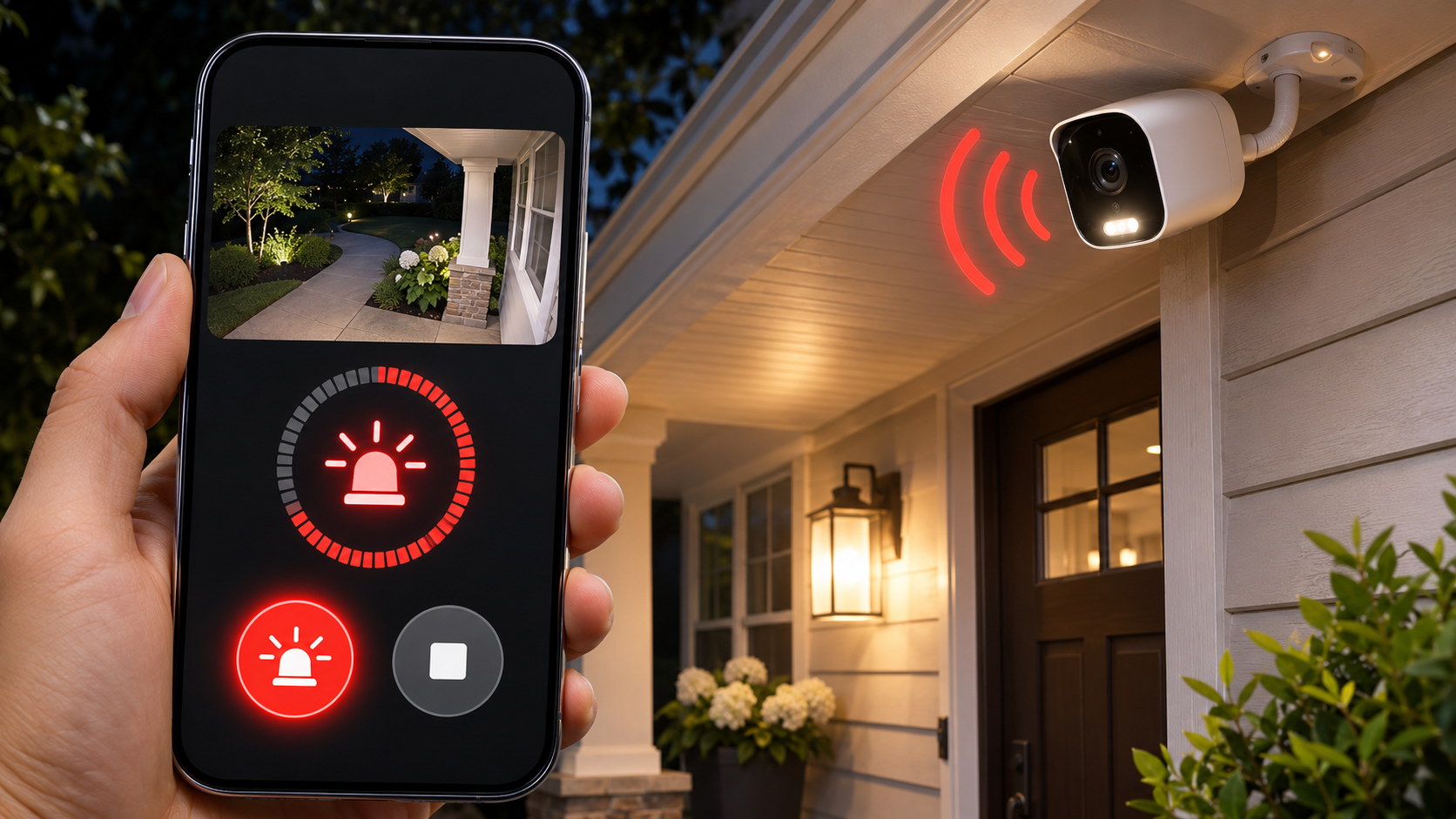
The new live-view control starts or stops a 30-second siren on three named outdoor camera models. Illustration: ReaderSpice.
Google says the control appears while the user is watching live video. It can activate or stop a 30-second security siren on Nest Cam Outdoor (wired, 2nd gen), onn Outdoor Camera Plug-In and onn Floodlight Camera Hardwired. The wording does not extend the feature to every Nest camera, doorbell, battery camera, indoor model or third-party camera visible in Google Home.
How to find and test the siren safely
- Update the Google Home app, confirm the intended home is selected and verify the camera is online.
- Open Cameras or the camera tile in Favorites, then start the live stream rather than opening only a recorded event.
- Confirm the exact camera model. A similar housing or the same manufacturer is not proof that the siren control is supported.
- Look for the siren control in live view. Do not factory-reset the camera simply because a staged control is absent.
- Warn household members and nearby neighbors before the first test, then activate the siren at a reasonable time.
- Use the stop control before the 30-second cycle ends and confirm the camera returns to ordinary live view.
- Review which home admins can open live view and whether that level of access is still appropriate.
A remote siren is a deterrent and attention signal, not a monitored alarm response. The release notes do not say that activation calls police, a monitoring center or another contact. Do not rely on the siren as the only warning system, and do not activate it when doing so could escalate a confrontation. If a dangerous situation is visible, follow local emergency guidance from a safe place.
Familiar Faces on onn outdoor cameras has a plan and region limit
The same release adds Familiar Face alerts for onn Outdoor Camera Plug-In and onn Floodlight Camera Hardwired through the Google Home app. Google requires a Google Home Premium subscription. Its current plan documentation also warns that familiar-face detection can be unavailable in certain locations, including a specific restriction for cameras and doorbells in Illinois. A working camera and paid plan therefore do not guarantee the feature everywhere.
Face labels are household organization tools, not identity proof. A similar-looking person, difficult lighting, hats, reflections or a partial view can produce a wrong result. Review the recorded event before acting on a name, keep the face library limited to people who should be included and delete profiles that are no longer needed.
Multi-admin clip feedback and optional video donation
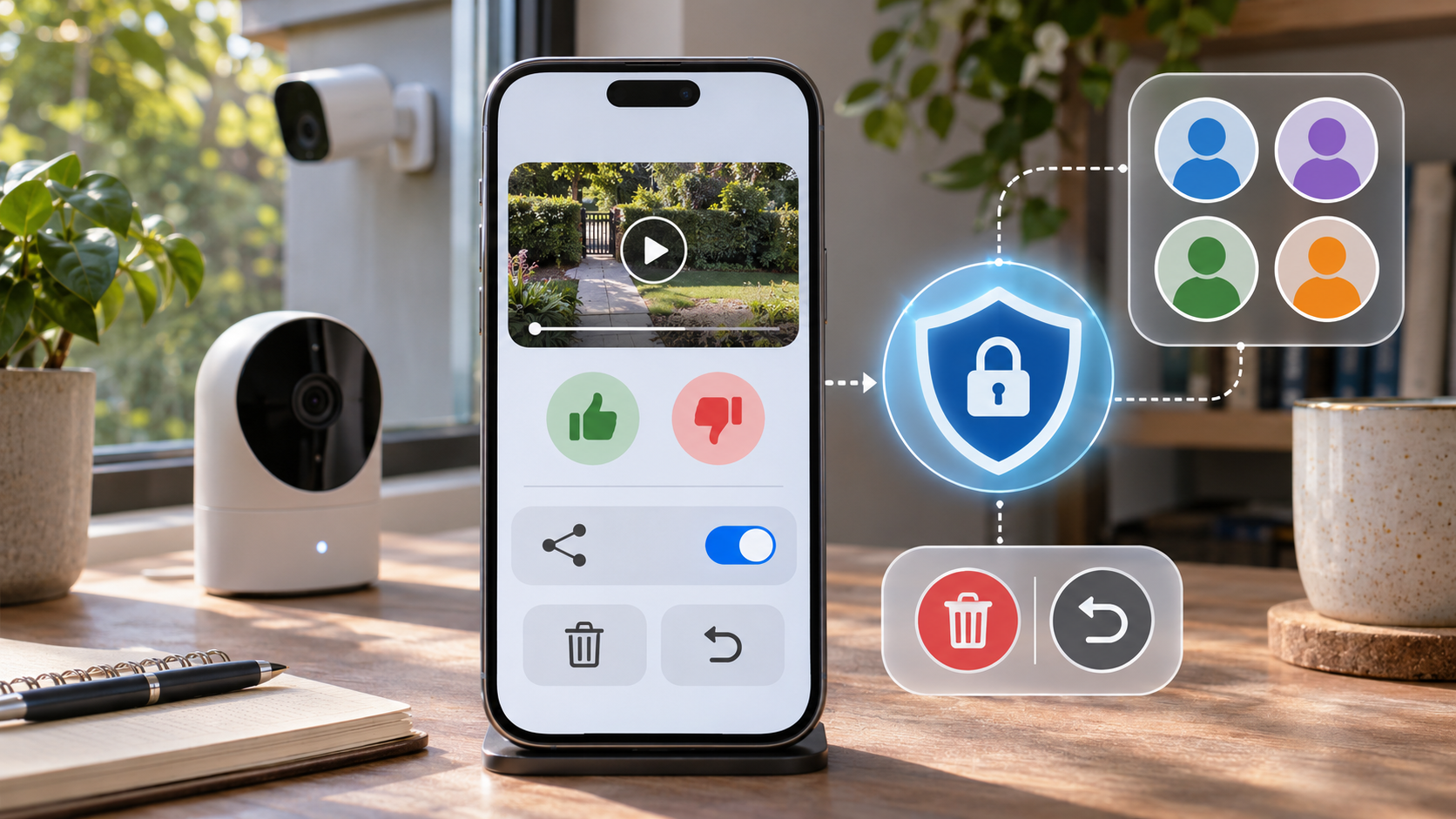
Feedback can describe a problem without automatically donating the clip; sharing the video is a separate optional choice. Illustration: ReaderSpice.
Google’s November 25 notes say video-clip feedback is now available to homes with multiple admins in supported regions. That is a meaningful change because Google’s older help text still says the feature is unavailable when a home has more than one Google Home app admin. The release notes are newer and describe the rollout, but the lagging help text is a reason to verify the current in-app screen rather than assuming every account has changed immediately.
Feedback is not the same as donating the clip
In the documented workflow, an admin opens a video event, selects thumbs up or thumbs down, fills in the requested feedback and submits it. The form can also offer “Use clip for product improvement and AI model training.” Google describes that clip option as optional. A useful default is to send text feedback first and share the recording only when the video itself is necessary to explain the failure.
- Feedback can report an incorrect alert, missing event, playback issue or other camera problem.
- Clip donation sends the selected video or audio data plus associated metadata such as date, time, location and data type.
- Google says donated data can be reviewed by human reviewers after de-identification for troubleshooting and AI-model training.
- The person donating the clip keeps ownership, but Google can retain the donated copy until permission is withdrawn.
- Deleting the event, Activity card or ordinary device history may not withdraw permission for the donated copy.
- Google says donated data older than 18 months is automatically deleted on an ongoing basis.
- Withdrawing permission stops future use to develop AI models; models already developed from the data continue to be used and improved.
Household consent matters more in a multi-admin home
An admin can have broad control over people, devices, services and camera history. A clip can record family, visitors, contractors, children, neighboring property or private conversations. Before donating one, confirm that the event is appropriate to share, trim or choose another example when possible, and tell people in the home how the data-donation setting is being used. Local audio and video recording law can impose additional duties.
Google provides a Data Donation Manager to review donated clips and withdraw permission. Assigning or removing admins does not automatically erase previously donated clips. Make permission review part of a household offboarding checklist when a resident, caregiver or contractor no longer needs home access.
Android 17 camera notifications and playback fixes
Google restored video-clip previews and image thumbnails in camera event notifications on Android 17 for widescreen Nest and partner cameras. It also reduced “Couldn’t play video” errors in event-based history and fixed full-screen landscape controls that could overlap the front-camera cutout on Pixel phones. These are reliability fixes, not a change to the camera’s recording plan or history duration.
- If a preview is still missing, open the event in Google Home before resetting the camera; the notification can fail while the stored event remains available.
- Check Android notification permission, Google Home notification categories, battery restrictions and the camera’s event settings.
- For playback errors, compare live view with event history and test another network to separate camera connectivity from phone playback.
- For landscape overlap, update both Android and Google Home, then rotate the same event again before changing display scaling.
- A fixed app interface does not restore expired history or create recordings that the camera never captured.
Copy one thermostat schedule to multiple days
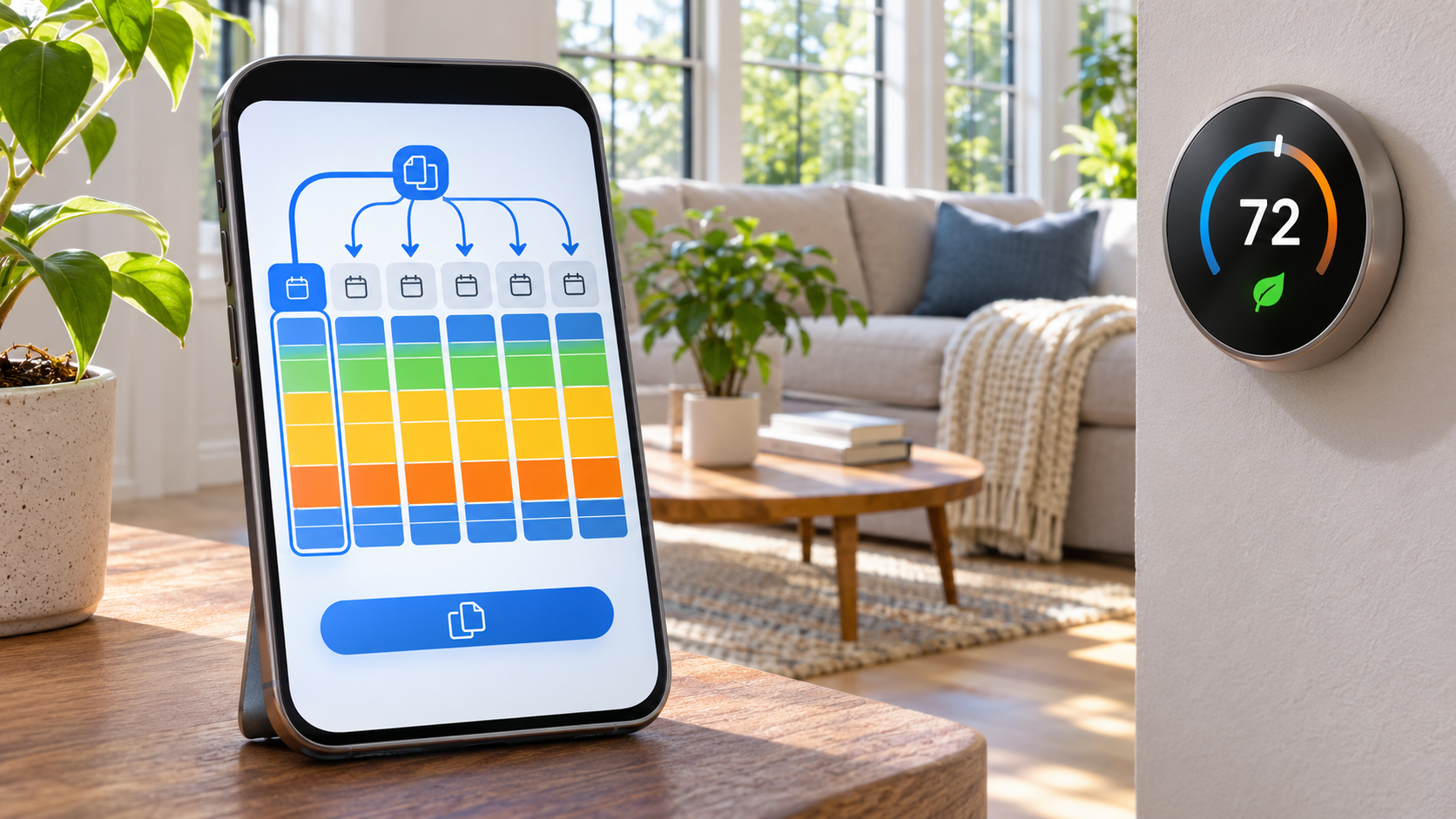
Schedule copying reduces repetitive editing, but the copied temperatures and times still need a day-by-day review. Illustration: ReaderSpice.
The Google Home app can now copy a daily temperature schedule to several other days. Google documents the feature for Nest Thermostat and Nest Learning Thermostat (4th gen), but the selection step differs between the two interfaces. The feature copies settings; it does not decide whether weekday, weekend or occupancy patterns should be identical.
Nest Thermostat workflow
- Open Google Home and select the correct thermostat.
- Tap Schedules, then open the day that already has the desired schedule.
- At the bottom of the day view, choose the option labeled to copy that day, such as “Copy Wednesday schedule.”
- Select each destination day that should receive the schedule.
- Tap Done or Save, then open the destination days and verify their temperature and time blocks.
Nest Learning Thermostat fourth-generation workflow
- Open the thermostat in Google Home, tap Schedules and choose the source day.
- Tap the temperature entry Google presents for copying rather than looking for the same bottom-of-screen day button used by Nest Thermostat.
- Choose the destination days, save the change and inspect each copied day.
Before copying, take screenshots or record the old schedule. A broad copy can overwrite a deliberately different weekend, remote-work or school-day plan. After saving, check Early-On, Eco, presence and seasonal behavior separately; a copied schedule does not guarantee every thermostat preference or automation is duplicated. Watch the system for several cycles and restore the old pattern if comfort or runtime worsens.
One-step Google Home Premium camera setup in the United States
U.S. Google Home Premium subscribers adding a new camera can enable eligible premium camera features in one step instead of opening each feature separately. Google says existing camera settings remain unchanged when the new device is added, and users can customize or opt out of specific cameras or features before finishing setup.
The shortcut should not become a blind “enable all” decision. Review microphone recording, familiar faces, event history, Activity Zones, AI descriptions, notifications and any data-sharing controls one by one. A household may want recorded history on an exterior camera but no microphone, or familiar-face alerts on a doorbell but not on a camera aimed toward a shared space.
Speaker groups and Google TV audio output fixes
The update also repairs several media-control problems. Android speaker-pair and group controllers should no longer open as a blank loading state immediately after setup, and group controls are meant to remain responsive. Music transfer between speakers and displays is more reliable, including adding and removing speakers from Cast controls. These fixes improve control state; they do not make unsupported speakers compatible or eliminate network multicast problems.
Google TV audio-output setup now preselects already-paired speakers and handles switching more cleanly. The app can display “TV Audio (Default)” when output returns to the television, and Google fixed missing or “null” device text on confirmation screens. If lip sync, dropout or grouping problems remain, verify the selected output on both the TV and Home app, test a single speaker before a group and check that every device uses current firmware.
Gemini Live and interactive stories are rolling out
Google says the improved Gemini Live experience is rolling out over the coming weeks with faster conversation and support for daily actions such as timers and light control. Interactive storytelling also begins rolling out with expressive voices, dynamic pacing and the ability to steer the story. These additions expand the fall announcement rather than replacing ordinary Assistant controls on every device.
Gemini Live requires an eligible Google Home Premium plan and compatible device in a supported country and language. A story response can be creative or inaccurate, and smart-home actions still deserve confirmation when they affect locks, alarms, heat or another safety-relevant device. Test low-risk commands first and keep manual controls available.
A verified Nest Thermostat option on Amazon
The schedule-copy instructions apply to the Google Nest Thermostat, including the Charcoal model GA02081-US listed on Amazon as ASIN B08HRPDBFF. View the Google Nest Thermostat in Charcoal on Amazon (ASIN B08HRPDBFF). Google’s official specifications list Wi-Fi, Bluetooth Low Energy, temperature, humidity, motion and ambient-light sensors, plus primary power from compatible HVAC wiring and two AAA backup batteries.
Confirm the exact model, color, seller, condition, warranty, return policy and current price on the live listing. Use Google’s compatibility checker before purchase. Many 24V systems are supported, but some installations require a C wire, Nest Power Connector or professional help. Schedule copying is a software convenience, not a reason to replace a compatible working thermostat by itself.
Affiliate disclosure: ReaderSpice may earn a commission from qualifying Amazon purchases made through the link above, at no additional cost to you.
Who should act now and who should wait
Act now
- Owners of one of the three named outdoor cameras who want to test the remote siren with household notice and a safe plan.
- Multi-admin homes that need to report a repeatable camera problem and can separate feedback from optional clip donation.
- Nest Thermostat or fourth-generation Nest Learning Thermostat owners who manually repeat the same schedule across several days.
- Android 17 or Pixel owners affected by missing notification previews, event playback errors or landscape-control overlap.
- New U.S. Google Home Premium camera owners who want a faster initial feature setup but will review each privacy setting.
Wait or test cautiously
- Owners of unsupported camera models waiting for a siren button that Google has not announced for their hardware.
- Homes where a siren test could disturb neighbors, pets, a sleeping resident or a person with sensory sensitivity.
- Admins who cannot confirm household consent or who do not need to share a private clip to explain the feedback.
- Thermostat users with intentionally different daily routines who have not saved the existing schedule first.
- Users expecting an app update to repair weak Wi-Fi, expired video history or unsupported hardware.
Troubleshooting checklist
- Feature missing: verify the exact model, home, admin role, country, subscription and app version before resetting hardware.
- Siren absent: open live view on one of the three supported cameras; a recorded event page is not the documented control surface.
- Siren will not stop: retry the in-app stop control, leave live view and reopen it, then use physical access or manufacturer support if the camera remains abnormal.
- Feedback unavailable: confirm the rollout has reached the home and compare the release notes with the current in-app form; older help text may lag the new multi-admin change.
- Clip donation concern: use Data Donation Manager to review donated clips and withdraw permission rather than deleting only the ordinary event.
- Schedule-copy option missing: confirm the thermostat is Nest Thermostat or Nest Learning Thermostat (4th gen) and use the model-specific selection step.
- Copied schedule feels wrong: compare the destination days with the saved old schedule, restore the intended weekend or occupancy pattern and monitor HVAC behavior.
- Media control still blank: update speakers, displays, Google TV and Google Home, then test one device before rebuilding a group.
The bottom line
Google Home’s November 25 update is useful because it reduces several small but repeated tasks: reaching an outdoor-camera siren, reporting a bad camera event from a multi-admin home, copying thermostat schedules and repairing common camera or speaker-control failures. None of those improvements requires replacing compatible hardware solely because the update exists.
The caution is access and privacy. A siren can disturb or escalate, a donated clip can include more people and metadata than expected, an admin role carries broad authority and a copied schedule can overwrite intentional differences. Verify the exact device and plan, test one change at a time, separate feedback from optional video sharing and preserve the prior thermostat schedule before applying a weekly copy.
Sources
Google Home & Nest Community: Google Home release notes for November 25, 2026
Google Home Help: What’s new in Google Home, 2026 release notes
Google Home Help: Temperature schedules and copying a daily schedule
Google Home Help: Video event feedback, clip donation, retention and withdrawal
Google Home Help: Manage people and admin permissions
Google Home Help: Watch live camera video in Google Home
Google Home Help: Set up a Nest camera and supported models
Google Home Help: Google Home Premium features and requirements
Google Store: Nest Thermostat specifications
ReaderSpice: Google Home Fall 2026 camera, thermostat and Gemini guide
Amazon: Google Nest Thermostat Charcoal, ASIN B08HRPDBFF (affiliate link)