
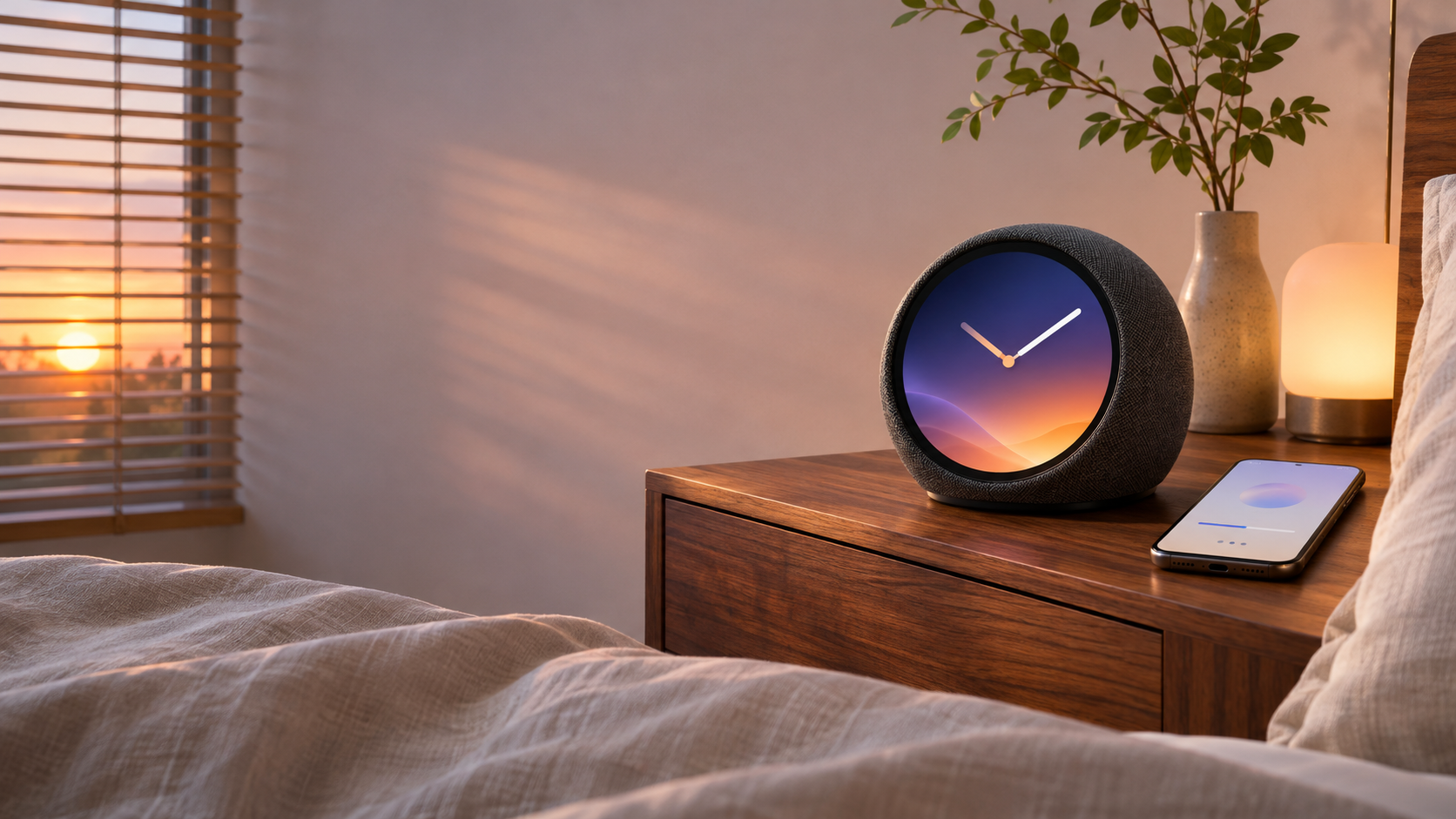
Amazon Echo Time is a camera-free bedside smart clock with a 3.2-inch circular touchscreen, customizable clock faces and an optional smart alarm that can sound during a lighter stage of sleep. The useful setup is more than scanning the first QR code: owners need to decide whether sleep sensing belongs in the bedroom, choose a wake-up window they can live with and understand that muting the microphones disables the sensing feature and smart alarms.
This guide covers Amazon’s current setup and support instructions for Echo Time, including Wi-Fi preparation, alarm controls, clock-face customization, privacy settings and factory reset. It is not a hands-on review, a sleep study or medical advice. Amazon describes sleep stages as estimates and says sleep sensing is not intended to diagnose, treat or prevent a health condition.
ReaderSpice previously compared Echo Time with Amazon’s wider 2026 Alexa lineup. This article stays focused on operating the bedside clock safely and predictably, including the parts that are easy to miss when the first-run wizard makes setup look finished.
Echo Time setup at a glance
- Hardware: a camera-free smart clock with a 3.2-inch circular touchscreen, microphones and Omnisense sensing features.
- Guided setup: plug in the included adapter, scan the QR code on the display and finish Wi-Fi and account sign-in in the Alexa app.
- Manual setup: if the QR route is not suitable, open the Alexa app and use Add device to begin setup.
- Smart alarm window: Echo Time can look for lighter sleep during a user-selected period from 10 to 60 minutes before the target alarm time.
- Privacy dependency: sleep sensing is optional, but a smart alarm cannot work when sleep sensing is off or the microphones are disabled.
- Clock faces: press and hold the home screen, browse options, choose Edit, make changes and select Save.
- Reset path: restart first; if necessary, use Settings > Device Options > Factory Reset and choose whether to retain smart-home connections.
- Smart-home role: Amazon’s current developer list identifies Echo Time as a Matter controller and a Thread 1.3 border router for compatible devices.
Before you plug it in
Place Echo Time on a stable nightstand where the screen is visible but not close enough to be knocked over while reaching for it. Leave ventilation space, keep the power cable away from bedding and use the included power adapter. Amazon’s safety information lists a 12-volt, 1.25-amp input and an operating range of 0 to 35 degrees Celsius. A bedside device should not be covered by a pillow, blanket or clothing while powered.
Have the Wi-Fi network name and password, an Amazon account and an updated Alexa app ready. Decide which Amazon account should own the device before setup. A shared household should agree who can change alarms, routines, voice history and privacy settings rather than attaching the clock to a temporary or rarely used account.
Sleep sensing also deserves a decision before the first night. It uses ultrasound to detect breathing-related movement and proximity, then processes those signals to estimate approximate sleep stages. Amazon says on-device presence detection does not send audio to the cloud, although a presence signal can be sent to the cloud to enable the feature. That distinction is useful, but it does not eliminate the need for consent from anyone who shares the room.
Set up Echo Time with the QR code or Alexa app
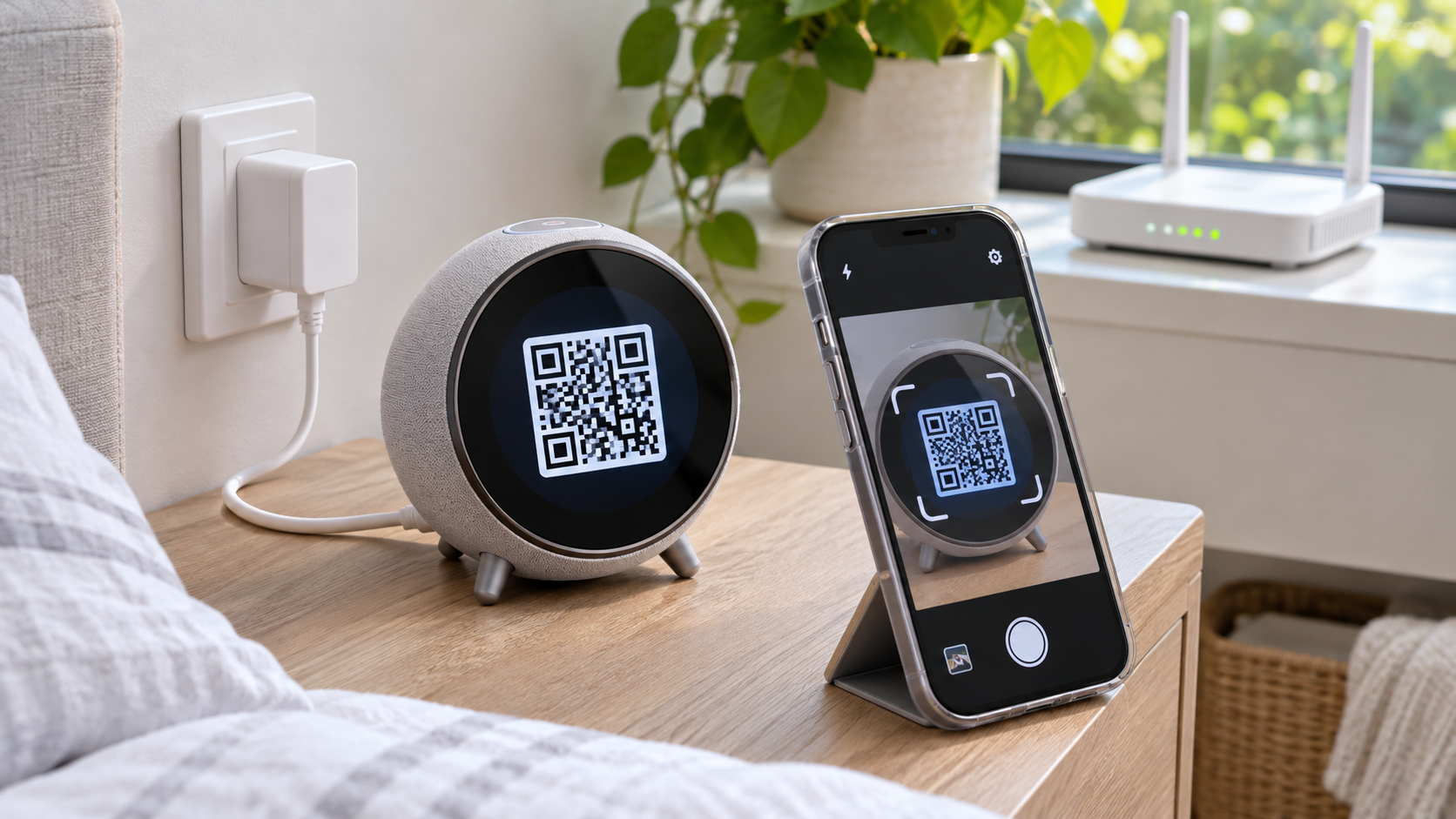
The QR code opens Amazon’s guided Alexa-app setup. Owners can also add the device manually from the Alexa app. Illustration: ReaderSpice.
- Connect Echo Time to power with the included adapter and wait for the setup QR code to appear on the circular screen.
- On the phone that will manage the device, update or install the official Amazon Alexa app.
- Scan the QR code with the phone camera and open the link. If the Alexa app is already installed, the link should start the guided Echo Time setup.
- If you do not want to scan the code, open the Alexa app, select Add device and choose the Echo Time setup path manually.
- Choose the intended Wi-Fi network and enter its password. Keep the clock and phone near the router during the first update.
- Sign in to the correct Amazon account. Amazon may direct you to amazon.com/code and display a verification code for account linking.
- Allow the clock to download its current software. Do not unplug it during an update or while it is restarting.
- Finish the on-screen choices, then confirm the displayed time zone, device location, language, wake word and household profile are correct.
- Set one ordinary alarm and test it at a convenient time before enabling a smart alarm for the next morning.
If Wi-Fi or sign-in fails
A QR code only starts the process; it does not prove that the clock has joined the correct network. If the Alexa app cannot find Echo Time, confirm that Bluetooth and local-network permissions are available to the app, that the phone is not isolated on a guest network and that the network accepts ordinary smart-home devices. Captive portals used by hotels, dormitories and some workplaces can prevent setup.
If the network name does not appear, move the clock closer to the router, restart the phone and router, and retry from Add device in the Alexa app. If account verification loops, close old sign-in tabs and start again from the official app. Do not enter an Amazon password into a page reached through an unsolicited message or search advertisement.
Configure the smart alarm window deliberately
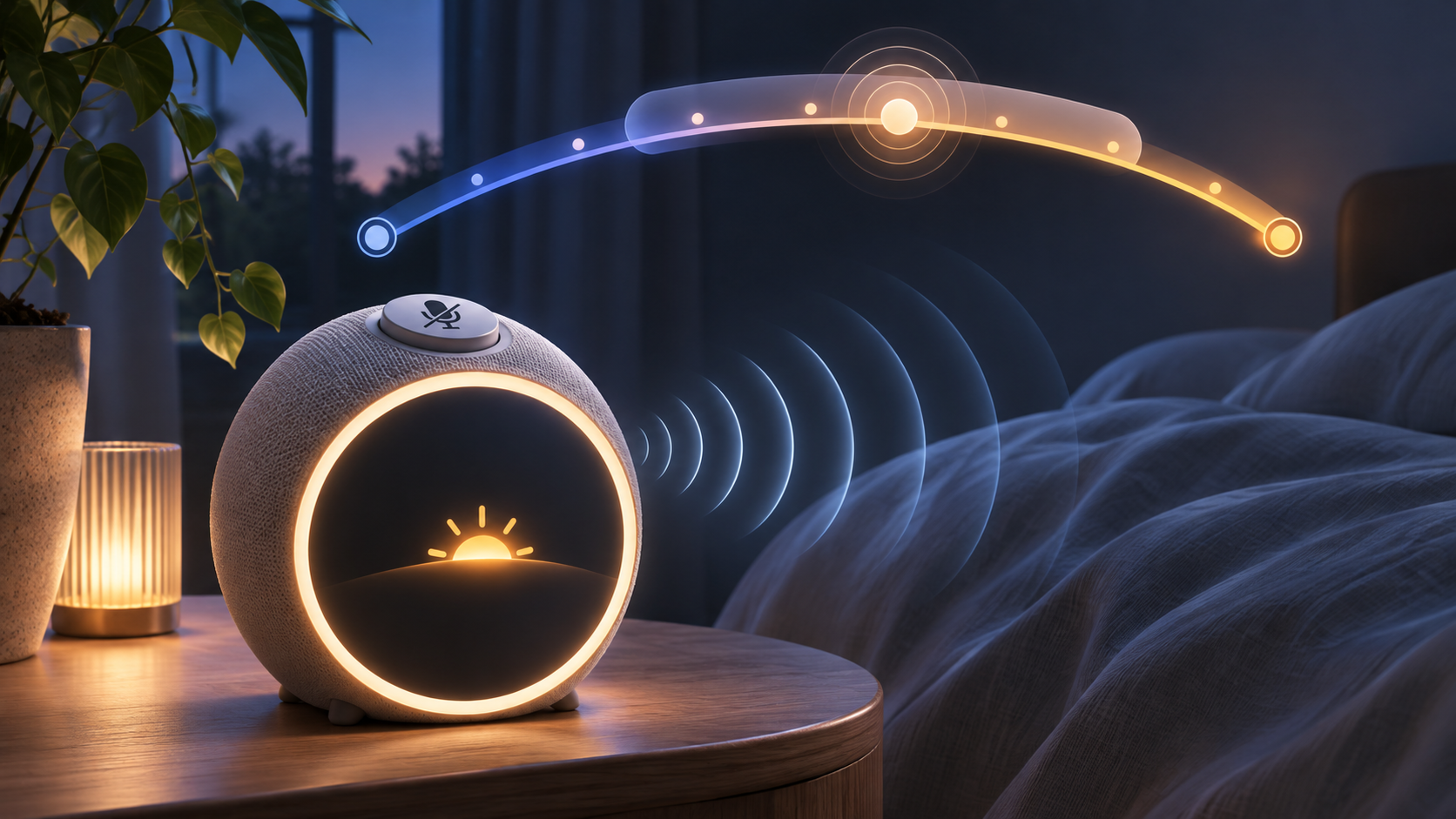
A smart alarm looks for lighter sleep within a chosen period before the target time. Muting the microphones turns off sleep sensing and smart alarms. Illustration: ReaderSpice.
A normal alarm has one intended time. Echo Time’s smart alarm adds a window before that time and can sound when the device estimates lighter sleep. Amazon’s launch information describes a selectable window from 10 to 60 minutes. If the target is 7:00 a.m. and the window is 30 minutes, the alarm may sound between 6:30 and 7:00 when the sensing system identifies a lighter stage; it should not be treated as permission to sleep past 7:00.
Start with 10 or 15 minutes. A wide window gives the system more opportunity to find a lighter stage, but it also creates a larger difference between the earliest and latest possible wake time. People coordinating medication, transport, school drop-off, caregiving or shift work may prefer a conventional alarm or a narrow window until they know how the feature behaves in their room.
Create and manage alarms on the clock
- Swipe down from the top of the Echo Time screen and select Alarms.
- Select the plus control to create a new alarm, choose the target time and open Settings for available sound, repeat and smart-alarm options.
- Enable sleep sensing only if everyone affected by the device understands and accepts how it works.
- Choose a 10- to 60-minute smart-alarm window. Begin narrow and widen it only after several mornings of predictable behavior.
- Select Save, then return to the alarms list to confirm the alarm is active.
- To edit, select the alarm and save the changes. To disable it temporarily, use its switch. To delete it, swipe left on the alarm.
Amazon also says a smart alarm can be created by voice, in Alarm Settings on the device or under Alarms & Timers in the Alexa app after sleep sensing is enabled. Interface wording can change with software updates, so the on-device Alarms list remains the place to verify the final time, repeat pattern and active state.
Echo Time can build the alarm tone in energy and allows up to four snoozes according to Amazon’s launch page. Treat snooze limits as part of the plan, not a backup for a missed schedule. Keep a separate alarm available for critical travel, exams, medical appointments or the first week of a new shift until the bedside setup has been tested.
Understand sleep sensing and privacy before the first night
Echo Time has no camera. Its sleep feature uses ultrasound to detect breathing waveforms and proximity to the device. Amazon describes those waveforms as estimates of small body movements associated with breathing, such as chest movement, and uses them to estimate approximate sleep stages. The result is a convenience signal for a wake-up feature, not a clinical measurement or a diagnosis.
The microphone-off button is a hard operational boundary: Amazon says sleep sensing and smart alarms do not work when the microphones are disabled. Turning off sleep sensing in device settings has the same consequence for smart alarms. A household should choose between continuous use of that feature and the reassurance of a muted bedroom device rather than assuming both are available at once.
- Review sleep sensing in the Echo Time device settings in the Alexa app and turn it off if it is not wanted.
- Use the microphone-off button when privacy takes priority; expect the smart-alarm function to become unavailable.
- Review or delete Alexa voice history under More > Alexa Privacy > Review Voice History.
- Open More > Alexa Privacy > Manage Your Alexa Data to check saved-data and deletion preferences.
- Remove old phones, household profiles and account access that no longer need control of the clock.
- Do not use estimated sleep stages to change treatment, medication or a medical plan; discuss health concerns with a qualified clinician.
Room layout can affect any contactless sensing system. Partners, pets, moving curtains, fans and a nightstand far from the intended sleeper may complicate results. Amazon does not present Echo Time as a medical device and does not promise that it can distinguish every nearby movement. Judge it by whether alarms are predictable in the actual room, not by a single night’s stage estimate.
Personalize the clock face and display
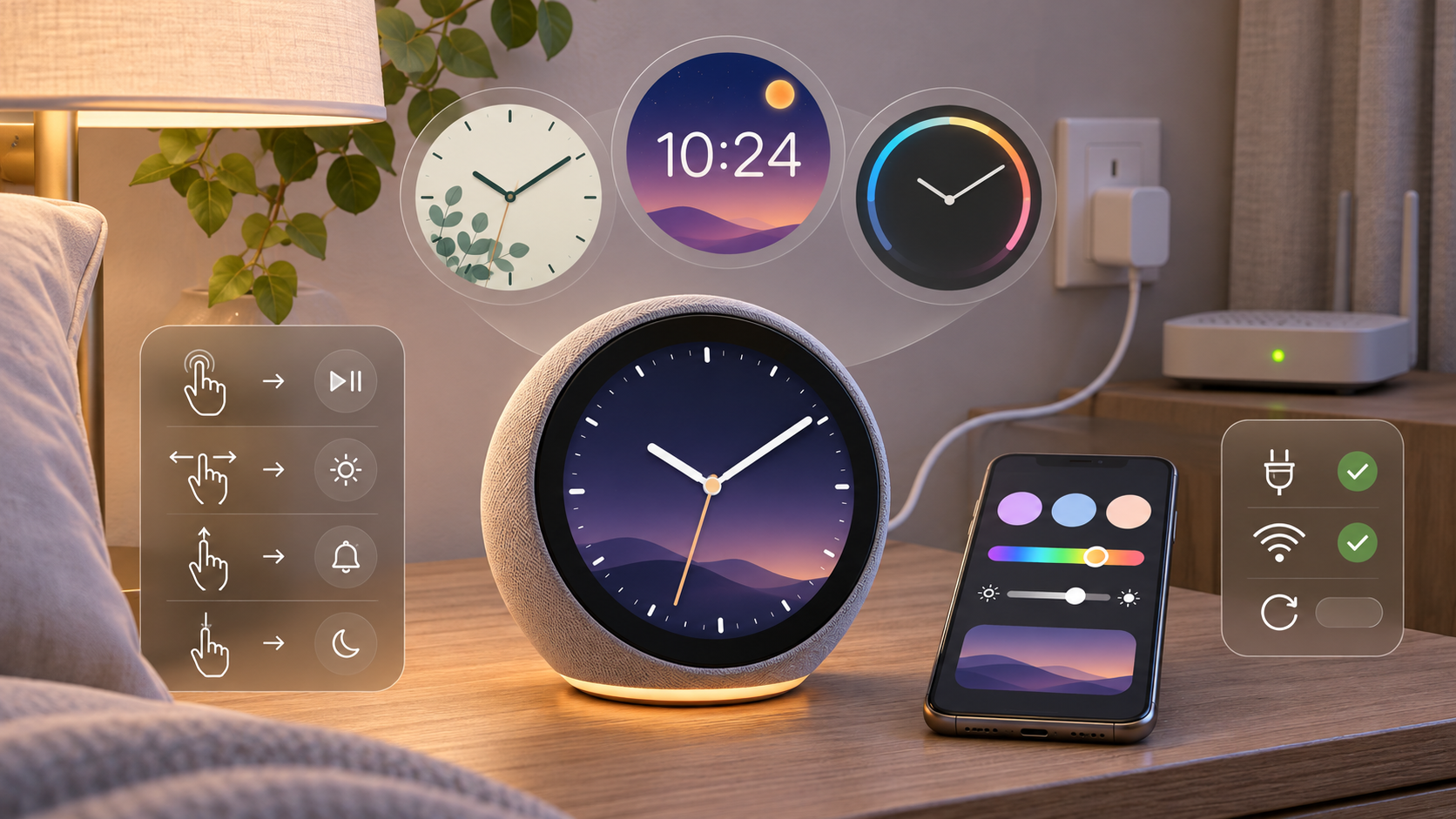
Press and hold the home screen, browse clock faces, choose Edit and save the result. Display choices should stay legible without lighting the bedroom unnecessarily. Illustration: ReaderSpice.
- Press and hold anywhere on the Echo Time home screen.
- Swipe left or right to browse available clock faces.
- Select Edit on the face you want to use.
- Choose from the available color, style, sound, widget and other options shown for that face.
- Select Save and verify the final face remains readable from the normal sleeping position.
Amazon advertises hundreds of clock-face choices, but the practical goal is a display that communicates the time without becoming a night-light. Use night mode or the lowest comfortable brightness, avoid high-contrast widgets you do not need and check the screen after the room is fully dark. The launch page says Echo Time can reduce blue light at night and gradually brighten toward morning; those features should complement, not replace, a consistent sleep environment.
A decorative face can hide useful status information or make an alarm state harder to notice. After changing the face, open the alarm list again and confirm tomorrow’s alarm. If another household member depends on the clock, choose a face and brightness that both people can interpret without opening the Alexa app.
Use routines and smart-home controls without overloading the bedside
Echo Time can participate in Alexa routines, such as dimming compatible lights before bed or turning on selected lights after an alarm. Amazon’s Matter support list also identifies the device as a Matter controller and a Thread border router using Thread 1.3. That can help compatible products join an Alexa smart home, but it does not guarantee support for every Matter device type, manufacturer feature or local-only automation.
Build one routine at a time and test it during the day. A wake routine should not unlock doors, open a garage or trigger a high-volume device merely because an alarm fired. Keep safety-critical controls separate, make the room and device names unambiguous and verify what happens when the internet, a bulb or the Echo Time is offline.
- Start with low-risk actions such as lights, weather or a spoken reminder.
- Use gradual light changes only with bulbs that respond reliably and have a sensible power-on state.
- Do not make a smart alarm the only trigger for a security, medical or caregiving workflow.
- Check each connected device’s own firmware, account permissions and privacy policy.
- Retest routines after changing Wi-Fi, replacing a router or moving Echo Time to another room.
Troubleshoot in the least destructive order
A factory reset should be the last routine step because it can erase settings and force account and Wi-Fi setup again. Start by confirming that the clock has power, the display responds, the alarm is active and the Alexa app shows the intended device. Restart the clock by unplugging its power adapter, waiting 10 seconds and reconnecting it, following Amazon’s Echo Time-specific reset page.
- Alarm did not sound: verify the alarm is active, volume is audible, the repeat days are correct and Do Not Disturb or a routine did not change the expected behavior.
- Smart alarm option is unavailable: confirm sleep sensing is enabled and the microphone-off control is not active.
- Clock shows the wrong time: check the device location and time zone in the Alexa app, then restart after saving the correction.
- Clock face will not save: return to the home screen, restart once and try another face before resetting the device.
- Device drops offline: test the phone on the same network, restart network equipment and move the clock closer to the router before changing credentials.
- Alexa responds from another room: rename devices clearly and review the wake word and preferred-speaker settings for nearby Echo products.
Reset Echo Time only when restart and settings checks fail
- Say “Go to settings,” or swipe down from the top of the screen and select Settings.
- Select Device Options, then Factory Reset.
- Choose Reset, but Retain Smart Home Device Connections if the goal is to keep compatible smart-home links and the option is appropriate.
- Choose Reset to Factory Defaults when the device should erase its settings completely.
- After the reset, wait for the setup QR code and complete the Alexa-app setup again.
Before giving away, selling or recycling Echo Time, also remove or deregister it from the Amazon account and confirm it no longer appears as an active device. A reset screen is not a substitute for reviewing account access and saved household permissions.
A verified Echo Time option on Amazon
The Graphite Amazon Echo Time is listed under ASIN B0FRPDXJYC and model FS738N. Amazon announced a U.S. launch price of $199.99, but price, color, stock, bundles and seller details can change. Confirm that the live listing says Echo Time, shows the intended color and model, and includes the correct power adapter for the destination country before ordering.
Check the Graphite Amazon Echo Time listing (ASIN B0FRPDXJYC)
Affiliate disclosure: ReaderSpice may earn a commission from qualifying Amazon purchases made through the tracked link above, at no additional cost to you.
Alexa+ features and availability can depend on region, account and subscription. Amazon says Alexa+ is included with Prime, but the hardware purchase does not guarantee that every advertised service is available in every country or remains included forever. Buy the clock for the alarm, display and controls that solve a current need, not for an unverified future feature.
Who Echo Time fits and who should skip it
Echo Time makes the most sense for an Alexa household that wants a camera-free bedside display, accepts an always-powered cloud assistant in the room and will use the customizable alarm window. It is also a practical choice when a Matter controller or Thread border router can replace a separate smart-home role, although compatibility should be checked device by device.
It is a poor fit for anyone who wants sleep tracking while keeping the microphones disabled, needs a medical sleep measurement, requires a battery-backed alarm during outages or does not want an Amazon account connected to the bedroom. A conventional alarm clock may be cheaper, more predictable and easier to audit. A wearable may provide different sleep data, but it introduces charging, comfort and account tradeoffs of its own.
The strongest setup is intentionally modest: correct time zone, one tested alarm, a narrow smart window, a dim clock face and privacy settings everyone in the room understands. Add routines and smart-home devices only after the basic bedside function works reliably.
Bottom line
Echo Time’s best feature is not the circular screen; it is the ability to combine a conventional target time with a limited earlier wake-up window. That convenience depends on sleep sensing, and sleep sensing depends on microphones remaining enabled. Owners should treat that dependency as the central privacy choice, not a footnote.
Scan the QR code or add the clock manually, update it, test a normal alarm and then enable a 10- to 60-minute smart window only if the room’s occupants consent. Keep the display dim, verify alarms after every clock-face or routine change and restart before considering a reset. Done carefully, Echo Time can be a useful bedside tool without pretending that estimated sleep stages are medical data.
Sources
- Amazon Devices: Echo Time launch, smart alarm window, display and privacy overview
- Amazon Help: How to Set Up Your Echo Time
- Amazon Help: Support for Echo Time
- Amazon Help: Personalize Your Echo Time Clock Display
- Amazon Help: Create Alarms with Echo Time
- Amazon Help: Manage Your Alarms with Echo Time
- Amazon Help: Reset Your Echo Time
- Amazon Help: Alexa and Alexa Device FAQs
- Amazon Help: Alexa Privacy Settings
- Amazon Developer: Alexa Matter device support
- Amazon Help: Safety and Compliance Information for Echo Time
- Amazon: Echo Time Graphite product listing (ASIN B0FRPDXJYC)
Inline image 1 alt text: Circular smart clock showing a setup QR code while a smartphone scans it beside a home Wi-Fi router.
Inline image 2 alt text: Camera-free bedside smart clock with an abstract alarm window, sunrise display and ultrasound-like sensing waves.
Inline image 3 alt text: Circular bedside smart clock with customizable clock-face options, gesture controls and connectivity cues.